Fix Office 2010 Install Error 1402 Setup Cannot Open Registry Key
Deleting Grooveex.dll was one of the two problems I encountered recently during Office 2010 re-installation in Windows 7. This post will focus on the Install Error 1402 where Office 2010 setup cannot open the registry key named Unknown/Component/[Random Numbers]. Fixing this problem requires a cup of coffee and patience.
This error is only shown when registry keys do not have Administrator permission. But you are logged in as Administrator, right? As it happens some setup can mess up the registry permissions and Office 2010 installer is no exception.
Entering the following line in Command Prompt will fix the problem for most people,
secedit /configure /cfg %windir%\inf\defltbase.inf /db defltbase.sdb /verbose
but it didn’t work for me. If it doesn’t work for you as well, follow the second method below.
Download SubInAcl, a command line tool from Microsoft that enables administrators to obtain security information about files, registry keys services, etc. It will install to Program Files folder, copy SUBINACL.EXE file to /Windows/System 32 folder.
Now create a new notepad and paste the following code in it;
Rename the notepad to reset and change the extension to cmd, the complete name will become “reset.cmd” as shown in the screenshot below. Run this file as administrator.
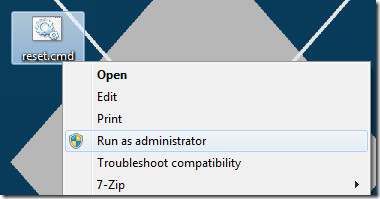
The process will now take several minutes, do NOT close the Window what may come. Once the process is complete, the command line window will automatically close and you can then install Office 2010 successfully.
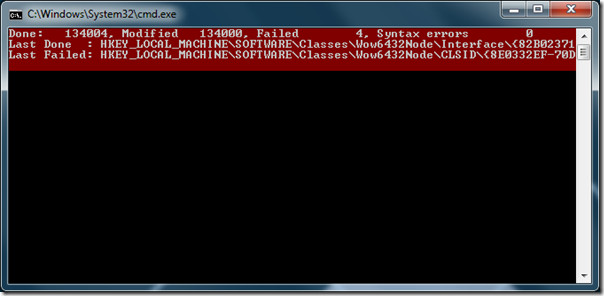
via Yuri’s Technology Blog & DSL Report
Update: Mike in the comments below has shared a method that worked for him and many others, the method is as follows:
I was able to get the install working with Win7 64 bit. When you get the error: “setup cannot open the registry key named” The key that follows is what you want to look for in the registry. Once you find the key (mine was in hklm\software\Microsoft\Windows\CurrentVersion\Installer\UserData\S-1-5-18\Components), you will notice that there are subkeys underneath that you don’t have any permission to. First, right-click the top key (one in error message) and click permissions. Next click advanced and then the owner tab. Make sure adminsitrators is listed as an owner and then click the check box “Replace owner on subcontainers…”. When you press OK, you will get errors but that’s OK. Now check “Full Control” on the permisions for the administrators group and then click the Advanced button again. Then check the “Replace all child object permissions…”. Click OK. Again, you might get errors but that’s OK. You’ll notice you have permissions to the subkeys now.
Unfortunately, there is more than one key effected. If you run setup again, you get an error on another key. I ended up looking for any key in the components area that had the arrow showing they could be expanded. Any one of those I didn’t have permission to, I changed like above. I think there were about 7 or 8 more. Eventually, the install worked and now I’m up and running. Long process but it did work for me.

Hey,My setup cannot open the registry key
HKEY_LOCAL_MACHINESOFTWAREMicrosoftWindowsCurrentVersionRun.
None of the above worked.Please suggest a solution
“secedit /configure /cfg %windir%infdefltbase.inf /db defltbase.sdb /verbose”
it work for me! thank you so much!
it work, thanks. you’ve saved my day 😀
Excellent solution Mike. I did your trick on one level above (Components) did the trick.
I was very surprised the first solution worked for me!
the solution with secedit /configure /cfg %windir%infdefltbase.inf /db defltbase.sdb /verbose worked for me.
I also run the setup.exe as administrator.
The installation completed successfully after that. Thank you!
dude. i love you? THANK YOU.
I was able to get it installed with the secedit /configure /cfg %windir%infdefltbase.inf /db defltbase.sdb /verbose
Many Thanks! This Article helped me a lot.
First method worked very well for owa on sharepoint!
thanks so much!
Dude you are a life saver!!! It really worked for me altough it wasnt 8 more 300!
its work for me:)
You are the best… I fixed an installation problem with Virtual Server 2008 R2 using your advice, I really really appreciated your help… thanks
Thank You. I struggled all day with this and your suggestions fixed it for me.
running secedit solved my problem right away. Thanks 🙂
AWESOME SOLUTION ..THANKS NAKO…
I deleted My registry key stated next to error. and wala it worked.
The first methods didn’t work for me… Mike’s method did work for me!! I jst changed permissions of HKEY_LOCAL_MACHINESOFTWAREMicrosoftWindowsCurrentVersionInstallerUserDataS-1-5-18Components and changed owners of the key and all its subkeys as administrator…
Very very good!! You solved my problem. Thank you my friend…
Hello this worked for me thank you so much
The first method did the trick! Thanks
thank you — I ran Fixit, then the secedit and finally the SubinAcl and your tools got my registry clean and Office 2010 installed! Thank you, thank you, thank you
Whaaaaa, thant you so much for this incredible tip!!
Thank you SO MUCH!
Even opening Open Office was causing MS Office re-installation windows with a bunch of errors. I went through a nightmare with MS website and their “fixes”. NOTHING helped. Then I just followed this instructions, line by line. (Here is my warning for everybody – the process in cmd window is really long. Expect about 30 minutes to finish, may be even more, but you don’t even have to restart the computer after that).
Then I just clicked on my MS Word icon – beauty is here again)
For me the above procedure worked on Windows XP pro with MS Office XP with Frontpage.
THANK YOU !
Thank you mike
Thanks a million, the secedit command solved my issues!
Thanks a million, the secedit command solved my issues!
i am dawn.i cannt install micorosoft 2010 ,just like the picture below.i need your help .
same problem dude…
thanks man, you just save me alot of time.
I had a helluva time with this until I did BOTH, the cmd script followed by the “short method” – secedit /configure /cfg %windir%\inf\defltbase.inf /db defltbase.sdb /verbose
That combination was the only way for me to get it installed.
Im so confused. I found the folder with that b9b1a1ee8 and i opened permissions as the article suggested. Yet for some reason, this has some sort of goofy “creator owner” user. I have vista, and it has administrator privileges ok, with full control. Creator Owner won’t change to full control, no matter how many times I check the boxes and select apply, it immediately unchecks the box. I was going from 2007 to 2010, and it have me this registry key issue in 3 areas: UNKNOWN/COMPONENTS\DA42BC89BF25F5BD0AF18C3B9B1A1EE80002119F20000000.
heeeellllpppp!!!
The command line in the very first fix option worked for me. Thanks so much, this article ended several days worth of struggling and wrestling with this problem.
Had issues with a corrupt Office 2003 registry key and this fixed it for the Office 2010 upgrade. Thanks!
I struggled with installing Office 2010 for a few hours (there were some other issues as well), but the command line fix worked for me. Thanks, Great post!
I had Office 2007 and then upgraded to Office 2010 Business. Tried SO many things but still had the problems. This fixed it for me! Thanks!
You made my life a bit easier… THANKS! Worked like a charm
I can’t thank you enough for this fix. I’ve tried everything I could think of short of an OS reinstall, and this finally fixed my installation issues. Have one on me bud!
THANK YOU VERY MUCH!!!! WORKED SPLENDID!!
Thank you very much, it worked like a charm!
Great, works perfectly for me.
It’s Not Working for me I cannot edit the registry… still access denied. I have already installed subinacl in system32 folder. I guess the problem is when I run the reset.cmd file because I get the following results:
c:\Windows\System32\subinacl /subkeyreg HKEY_CURRENT_USER /grant=administrators=f /gramt=system=f La estructura del identificador de seguridad no es válida.
Current object HKEY_CURRENT_USER will not be processed
Elapsed time 00 00:00:00
Done 0, Modified 0, Failed 0, Syntax errors 1
Does anyone knows what am I doing wrong ?I’m working with windows 7, and error 1402 it’s shown when I try to install Office 2010. Please Help
Thanks in advance
10x Nakodari it’s work …. greatings from Bulgariaa
Thank you so much! I haven’t slept more than a couple hours a night because of this issue, and your solution fixed it right up! Unbelievable!
Unfortunately the SubInAcl solution didn’t work in my case, but Mike’s solution of finding each key that had a problem and fixing the permissions on each one worked GREAT & I was able to finally install and use MS Office 2010. Thanks for posting these solutions!!
I used the “Change Permissions” on each key that came up with the 1402 error.
This worked after the second key permissions was changed.
Office 2010 went in and is working fine.
It worked from the first try with that command. YEEEES!!
Thank you, dude, you rule!
Just go to HKEY_LOCAL_MACHINE\SOFTWARE\Microsoft\Windows\CurrentVersion\Installer\UserData\S-1-5-18\Components, set full control to Administrator, open advanced and mark “Replace all child object permissions…”
Thank you. The first method resolved my issue cleanly and quickly. I had tried everything else up until this, wish I had found this first. Thank you, thank you! You’re a computer-life saver.
Iam not able to install OFFICE 2003 on xp computer.Getting error 1402.I tried to give permissions,still not working….
Thanks! Fantastic post… saved a huge amount of time. Worked great on windows 7 64 pro…
Nakodari’s and Mike’s solutions were good ones that got me onto the right track. After hours of trial and error, I was able to employ a simple solution: instead of Mike setting permissions for the error key that 1402 identifies, just give permissions to whole “Component” key! DO MAKE A BACKUP OF YOUR REGISTRY, just in case… (such as by creating a restore point).
In the registry go to “hklm\software\Microsoft\Windows\CurrentVersion\Installer\UserData\S-1-5-18\Components”. Right-click the components key and click permissions. Next click advanced and then the owner tab. Make sure adminsitrators is listed as an owner, click it, and then click the check box “Replace owner on subcontainers…”. Now check “Full Control” on the permisions for the administrators group and then click the Advanced button again. Then check the “Replace all child object permissions…”. Click OK. I had to do it twice before it “caught”. Hope it works for you!
I still keep on getting the error even after following both the original poster’s advice and Mike’s advice. What do I do?
Followed the instructions in the article first, which unfortunately didn’t work. Then followed Mike’s instructions to edit the registry (I am also running Win7 64bit) which worked, and luckily I only had to edit one key in the registry, not 7 or more!
Rather annoyed something like this happens with a programme costing nearly £200!
Thanks a lot, it works great!
Thanks a lot man ! The first solution worked for me !
It didn’t work for me ='(
Thank you….it woks great!!!!!!!!!!!!!!!!!!!!!!!!!!!!!!!!!!!!!!!!
This worked for me. I spent hours searching the web and trying so many different solutions.
THANKS!!!!!!!!
Hi,,, can i download the reset.cmd…its not working just like you shown in the picture above
didnt work
thanks! it really worked… does it work for every OS? because I have a computer with windows 98..
All OS that Office 2010 supports!
I was able to get the install working with Win7 64 bit. When you get the error: “setup cannot open the registry key named” The key that follows is what you want to look for in the registry. Once you find the key (mine was in hklm\software\Microsoft\Windows\CurrentVersion\Installer\UserData\S-1-5-18\Components), you will notice that there are subkeys underneath that you don’t have any permission to. First, right-click the top key (one in error message) and click permissions. Next click advanced and then the owner tab. Make sure adminsitrators is listed as an owner and then click the check box “Replace owner on subcontainers…”. When you press OK, you will get errors but that’s OK. Now check “Full Control” on the permisions for the administrators group and then click the Advanced button again. Then check the “Replace all child object permissions…”. Click OK. Again, you might get errors but that’s OK. You’ll notice you have permissions to the subkeys now.
Unfortunately, there is more than one key effected. If you run setup again, you get an error on another key. I ended up looking for any key in the components area that had the arrow showing they could be expanded. Any one of those I didn’t have permission to, I changed like above. I think there were about 7 or 8 more. Eventually, the install worked and now I’m up and running. Long process but it did work for me.
Good luck
Great, Mike. All the other options with registry cleaners and Microsoft tools failed. Pushing the permission changes as described by you did the trick. Thanks.
Look for keys ending with ‘AF18C3B9B1A1EE8’…
This is the right way about it, rather than running black box scripts. You can also apply at a higher level and recurse down into the keys
how did you find your registry keys folder? I have no clue as to how to even begin to look for mine…
Thank God for Mike!!
I had two frustrating weeks stuck on my computer trying to uninstall office 2007 and install 2010 and got all the familiar errors and deadends. At one point I almost gave up, but the only thing that kept me on forums and looking for solution is reinstalling windows. And I hate that. Doing that allll oveeeer again with all the programs and personal settings, I just couldnt accept that. And after trying all kinds of Registry boosters, downloads, run, msconfig tricks, and everything that i came up w on net I was exausted, cuz it just wouldn work for me. Until Mike’s comment poped up, and for the first time after 18 installation of office 2010 I got a screen telling me it was successfull! I couldnt believe, but now i do and just want to say THANK YOU MIKE, THANK YOU, THANK YOU, THANK YOU!
:))))
Great, Mike.
working with Win7 64 bit
Thanks.
Well, at first I tried to use this method to fix my Windows 7 and install Office 2010.
As it failed at first, I gave up on using it and restored my windows to sometime before I actually tried to install Office at first.
Conclusion: Seems it worked! Office has been installing on its own (so far) and looks like its on his way to finish =P
And SubInAcl does work on Windows 7 x64, it was running on mine but I decided to stop and restore because I knew the exact time this problem started to show up!
SubInAcl don’r work with Windows 7 x64………………
((((((((((((((((
It ran for me, but its currently still working…
Well you should make it reset.cmd and right-click run as administrator.
If it didn’t work try this:
Once you find the key (mine was in hklm\software\Microsoft\Windows\CurrentVersion\Installer\UserData\S-1-5-18\Components), you will notice that there are subkeys underneath that you don’t have any permission to. First, right-click the top key (one in error message) and click permissions. Next click advanced and then the owner tab. Make sure adminsitrators is listed as an owner and then click the check box “Replace owner on subcontainers…”. When you press OK, you will get errors but that’s OK. Now check “Full Control” on the permisions for the administrators group and then click the Advanced button again. Then check the “Replace all child object permissions…”. Click OK. Again, you might get errors but that’s OK. You’ll notice you have permissions to the subkeys now.
Subinacl works great for me. Thanks!
It takes a long time to finish the process, though.
subinacl /subkeyreg HKEY_CLASSES_ROOT /grant=administrators=f /grant=system=fhmmm…..subinacl /subkeyreg HKEY_CLASSES_ROOT /grant=Администратор=f /grant=system=forsubinacl /subkeyreg HKEY_CLASSES_ROOT /grant=”You user name in system”=f /grant=system=f
C:WindowsSystem32>subinacl /subkeyreg HKEY_CLASSES_ROOT /grant=administrators=f /grant=system=fLookupAccountName : HKEY_CLASSES_ROOT:administrators 1337 Идентификатор безопасности имеет неверную структуру.Current object HKEY_CLASSES_ROOT will not be processedElapsed Time: 00 00:00:00Done: 0, Modified 0, Failed 0, Syntax errors 1Last Syntax Error:WARNING : /grant=administrators=f : Error when checking arguments – HKEY_CLASSES_ROOTsorry for my system language, but why i got this syntax error?
Hi. I tried the fix you described using SubInAcl, but it still does not work for me. I cannot install Office because I keep getting the Error 1402 even after this process. Any other suggestions? Thanks.
Hi, before trying “secedit /configure /cfg %windir%\inf\defltbase.inf /db defltbase.sdb /verbose” in Command Prompt, disable all your firewalls, antiviruses, spam filters, etc. Only then run this command line. Worked perfect for me!
Tried SubInAcl and registry key changes, but it was all too simple!
Regards,
Note that in Spanish Windows version, you have to change Administrators, for Administradores.
For eg.: subinacl /subkeyreg HKEY_LOCAL_MACHINE /setowner=administradores