How To Bring Back Missing Hibernate Option In Windows 7 /Vista
One of the most regularly reported problems with Windows Vista is that the hibernate function, one of the power saving modes, does not work. Hibernation a feature which allows you to save the fully working desktop with all applications from your memory to your hard drive, and then power off the system, which you may power on at a later time to resume work from the point where you have left it. It is possible that you may find no hibernation option in your start menu, there can be few reasons, for example, your PC doesn’t support hibernation or you have the hybrid sleep mode turned on.
To bring back the hibernate option, follow these simple steps:
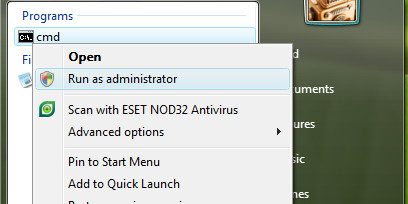
Go to Vista start search menu, type cmd, right click on it and select Run as Administrator.
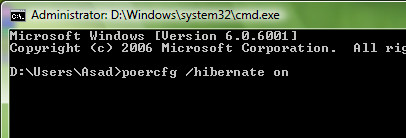
This should now enable the Hibernate feature under your PC.
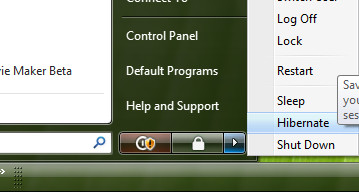
Sometime you may need to turn off the Hybrid sleep option to allow the hibernate option to appear under start menu.
Go to your Power settings and click on Change when computer sleeps.
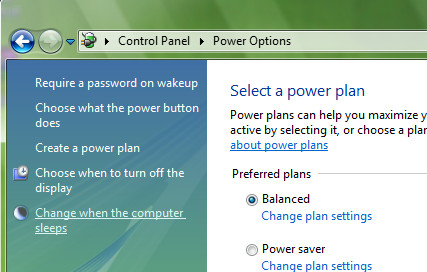
Now at the next window, click the option change advance power settings, It should open the settings window.
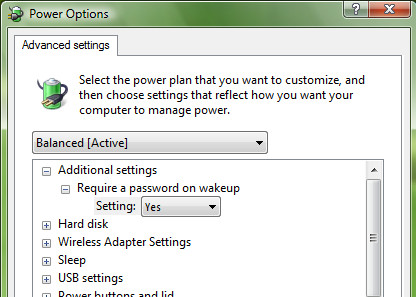
Navigate to the option Sleep, under that set the option to OFF, which says allow hybrid sleep
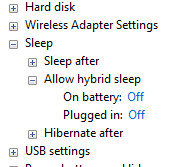
Apply and it should bring the hibernate option back to your start menu. This method should work with Windows 7 as well. Enjoy!

Very helpful. Thanks a lot.
Thank you so much! I entered “powercfg /hibernate on” at the command prompt, as recommended (there’s a subtle typo in the one you show), then toggled Hybrid sleep off, and that did the trick!
Wow, it works. Thanks for tis fix.
Nice, works like charm.
And I thank you for helping disable the hibernate function. I didn’t like the 12GB hiberfil.sys file on my C: (SSD), and I resolved it reverse, like you wrote: with an “off” at the end 🙂 So I was then able to delete the monster, I don’t ever used the hibernate feature anyway, only the “sleep”. It is a PC. So thanx again! 🙂
I had such high hopes for this tutorial fixing the issue…. No such luck !
Through Command Prompt I got error message (I am translating from my native tongue so it says something like… request not supported . you have one or more VgaSave controller. An internal component from your system has disabled hibernation
In control panel I navigate to Sleep all I have there is
– Allow activation timers
* Battery
*Plugged in
Again this is a rough translation done by myself from my native tongue. It not official windows terminology as such it is not to be taken word for word. Just to get an ideia of what I am dealing with here.
I am no longer able to hibernate nor sleep my PC. If anyone can help it would be appreciated. Thanx
Your write-up is usually provided me personally with one more standpoint with this subject matter, I do not know that issues can function in this way as well, actually extremely fascinating and useful tips are available, cheers for your giving.
I have discovered that sometimes the Hibernate button is still invisible, but not until I created a custom power options profile with Hibryd sleep set to off as recommended.
I hope this helps
Thanks
Doing this returned the hibernate option to my start bar, but it’s still missing from other power options such as “change what the power button does” or “change what closing the lid does” options. Do i need to reboot to get hibernate to appear as an option on those menus?
Thank you for the fix! My hibernate function had been missing and the command prompt command fixed it.
fixed thank you.
thx it’s worked
the second option
WTF! It’s worked! Thanks!
I can hardly believe the number of people who are going: “whoopee, I disabled hybrid sleep and its fixed now!” No, its NOT fixed. If you disable hybrid sleep and just use simple sleep, you have no protection against file loss or data corruption when a power loss occurs. You are just dodging the bug instead of determining why it does not work anymore when it used to work before. Where are the troubleshooting tools that would identify which driver is causing hybrid sleep to fail? And why should you have to do this at all?
Windows has exhibited problems with power management for as long as Windows has had power management. This OS is an unstable house of cards which requires constant maintenance, and the power management issue is just one of a thousand things that you will have to fix so long as you keep running Windows. The root of the problem is bad software design: the Windows registry and driver architecture is fundamentally flawed. At least the Mac just works, and if you cant afford that, you should try Linux or BSD. Just like Windows, Linux & BSD may not run perfectly on every hardware platform, but in those circumstances where they did work to begin with, they typically dont require the absurd degree of manual intervention that Windows does to keep running. This is why the vast majority of web sites are built on Unix-type OS platforms.
Thanks!
Hi, after click the option i am not able to see Hibernate option in start button
Thank you so much. It was very helpful.
Thanks so much we owe a lot to people like you!!!!
Thanks, you ROCK!
poercfg is not a recognised command
Thank you so much! the screenshots really helped. X
thanks….!! perfect
Thank you .. i was searching for this a lot !!!
You are awesome!!!! Sony support failed to get the issue fixed.
You are my hero!
It wouldn’t work the way I read it because the word ‘power’ was spelled wrong.
Thanks for this tip…i can now easily put things on download and close the lid
nice. 😀
thanks it solved my problem
how do i do it!!!!!
thanks
Thank you very much Bro Its working Perfectly for me.
Cheers
searched for this weeks together….
OMG!! FINALLY GOT FIXED IT WITH UR SECOND OPTION…
thanks a lot!!!
Waw! Thanks, It worked! Good support!
Waw! It worked! Thanks for ur valuable support!
Thanks that worked
hey thanks alot. worked like a charm
Thanks – worked nicely for me!
Thank you! Worked perfectly.
Thank you for the fix! My hibernate funciton had been missing and the command prompt command fixed it.
Thank you for this fix. It worked perfectly. I'd lost my hibernate function and now it's back
Thank you for the fix! My hibernate funciton had been missing and the command prompt command fixed it.
Thank you for this fix. It worked perfectly. I'd lost my hibernate function and now it's back
Thank you for the fix! My hibernate funciton had been missing and the command prompt command fixed it.
Thank you for this fix. It worked perfectly. I'd lost my hibernate function and now it's back