How To Delete/Remove Blank Rows & Columns In Excel 2010 Spreadsheet
Here is a small tip for those using Excel 2010 who want to remove all blank rows in an easy way without having to remove each blank row manually. Please note that this tip applies to removing multiple columns as well.
First select the portion of the spreadsheet from where you wish to remove the blank rows and then hit the Home tab. Here navigate to the Editing options and choose the Go To Special option under the Find & Select option.

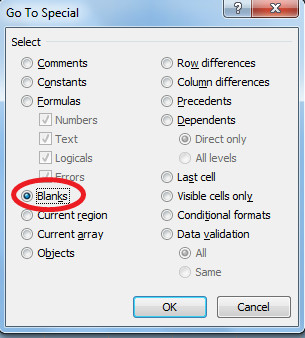
In the Go to Special dialogue box, choose Blanks and hit OK.
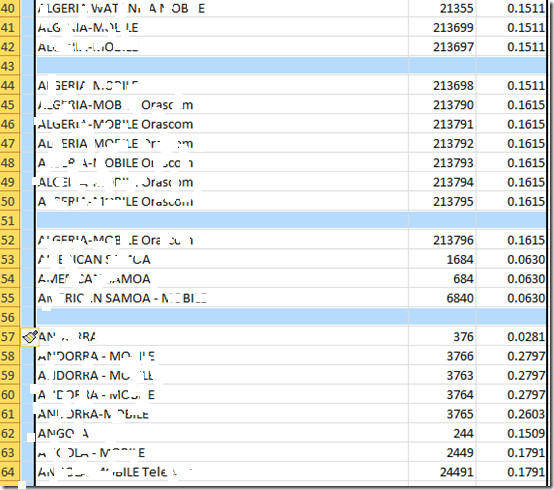
All the blank rows will be selected.
Now choose the Delete Sheet Rows option under the Delete drop down box.
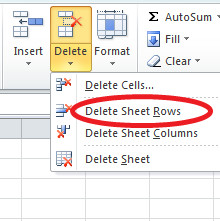
If you want to remove blank columns, select the portion of the spreadsheet from where you want to delete the blank columns, follow all steps as listed above and finally in the end select the ‘Delete Sheet Columns’ option.
For more, learn how you can delete duplicate rows in Excel.

Hi I had made a macro which search an specific term In different files, but when it find something in the rows higher than 35000 it makes a compile error
The row number is defined as Integer… would it be possible that it doesn’t work because of that?
All searches below this number run without problem.
It should be noted that you cannot select the entire document, or it will delete information in rows that are selected simply because they may have a blank in a column on that particular row. Select ONLY ONE COLUMN (probably the first column, where you can visually see all those annoying blank rows you want to get rid of) and THEN “delete sheet rows.” Only rows that have a blank in that column will be completely deleted. Make sure your blank rows are actually completely empty of information!! Then you won’t lose your information.
Thanks it worked.
Perfect, thank you
Thanks for the Article !! Keep Up the Good Work !
Excellent article! Worked perfectly!
Step 1: Hold down the Alt + F11 keys in Excel, and it opens the Microsoft Visual Basic for Applications window.
Step 2: Click Insert > Module, and paste the following macro in the Module Window.
Sub DeleteBlankRows1()
With Application
.Calculation = xlCalculationManual
.ScreenUpdating = False
For i = Selection.Rows.Count To 1 Step -1
If WorksheetFunction.CountA(Selection.Rows(i)) = 0 Then
Selection.Rows(i).EntireRow.Delete
End If
Next i
.Calculation = xlCalculationAutomatic
.ScreenUpdating = True
End With
End Sub
Sub DeleteBlankColumns()
Dim rng As Range
Set InputRng = Application.ActiveSheet.UsedRange
Application.ScreenUpdating = False
For i = InputRng.Columns.Count To 1 Step -1
Set rng = InputRng.Cells(1, i).EntireColumn
If Application.WorksheetFunction.CountA(rng) = 0 Then
rng.Delete
End If
Next
Application.ScreenUpdating = True
End Sub
Step 3: Press the F5 key to run macros.
Hey man you are awasome……!!! It works like Magic !!!!!!!!! love it Man.. Just luv it… Thanks.
This is definitely NOT the way to do this. If you have any blank cells those rows will be deleted as well.
One thing to say is to remove the filter first if you have one set, else it will only let you delete the whole sheet, at least that is what happened in my case. Excel 2013.
As some have already noted, this method may delete rows that contain data and that you ot wish to keep.
I have routinely imported tables of data from the web to Excel 2010. Not all of the cells in a given table contain data, but there is at least one column that has data in each cell of the table.
When I have used this method exactly as described, I find that any rows that have at least one blank cell will be deleted, even though other cells in that row are not blank.
I have found a workaround for this problem. But it requires that, in the block of cells that I wish the method to work upon, there is at least one column that has no blank cells in any row.
So, this is what I do:
1: Ensure that, for each row that you wish to keep, there is a single column that has no blank cells.
TIp: If there is no such column, it’s easy to insert a new column before existing column A, and put a formula into each of its cells that tests all the other cells in that row for blank cells and, if there is none, inserts a string or number into the cell if there is any data on any of the other cells in that row. Example:
=IF(OR(ISBLANK(B1), ISBLANK(C1), ISBLANK(D1)),””,”data in this row”)
2: Select only that column.
3: Do the “Find & Select>Go To Special>Blanks” procedure.
All rows will be selected for the cells in that row that are blank.
4: Do a “Delete Rows”.
All the blank rows will be deleted. Check to make sure.
If you created a column as in 1 above, just delete the entire column and the job will be done.
It might seem a long way around, but once you have done it, it really isn’t. And if you’re working on a 300 row table which has blank rows scattered around one to every ten rows, it’s easier than deleting each row manually.
There are other workarounds but, in my experience, they each require more steps than the above.
Some of my comment above might be misleading.
Several times I mentioned having a column that has no blank cells in any row.
What I meant was “a column that has no blank cells in any of the rows that I want to keep”.
The formula I gave in (1) was correct, though. It inserts a string into the cell if there is any other cell in the range B1:D1 that is not blank. You should be able to alter that formula to test for other ranges of cells in that same row.
I think enough negative comments warrants revision of the post as it is misleading to the outcome of the technique
this method deletes rows that have both blank cells and cells with data. Find special won’t simply select the empty rows, just the cels.
Perfect, thank you very much
Thank you very much great work
Ok I’ve got it! – to remove ONLY the rows that are blank but leave the rows with blanks in them do this:
1. Select a whole column that has values/data in it throughout the entire workbook (i.e. invoice number) a.k.a. the important values needed even if they have blank cells in them.
2. (Repeat above steps) Find & Select > Go to special > select blanks > OK
3. Cells > Delete > Delete Sheet Rows. It should only remove the blank rows instead of important rows full of information.
This worked for me, let me know if you guys see any problems with this.
This worked for me, eventually with a bit of playing around.
I’d been trying to delete 1,700,000+ rows from the bottom of a sheet (which are added when a whole column is formatted). Scrolling problems occur because of the extra rows in the spreadsheet.
Make sure that you check what has happened before you save it again, overwriting your origianl saved copy.
Note that what is said above is true, that is to say, if you select the whole of a populated area of a spreadsheet, and then go to Find and Select>>Go to Special and select blanks, that this will select any rows with any blanks, so doonly select a column that is always populated with something.
Once again, many thanks, I have been looking for a solution to this problem for months, and will save a printed copy of these instructions in case I need it again!!! :0)
this tip is errneous all the rows were deleted
Excelent, It works for me 🙂 Thanks!
I followed the directions and it deleted ALL the rows I highlighted, not just the blank ones.
Thanks! 🙂
Great! My “learn one new thing every day” for today!
I only wanted to fix sections of my spreadsheet and not the whole document so when I tried selecting the rows I wanted to apply this function to it sort of worked for me, however, it removed my first (selected) row even though it had data in it and no blank spaces. If I put a blank row above it and tried again, it deleted the whole selection. I could not figure out why it would delete the first row. I got frustrated so I copied that row and pasted it above the selection, did it again knowing it would disappear then moved it back when I was finished. Furthermore, it only worked when I deleted my empty columns first (there were only a few so it wasn’t a big deal) then I was able to use these instructions to delete empty rows. Ugh, what a pain! Wish I can go back to the older excel version. Too much got messed up.
Anybody know how to delete rows without deleting formulas
nice
Wonderful! Saved a lot of time
That worked quick and perfect. saved me a ton of time.
Cool!!! Thanks man! 😉
DON’T SELECT “DELETE ROWS”! As others have noted, that will delete everything, because when you select all the blank areas, it’s selecting all the empty cells to the right of the cells you’ve typed stuff into.
Instead, select “Delete Cells” after doing the Go To Special. This worked for me (Excel 2010).
It doesn’t really work. If you have a load of blank lines at the end of your sheet, and you delete them, Ctrl-End will still jump you to the end of the blank areas, not the end of your data. What can’t Excel just delete lines when told too, not just clear the content
I dont bother deleting blank rows – this is way too hard to remember. I highlight the area I want to keep and copy it into a blank sheet and then delete the sheet with all the unwanted rows and columns and voila the job is done and the spreadsheet is manageable again
this is the only way I found to get rid of the one million lines I don’t want. How the heck did they get there in the first place?
I did it and it wont delete my blank ones….. :-
i need to remove excel blank rows on a mac but not just any rows all blank ones scattered in the sheet! How do i do this i have the mac here with me but no idea where to start… please help me find the Go To Special bar from the very first step!!! THANK YOU THIS WILL MEAN ALLOT TO ME.
This only works if each row with entries no blank cells. If any row with entries has a blank cell, this will delete that entire row. It seems the only way blank rows across multiple columns while leaving the partially blank rows intact is to use macros code. :<
Thanks! Very helpful. Exactly what I was looking for. Saved me so much time!
Wow – that just saved me about 2 hours on a 25,000 line spreadsheet!! Thank you!!
Another thing you can do is select all your data, and sort by one of the columns. The blank row will go to the end.
Great tip! Work just as advertised.
Ladies/Gents
If it is deleting too much just select a column that always has a value in it (eg a description) instead of selecting everything and then follow the steps above. It will then delete only the rows that are totally blank.
If none of your columns always have at least one value in it just follow these steps:
1. Insert a new column A
2. Put in the following formula: CONCATENATE(A1,B1,etc for all your columns)
2. Drag it down for all your rows
3. Copy and paste special (values)
4. Follow the steps in this article-only highlighting column A
5. Delete column A
thanks that works great!!
Special thanks to you Sir , you just saved my day . gr8
awsome
In my report, I only select the blanks in one column. This column included blanks in the rows I wanted to delete. Then you can right click and delete rows. All is well.
following these instructions, deleted EVERYTHING.
thanks for nothing.
There is not a shortcutkeys or quick command to delete all the blank rows in Excel. Though the steps are provided in detail above, if you can find a way to delete them in on click, that will be great. Kutools for Excel is the Excel application i get in the search. It provides a button to delete blank rows, very fast and intuitive. Besides, it is a collection of tools that will deal with some repetitive work in Excel, such as rename multiple sheets, sort sheets , and so on. I am still keeping in trying the app.
DANGER! DANGER, WILL ROBINSON, DANGER! DO NOT USE THIS IF YOU HAVE ANY ROWS IN THE SELECTED AREA THAT ARE ONLY PARTIALLY BLANK!
This works . . . BUT . . . it will also remove rows in the selected area that have ANY blank cells in the row . . . if 1 or more cells has information, BUT there is ONE BLANK CELL . . . IT WILL REMOVE THE ENTIRE ROW . . . you can lose lots of information.
See my comment above… this should have been clarified 5 years ago!! They did not give complete and accurate information on how to do this!!
2010 didn’t delete rows. Vertical scroll bar still goes to Row 1048576. Even after save, exit, reboot, restart and re-open.
I think there is a bug.
Was going nuts trying to delete MANY hidden blank columns, great tip, worked like a gem, thanks!
what if i want to delete only those cells which are completely blank instead of partially blank ones??? need urgent help
Appears to only work if there are no blanks in a given row, otherwise any row containing one blank cell gets deleted. Anyone know of a way to delete only those rows that are completely blank and leave the rows with some content and some blank cells?
Seek out asap-utilities.com. It has a delete all blank rows command that deletes all the blank rows in 3 EZ selections, with no “editing,” as in the command above.
can’t/don’t want to buy more stuff……
thanks anyway
See my comment above… just select the very first column when selecting the area you want in order to delete empty rows from your spreadsheet.
It works. Thanks for the tip.
Excellent. Worked exactly as you said. Thanks
I followed your instructions and all rows were deleted, not just the blank ones.
That may be because there were some empty cells in the rows that got selected.
Row A was deleted when i first tried because of one blank cell.