How To Enable / Disable Windows 7 System Protection
Windows 7 includes System Protection feature that allows users to restore unwanted system changes without having to use Windows installation disk. It creates backup of system and user files that you’ve modified, so you can easily pick and use any previous version of files. It basically creates and saves information about your computer’s system files and settings on a regular basis. This feature saves all the modified files and other data to System Restore Point. In order to restore all previous versions of files, all you need is to use the Windows default Restore Point utility to restore the settings as well as files. By default, it is enabled on drive where Windows is installed, but you can enable it for other drives as well. To enable / disable Windows 7 System Protection, please go through the following steps.
First of all right click the Computer icon on your desktop and choose the Properties option, a new dialogue box will be displayed, here you will click the System protection option which is located in the left side menu bar.
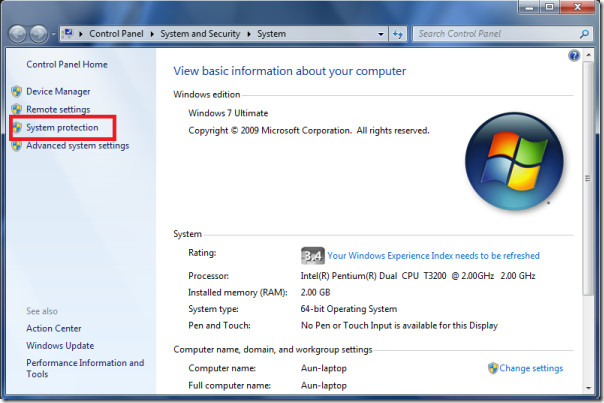
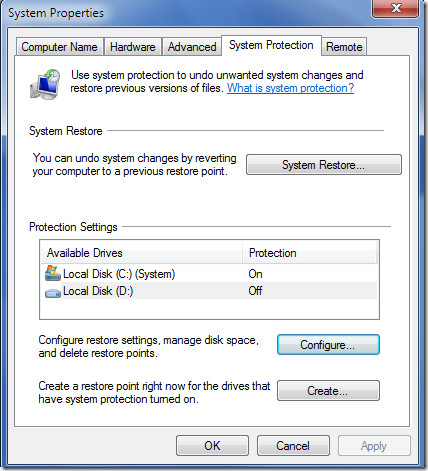
Now, in the System Properties dialogue box, choose the disk on which you want to enable the function of System Protection. Just as an example, I have chosen D drive, click the Configure button to proceed further.
Select the option Restore system settings and previous versions of file and then click Apply, you can also limit the maximum disk space used by this feature in the Max usage option. To disable it, check Turn Off System Protection.
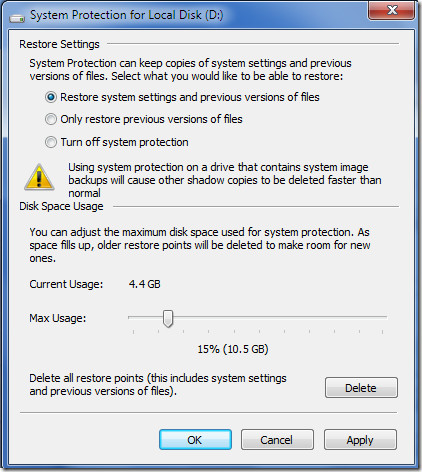
Click OK and the system protection feature will be enabled/disabled on the particular drive, if you want to read about system restore points then you can find some useful information here. Enjoy!

I have run into this problem as well and now i am stuck.
is there anyway to do this through the cmd.exe? my pc wont work anymore and i only have 5 options… startup repair, system restore, system image, recovery windows, memory diagnostic and command prompt. when i try system restore it tells me i need to enable system protection but i cant acces it… and everything else isnt working please reply quickly thanks.
HELP!
I had the same problem. It is illogical to turn on system restore now that your compiter is broken, since it cant boot anymore, it is IMPOSSIBLE to turn on sys recov anymore. If you have the boot CD, which i would assume since you have all 5 options of oem, just reinstall the goddamn thing. Im sorry but u will lose all your files. Actually, im reinstalling now. Dont worry since activation still works on the same pc, but ur files are unfortunately in limbo now.
how to disable write protection on flash drive using windows 7
I recently purchased a RetailPlus 32Gb flash drive and after a few uses, it will no longer permit me to add files to the drive, and sometimes won’t let me delete files from the drive. It says it is write protected and that I must change the write protection.(There is no external lock-unlock switch on the flash drive) but o tried the pen drive on a windows XP based system and it copies files without any issues..
I use Windows 7, and I tried to disable the write protection on the flash drive by following the directions posted
by some folks on the net that said..
Check out the registry under:
HKEY_LOCAL_MACHINESYSTEMCurrentControlSetControlStorageDevicePolicies
However, when I check out the registry, I only get this far…
HKEY_LOCAL_MACHINESYSTEMCurrentControlSetControlStorage
there is no StorageDevicePolicies subfolder
any ideas?
eagerly awaiting your help in this matter.
is there anyway to do this through the cmd.exe? my pc wont work anymore and i only have 5 options… startup repair, system restore, system image, recovery windows, memory diagnostic and command prompt. when i try system restore it tells me i need to enable system protection but i cant acces it… and everything else isnt working please reply quickly thanks.