Split & Merge Large Files Using WinRar & HJSplit
If you ever wanted to upload and share a 350 MB file with your friends using an online file sharing service but you want to upload the file in smaller chunks. How can you split a big file into multiple chunks and upload it to the file sharing service? WinRar and HJSplit are the best applications to not only split big files in to several chunks but also to compress them while splitting.
Here are two methods to split a large file into several small files:
Method 1: Using WinRar
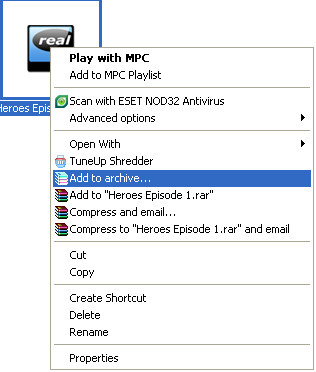
To start splitting, Right Click on the file that you want to split, choose the option Add to archive.
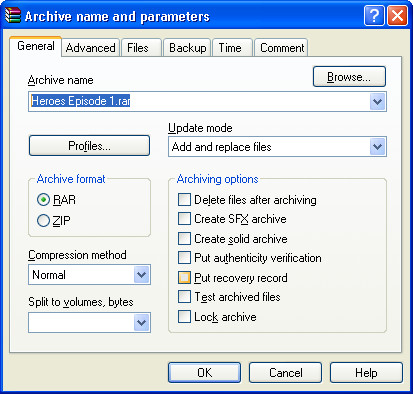
WinRar automatically assigns a name for the new archive it is going to create. If you don’t want a default name, you can change it as appropriate.
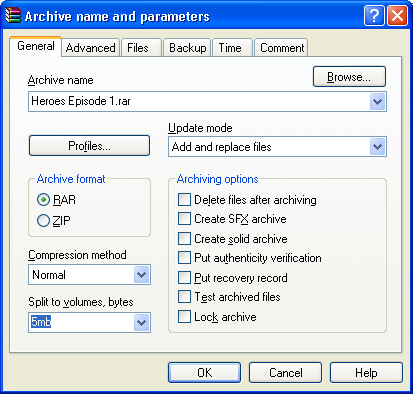
Under the option Split to volumes, either enter the desired maximum size of each file chunk or choose an appropriate size from the available drop down option. In my case I entered 5 MB for each chunk of file.
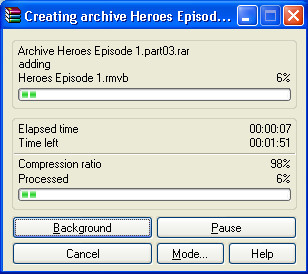
Click Ok and wait for few seconds. WinRar compress the source file and splits it in to several files.
Method 2: Using HJSplit
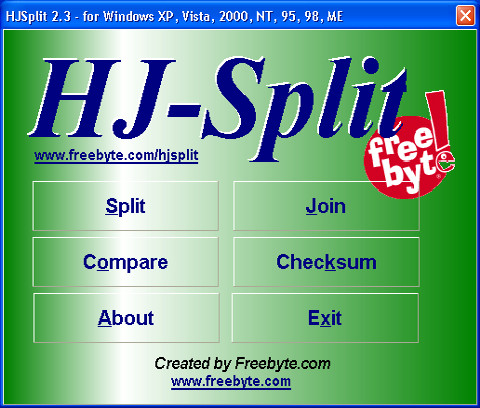
To start splitting the file using HJSplit, Click on the Split tab on the main window .
Now provide HJSplit with your Input(Locate to your file which you want to split) and Output(Locate to where you want your split files to be placed) destinations and enter the desired maximum size of each chunk of file.
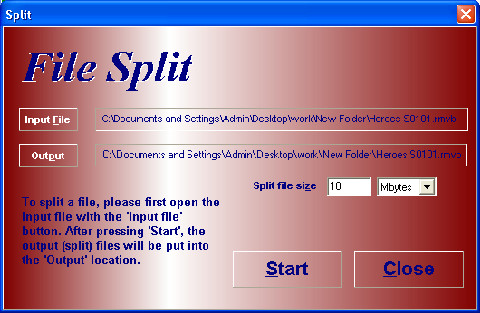
Now click the start button and wait for a while till the file splits into smaller chunks.
How To Merge/ Join Files Using HJSplit
With HJSplit you can not only split files, but also join the split parts back together again. To start Joining you files, follow these simple steps.
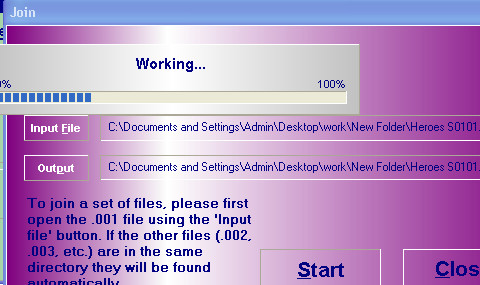
After clicking on the ‘Join’ button in the main HJSplit screen, you will see the following screen:
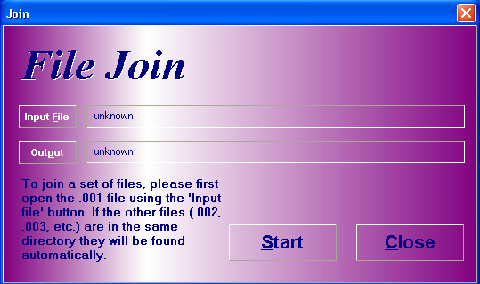
Make sure the set of split parts (set of files ending in .001, .002, .003, etc.) to be joined all reside inside the same directory. Click on the button ‘Input file’, in the screen directly above, which will open the dialog shown directly below:
Note that only the first file in the set of split parts (the .001 file) is visible in this dialog. Note that it is important that all split parts are in the same folder. When the other files which belong to the set of split parts (.002, .003, .004, etc.) are in the same folder, HJSplit will automatically find them during joining.
After pressing Open, the name and path of the file you just selected will appear in the input file box, please see below:
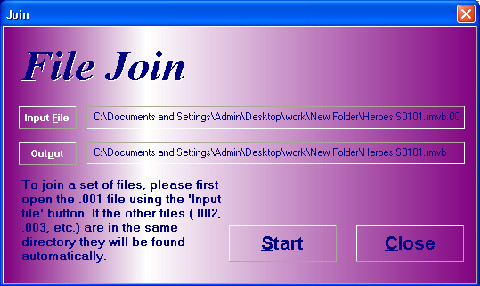
Now press the Start button to merge all the files into one file.
If you think there are some other softwares that can do better job than these, let us know in the comments.

THXX!!
Thanks, really helped out my friend
Gsplit is another great software that can do the same thing
very good
Very Helpful , thanks !!
Thanks for sharing :))
thanks………..it helps alot….!!!!!
I think the maximum volume to split with winrar is something like 1gb?
i tried split a file from 7gb, it only come 4gb when i tried to join them.. any ideas?? guys??
The post is very nice. I followed your steps to split the files using winrar. Really a good article…
Thank you,it helped very mutch!!!
after I use Winrar to split the file into two smaller files. The two smaller files became rar files. Is there any possible way for me to split the original file type which is a movie type and after splitting, the two smaller file types STILL movie type? The reason behind this because I wanted to post on facebook for my friends to view on the site.
Awesome thank you very much!!!
Awesome thank you very much!!!
Thanksssssssss
the beast solution, thaink
thanx simple and clear
Thankx a lot..!
I can suggest also PeaZip and 7-Zip as free (and Open Source) software to split and join files.
thanks this is the thing i want
thank u very muchh…
i know a new thing on today
I like this
hay thanks buddy……….. you have solved my a massive problem……
winrar: compress method > Store
is the best method
How do you rejoin the pieces after winrar splits them? The tutorial shows how to use HJ-split to do this, but not how to use winrar.
Thank u very much for giving the useful information.
Thanksssssssssssssssssssssssssssssssss!!!!!!!!!!!!!!!!!!!
I really needed that information : ))))
I downloaded a part file from internet. can I open to see what is in that part ??
I recommend using winrar instead of hjsplit (or other splitting prgs). Why? Because Winrar allows to save information that can help recover your files in case a segment of the splitted file gets corrupted. It can compress files to reduce size and my favourite, compared to HJ, is that it doesn’t require to put all segments of a file in same place before joining them. Also, segmented file can be made sfx (self-extractable) which also allows to add some actions after extraction.For example, u give a friend a 5Gb game splitted in a sfx 100mb pieces. He gets all pieces, runs first one and then automatically game gets extracted in a certain folder specified by u when u created that archive, then it creates all registry entries and shortcuts needed to play the game. More options than HJ has right?:D
And btw, Winrar can join files splitted with HJ too:)
THanks people
Merci MR.Kevin Cally
YES IT WORKED ON COMPRESSING THE BRITANNICA WICH WAS 4.08GB TO 2.4GB
thaaaaaaaaankx
I`m using filesplitter but i didnt understand how to join it back.can any one help me with pictures how to join the files back.?
how to join back file spiltter?
Useful info…
Thank you !!!
wow ! i had search for it from so many days and luckily i had found it in hear my heartful thank
very very thanks
Very Helpful…..^_^……
tHANKS………… sOLUTION WhICH yOU GAVE uS IS REALLy HELPFULL……………
thank’s man the winrar is great, i really needed to know how to do this
Every time I try to split a file the “Split to volume bytes” box is grayed out.
Any suggestions? I’m using version 3.80
DUD thanx
Thanks Thousand Times.
THNX alot 😀
ttttttttttttttthhhhankssssssssssssssssssss llllllllllllllllllllllot
1000000000000000000000000000000000000000000000000000000000000000000000000000000000000000000000000000000000000000000000000000000000000000000000000000000000000000000000000000000000000000000000000000000000000000000000000000000000000000000000000000000000000000000000000000000000000000000000000000000000000000000 thanks….
I had problems opening r01 file also, but I found out that you can use Winrar to open these particular files.
THANK YOU VERY MUCH FOR THAT VERY NICE INFORMATION. . .I LIKE IT. . .. . .NOW I KNOW. . .GOD BLESS YOU. . .
THANK YOU VERY MUCH FOR THAT VERY NICE INFORMATION. . .I LIKE IT. . .. . .NOW I KNOW. . .GOD BLESS YOU. . .
THANK YOU VERY MUCH FOR THAT VERY NICE INFORMATION. . .I LIKE IT. . .. . .NOW I KNOW. . .GOD BLESS YOU. . .
thanks buddy. hj helped me a lot…i tried to do it with winrar i didn't work..
thanks thousand times.
Not that informative. I needed to unzip a .r01 file but none of theese methods worked
you could rename it to .rar
For the r01 type you just need to extract the r01 file with WinRAR normally and make sure all the chunks are in the same folder. WinRAR will join all the parts automatically.
i have a folder with 5.43 GB n i need to split it into 2 DVD’s so how can i do that using winrar the DVD can take only 4.7 GB
right click on the folder-> add to archieve->enter split to value 4.6 GB -> press OK & wait….it would take seconds in winRAR or 7-Zip. enjoy
THaaaaaaaaaaaaaaaaaaaaaaaaaaaaaaaaaaaaaaank You Deeeeeeeeeeeeeeear !!!!!!!!!!!!!!!!!!!!!!!!!!!!!!!
thankyou very very much
it is very important to know about this
thanx once again
thanks a ton this is the content for which i was looking for since decades…..
u saved my dvd-DL thanx
Thanks a bunch
Just what i was looking for!!
very useful information…
Very useful informacionnnnnnnn
Thanks, thanks, thanks,
Thank you sooooooo much,you are the best!!!!
Perhaps it is just your desire to strictly use WinRar, but if you utilize open source compression software you have that option via the gui. Example both 7-zip and Zip Genius offer splitting a compressed archive into customizable MB files and can easily combine them back. This is also useful in burning backup cd or dvds archives that otherwise would require backup tapes or external hard drives.