Image Resizer Powertoy Clone For Windows 7 / Vista
Image Resizer 2.0 is a clone of an original Image Resizer Powertoy build for Windows XP. This clone has been created to extend the support to non-XP and 64-bit versions of Windows (including Windows Vista and Windows 7). What are Powertoys? They are additional programs that developers work on after a product has been released. This tool adds Image Resizer in the Windows right-click context menu making it easier to resize an image with a click of a button.
After you have installed Image Resizer, just right-click any image and you will find option for Image Resizing.
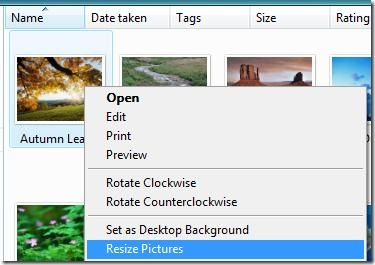
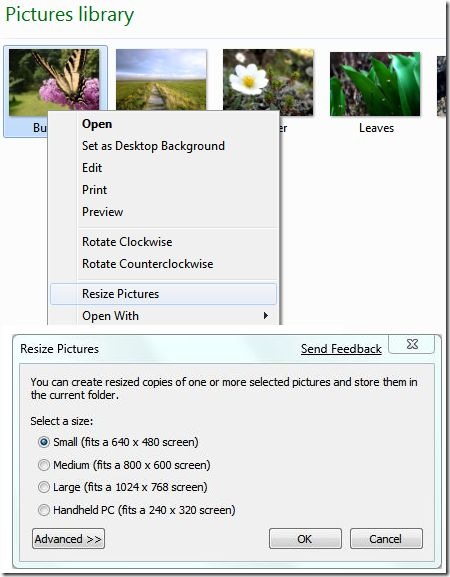
Select Resize Pictures from the right-click context menu and select the size that you would like to resize into. To custom resize the image and select other options, click Advanced.
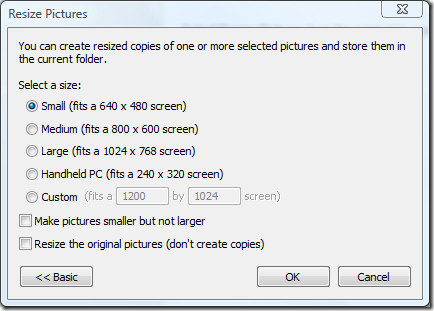
It does not change the image format of the image, but simply resizes them. You can also batch resize images by selecting multiple images at the same time. I tested this on Windows 7 and it worked like a charm.
The application works on Windows XP, Windows Vista and Windows 7. Enjoy!

it’s very sluggish to fire up but it gets the job done.
thanks!!!
i get an error 0x80070643 when trying to install.
does not work at all with windows 8
It’s very good.. it save me a lot of time, somebody knows a program that mass cut the images at specific format?
excellent Job
I’d like to give Bill Gates a knee in the nuts.
I have high hopes for this! Having recently upgraded to Win 7 x64 I was mortified to discover MS had simply dropped all concept of Powertoys. They had a great library full of usful stuff for XP! I had hoped that things like batch image resizing would have been worked into the OS by now, but no. Thank God for third party developers!
To be fair, this guy is from Microsoft.
such a small to download and excellent to work with application, and for free !! helped me a lot, works great with Win 7 64bit Profesional
c’est inadmissible!!!
mensonger, vopire une escroquerie!!!
aucun bouton “telecharger” ne mène à image resizer
thank you
thank
good
tthank you! just saved me a ton of time! great product
Works like a champ on windows 7 64bit
Resized pics cannot be opened or recognized on Mac OS X anymore!!!
Same for Virtual Machine!
How is that?!
Thank you for program.
works great at win 7 x64
This has been a very useful utility. Thank you! But it has suddenly stopped working in the past week. I suspect a security UD as the cause. (Windows 7 64bit) I have tried the ‘repair’ function in your installer to no avail.
Am I alone in this experience?
sweet, this was so quick and easy to use, 100,000 internets for you
cheers
^.^
This is a wonderfull link and it works corectly on my windows 7
Thanks 4 this link.
Nice find! I made a list of powertools replacements for windows 7, mainly because although they implemented a few of them (ex. alt-tab) there where still some handy ones missing. Have a look: http://abiteof.com
That forum is made from insecla, ajax asp.net forum software http://www.insecla.com/forum/
Check out this free forum software in asp.net : http://forum.codeplex.com
Just downloaded for Windows 7 64 bit and it works fine. Didn’t even need to restart.
Works great!!!! Thanks
Does anyone know what program one is talking about?
Where is the download button??
Works great on Win 7. Would be better if it can resize images in sub directories also rather than needing to go into each photo directory and selecting all files. seems to lockup Windows Explorer till its done also. the XP version would let you keep working.
overall great to see the product work on Windows 7. well done
Thanks for this!
sorry it does work but in Windows Photo Gallery, not anywhere else like XP.
thank you for this comment, i’ve downloaded to win 7 ,64 bit, it and couldn’t get it to work….. nearly pulling my hair out!
yes, now I see it only works in photo Gallery! great stuff, excellent tool
Hey! This does not work when right clicking it. I have windows 7. Please fix. Thanks
GOD Bless you, for posting this .. works wonderful with windows 7 64 bit.
That’s what i used to use in XP
Thanks a lot. Works like a charm.
I used Powertoy Image Resizer with XP for years, it was brilliant. But now I’ve got Windows 7 32bit, I downloaded it again. Not sure where I went wrong, but after it was downloaded, it was not activated and to activate it, I had to pay a monthly fee. Then I had a hell of a job removing it from my computer. Can anyone give me a link to where I can download the correct version please?
Thanks for this as I found it in a Google search after receiving the XP version for a Win 7 machine. Thanks again!!
Work at windows 7 ultimate 64bits. great!! thanks!
The “resizer” for Windows 7 is great for sending in email. Love it, and thanks so much.
thank you what is download link ?
http://imageresizer.codeplex.com/
great job! been waiting for someone to do this for ages… XP version was the perfect tool for me.
Get VSO Image Resizer http://www.vso-software.fr/products/image_resizer/. It's fast with a lot of choices for converting.
I used to use the Image Resizer PowerToy in XP until I found VSO Image Resizer. It's fast with a lot of choices for converting.
Many thanks, Brice! A buddy at Microsoft told me not to expect PowerToys for Win7. The resizer for XP was a staple tool for me… and your creation fits the bill! Your Win7 x64 resizer works great – and it's a nice, clean job of it! Thanks so much for creating it and putting it out here!
Works like a champ on win 7 64bit
For a more powerful bulk image resizing solution, check out the Bulk Image Resizer! http://clicky.me/BulkImageResizer
I am so used with my XP that I had a hard time figuring it out how to resize my picture when I got windows 7. Thank you so much that I've found your site. Keep it up and more power to you guys!!^_^
What a great article! This has been one of the biggest sources of traffic to my project; thank you so much.
this is what i'm looking forgreat, many thanks for the builder
all I can say is THANKYOU…I have wanted this since I got my new pc with Vista and now I updated to Win7…best program ever on a pc…
I have apprently installed it – when I go to Uninstall or Change Programmes, it's there large as life. However it doenn't come up in the right-click menu as the original did when I had XP.What is the missing step to actuate it?
I have apprently installed it – when I go to Uninstall or Change Programmes, it's there large as life. However it doenn't come up in the right-click menu as the original did when I had XP.What is the missing step to actuate it?
Awesome! As an avid picture taker I've been using “Image Resizer” on XP for years and didn't know what I would do without it when I got my new laptop! This WORKS FLAWLESSLY WITH WINDOWS 7! thank you!
Awesome! As an avid picture taker I've been using “Image Resizer” on XP for years and didn't know what I would do without it when I got my new laptop! This WORKS FLAWLESSLY WITH WINDOWS 7! thank you!
Works wonderfully on my Win7 32bit.Thanks for the link!
Check out www.ezyimageresizer.com. Lets you batch resize images in the browser. Runs as an applet in the browser, so no need to upload/download files to a server. Nice and quick!
Actually, it works fine on Windows 2000, XP, Vista (both 32 & 64 bit), and 7 (32 & 64 bit also)… You were probably just installing the 32-bit version on your 64-bit OS so the menu item would only appear in 32-bit programs. No worries though, it looks like he “disallowed” this in the latest version (released just a few days ago).”Programming today is a race between software engineers striving to build bigger and better idiot-proof programs, and the Universe trying to produce bigger and better idiots. So far, the Universe is winning.”- Rich Cook
perfect said!
exactly what i needed.. its a shame Microsoft didnt port this over themselvesworking flawlessly on Win7 x64
Just doesn’t work under Vista x64
Hmm it seems to be working with Windows 7 x64, I wonder why Vista x64 isn’t supported.
cannot install in Windows Vista 64 bit
Works great with Windows 7 x64!
It does not change the image format of the image, but simply resizes them. You can also batch resize images by selecting multiple images at the same time. I tested this on Windows 7 and it worked like a charm.