Office Outlook 2010 Import And Export
Recently I have been playing around Microsoft Outlook 2010 for quite some time, a few days back I wrote a way to make a backup of Outlook 2010. This post will focus on two parts:
- Importing Outlook Data File(.PST) from Outlook 2003/2007 and Outlook 2010 itself
- Exporting Complete Outlook 2010 Items
The first part will come handy for users who want to migrate all their data(emails, contacts, calendars, etc) from Outlook 2007 to Outlook 2010. While the second part will come handy if you want to make a complete backup Outlook 2010 without using any 3rd party tool. The procedure for both importing and exporting are similar to Outlook 2007, instead there is now a new Office button in Outlook 2010.
Note: I would also recommend that you install the Outlook Data Export Add-in for Outlook 2010, it can make exporting both quick and easy.
To launch the Export/Import wizard, first hit the Office button go to File menu, navigate to Open, and click Import(as shown in the screenshot below). Before the beta version, there was Saving option but it has been removed.
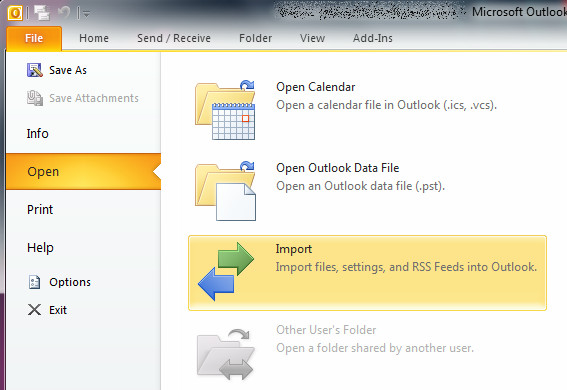
Note: Before you can import the complete Outlook 2007 items, make sure you have exported it in Outlook Data File(.PST). It is recommended file type for exporting data, this is because it allows users to make complete backup.
Importing
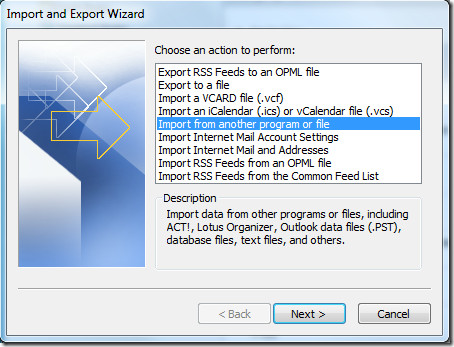
In the Import And Export wizard, select Import from another program or file option and hit Next.
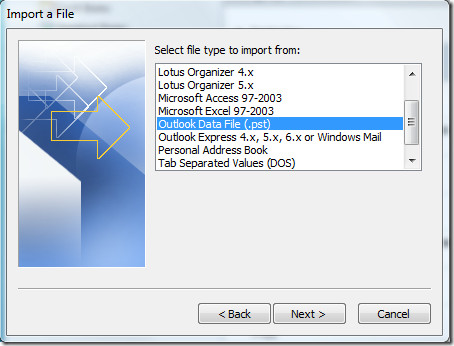
Under File Type, select Outlook Data File(.pst) and hit Next.
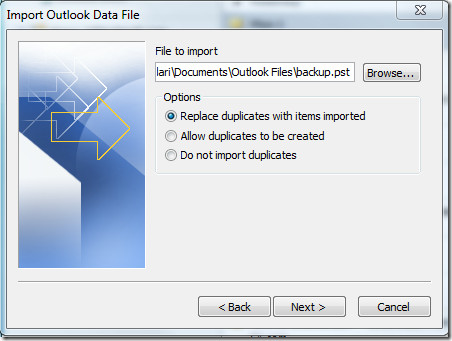
Now choose the file to import, select the options, and hit Next.
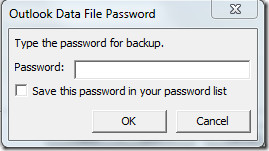
It will then ask you to enter the password for backup file twice.
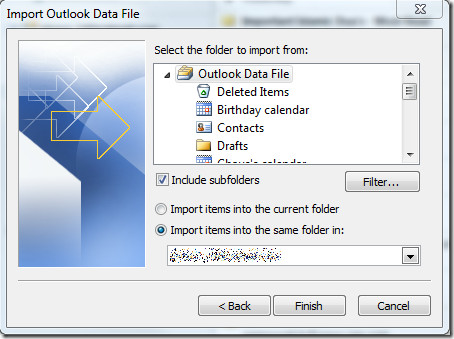
Once done, finally select the folder to import from(if you want to import complete data don’t change any settings) and make sure Include subfolders is checked. You can either import the file to the current folder or choose the folder.
Exporting
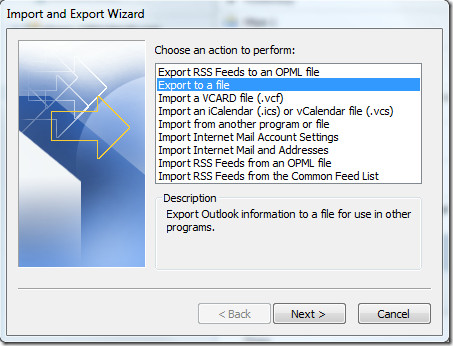
In the Import And Export Wizard, select Export to a file option and hit Next.
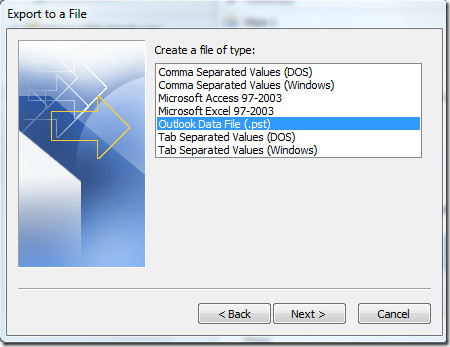
Under File Type, select Outlook Data File(.pst) and hit Next.
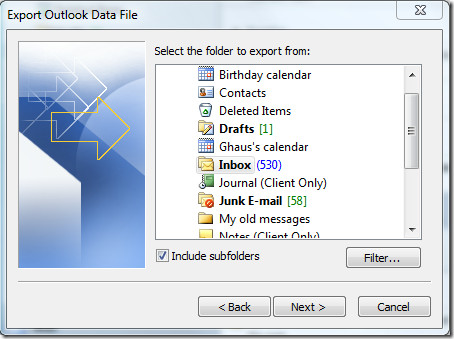
Now make sure Include subfolder is checked, this makes sure that all data including, Emails, Calendar, Contacts, Drafts, etc are exported. To export only a single folder, choose that folder and hit Next.
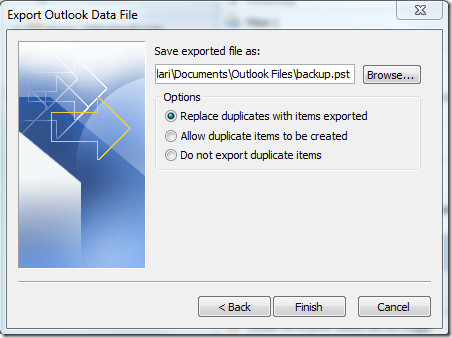
Now give the backup file a name and choose the destination where you want it to be saved and hit Finish.
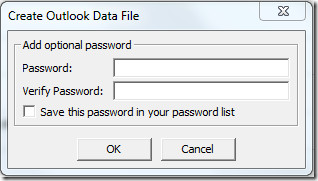
Lastly, enter the Password to secure the backup file.
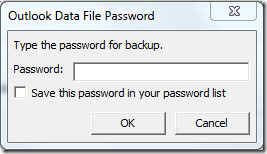
Once done, it will again ask you to enter the password. Enter the same password again and it will begin exporting your data.
During this process your Outlook might become unresponsive for a few seconds. When it becomes responsive again it means that the export is complete. You can then verify the export file by visiting the destination where you saved it. For more, also check out our guides on:
- Search Outlook 2010 Items And Files With Xobni
- Set Up Single Inbox Folder For All Accounts In Outlook 2010
- A User Guide On Outlook 2010 Address Book Contacts
- Recover Outlook Passwords With OutlookPasswordDecrypter
- Outlook 2010: Auto Reply to Emails

What’s up, after reading this remarkable paragraph i am too happy to share my familiarity here with colleagues.
Thanks very much the preceding procedure just helped me import my emails to outlook 2010
I have upgraded from 2007 to 2010 and imported all my previous emails of 2007. I am not able to send and receive emails and download emails with attachments, How do I get to send and receive emails and download the attachments? Please help
Thanks team for the great help.
ITS OK, BUT NOT PROPERLY IMPORT. I think so
I have done exactly what you have explained. I made a back on an external drive older version of Outlook and now wanted to import – to outlook 2010. Followed step by step, but nothings happened. The backup information did not import.
Thanks very much. This guide enlightens me the right way to import and export.
I cannot thank you enough for this clear and easy, step by step procedure. Even I managed to make it work!!! Thanks again – you saved my sanity!
thank you to whoever put this article up. I finally got the few years of emails from my XP version on to the computer running Windows 7/Outlook 2010 Again, many thanks!
Hello. I am working with a Microsoft Word data file that is supposed to be imported into Outlook however it seems there isn’t a file selection for Word. Any tips or suggestions?
I tried to export my contacts (outlook 2010) but I have an error message: Microsoft Outlook cannot start the import/export engine. This feature is not available. To make this feature available, run setup again, click “add or remove features” and change the feature to “run from my computer”.
Please help….
If your system is connected to a company MS Exchange Server then it is possible that the import/export feature has been disabled for security reasons.
don’t give up too soon!! you will get through it (after three attempts…)
thanks for it
After importing the outlook contacts onto my laptop, my problem is that the outlook contacts and subfolders imported are shown under outlook contacts, but when I create a new e-mail, I am unable to choose any of the subfolders. I don’t get the choice for these contacts to be added in the list of e-mail address I want to send the e-mail to.
Your help would be much appreciated. It could just be a set up I don’t know of in outlook that I am missing
So, where’s the answer to this, Microsoft? We’re waiting…..
Using File –> Open –> Export option is so stupid. why would anyone put export option under open. Open is normally reserved for import and for files which already exists& need to be opened
Thanks, u a *
Thank You very much for the useful process
Thank you so much, outlook backup is so useful
I got a new computer and transfered Outlook 2007 to 2010. I can’t see the contacts. I uploaded
the following screen shots to explain what is happening on my computer. I hope
that this is helpful:
I transferred
the files w EasyTransfer and installed Outlook. All folders are there
but AB doesn’t show in dropdowns
or TO button, can’t create groups etc. Trying to make the folders show in
the AB the box for Show in AB is not clickable.
I created a
new profile. Added the outlook AB to the list and was able to activate my
hotmail account. But this is the only folder that shows
in the My Contacts all the other folders that I had in the original profile
don’t
show.
In addition I
can’t create any other email accounts in the new folder, they all fail for some
reason. What should I do? is there a way to uninstall everything and start all
over again?
Thank you,
THX a lot
awesome still working !!!
When I use this method to export, the size of the new (backup) PST file is much smaller, only 15 GB while the original PST file is 23 GB. However, I checked the number of emails in each folder and they were exactly the same. Can anyone explain where this difference comes from ?
There was probably empty space in the file. The file is a database which grows as additional space is needed. However when items are deleted, they may be deleted from the middle of the database, and to eliminate that unused space Outlook would have to rewrite the entire file every time you deleted. Instead, it just marks the space available. You can shrink your pst file from within outlook. I can’t remember exactly where it is, but if you right click on the pst name inside outlook you should be able to find it – probably under advanced options. If not, it’s still definitely in there.
I’m sorry but the importing instructions simply don’t work. It’s very possible MS has changed Outlook since this was written but this doesn’t work.
On my new PC I have Windows 7 and Outlook 2010. Old PC has Widows Vista.
Trying to export and import all emails from my old outlook to a new one, but facing problems.
When I exported files, they all came with .eml extension. It looks like it is not correct: it should be .pst.
May be, somebody can help?
My email: info@besttropics.com
For some reason I now have a folder that is named “Important” and it has emails from all over my folders, even deleted. What would have happened to create this folder and how can I get rid of it? It is also storing my Junk mail. Any thoughts? I tried to delete the folder Outlook won’t allow it.
Sooo Wonderful.. Thank you.
thanks……….
I was using Office Outlook 2007. I back-up the .pst file and saved it. Then, I installed Office Professional Plus 2010 and did exactly as you have said in this thread. But now Outlook 2010 is showing 2 different inbox and other folders.
The moment choose to set up my account it downloaded all the email like it shows online in GMAIL and then it is showing my all the folders that i had created in Outlook 2007.Please help me.. Kindly provide all the step by step instruction.
Hoping for an early reply.
is there anyway how to backup Outlook 2010 mail account settings? not just the messages. I really frustated search arround how to make it happen 🙁
you just click on file and there is option select this one and here you can get account setting here click one data file location where that file or .pst file are save copy that path and open that location and save it that particular file .pst that is the essay way take backup without import and export.
use gfi backup – transfers the whole box & dice – accounts mail -rss….
Alternatively you can export all your account settings doing an export from the registry.
HKEY_CURRENT_USER\Software\Microsoft\Windows NT\CurrentVersion\Windows Messaging Subsystem\Profiles\Outlook
I always do an export of the whole section before I do a reinstall of windows. Then import the reg file after the new windows is up. Then install Outlook and open up with all settings intact.
Great, but what about rules, alerts, categories and e-mail account info? How do we go about exporting and re-importing those?
Usful thanks
When I try to import pst file, I get this message:
“this pst data file in already in use”
????
with my previous outlook2007 i use the option to keep a copy of the email on my mail server , and i did export from outlook 2007 and import it to outlook 2010 successfully, but then outlook 2010 is trying to download all my existing emails from the mail server, how can i prevent downloading my existing emails that’s already downloaded before ?
Very informative and useful. Thanks for posting.
Thanks brother!, your article is very interesting
Yes, let’s hide the Export function under the Import menu. What is Microsoft feeding their programmers?
Wonderful! Thanks 🙂 Just thought it would be more natural to introduce exporting first before importing, since you’re describing a transfer process.
Very helpful. Thanks. Selami Ozlu
Very useful, wonderfully written and great visuals.
10, very useful
Well I imported the PST file which went OK except when I had done that I couldn’t find the data anywhere ???
Wow what an intuitive location to put the Export function; in the Open Menu…
No kidding! I know how to import/export. I just couldn’t find the darn menu! Thanks for the article!
Is there anybody out there who knows a trick to import a lot of msg files from a local file system folder structure directly into a pst file?
Would be great too if the local file and fodler structue would be the same then in the pst file 😉
I tried just dragging the files(Ctrl+A to select all .msg) to the folder under “Contacts” button, which is at the down-left part on the main screen of outlook 2010. good luck!
Very helpful. Many thanks! I just moved 9000 emails from Outlook 2007 to Outlook 2010 by exporting the .pst files to my USB flash drive and then putting on my new computer. Excellent advice. Thanks matey!
Can i do this to import files from 2010 to outlook 2003?
Hey everyone,
this looks like a lot of clicking-work. Since I’m not that fast at my PC although I need to save my Outlook-Data. In this case I use a program by a company. It’s sold and not free, but it knows it’s duty and works reliable!
The program is called Lookeen Backup Manager – www.lookeen-backup.com
Try it and get satisified 😛
Greets
Freddy
Hi everyone,
i think backup software “Lookeen Backup Manager” has a new URL http://www.outlook-backup.com/
ty +10 😉
Why in the HELL does Microsoft make this wretched process so difficult? Just figuring out contacts and address book in general is bad enough, and now this. I’m just going to rebuild my contacts from scratch.
open regedit.
goto
HKEY_CURRENT_USER\Software\Microsoft\Windows NT\CurrentVersion\Windows Messaging Subsystem\Profiles
copy the 9375CFF0413111d3B88A00104B2A6676 subkey and export to a .reg file.
On your other computer open regedit, check the HKEY_CURRENT_USER\Software\Microsoft\Windows NT\CurrentVersion\Windows Messaging Subsystem\Profiles
I’ve had an Outlook directory inside this registry entry. There was a key present with the same ID but no accounts inside (which is normal as Outlook import export doesn’t make accounts). Delete the key, double-click the .reg file you saved and open outlook; Worked like a charm.
Unfortunately this is not what everyone (should) want: this process will not backup Outlook’s configuration and settings. NASA can put a man on the moon, but Microsoft can’t even provide a simple way of exporting and importing configuration data. When you have a lot of ‘rules’ and colour coded settings – having to set them all up manually is a very time consuming and frustrating task!
Many thanks for an informative and workable article on moving my Outlook Contacts from Office 2007 to Office 2010. It worked first time but the bonus was that all my contacts from my mobile phone and family tree amme progrwere also moved into one consolidated file. Great.
pls i did not password my outlook what password will i enter
What is the correct way to export contact list from a CD and into MS Outlook Contacts for 2007 and for 2010
thanks.
JohnS1950
thank you.
Can i get this type of recovery form MAC outlook 2010 to PC outlook 2010…..need help ASAP…..
I am currently using Outlook 2003. I am getting a new computer with Outlook 2010. Should I install Outlook 2010 on my old computer and “upgrade” my files there and then move to my new computer, OR should I just copy my 2003 .pst files and paste them into my new computer running Outlook 2010?
I don’t think you can upgrade your outlook 2003 to 2010 directly….as Outlook 2007 is in between them. but you can just make a export of your .pst file from outlook 2003 and get it import on computer running outlook 2010.
Thank you.
I can successfully import my pst file from 2007 to 2010 which copies over all the contacts, emails and folders but none of the email accounts or settings. If I import the very same pst file into another install of 2007 then everything gets copied including the email accounts and settings. How do I do this in 2010 ?
NEVER, EVER, use import/export to transfer data from one Outlook to another. IT CAUSES LOTS AND LOTS OF PROBLEMS including very probably a corrupted Mail profile.
There is absolutely NO NEED TO DO SO.
All you need to do is to COPY the pst file with Outlook closed, paste it to where you have full read/write access and then in the new instance of Outlook OPEN it.
Hi Gordon,
would you mind explaining to me what you mean by ‘paste it to where you have full read/write access and then in the new instance of Outlook, OPEN it’? I don’t understand what you mean! I don’t know what I am supposed to do concretely!
Thank you so very much!!
Realise this was written a year ago. This is the same advice I got from another expert too. Copy All pst, ost files from the 2007 folder to the 2010 Outlook folder. Does this copy mail settings, signatures, mail rules, nick names, email id autocomplete. Does it also remember what was already downloaded and prevent downloading of all mail present on the server. Thanks for your help. Ninan
Hey Guys,
I’m facing problem with my Outlook 2010. I have accidently deleted .pst file.
I re installed the office but now I m not able to open outlook even..its saying no .pst file is found to run this program.
Please help me what should I do.
Regards
Sahil Khiwani
s.khiwani84@gmail.com
Imported a backup.pst file from Outlook 2000. Contacts and certain subfolders don’t show. Exported from 2000 and checked include subfolders. some show, not all.
I have outlook 2003 on my old computer. I intend to buy outlook 2010 for my newone. (Payday) Can I import my calendar from 2003 into 2010 so I don’t have to retype all that data?
Thank you very much. I is working very good in my system.
Troy, Terri, I have exactly the same issues. Help!
I definitely have a problem. I recently upgraded from Office 2007 to Office 2010. When using Outlook 2010, I have determined that I do not have all of the folders and email that I created and saved in the “Inbox” folder in 2007. I did not export anything from 2007 to an Outlook Data
File before the upgrade. Is there any way to recover all these folders and email now?
Very helpful, thanks….
Hello, could you please let teach me how to change my default folder to store the mails and calenders? I can not find the right place to change it. Awaiting for your reply and thank you!
Hello to all of you. 2 months ago I had office 2007 and then i installed office 2010 beta. I chose to keep both of them but it forces you to use outlook 2010. Now 2 months later, i uninstalled office 2010 and reinstalled 2007 but in outlook 2007 i can't see any of my emails that were send or received while i was using outlook 2010. Where can i find these emails? Please help me cause these emails are related to my work…..
Кретины! Где логика !? Засунуть Импорт в Меню Файл – Открыть !!! (мелкософт есть мелкософт…
Thankyou for this information.You have really helped people like me who aren't so tech savvy.I now have another dilemma.I am trying to import all my signatures, and email accounts as well as auto complete email address entries for when i send my emails.Can you advise me a walkthrough as to how I can import this data into outlook 2010 from outlook 2007My email is eugene@000emergency.com.au
When I set up my email account in Outlook 2010 under it, it created an inbox, sent items, trash, etc and other folders like you would expect. There was already a .pst set of folders, i.e. inbox, sent, trash, etc. So now there are two. You can't merge them and you can't delete them.So now I have two sets of folders. New emails get sent to the inbox that is under my email. They do not get sent to the other set of folders that were already set up with Outlook 2010. Next, when I import my .pst file that I saved from Outlook 2007, it doesn't let you merge them with those email folders from folders that get generated when you set up your email account. You can only merge your 2007 Outlook .pst folders and emails with the second set of .pst folders (that is, not the ones associated with your email set up in Outlook 2010).It gets worse. When I copy specific folders so I can have all my folders and emails in one place in my set of folders under my email, a new problem arises. First, whenever I send and receive emails each time it takes 5 to 10 minutes to “syncronize subscribed folders for <my email>”. Only if I don't move these folders and emails to where my email is, can I avoid this long syncronizing problem. There is no solution to this problem that I am aware except to have two saved .pst folders. My old Outlook 2007 .pst folders and new folders created with my email from this point forward using Outlook 2010.Also when I take an email I received under my email folders and move it over into my folders from the .pst I imported, it produces an error which reads: “Cannot move the items. The server responded: 'Missing required argument to UID EXPUNGE'.” Whatever that means. Then it transfers the file anyway. I also believe this will increase the time it takes to syncronize.HELP!!!!!!!!!!!!!!!!!!!!!!!!!
I have the same problem; did you resolve this and if so, how?
Did you get your problem solved? We had the same thing happen recently. Did most of the clean up by hand deleting multiple copies of emails took hours. Still have an issue with 2 Calendars and can’t seem to get them to merge.
I tried importing .psf file from outlook 2003 using usb stick into2010 beta.Noe every time i start outlook popup box states path e: is not valid.How do i stop outlook 2010 from looking fot this file.Thanksdavid
Thanks for having this up…saved me a ton of time…
Thanks, never thought to look under 'open'
I have a carbonite back up of my 2003 outlook pst files. i tried to import them using the EXACT directions posted. However, when i go to the folder of my pst 2003 file, the import wizard says its NOT a pst file when it clearly is. I cannot import all my files from years past. any suggestions? there is also a file that says outlook .nk2 file . anyone know what that is? thanks.
MY BAD! I was not in LOCAL. Worked great. so far. GREAT find here my friends.
maybe stupid question:can I import my office 2007 data from another computer to new one with 2010 beta?
you sure can. I just did. if they are networked, just follow the posts here. if not, put them on a usb stick and point the directions here to the usb stick.
Thank you so much
Oh, yeah, that was obvious, export is under import! Yay! Now THAT'S idiot proof! I can just see supporting this… OK, to export, click on import…
Oh, yeah, that was obvious, export is under import! Yay! Now THAT'S idiot proof! I can just see supporting this… OK, to export, click on import…
Oh, yeah, that was obvious, export is under import! Yay! Now THAT'S idiot proof! I can just see supporting this… OK, to export, click on import…
Lol, so true!
Yes you are right that was confusing – I had to Google to find how to back it up!
It’s the MS way. Click START to Shutdown
There needs to be a way to import the email account settings to avoid the tedium of recreating them on each system. Upgrade installs are not always possible. Surely someone has some experience in this annoyance?
Anyway export the email account settings as well? Exporting inbox to a pst only save the emails – not the settings eg. Configured email accounts, signatures etc…..Windows Easy Transfer used to take care of all that but it doesnt seem to support 2010 yet.
Simply Upgrade from Office 2007 to Office 2010 and your settings will remain intact. The latest version of Office 2010 installer has an option to Upgrade from Office 2007.
I know, but Im formatting tonight and going into install fresh office 2010 64bit. I found a workaround – save the registry settings – I wonder if this also saves which emails have been downloaded. I use Gmail with the “recent” feature and it is annoying to always download the last 30 days of emails.
I have the same problem, the “Saving” option is not there. I also have the latest beta.
The post has been updated. It is now located inside Open.
Nakodari, thanks for that. Not the most obvious place of them to put it, then again it is a wizard so I suppose you are opening the wizard :-). Thanks again.
Try to uninstall the beta and use the trial copy of office 2010
I just copy the .pst file from its folder and after reïnstallation of the os/office suite i put the pst back into the outlook folder and i'm done. Is this not a good alternative or am I overlooking something?
can you help me with the path to pst file. i want to copy from the directory.
The path to Outlook PST file is C:\Users\\AppData\Local\Microsoft\Outlook
and the Outlook Archive file that contains each & every mail, calendar items, contacts, etc, is located at: C:\Users\\Documents\Outlook Files\archive.pst
I hope this helps!
Can I copy this move the data from one PC to another and import it there?
I have the latest Beta (14.0.4536.1000 (32-bit)) but don't have the saving option. any ideas?
I have the latest Beta (14.0.4536.1000 (32-bit)) but don't have the saving option. any ideas?
The post has been updated. It is now located inside Open.
Thanks so much !!