Outlook 2010: Automatically Spell Check Emails Before Sending
You can configure Outlook 2010 to spell check emails before sending so that your outgoing emails don’t have any spelling mistakes. One small change is required in Outlook options to enable this feature but we will talk in further details.
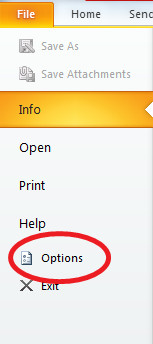
Hit the Office (File) button and choose Options.
Now click the Mail category located in the left side bar and check Always check spelling before sending option in the main window.
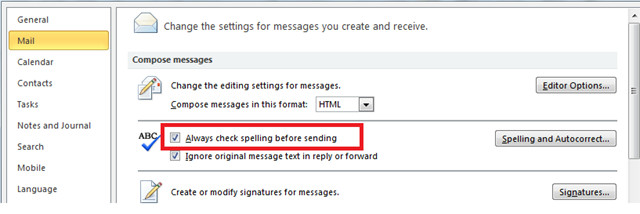
Click OK and you are done.
Spelling And Autocorrect
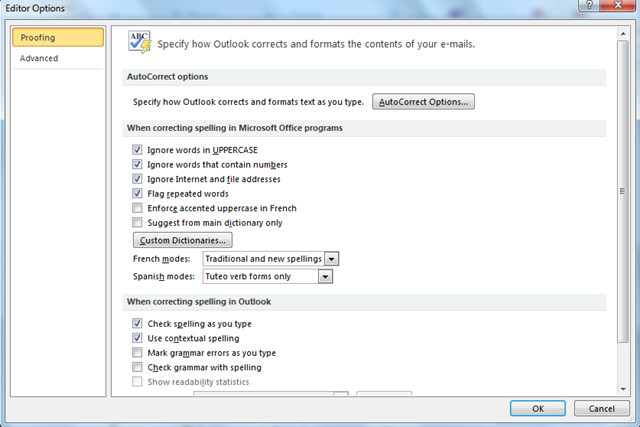
You will notice a button (Spelling and Autocorrect) located on the right side of the Always check spelling before sending option. Hitting this button reveals many exciting features. It will launch the Editors Options dialogue box where you will find two categories in the left sidebar. The Proofing category lists the options regarding how outlook corrects and formats the contents of your email. Check/uncheck the options to enable/disable them.
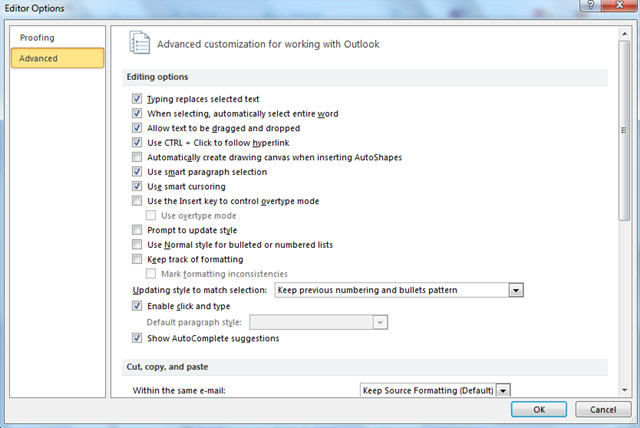
The Advanced tab offers options for the advanced customization of Outlook 2010. You can customize the settings regarding Editing, Cut, Copy, Paste, and Display.

Thank you!
I recently upgraded my computer, Office, Outlook to Win7,Outlook 2010. When I am emailing in Outlook, it will highlight a misspelled word as I type as I requested, but when I right-click to see the suggest list of replacements, It just gives my signature and name as options. In this message, it worked properly giving a list of suggested replacements. I went to the options settings, and don’t see anything that I can change that will correct this. Any suggestions?
If you find a copy of winword.exe (2007 or 2010) and copy it to the office14 folder it works….
Is there any way to keep spell check in Outlook 2010 from checking everything in a string of emails? I only want it to check what I’ve written.
My check spelling as you type is grayed out and I cannot check it.. 🙁
like to use SPELL CHECK and on my old computer
it highlighted the misspelled word in yellow dark enough for me to see
it. This new computer highlights it in yellow but so faint that I can’t
see it. Any suggestions on how to make it show darker?
2010 Office Word – I followed the link in “Word Help” that says, “Whenever I type “HSA” it is auto corrected to “HAS”. HSA is an acronym for Health Savings Account, and thus…” But the article referenced just tells how to use autocorrect and the custom dictionary – which will NOT allow words with 3 capital letters. And, I still want to be able to spell check words in all caps! Please help!
I Only have Outlook 2010, not the full Office package, but I don’t see the spellcheck icon, even though it is in the Options menu. Is there anything wrong?
The autocorrect and spell checkers used with Outlook 2010 require Word 2010 as well. It might work with Word 2007 also but I doubt it.
Excellent post!
Is there any way I can apply spell check to the emails I receive so they are actually coherent?
Whenever I type “HSA” it is auto corrected to “HAS”. HSA is an acronym for Health Savings Account, and thus I don’t want it to be changed from HSA to HAS. How can I make it so that HSA is not changed to HAS every time I type HSA? Thank you. Perhaps you can change it on your system, since HSA health insurance policies are very popular, and thus the term HSA is becoming very popular. Thanks again.
ADD HSA TO YOUR DICTIONARY
Option1: In the “Auto Correct Options” in the “Proofing” tab, currently it is defined as to Autocorrect hsa as has. You need to change it to HSA in this.
Option2: Type HSA in Caps and Select the option in Proffin tab – Ignore Words in UPPERCASE
Adding HSA to the dictionary doesn’t help because it doesn’t even see it as a misspelled word. After it corrects it and I correct it back, it doesn’t tag it as misspelled.
I already had it set to ignore words in UPPERCASE, so that didn’t help. Maybe the UPPERCASE thing is only for spell check, and not for autocorrect.
I went in and found the hsa to has autocorrect and deleted it. Not much point in changing the autocorrect so it corrects hsa to HSA. If I mean HSA, it will be in caps already. If I spell hsa in lower case, I probably do mean has. I would really like it to autocorrect that to has. If only the UPPERCASE thing worked for autocorrect. sigh…
I have the same experience. For some reason, HSA is always autocorrected. Perhaps there is a secret dictionary that outranks my dictionary.
In the XP program while using Outlook email there was the ability to “keep research available in the
RH margin” while composing the text. How can I do that with Windows 7?
Appreciate your advice and help.
D Short
Spell check is not working in my outlook 2010. follow all options but still same. how to enable? can some one help on this issue………………?
It’s been half a year, but for those who check here:
The autocorrect and spell checkers used with Outlook 2010 require Word 2010 as well. It might work with Word 2007 also but I doubt it.
After reading this post, I ran Word2010 for the first time ever, reopened outlook, problem fixed. Thanks!