Remove Useless Items From Right-Click Context Menu By Hacking Registry
Have you ever noticed that some applications like Antivirus software, WinZip, SmartFTP, and others, add some items to the context menu when you right-click on a file or folder? Apart from Windows Vista, these software install shell extensions to add applications in the right-click context menu. If you delete the appropriate shell extension in the registry, you won’t get these additional menu items.
A messed up right-click context menu is shown in the screenshot below. I am going to remove SmartFTP from the right-click context menu because I never use it. Read on to find out how to do it.
Note: Make sure you have made a proper backup of your Registry. In case you have mistakenly removed the wrong folder, the backup will come handy in restoring the lost folder.
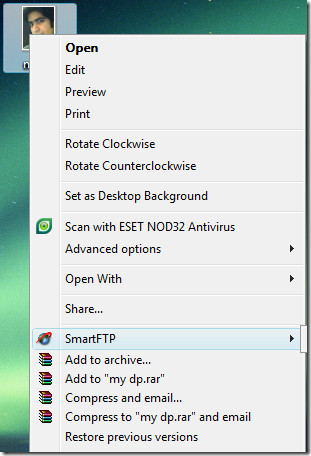
Remove Item From Right-Click Context Menu Of Files
Note: This method will remove the program from the context menu list when you right-click on some file.
Open Registry Editor to start hacking it.
Windows XP: Go to Start menu, open Run, and type regedit and hit Enter.
Windows Vista: Go to Start menu, type regedit in the Search box and hit Enter.
Once your Registry Editor is open, navigate to,
HKEY_CLASSES_ROOT\*\shellex\ ContextMenuHandlers
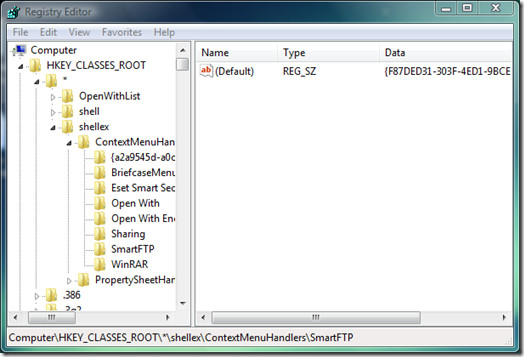
To remove SmartFTP, first make a backup by right-clicking on the SmartFTP folder and selecting Export. Then save the registry at some safe place. Once backup is done, simple delete the folder.
You will see that SmartFTP has vanished from the right-click context menu of every file in your computer.
Remove Item From Right-Click Context Menu Of Folders
Note: This method will remove the program from the context menu list when you right-click on some folder.
Use the same method as above to open Registry Editor.
Once your Registry Editor is open, navigate to,
HKEY_CLASSES_ROOT\Directory\shellex\contextmenuhandlers
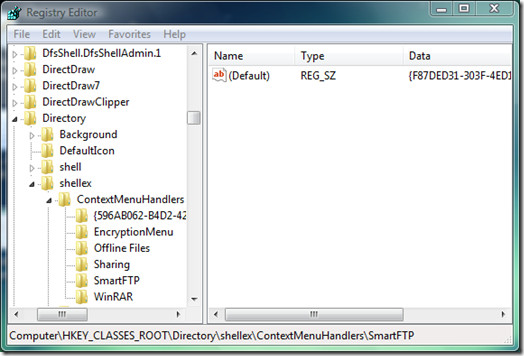
Delete SmartFTP folder, just like you did in first method.
You will now see that SmartFTP has vanished from the right-click context menu of both files and folders in your computer. It’s that simple!

Please help!I tried to remove teracopy from the list,i deleted the folder but it is still there!
Help! My context menu has no text and sometimes shows up and down arrows. Also the bar at the top in regedit has no text either.
Help! My context menu has no text and sometimes shows up and down arrows. Also the bar at the top in regedit has no text either.
Could not find some of the programs listed in my context menu. Windows 7 user.
hey , i have device manager in my right click option and i want to remove it but i cannot find it in
regedit plzzz help me……!!!
Instead of Deleting the folder (in case you want to put it back in the context menu for what ever reason)
Navigate to the folder of what you want to remove double click on (Default) add a 0 before the current Value data eg: 0{D25B2CAB-8A9A-4517-A9B2-CB5F68A5A802}
Silly to list 2 locations in the regedit, when it’s obvious that pesky programs put pissy piddle in a variety… The (at least slightly) more intuitive users can get it done quickly, by opening regedit and using the ‘Find Next’ function in the ‘Edit’ Menu. In my case, I searched for ‘Avast’ (bitch program re-installs it’s right click option from time to time), after about five clicks of ‘Find Next’, there it was in yet another sub folder named, ‘contextmenuhandlers’ – hit delete and problem solved, (far quicker than searching/ scrolling to a whole host of places using blind hope as your guide) – of course you need a bit of common sense to know what and when to delete, above mentioned location type is a dead give away though, huh.
It Works! thanks a lot!
Hi All,
I already try all suggestion from you. It is the same problem. But I want to disable right click button on my background desktop. Let see my picture..
http://img43.imageshack.us/img43/3946/problemwz.jpg
I hope you guys will help me to solve this problem matter.
Thanks
… And one that gets ALL of us is:
HKEY_CLASSES_ROOT\AllFilesystemObjects\shellex\contextmenuhandlers
It got me for a while!!!
Thanks James, you’re right.
I could find what i lookin’ for in the righclick menu.
😀
These are great tutorials! Thanks so much for posting this. However, I need to remove something from my Desktop Context Menu, and neither of these tutorials explicitly address this, as I don’t know which folder in the Regisrty Editor I need to look in. I’ve been poking around online and can’t seem to find the proper directory for Vista, nor a proper tutorial for it. I know I’m kinda necroposting on this article, but any help I can get I’ll take. I’ve already uninstalled the program that the link was attached to, so now it just takes me to USER/Documents when I click on it.
http://i56.tinypic.com/2vxreyu.png
Here’s a link to a screenshot of the menu in question, as well and the offending link, if that helps at all.
There are two free utilities, put out by the same publisher, which allow you to disable almost any context-menu item including those for folders and files without registry editing. They also have a search capability which makes it easy to find the item among the extensive lists they show. They’re called ShellExView and ShellMenuView. Here is the link:
http://www.nirsoft.net/utils/shexview.html
Both are portable apps so there is no installation. Try ShellExView first and if it doesn’t show something, you can probably find it with ShellMenuView. I just used both to clean out the right click menus for both folders and files on my Windows XP netbook and they did an excellent job. It’s so much faster and safer than registry editing.
This is quite intuitive. I’ve been looking for such solutions because my folder context menu is over 20+ entries long! Thanks for the insights!
Hi! Mine was in HKEY_LOCAL_MACHINE\SOFTWARE\Classes\Directory\Background\shell and not in shellres 🙂 It was a program called CabViaActivesync which isn’t worked for me.
OK fine but my problem is …Removing items on the RIGHt click on the START MENU
not files, not folders, etc but when I RIGHT click on the START MENU, lots of junk somehow got in there
ya i know i did not pay attention when I install those software
thanks
Hey!! i need to disable “copy” and “paste” keys from folder and file right click menu? can you tell a way to do tht?
This tool will help, https://www.addictivetips.com/windows-tips/disable-file-delete-copy-paste-move-cut-rename-and-other-options/
I found another context menu handler that is rather important to cleaning things up in windows 7.
HKEY_LOCAL_MACHINE\SOFTWARE\Classes\Directory\Background\shellex\ContextMenuHandlers
This seems to contain most of what was in the previous locations. More details at my blog.
The items that i wanted to remove was not listed!!! What do i do now? Please help me 🙁
can neone tell me how to add a new item to in right click menu of windows xp
Not All Registry entires are there. Actually the vast majority of the right click menu is not in the registry (neither in the files or in the folders). Can anyone explan or help?
Thank you
Well, i solved it, the keys were in HKEY_CLASSES_ROOT\Folder\shellex\contextmenuhandlers too
thx
Glad to hear that you solved it! 😀
Good tip! but it didn’t work for folders, i followed the steps but the items are still there!
any idea?
Please post that you need to restart after you edit the registry and put the fact that you should not just backup the registry, when editing the registry but that you should do it about every 2 months anyway, at the top of the post instead of at the bottom. Because if someone just looks at the top whole doing the editing and then see’s that message it could mean damage to the computer!
Yeah I agree with you here. Done !
Check back for more useful tips 😉
Over officious loser. Don’t NEED to restart at all – it depends on what you’ve fooled around with…
you could just end task of explorer.exe and restart it 🙂