Safely Backup Files In 7-Zip Format With 7Backup [Windows]

Backing up important data is a useful practice for safekeeping your files. Using a compressed backup will ensure that you don’t waste precious storage space either. 7Backup is a useful little tool which saves your backup files in the excellent .7z format, accessible via 7zip software.

The interface is rather too plain for convenience, with no option to browse for files even. You need to add address for source files/folders needed to be backed up, along with the backup file name and destination. The software supports backup from network sources as well. You also get to specify the network account to use, as well as adding exceptions to the files/folders for backup.
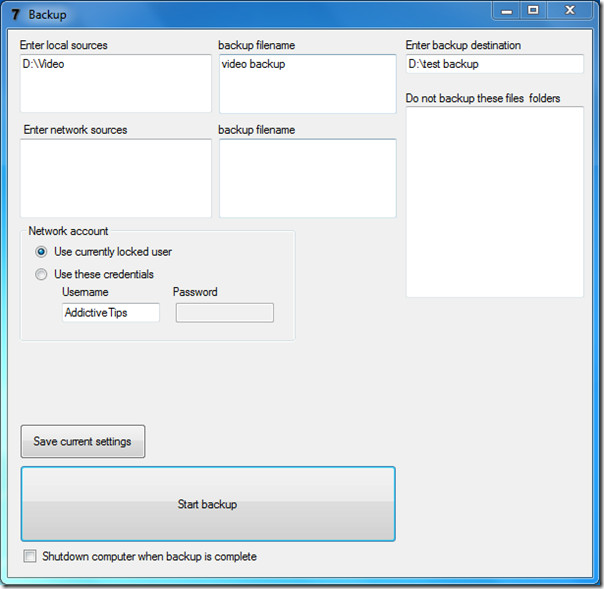
7Backup

Once you have set up everything, click Start backup. The progress window will open and backup process will begin. You can also save the current settings if you want, for future use.
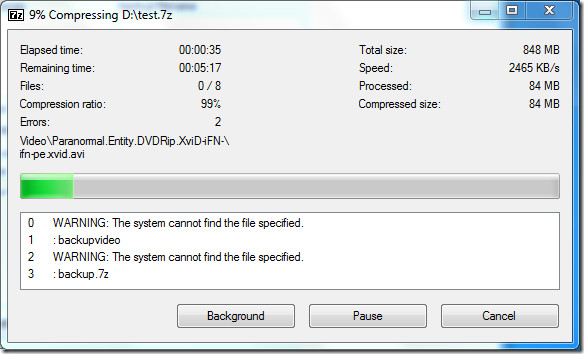
7Backup Progress

The output backup file is saved in .7z format, and requires 7zip to be opened, which you will have to obtain separately. Strange enough, in our test, the output file got placed in the same folder as the 7Backup executable, instead of going to the output folder specified. Maybe this will get fixed in future builds.

As for the backup file itself, it was good. Integrity was kept and compression applied was impressive. We attribute this to the usage of the efficient .7z format. One interesting thing to note was that if you perform a new backup of some files different from previous ones, the software will add them to the previous backup instead of creating a new file. Whether this would appeal to users or not, we liked this feature.

7Backup is portable, but you will need to extract the downloaded file before being able to use it. It works with all editions of Windows.

Download 7Backup

You can also try Saft Backup as an alternative.

  • Share this article!

    • Digg this!
    • Bookmark on Reddit
    • Bookmark at Delicious
    • Stumble this!
    • Share this post at Facebook
    • Tweet this!
    • Share on Yahoo! Buzz
    • Add AddictiveTips to your Technorati favorites
    • Share on Friendfeed
This entry was posted in Windows and tagged , . Bookmark the permalink. Post a comment or leave a trackback: Trackback URL.

2 Comments

  1. Posted March 10, 2010 at 3:08 pm | Permalink

    It's funny, but I wrote a similar tool with the same name (except the dash). Its homepage is here: http://7backup.russian-author.com/index.html .

  2. Mike
    Posted March 17, 2010 at 11:21 am | Permalink

    Looks nice, 7zip 4 president.

    By the way, the alternative tool you mentioned (SaftBackup) uses LZMA as compression algorithm which is the same algorithm 7zip uses.
    But you have to turn on “ultra compression” in the options otherwise it will use another (faster) algorithm.

    Cheers
    Mike

13 Trackbacks

  1. By Tubes Links | Mommy Classes on March 10, 2010 at 10:30 pm

    [...] Backup Files in 7-zip compressed format [Windows] [...]

  2. By tent heater | THE CAMPING HEATER SHOP on March 11, 2010 at 12:30 am

    [...] Backup Files in 7-zip compressed format [Windows] [...]

  3. By Mirror Iphone | Onsly on March 11, 2010 at 1:05 am

    [...] Backup Files in 7-zip compressed format [Windows] [...]

  4. [...] Backup Files in 7-zip compressed format [Windows] [...]

  5. [...] Backup Files in 7-zip compressed format [Windows] [...]

  6. [...] Backup Files in 7-zip compressed format [Windows] [...]

  7. [...] Backup Files in 7-zip compressed format [Windows] [...]

  8. [...] Backup Files in 7-zip compressed format [Windows] [...]

  9. [...] Backup Files in 7-zip compressed format [Windows] [...]

  10. [...] Backup Files in 7-zip compressed format [Windows] [...]

  11. By round stained glass frames | Stained Glass World on March 11, 2010 at 9:18 am

    [...] Backup Files in 7-zip compressed format [Windows] [...]

  12. By copy original xbox games | Buy Playstation Games on March 11, 2010 at 9:48 am

    [...] Backup Files in 7-zip compressed format [Windows] [...]

  13. By Keyed Alike | Coffee machine maker on March 11, 2010 at 10:29 am

    [...] Backup Files in 7-zip compressed format [Windows] [...]

Post a Comment

Your email is never published nor shared. Required fields are marked *

*
*

You may use these HTML tags and attributes: <a href="" title=""> <abbr title=""> <acronym title=""> <b> <blockquote cite=""> <cite> <code> <del datetime=""> <em> <i> <q cite=""> <strike> <strong>


More in Windows (5 of 5 articles)