Windows 7 Access Denied: Permission & Ownership
If you are getting Access Denied error in Windows 7 then you are not alone. This error is quite common and occurs due to permission issues. There are some files and folders that are meant only for Administrators to access, if you are not an administrator then you cannot access it and will instead get Access Denied error.
To enhance security Microsoft has even denied Administrators access to some folders. The way to fix this error is to give yourself permission to access the file or folder. This can be done by going to Properties and then navigating to Security tab.
Remember that we are taking about two different things – Permission and Ownership. By giving all permission to your account, you will be able to get complete control of a folder. But in some cases only the owner can assign the permission for various users, we will also cover how you can change the ownership.
Changing Ownership
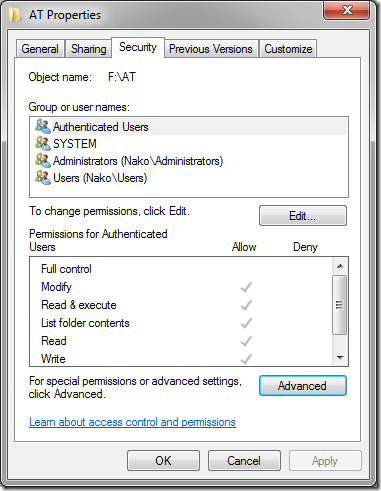
First, lets talk about ownership. To change ownership, right-click any file or folder, select Properties, and go to Security tab. Now click the Advanced button(shown in the screenshot below).
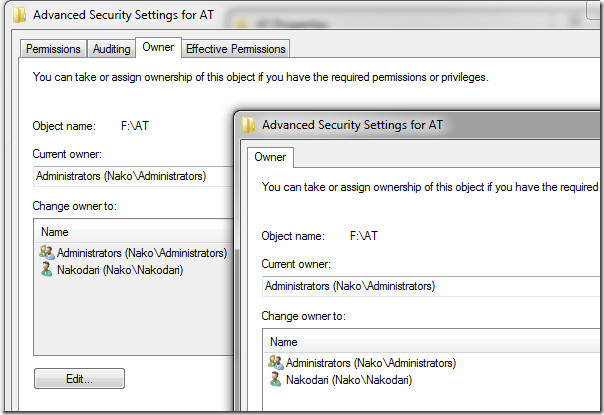
Next, you need to go to Owner tab and hit the Edit button. Then in the new dialog window choose the new owner and then click OK.
Changing Permission
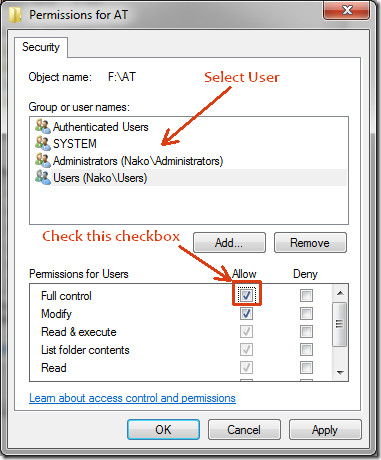
If you are an administrator and cannot access a folder, this is due to permission error. To give complete permission to yourself, right-click the file or folder and select Properties. Now go to Security tab, and hit the Edit button.
Here select your username(account) and check the Full Control checkbox. When done, hit OK. Note that when you will check the Full Control checkbox, all others will be automatically checked too.
Update: This method is not working for most users. Since many folders and files are locked, the only way to access them is to first unlock them using LockHunter.
Now go ahead and open the file or folder and you will be able to access it. Note that Permissions is a great way to lock your folder too, go here to learn more about how to lock your folder.
Enjoy!

“Next, you need to go to Owner tab and hit the Edit button. Then in the new dialog window choose the new owner and then click OK.” …. How do I know what owner to choose? What would the implications be of choosing wrongly? Am I going to screw up the system and have to pay someone $75 to figure out what’s wrong? These are the kinds of questions that go thru the minds of some, less technically sophisticated than others.
Worked great. Was there some security update that made this an issue?
I never used to have problems using an installer and all of a sudden both my computer and my boyfriend’s wouldn’t let me install anything until I changed the owner of the Program Files folders.
when I reinstalled my windows.some of my file and folder or even archives permission changed.Those file don’t even have any owner.. what should I do..I have to change every single files ownership and permissions.This is a waste of time..
.this happened on windows 7,8 and 10
.sorry for my bad english
I’ve never liked Windows from the beginning and it gets worse with every version!!!!
If anyone else gets ‘access denied’ while attempting to reclaim ownerships / permissions, try following the above instructions while in safe mode. You may need a couple of other tweaks in the settings, but the important bit is that safe mode bypasses the frustrating ‘access denied’ messages that prevent you making progress.
please help me, i want to copy an “.exe” file from my disc to my Local Disk (E:) but this is not working on me, i right-clicked at the file and clicked the properties but i cant find the security tab. please help
Gods I wish I was clever and a hacker. Windows makes damn sure we can’t even adjust our own bloody files! All I wanted to do was make a bit of space… in fact I was trying to remove the games that’s all… you know, solitaire and other useless crap. Outrageous. Mind you, I tried uninstalling apps on my phone too… and they keep redownloading…. GRRR. I hate tech that doesnt let you use it your way.
It keeps saying ‘access denied’ after i did all this. It wont recognise that its me….aaaaarrrrrr
Windows xp activation support has been ended and windows 7 support has been over, but there’s no doubt, As Windows 7 is the most recommended OS, Which through user can do almost all work without any problem, Where I recommend you to activate your OS being purchased its license code from ODosta Store
Which is distributing license for almost all types of Microsoft Products. I personally use it and have a good experience.
after doing all the process.It gives (access is denied ) is there anyway to remove this ?
I have no words to appreciate this post ….. I’m really impressed with this post …. the person who created this post was a big thank you man .. for sharing with us.
You done did it! Thanks for the exceptionally clear post.
i tried changing permissions in a folder INSIDE that folder. someone help?
it says i still need permission by MY OWN user?!?!! i have an unknown file located in my C: drive that i am afraid could be malicious or infected with a virus. i really want to delete it ASAP. i don’t know if it’s just a microsoft file or not, but either way i’ve never seen this file when i first got it. i just got it a few days ago. PLEASE HELP!
Look, IK im late posting here but I hope what I am about to say will help someone with similar problems. you can actually fix a… lot of diffrent errors using this method { WARNING!! } ” You can also cause your PC to be unable to boot into your OS ” The long And short of it is That you can boot into A recovery environment from USB IE ” mini windows 7 ” or the one I use “mini windows XP” I do this by booting my system from USB Loaded with Hiren’s Boot CD 15.2 ISO simply boot from USB and follow onscreen instructions to enter mini windows XP from within this mini OS you can access your Root directory of your installed OS and can add, Remove, Delete, any file or Folder on your Machine without any Stupid access Denied Prompts And no need to take ownership. as the OS is not active you can do as you wish. IMPORTANT!! BE VERY CAREFUL Do not delete anything From Windows/system32 Folder Unless you are Absolutely Certain of what you are doing. You Can And will Render your Machine Basically inoperable if you do so.
This post is horrible. I’ve done this a thousand times. It doens’t fix the issue.
I will give anyone 100 USD to help me to find permission. Tried every way..including ubuntu no luck. christianfew@hotmail.com
This post is not complete. Be wary, and do further research before you start messing with the UAC (user account control) in either Vista or Win 7 (basically the same operating system) Microsoft made an error in the programing and rather than re-write it, they patched it. It is now a major back-door and entry point for nasty virus, malware, Trojans, ect. and a favorite of hi-jackers. Chances are good that you have something waiting patiently for someone to open the door so it can scoot in and lock you out of your own computer. There are some things in this area that you can’t undo, and some things that can only be done a limited number of times, before the computer itself starts to see you as a hacker rather than the “GOD of creation” that you like to see yourself as when your the only user on a personal home computer. Just-sayin……………….tread lightly….and carry a big stick.
Win7 permissions simply don’t work.
Utterly Annoying. All I want to do is make zips of some old laptop drives. Older versions of WIN knew nothing about the premissions on these sorts of drives so it was easy to just make a zip of the entire drive (to avoid long file name conflicts). Now you CAN’T just make a zip of a drive. The stupid OS won’t give you access to the files, and you have so spend a LOT of time granting accesses just to archive something. WORSE – oif the point was an archive you can RESTORE from, you’re stuffed because you went and changed the permissions which makes it easier for virus software to do its job.
Here we are WIN8 all over, and the next one about to be released, and this problem has not been touched.
Then again the totally unnecessary limtiation on max path name len (with errors of file path is to long to copy) during simple file operations (copy, delete) is a VERY stupid hold over from WIN95!!! Some errors can result which are so bad that it requires a HDD reformat to remove them … all due to the length of a pathname (and the fact that many portions of the API don’t bother to CHECK the size of the string being sent to it before using it). WAY back when I was learing C there was a “10 commandments of programming” making the rounds through DARPANET which essentially said:
“Though shalt always check the array bounds of strings for surely where thou has typed ‘foo’ another shall type ‘Supercalifragilisticexpialidocious’
idiots
, which does not exist in *nix because they use inodes under the hood (a hex pointer to a spot on the HDD), whereas WIN (the lobotomized OS) – ages after the introduction of the inode, *still* uses the actual full concatenated file path for even the simplest operations. This continues despite the fact that NTFS has been reinvested several times over the years and at any point a better scheme (where API’s under the hood only access inodes) could have been implemented.
Really appreciate this. Found out I had three separate categories. Reducing it to one seems to have solved all problems.
Changing the owner does not work for me on Windows 7 – I get an error from Windows security : “Unable to set new owner on… You do not have the Restore privelege required to set this user/group as owner.
How do I get past this and why does Microsoft always make things so complex???
Group policy is your Culprit Most likely… 🙁 I Hate Group policy!! You can set The Group policy Rules on your machine. I did it once. Just because…. Well it is my PC That is why! I must add that I had a lot of help From some good folks on the internet. I can’t for the life of me remember now what that forum was now… But if you just search for how do i disable/Reset group policy With Bing…… or …… “Yuck”….Google Search I am sure you can find someone who can explain how to do this… I Think it involves some registry Hacks maybe a script. I can’t recall it is a royal pain in the A__ to accomplish though I can remember that much. Good Luck Seeing as how this is an ancient thread Probably to little to Late but I Pray my Experience can be of help to someone out there.
Thanks , I took core ideas from this article and it help me a lot.
Not working for me!
Trying this now, thanks.
it doesn’t work for my win7. I still getting an error when opening software
You need to start asking yourselves who’s computer is it !
I am in regedit as administrator and cannot take ownership of a key node so that i can remove Microsoft spying on every thing I do and that includes in depth details about every device you have ever plugged in to your USB port.
I tried to get around this “We won’t let you do it” by using some C# code after backing up the registry and as soon as the code hit the break-point I had set windows threw up an error message outside the visual studio debugger and soon after that the computer went bang and windows would not let me import my saved copy of the registry so I took a day rebuilding the darn machine.
Microsoft is doing all it can to hide details about the registry and often uses keys ten levels deep to stop anyone spotting just how much privacy is being broken but I have written code that audits all the changes to the registry using SHA1 on value/data and then saving the results in an XML file and I can tell you now that windows seven even on a rebuild has over 400,000 keys and holds something like 3,000,000 bits of data.
Nope I don’t trust Microsoft and its dirty tactics and was they to spend half as much time fixing windows as they do at auditing our every move for the NSA then windows would not keep blowing up as it does now.
Tried everything. Nothing works for me. Thanks Microsoft for taking my money and preventing me from doing what ‘I’ want to do with it. Think i’ll switch to apple
Doesn’t work for me either. I’ve tried everything. Why do we have to put up with this crap. It’s ‘MY’ pc!!!!
I use Permissions Time Machine v1.2 to restore permissions to folder or files or registry keys
download it from amyd projects blog
Try and download ” Long Path Tool ” is also useful in situations where you see these error messages: Cannot read from source file or disk, there has been a sharing violation, cannot delete file or folder, the file name you specified is not valid or too long, the source or destination file may be in use and many other file managing errors.
I Use Permissions Time Machine v1.1 to restore default permissions and remove “Access is denied” message for folder or files or registry keys or windows services or wmi objects it’s free and fast and easy
download it from AMYD Projects
ty…
but my folder is lost?
where are they?
This does not always work. It will not let me write to a folder that I am the owner of. Microsoft sure knows how to screw things up. It has gotten worse since Windows 8 was released. Anyone ever notice that?
I highly recommend “Long Path Tool” useful in situations where you see these error
messages: Cannot read from source file or disk, there has been a sharing violation, cannot delete file or folder, the file name you specified is not valid or too long, the source or destination file may be in use and many other file managing errors that you encounter in your computing use.
Everytime i try setting it to me as administrator it keeps telling me “unable to se new owner to folder access is denied” what should I do?
doesnt work. gives an error ms saying “cannot unlock, some other processes are still locking it” But wasn’t that the point!!!!
unless program
My issue is I have a dual boot setup so I understand permission issues may happen with that. I didnt really have this problem with Vista and XP tho….just saying.
A post below worked for me tho. I had it working before but forgot to write it down. I assume what that guy posted is what I did before.
No manejamos esa información, disculpe.
args = (13, ‘Permission denied’)
Paraguay crea listas negras y lo mas notable que actúa en países limítrofes (Argentina, Chile, Brasil, etc.)
I also had the same problem…..
I have done everything mentioned above but it didn’t work .the problem was still on.
but now my problem is solved…..HERE IS THE SOLUTION……
1)Manually open the folder for which the access is denied.
2)select the Executable/application file in that folder.
3)Right click on it and go to PROPERTIES->COMPATIBILITY
4)Now see the PRIVILEGE LEVEL and check it for RUN AS ADMINISTRATOR
5)then click on CHANGE SETTING FOR ALL USERS.
6)I guess the problem is solved now.
I also had the same problem…..
I have done everything mentioned above but it didn’t work .the problem was still on.
but now my problem is solved…..HERE IS THE SOLUTION……
1)Manually open the folder for which the access is denied.
2)select the Executable/application file in that folder.
3)Right click on it and go to “properties<compatibility"
4)Now see the "privilege level" and check it for "Run as administrator"
5)then click on "change setting for all users".
6)I guess the problem is solved now.
Hove a nice day
click start then type “UAC” there is a bar asking for you to be notified for system changes.
MOVE the BAR for user access control to ZERO. It worked for me.
I’m trying to copy a file in a folder. After I tried to remove username from (Properties>Security>Edit>Remove), this message appeared:
“You can’t remove because this object is inheriting permissions from its parents. To remove , you must prevent this object from inheriting
permissions. Turn off the option for inheriting permissions, and then try removing
again.”
So, I removed the tick from the check box below:
(Properties>Security>Advanced>Permissions>Change Permissions> Include
inheritable permissions from this object’s
parent)
After clicking on “Apply” button, This time these messages appeared:
“You have denied all users access to . No one will be able to access
and only the owner will be able to change the permissions. Do you want to
Continue?(Yes)”
Next message:”An error occured while applying security information to:.
Access is denied.(Continue)”
Last message:”Unable to save permission changes on . Access is denied”
Then I filled the ckeck box from below to change the owner:
(Properties>Security>Advanced>Owner>Edit>Replace the owner on subcontainers
and objects)
After clicking on “Apply” button, This time these messages appeared:
“An error occured while applying security information to:. Access is
denied.(Continue)”
Next message:”Unable to set new owner on . Access is denied.”
I have Windows 7 Ultimate 64-bits
WHAT SHOULD I DO?
worked for me..excellent……yet other ones wont,this was well explained..thanks..
What are special permissions to allow all users to copy or write to a folder, open the folders and read the files, but not modify nor delete the folders or the files after they have been added to the folder?
Useless post. You can’t change permission on a folder you don’t have permissions to…such as C:WindowsdiagnosticsscheduledMaintenance
You can if you are the owner of the File… or if you are using the hidden ADMINISTRATOR Account. You can enable this account by Clicking on START and then in the search box type CMD a command prompt icon will appear right click on this result and select run as administrator. You may have to enter A Password here if prompted. It is probably your user PW once you have typed in the correct PW hit enter and a console will pop-up on your desktop. now type cd\ c: and hit enter… This will take you to the root directory… might not matter Anyway after having done this type net user administrator /active:yes And Hit enter now re-boot your PC when windows starts now you should notice a new account on the sign-in screen simply click on this new account might need PW here… should be the same as you used previously… any how once you get signed in you will notice that your desktop is blank where are all my short-cuts and my gadgets and junk do not Fret you can find these in the root Directory under “username” desktop should look something similar to this C:/users/user name/Desktop just look for the name of the user that you usually sign-in with this is your Account and now as A true ADMINISTRATOR well near as anyways… you can do just about whatever you want to do with YOUR PC 🙂 WARNING!! BE CAREFUL using this account Microsoft has it disabled and hidden from the common user for good reason. You Can FUBAR Your PC if you do not know what you are doing with this account You Can Also make Your Machine More vulnerable to attack. that is one key reason that there are permissions in the first placed. to keep anyone without the proper Authority from making system Changes. That could potentially weaken the Security of Your PC Use at your own Risk!
Valeu deu certo
how to use c drive with full control in networked computer in school
درایومن این مشکل را پیدا کرده وتب security
آن دیگر نیست چکار کنم به اطلاعاتم دسترسی داشته باشم.
I just had a caller with this issue. I made sure that he was the file owner and had full control, but after I had him first log out and back in, then reboot, he still got the access denied message. I had him copy the file, and he was able to work with the copy.
solution is correct but how can we change ownership of more than 1 file
THANKS!!!!!! Working
Thank you guys ! This helped me A LOT !
Right click on the shortcut Icon of programs that tou want and click on Run as Administrator.
Right click on the shortcut Icon of Net Stumbler and click on Run as Administrator.
Goto Start Menu, type “cmd”, right click on it, select “Run as Administrator”,
i used *.lnk for this example you can use a specific file path(ex. “c:abc.txt”) or another wild card (ex. “*.exe”, “*.txt”)
TAKEOWN *.lnk
icacls *.lnk /grant :R
icacls *.lnk /grant :W
Hate Windows scheme. Administrator cannot admin, whatthehell. MS, you still have the whole thing screwed up!!
my brother has locked a folder how can i unlock it without letting my brother know it
Right click on the drive letter that contains your folder(s) and select Properties. Select the Tools tab at the top. Select Check now… and ensure both boxes are checked. Select Start and let run. Reboot if necessary but it might not be. Permissions should now be restored to your drive and folders. Windows 7 glitch, not sure why.
Just simple Goto: the Tomcat7.exe and Tomcat7w.exe i.e. to this folder C:Program FilesApache Software FoundationTomcat 7.0bin ->
Right Click: on it Tomcat7.exe and Tomcat7w.exe and click on the properties. ->
Goto: compatibility Tab
Check on: the “Run this program as Administrator” properties. ->
It will run without any issues when windows 7 started. no access denied message !!! 🙂
Thanks so much! This just saved my day!
As someone else said….go to start.
type in “user access control”
(select this as the option if you get more than one choice),
there is a bar asking for you to be notified for system changes.
MOVE the BAR for user access control to ZERO…or whatever you are comfortable with.
AT zero,,,I was able to see my external drive. YES!!!!
Set the bar where you wish.
At medium I could not access anything..
I recommend you only keep the access control bar low, when needed.
Like when you want to access a special drive, or make system changes.
I am not an expert…
so I can tell you the above worked for me…
and Microsoft support was worthless.
so create a file to tell you how to change…keep UAC high except when you want to make changes..
Microsoft is a big draw for hackers…so keep your guard up.
Good luck.
Linda
I called microsoft,…they are worthless and clueless….want to sell you advanced support.
ALL you have to do is go to start menu, type in user access controls..select it and change the bar. Problem solved. Keep the bar high though, unless you are making changes or need access to an external hard drive. Phew.
but when i connect my portable hardrive to different systems these problem occurs again and agian
It is really sad the the security of windows 7 is better at keeping the users locked out than it is at keeping hackers, viruses and malware out of the system.
I am so angry with microsoft, I am a system admin and have been for 4 years now. I have quite a bit of experience, and I still cringe everytime I get this error. I have changed the owner to everyone and given everyone access and yet the other computers on the network still can’t get to it. I have disabled all firewalls on both computers. I would love to catch whoever is responsible for microsoft permissions in a dark ally!
If all above not help you. See if the subfolders have in the security tab the message of
“The… folder does not exist. The file may have been moved or deleted.” Then CREATE A NEW FOLDER WITH THE SAME NAME IN THE SAME PLACE FOR EACH (In my case had multiple folders). You’ll notice that two folders with the same name exist WITHOUT REPLACE IT. Very suspicious no?. Then Enter to Properties and uncheck READ-ONLY box for each folder. Then go to the UPPER folder and deleted it. EMPTY your RECYCLE BIN!!. NOTE: I notice that the Upper folder can be renamed and moved to another place of my PC. I hope this will help you.
I have used this method and it is working fine. There are two points I would like to query here. The photos, which I had saved in JPEG fortmat are not opening using this method. Also, is there any way I could do this thing with multiple files instead of going through them one by one? It is taking too long time
Thanks
thanx
its good if any file have like this permit-ion, but what to do if you are not allow to take its ownership i am talking about like i have avast anti virus and i am not able to delete its folder i was trying to take its ownership but that option was hidden that time i have all permission also system permission …???????
nice i will delete my folder …thnksss……:)
Thank you, works like a charm ]:D
While all these suggestions are OK, I would be interested in someone providing a fix to the problem with a set of 100+ folders and 4000+ files. I have a music folder in a separate drive, and now when I try to play each song, it tells me that I am not the owner. If I have to do this procedure for each individual file … I might as well shoot myself. The problem is resolved for me (doing it in each individual file) following the instructions to go to the security tab and change the ownership. However, as I stated earlier…doing that process for each damn song I want to add to iTunes or Media Player is going to be insane.
Any help is appreciated on how to batch this process.
See my comment to fix this for you. I already commented before seeing yours. BTW my comment isw waiting to be approved by a mod cause it has a link in. It will be the newest comment.
Your tip is very beneficial. Thank you very much.
HELP!!! my advanced button is locked(grey/not pressable) . im on administrator(only acc on pc) and still ….. plz help :///
Does not worked
Doesn’t work
Thank you SO much. You would not believe how big of a pain that was. Now I know how to make my computer understand I’m an administrator >.<
I made my self owner of the prossess, but when I try to rename the prossess I’m trying to rename, it says I need permission from my own account that I am logged into, and doesn’t allow me acsess
When I tried this method the security thing told me that I did not have the permissions to change my permissions with this folder. So I went and tried the lockhunter and it said that there were no programs locking it, so I clicked the delete folder button and lockhunter told me it could not delete the folder…. I don’t understand why I can literally do nothing against this folder, I am the owner and admin of the computer.
It does not work for Documents & Settings folder even though as a Adminsitrator I have full control already ticked. I still get permission denied when I try to open this folder.
About as useful as a chocolate teapot.
The files I am being denied access to are my own files that I have just created.
Use this trick , every problem will fix !!
In Windows 7 it is called “icalcs”. To reset files permissions:
1. Run “cmd” as Administrator
2. Go to the drive or folder in question, for example:
CD /D D:
3. To reset all the files permissions, type:
icacls * /T /Q /C /RESET
4. And that’s it!
After that, the files permissions were reset and I could access them back again.
cacls is a handy tool to change permissions of files en masse.
Use this trick , every problem will fix !!
In Windows 7 it is called “icalcs”. To reset files permissions:
1. Run “cmd” as Administrator
2. Go to the drive or folder in question, for example:
CD /D D:
3. To reset all the files permissions, type:
icacls * /T /Q /C /RESET
4. And that’s it!
After that, the files permissions were reset and I could access them back again.
cacls is a handy tool to change permissions of files en masse.
This works for SOME files but not for all of them. In a couple of cases I suspect that the file wouldn’t allow removal because it had some kind of malware attached, but usually it just seems to be one of those arbitrary windows things. What I don’t get is why I, the owner and only user of my computer–and therefore by default the administrator, am not automatically granted all admin priviledges, is there a way to set that up? That would minimize these conflicts at any rate. Right now, it’s so silly because I’ll click on something, the message pops up saying I have to have administrative privlieges to proceed, and when I click again it goes ahead and does it anyway. So stupid. Then other times, nothing happens or I have to go in to the properties and do exactly what he is saying above. Most of the time this works,
This is just a fucki’n problem….
i wasted hours to solve to number of folders…
now i never touch this permission option….
Thank you so much!
How do I get it back to that if I accidentally denied all access to users [Users (Nako/Users) ] part?
I’ve wasted enough time on this issue with Windows 7. I’m going back to XP. Window 7 is the most ridiculous piece of crap I’ve seen from Microsoft in some time, and that’s saying something.
I agree! I spend most of my time trying to understand ridiculous control issues and dont get my started on the windows mail and photo mail debarcle!
I am using the administrator but when i add a new hardware and try to copy paste then access is denied and no permission to administrator is shown.
My solution :
1st of all take the ownership as mentioned above….
Then follow the following steps :
1) Right click on the folder -> Properties
2) Goto Security tab
3) Select Advanced
4) Goto Auditing tab
5) Click on Add
6) Then click on advanced
7) Click on find now
8) Select your user and click on ok and then again on ok
9) Now select your user and click on Edit
10) Tick on the full control check box
11) Now click on ok in every property window
There we go….Done 🙂
I hope this will work for you….
I had tried all of the ‘Take Ownership’ style ‘fixes’ that I could find. Some would work temporarily, then revert back to the error, and some wouldn’t work at all. Last night I stumbled across a thread on another site regarding ‘icalcs’ which is a Windows utility that edits ACLs (access control lists).
Long story short, I started running this utility via CMD prompt on my 1TB USB 3.0 drive and after an hour, went to bed. When I awakened, the utility had finished after processing nearly 400,000 files and my permission error problems are gone!
The blog where I found this information is located at:
http://lallousx86.wordpress.com/2009/06/14/resetting-ntfs-files-security-and-permission-in-windows-7/
However, many readers were having problems running the utility (not sure why), so I created a .BAT file that does it for you. Simply place the .BAT file in the directory to have its permissions reset, and run the file as an administrator.
You can download the .BAT from my site:
http://www.enoctis.net/shared/Win7_File-Permissions.zip
I hope everyone finds this useful and that they have as much luck as I did with it. My external drive is now error free.
Best Regards,
Sean Reeves
SPC, USA
Armorer NCO
I am sharing the problem with permissions. I am finding that no matter how hard I try, I cannot get my pdf editor to save to ANY folder on my hard drive. Hence the Windows 7 UNoperating system does not allow me to save essential files. This dysfunction renders this operating system useless for my needs. I was initially satisfied with this purchase. However, I am an Ergonomist and routinely evaluate usability of software. It is totally objectionable that Microsoft would restrict permissions to my folder by default. As the Administrator of this computer I should be able to use everything freely and manually set restrictions as I see fit. In spite of other good features, I would fail Windows 7 if I were to evaluate it. This adds to my frustration with other blatant errors in Microsoft products that go unfixed. For example, after saving text while editing within Notepad the cursor will change or give the appearance that is is within the text but when you type you find it enters characters somewhere else. This has been going on for years. My solution: buy a commerical notepad replacement. The frustrating part is that any Freshman computer science student can write a text editor that is more reliable. But this permissions issue in Windows 7 underscores the “Nanny philosophy” that Microsoft has been pursuing for years. I am sure the company line will be that this is all “for our own good” to protect us from hackers but I would hope that the minds at the Redmond think tank would develop some usable software.
Nick thanks your a genius! Even Microsoft could not answer my questions but all I had to do was change the owner from C: as you describer! THanks!!!!
thx, it worked, finally!
This permission administrator crap should never be an issue when you buy and own the computer. And why isn’t there a blanket correction to fix all folders? You have to fix them one at a time? Un-wtf-believable.
Problem solved!~
Download a routine, which is a registry folder.
After the merge everything works again.
It give a context menu (right click) option to take full admin ownership of any files.
To make it simple I just did the whole windows folder..
It works like a charm.
The file is named
“GrantAdminFullControl”
http://www.filestube.com/dc539bd3ba3628a203ea,g/GrantAdminFullControl.html
THANK YOU!
All I want to do is copy c:users/user01 (and all its sub directories) to a backup drive and do the same for c:users/user02 etc. How do I achieve this?
Yes. Its as Nick and newin7user above say.
One more solution to this problem (not for powerusers but sufficient for the rest of us) is to go to Organize – Folder and search options – View – and click Don’t show hidden files, folders and drives – Apply – OK. From that moment Windows will hide anything you don’t have to see. Out of sight it won’t irritate your mind, continue using Windows as usual.
I’d still like to know which users have to have security permissions. Thinking that me (administrator) and SYSTEM should be enough I lost access to my C drive again. (sorry Nick, I didn’t leave the dogs sleep) But why should EVERY hacker have access? I only want some of them:) allow access to my completely unlocked computer.
By lucky coincidence I came back here and gave it one more try. Don’t ask me how I did it ,it was lots of clicking, but now I am God of my PC. I can open everything, even Cookies and Documents and settings:). Thank you all!
Now, can somebody be so kind and tell me what I really should lock? Windows folder? System32?
And whom to grant rights? There is System, Authenticated users, Administrator… probably twenty more…
I don’t want to end up like last time I tried this- computer wouldn’t boot – next step was reinstall:)
Thanks in advance.
Hi Eddie.To clarify,one way you may have gained global drive ownership:Start -> Computer -> right click on drive you want -> Properties -> Security tab -> Advanced button -> Owner tab -> Edit button -> [ highlighted your name] -> Apply button -> check “Replace Owner on…” box -> Apply.Then press Continue when it objects to the VERY few files that the System requires exclusive use(four from memory) i.e. hiberfil.sys,pagefile and 2 {…} ones.Please spread this around as MS seems to want it a secret!!As to the byzantine world of Win 7 permissions I think it is a question of personal taste.If you are the only User of your Computer I would leave sleeping dogs lie.Regards.
First of all, the steps you wrote are actually on my computer. Congrats and thank you.
However, this didn’t work for my outlook contacts.
I used to have permission … just a couple of days ago. No majors changes that I know of since then. One automatic update is all.
Gave WHAT one more try?
I want to be the God of my computer.
How is it that within 20 minutes of turning on Win 7 I found both these issues?Yet MS’ team of testers seem never to have considered either one of them an issue!!!!!As the person buying the OS,loading and naming the computer and putting the personal info into the machine…shouldn’t I be the default owner/occupier/God of all files?That said,newin7user post of 14/10/2010 does the job- Thanks newin7user.As to search,well what can be said save that XP worked and then they stuffed it.
Exactly. I dont understand how can MS fakup such relatively simple task of searching files. Maybe they want to leave some room for future improvements? So we can one day say “wow, this search in Windows12 is really good”.
“Access denied” will be fixed in W28.
F…k! If Microsoft is unable to figure out this triviality how can we trust them with anything else?
I am and I always was the only user of this Pc, its fresh reinstall of W7, but I am unable to open my own folders! WTF?
Spending hours by searching for solution how to open Documents? Ridiculous.
I paid my hard earned $$ for it and all I got is this lousy s###.
Linux is running in virtual machine for now, next time Im putting it on harddrive.
Hello
A site at any site in the normal password
Hey,
I’m trying to give users permission to read and add, but not edit or delete files/folders from shared folders, but apparently win7 mixes them all (even in advanced settings) – is this possible?
Thx.
I had the folder that I couldn’t delete, getting Access Denied no matter what I do and what program do I use. Finally remembered that I had it included in library 😉 Removed it from library and it was gone. So why in the hell didn’t it removed itself so it can be deleted?
uhm, When i try and edit the permissions, it says access denied… WTF!
I’ve found a solution to “access denied” that ALWAYS works for me. I see it was also found by “bh” in his post of Oct 16, so why are there still questions?
Anyway, the problem I ALWAYS find is the the folder has a permissions for the Everyone group of Denied. This applies to EVERYONE, including administrators AND owners, so taking ownership will not work.
Properties ==> Security. I always see that there is an Everyone group with no checkmarks for any of the permissions. I click Advanced to verify all permissions are Denied, then remove the Everyone group.
Unlocker is only applicable if the file is currently in use.
To fix
Start > Control Panel > System & Security > Administrative Tools > Local Security Policy > Under Security Settings Click > Local Policies > User Rights Assignment
Look for the policy
“Take ownership of files and other objects”
Double click the policy
Click add user or group
type your username (must have admin privilage)
then click check names
Click “OK” untill you are back at the local security policy screen.
Exit all screens untill you are back at the desktop
Navigate to “Run” ( Al Programs > Accessories)
in thr run box type without quotes “gpupdate”
A message will appear telling you the update worked
try the file copy or file ownership again
on home versions of windows the simple security tab should work as i dont think these versions have group policy settings
Hi:
To complete these steps, you must check that the object you want to gain control of is not inheriting some permission from a upper file or group that has no permission or for which you have no permission.
For example: I was trying to delete some files from my C:/Users/Olduser/ folder. Using the above steps I still got the message that I had no permissions. Going to Properties > Security > Advanced Options > Permissions, I found that although I was the owner of the folder, it had two entries like these (sorry if the wording is not exact, as my system is not in english):
Name Permission Inherited from
Users Read and execution C:\Users\
Everyone Read and execution C:\Users\
the others entries had full control or total control.
After removing those two entries, finally I regained control of my files and folders.
Hope this help.
Regards.
Umm, that’s not an ERROR
Thanks, I was about the reformat the drive…
I upgraded hard drives on my laptop running Vista Ultimate and now I need a quick way to take ownership of every folder and file on the old drive so I can access my own files.
I can see many of them with the drive connected to an XP box. Those same folders and files are completely hidden with it connected to my laptop.
I use the take ownership registry patch on XP but that only works one thing at a time and doesn’t work at all on some files and folders.
I don’t care if the old drive becomes unbootable. I just need a way to hit everything with full control permissions set to Everyone.
IIRC, I could setup an XP SP2 system, possibly even with SP3 and no later updates, and it’d ignore these pesky permissions.
Used to be a great way for stealth malware removal, hooking the drive to a clean system to do scans and delete bad files, but this annoying strict adherence to file permissions gets in the way of removing viruses and malware. Way to go Microsoft! Help the malware writing twits!
This article and the instructions at the beginning are excellent, but could be more complete. If you take ownership and grant permissions for an entire secondary drive, then all of the folders in that drive will inherit the ownership and permissions at one time.
Here is a complete set of steps with screen shots:
http://www.preyerplanning.com/take-ownership-of-entire-hard-drive-in-windows-7.pdf
I hope this helps a few people.
Michael
“Do not try this on you C/boot drive. It will change so many permissions that you’ll need to reinstall windows.”
I don’t have permission to see my outlook contacts. Outlook is on my C drive.
I used to have permission! I didn’t knowingly do anything to cause a change.
Microsoft should pay us for using this crap.
Michael, I tried this. It seems to work partially.
I saw many “access denied” messages when changing ownership (page 8 of your 10-page instruction), and ignored them as suggested. But I don’t see how those files were in use.
When I tried to copy the disk into a desktop folder, it only copied a small fraction of what was on the disk (about 80 Gb on disk, only 13 Gb copied). So this is not a complete solution as I see it.
There’s a very simple and quick solution (just a few seconds) that not only unlocks files and folders, but also lets you choose whether to delete them immediately. Apply it to the root folder of a drive (not the delete, obviously!) and the problem should never recur. Unfortunately, it’s part of a software tool whose main function is mass file editing for SEO. Nevertheless, it’s worth checking out: File-Renamer.net
Anyone with the “Cant access file/folder” try this – right click the folder or drive select properties/advanced/owner. Click edit pick your account username/admin then check that box that says “Replace owner on subcontainers and objects” hit apply. Worked for me instead doing one folder/file at a time.
This doesn’t work for outlook contacts. Any other suggestions?
“NEW” search function is totally user unfriendly too. [sarcasm]Thank you, god![/sarcasm]
More crap, different day.
I just did it! Properties -> Security -> Advanced…… Select deny everyone and Remove. I’ll be damned. What a piece of crap. I hope I don’t have to remember how or where.
Did all as described, and still get the same “Access denied”. Will try unloacker software as one memeber mentioning in the post.
more than agreed, microsoft underestimated their users, dont they think everyone is just basic user, and lock every thing, it takes me ages just to unlock each folder system, and even when I tried the grant permission software, there r still folders that dont work right. Feel so rediculous when im admin and I have to take ownership for my own account, wat s in this world more ridiculous than that, probably i might just come back to my xp darling, not that stylying looking, but easy to use, and has everything I need
The fact that microsoft devised such a user hostile system is evidence of their “big brother mentality”. They don’t want us home users to be able to effectively use their overpriced products without wasting an enormus amount of time trying to override all of the roadblocks that they throw in our way.
Thanks for the company! I have to agree that MicroSoft made a mistake with this issue. I am ashamed to tell you the number of hours I have spent on this, along with assistance from help desks including remote control of my computer, and the issue could still not be identified and resolved. Even the above article will not resolve all of the access denied issues still on my computer, but I will follow the above links, and persist.
What has happened to Microsoft? I used to defend Microsoft in the old days.
But, now I think they have some stupid programmers who are trying to make a hell for us simple home users. Go to hell with all “administrators” who are trying to make a living at our expense!
If they don’t improve Windows 7 soon, I’ll swtich to Ubunu or Mac.
For god’s sake: How do I get rid of “access denied” in my own computer?
I am starting to loose patience!
I agree with, “I think they have some stupid programmers who are trying to make a hell for us simple home users. Go to hell with all “administrators” who are trying to make a living at our expense!”
I’m getting fed up with Windows 7 also.
Switch to Ubuntu. I have been using it for a few years now and I have nothing but good things to say about it. I haven’t had any of the problems I have on the Windows 7 PCs at work and its FREE!!!
This is nuts, to have to change the permissions for each system folder, in older Windows folders you could just make the admin account a member of the appropriate group. I understand the need for higher security, I use basic account for everyday work and an Admin account for installing software or to config system. What I want is a super duper admin group that has access to all SYSTEM folders and to make my admin user a member of that group. This kind of stupid overkill undermines security because the only way I can override it all is to take ownership of all folders on C drive and obliterate all permissions with my own, thus creating all kinds of kaka for basic users.
Nope. Never got a message saying the file was in use like it happens in other situations. The main suspect was the antivirus and i’ve disabled it.
I wanted to find a text string inside a .ini file and I was losing my patience with Windows 7 search, so I decided to give SuperFinder a try to see if whenever I need to do a search like this I don’t have to go through a manual. Little I knew that I was going to stumble upon another Win7 major annoyance.
I was unable to install the application as Comodo Antivirus said it had some virus. Ok, been there, done that. Let’s uninstall and try again with the antivirus disabled.
Uninstall left behind these 2 folders with one of the files that Comodo said to be a virus:
C:\Program Files (x86)\FSL\SuperFinder\is-IS6M.tmp
Ok, whatever, let’s just delete the FSL folder and try installing again.
“Access denied” on the file. My user is Administrator.
Things I’ve tried:
– The damn antivirus must have locked it. Let’s unlock it, remove it from the pending files, un-sandbox it, disable the antivrus. Nope. “Access denied”.
– Let’s disable Windows beloved UAC. Nope. “Access denied”.
– Setting permissions in the file’s Security tab. Nope. “You do not have permission to view or edit this object’s permission settings”.
– Change ownership of all files in C: to Administrator. Nope. It took forever and failed for a bunch of files including the one I wanted. “Access denied”, of course.
– Take ownership of the file. Nope. “Access denied” on command line commands and through the Explorer context menu option “Take ownership” added with Ultimate Windows Tweaker. I guess the menu command just executed the same commands I tried in the prompt.
– Activated the Windows built-in Administrator account using Ultimate Windows Tweaker. Ah, God mode!! Nope. You know what.
– Start Windows in safe mode and delete the #@!*#! file. Nope. The file was deleted. Yes, you read it right, it was deleted. But it was back when I restarted Windows in normal mode. Great! This OS is haunted with ghosts, files appear and disappear misteriously. Like when UAC puts them in the Virtual Store folder but you can see them in the folder where you could swear you put them when you go through a File Save/Open dialog box. Now you see it, now you don’t. (by the way, just disable UAC to solve this one, don’t start pulling you hair out).
– Start Windows in safe mode again and shift-delete the FSL top folder (the permissions problem was only on the file). Restart Windows in normal mode and login with the BS God mode Administrator account. The folders and file were gone. Login with my regular not-so-much-administrator account. Solved. By now it would be stupid to be happy.
I’ve migrated to Win7 from XP64 a few of months ago, I had been delaying it as much as possible since I had tried Win7 before and was aware that despite the many improvements some things are just unexplainable. Like the setbacks in search usability, the start menu many bugs in maintaining the shortcuts, and of course these permission problems.
I’ve tried also Mac OS X for the first time recently and I must say that I don’t see the point of people that say they’ll migrate to Mac to get away from Win 7. Fancy 3D shining task bar with genie fumes icons mixed with vintage top menu bar and schizofrenic window controls and behaviours, in an overall UI which definition doesn’t seem to include consistency as a factor of usability. Super-cool new features like stacks that have been around in windows since forever…
Anyway, no point in going Mac for the UI if it’s coming to meet you in Windows. The Win7 default taskbar is now all application icons with no labels, which is much better because it uses two step window selection and brings back application-oriented work instead of document-oriented. Much simpler than one straight click on the taskbar in the window that you want.
But Microsoft degrading Windows by copying Mac OS features into it is another topic. Hopefully this trend of super-stylization started with Matrix and over-blown in CSI, adopted in OSes to boost impulse purchases, will go away sometime soon and usability, content and productivity will be more valued again.
Oh, and about the search, I’m stuck with typing something like ‘*.ini content: “timeout”‘. Feels like I’m in the good old cryptic Unix prompt. Hmmm… maybe I should give Linux a try. Or just stick with bragging about how I can type incredibly complicated commands to perform tasks that once upon a time were so simple that a monkey could do it.
Did you try Unlocker: https://www.addictivetips.com/windows-tips/fix-can-not-delete-access-is-denied-file-in-use-error-in-windows-7-64-bit-os/
or
LockHunter: https://www.addictivetips.com/windows-tips/remove-blocked-files-and-its-locking-processes-from-windows/
to force remove the lock. They can also delete the locked files.
aaaa
Thank you for the guide, worked perfectly for me too.
This worked for me Thanks a ton!
This is what I did, and it works for me: www.digriz.com/2010/08/fixing-windows-7-permissions-issues
iam cannot access in d:\ora8,& ora6. folders when i lock the to folder bymistked “system”user locked waht should i do now
I upgraded from XP SP2 to WIN7 Ultimate 64. I used PCmover WIN7 assistant to migrate programs and files after the update. Everything seemed to be ok however the MY Documents fold is almost entirely encrypted except for a few choice files here and there. This goes for almost any file type, jPG’s, Word Docs, PDF’s etc. All of which, despite numerous attempts I cannot open due to “Access Rights” issues. I have done every kind of Security granting imaginable and worked every fix I could find. ANy ideas why this happened ? I now see that my backup drive (which is attached to the WIN7 computer) will not allow me to open the saved documents in the MY DOCUMENTS folder , I tried to connect via a Laptop with XP and WIN 7 has more or less restricted all the files on the backup drive as well ? Nice job MS, once again. I tried MS support and their response was that I most likley used some sort of Encryption software. I explained to the nice lady from India that in fact I had not used any encryption software and that it was fairly sporadic as about 1/3 of the files in the MY Documents directory were not effected. Any ideas ?
Check this link for the solution: http://domenicsdownloads.blogspot.com/2010/07/access-denied-windows-7-problem-solved.html
I did find that the “Documents and Settings” folder that was used by previous versions of Windows is no longer used with Windows 7. This information is now stored in the “Users” folder on the root of the C drive.
You may notice that there is a little lock icon on the Documents and Settings folder and that even the Admin cannot access it. After setting a couple of applications up to go to the users folder instead of the Documents and Settings folder, we were able to work out the issues that we have been experiencing. Hope that helpful for some of you…
Dear sir,
I would like to thank you a lot its work successfully
Mohamed Elwardany
Excellent!
I had to tinker to get it to work. I had an error on installation of a program stating that I didn’t have write permission in Program Files. I created a directory under Program Files and tried to follow the above instructions. After changing ownership to me I had to go to the Effective Permissions tab and add my user with full priviliges and only then go to the security tab and change them there and it stuck! Sorry for no step-by-step but try the “Effective Permissions” tab.
It did not work for me. I’m so disappointed. I had edited some of these photos and documents, then because of a problem, had to restore my computer to it’s original state. Mind you, these are files that I own, personal photos that I scanned and saved to folders on my previous XP computers. When I downloaded my backup files from Mozy and got them all in place, I could not edit them. Kept getting the “you can’t do that” message. I went through the whole procedure, listed here and got the same results. I am the owner of my computer and the files and I am so disappointed in this operating system.
OMG!!! DUDE, “To change ownership, right-click any file or folder” does not work! If you all want access to all files and folders “right click on DRIVE C!!! Then follow this gentlemans instructions. You can right click on “Documents and Settings” all day and set “Allow full control” and it will not work until you go to the top of the tree, in other words “right click on the entire drive c” BOOM you have it. One little word “any” caused me to screw with this method for 2days! Bad doodoo man! BTW dont use the reg file i posted, it worked for going thru folders but did not work for installs and command prompt and a few other things still gave “access denied error, so ignore the previous comment by me. Just “RIGHT CLICK ON DRIVE C” then follow the instructions on changing owner and permissions on this page. Peace out people!
omg finally some one with the correct answer ty ty ty ty ty ty this was pissing me off for 3 weeks you should get a job at w7 help desk and get them to kick all the noddies out that they have
NONE OF THE INSTRUCTIONS ON THIS PAGE WORKED FOR ALL FOLDERS!!! BUT, I FOUND A SOLUTION FOR “ALL” FILES AND FOLDERS… A SIMPLE REG FILE THAT ADDS “GRANT ADMIN FULL CONTROL” TO YOUR RIGHT CLICK CONTEXT MENU… AND IT WORKED. HERE IS THE LINK http://depositfiles.com/en/files/rz7avhaft THE FILE YOUR LOOKING FOR IS CALLED “GrantAdminFullControl.reg” IT SEEMS TO BE MICROSOFT CERTIFIED TOO!! REMEMBER THIS ADDS “GRANT ADMINISTRATOR FULL CONTROL” TO THE RIGHT CLICK OPTION. GOOD LUCK
i have A problem ,when I open d drive, E drive ; Error was throw, Error Was D Is not accessible. you might not have permission to use this network resource. Contact the administrator of this server to find out if you have permissions
so give it’s solution argent..
ok. its work perfectly.
thanks.
Excellent post – can crack open all the Windows files inc System Volume etc
Thanks
What about when you right click on properties of the Folder and the menu that pops up has only 2 options – ‘General ‘ and ‘Previous Options’. How do you go about changing the access then ?
Karl, thanks for that post with regard to Anti-Virus. I was getting quite frustrated as have others until I unloaded F-Secure and was then able to change ownership and permissions and rename my file (in this case the C:\Windows\System32\utilman.exe which has an annoying habit of inadvertently activating accessibility programs such as narration!).
🙂
ANTIVIRUS Software!!!! I had a copy of my old windows harddrive on a non-OS drive that had a “Windows folder” and even though I took ownership and set the correct permissions, I couldn’t delete the files. “ACCESS DENIED”. I turned off Norton and was able to delete everything. No unlocker or lockhunter required. I also remove trusted installer from the permissions list, but this didn’t help with antivirus on.
Yep, same here. Disabled Norton and I was able to access the file. No idea how the file got locked by norton, been accessing it all day.
Thanks a lot for this. It saved me from pulling my hair out!
When i first tried to change permissions on a system file i saw that only TrustedInstaller had Full Control ticked.
So i changed the ownership to (Username\Administrators) to be able to gain full control myself.
For security reasons i want to untick Full Control on me again and restore permissions to default.
I ve managed how to give ownership back to TrustedInstaller on this file but now i can’t untick Full Control on (Username\Administrators) and leave “Read & Execute” permission only as it is on every other system file.
Does anybody know the right procedure or any command on cmd how to restore to default permissions on a single file?
Go to security
If there’s a “Continue Button” with a shield click on it
Highlight whatever you named the computer and Tick “Replace owner on subcontainers and objects (should be second on the list, but do this before Administrators first).
Click on “Apply”.
Highlight Administrators and then Tick “Replace owner on subcontainers and objects
(look further down the page on the left)
Click on “Apply”.
Best of Luck
Peter
If I try this I get ‘access is denied’ :,(
Thanks for the guide, but it’s proved useless for me too.
Been messing with PCs since the first versions of DOS… But it still doesn’t count for poo, when M$ is still doing stupid stuff like this. I’m sure it’s not stupid that it’s happening, it’ll be for some particular reason… But they’ve made it such an obscure reason & problem that we’re being locked-out of our own damn software!!
Same issue. Only I've noticed that who ever I change the owner of the file to, the error changes as well.”You need permission to perform this actionYour require permission from *Insert File Owner's name here* to make changes to this file”Very, very, very annoying.
it's so dumb of windows 7 cause their like your own files but you cant get access to them mine still does not work!!p.s never give up !!if you duds have a video on how to do it pls send me a mail
Linux all the way! No brainer, if you are admin = you are admin! No more bull crp
and i can’t get linux because windows won’t let me make a bootable usb because i can not move .inf files
This worked great for me. I was having a problem editing the true/false values (both need to be true to ad mods) in the gamedata line of the “fsgame” file in the game Stalker Call of Pripyat. Before applying the above suggestions I kept getting an access denied message everytime I would edit in notepad and attempt to save even though I was the system administrator. Make sure the administrator and user(s) have permission, ownership and “full control” assuming its your computer and you are one and the same entity or comfortable with all users having this. Thanks for the fix! Nice to know others out there are thinking 'cause Windows just keeps on suckin'. A pig in a tuxedo is still a pig.
Thanks for the help, but why are we putting up with this?Would you own a refrigerator that had a secret compartment in it that you couldn't access? Or a bed that only allowed you to sleep on one side, unless you did a special dance to allow entry? NO, you wouldn't. Why are we letting Micro$oft treat its customers like this? I paid $900 for a computer that I alone use and the OS won't let me access my own dang files!!! mIcRoSoFt Sux Please, someone make a better OS Pleeeaasssse!
I totally agree with just about all of the comments regarding this vexed issue. Why on earth don’t Microsoft own up and admit that file access control in Windows 7 is complete crap and urgently needs sorting out with a new release of the operating system. I for one intend to make known via the press/media just what an awful mess Microsoft have made of things and urge them to publicly ask them when they are going to do something about it.
Uh..it worked for me.
Doesn't work for me neither. Total waste of time.
RE permissions of ur user (remove him from allowed groups and than add again ).
Doesn't work for me. I've got a bad HD backup in my USB external drive containing everything that was in my internal HD. Now everything is back to normal and I want to delete the now useless backup taking all my space. Tried everything, from authorizations to '' trying to force remove using my Ubuntu ''. Still can't delete. The only difference after trying to delete using ubuntu is that now they are in a folder containing rejected files. Windows sucks! You can't control your own files! M$ does!If I could I would thrash that Windows thing…
happy
I got this to work as well. Thanks!
The procedure described in the article worked for me. I ignored the rude comments posted above by people who don't appreciate the efforts of others. It only takes a few seconds to test it.In my new install of Windows 7 I opened a file in Notepad that was on a USB drive. The file was created on my XP machine, since I never used Vista. I made some changes to the file and was surprised to find that I couldn't save it (Access Denied error), even though my user is in the Adminstrators group and the Administrators group already had full control. As suggested in this article, I changed permissions for the specific user I was logged in as. In this case I gave that user Modify permission. Notepad was still open the whole time. I was then able to save the updated file without a problem.
I can't unlock a specific folder in Win7. It's under WindowsWinSxS. Anyone know how to unlock WinSxS? Or Even unlock the Windows folder would be nice!
I followed the instructions to the letter and even followed the supplied pictures, and still I get Access Denied to the Documents and Setting folder. Why should we have to download a third party application to access our own files? Is this application safe?
I agree, this doesn't work at all. This has just wasted alot of my time. I am trying to access documents/settings folder from an external laptop hardrive that I need some info off of. All I get is Access denied and I have tried every possible combination of solutions listed.
Did you try using this app to unlock the folder first? https://www.addictivetips.com/windows-tips/remov…Or… you must be looking in the wrong place if you are new to Windows 7. https://www.addictivetips.com/windows-tips/canno…
This is complete ergo trip nonsense. It doesn't work. Go back to knitting.
Yep. Im doing that myself
Yep this is what we ‘re all getting. Its ridiculous. Microsoft are evil
Useless post. Access denied is what I get. This is such bull crap.
+1 agreed
YES true
This doesn't work for me: when I click “OK” or “Apply” to change my own permissions, (as administrator and owner) I get a nice “access denied” … Only the “cancel” option gets me out of there.
mine is also the same case.pls check and give a way out.
Maybe you guys are not logged in as Administrator? Which files are you trying to access that gives such error? Some files are not meant to be accessed by regular users.
I'm not sure I understand the distinction. In the User Accounts control panel, the profile I use is an “Administrator” account, not a “Standard User”. But when I attempt to assign Full Control to C:Documents and Settings, I get the “Access denied” error. Yet oddly in the Security tab for this folder, the Admin group has all boxes checked except “Special”. Background: I'm trying to back up certain application prefs files like browser bookmarks that at least in XP were tucked into folders like Application Data.
C:Documents and Settings does not exist as a folder in Windows 7. I think you migrated from Windows XP. In Windows 7, the folder is: C:Users{Username}Documents
Your missing it. There is an Administrator account and a Administrators group. Your seeing two diff admins.
Go to start then type in cmd right click cmd.exe and open as admin. Type
Net user administrator /active:yes
Now logg off and relogg in as new Admin account. Open powershell type get-help and then read.
how do we log in as Admin? Thanks
After careful consideration and years of eye-rolling it has been determined that a lot of you are smoking something. Of course we were logged in as admin, of course we checked if we had enough meowmix, of course computer was waxed, of course unlimited supply of dumb comebacks, of course infinity, of course pink elephant surprise, of course blah blah blah. Moral of the story: WINDOWS SUCKS!
It does not work for me either. The system shows hat as Administrator I have full control and Ownership of say Documents & Settings folder. Still I can’t open this folder and I keep getting access denied error. Just like cata22h, I can only come out through ‘cancel’ option. Anyone can help?
Me neither
Go to Security tab > Advanced > Owner tab > Edit >
Changer owner to: Click (Your account) Check “Replace owner on subcontainers and objects” if you need to take over entire files inside folders > Click OK > OK
Group or user names: Edit > Click on your account (If it doesn’t exist, Add > enter your account or “administrator” or “users”) > Check “Allow: Full Control” > OK > OK.
This worked for me. I did something before that worked and forgot to write to down. Thanks for this post.
Many thanks indeed Johnny, I have been going around in circles all weekend and you just removed my biggest headache at 22:40 on a Sunday night.. I owe you a few beers 🙂
I get the ‘access denied’ when I attempt to ‘change owner to’ :,(
Yeah me too
I have been having similar problems and in general you may still be denied access to the file if you double click it to open with the default program or try to access it from an already open application because in some cases (I have not worked out which yet) even if you are the owner you still need to start the application program by right clicking and running as administrator before trying to open the file. Even more confusing I have found that using basic programs like notepad and wordpad that the permissions on a new file save vary depending on the folder I save it to and in some situations even although the file appears to have been saved if you then check the folder the file is not there! No warning is given that the file is not saved. I also encountered this problem when printing to XPS and no file is saved.
I have been having similar problems and in general you may still be denied access to the file if you double click it to open with the default program or try to access it from an already open application because in some cases (I have not worked out which yet) even if you are the owner you still need to start the application program by right clicking and running as administrator before trying to open the file. Even more confusing I have found that using basic programs like notepad and wordpad that the permissions on a new file save vary depending on the folder I save it to and in some situations even although the file appears to have been saved if you then check the folder the file is not there! No warning is given that the file is not saved. I also encountered this problem when printing to XPS and no file is saved.
I have been having similar problems and in general you may still be denied access to the file if you double click it to open with the default program or try to access it from an already open application because in some cases (I have not worked out which yet) even if you are the owner you still need to start the application program by right clicking and running as administrator before trying to open the file. Even more confusing I have found that using basic programs like notepad and wordpad that the permissions on a new file save vary depending on the folder I save it to and in some situations even although the file appears to have been saved if you then check the folder the file is not there! No warning is given that the file is not saved. I also encountered this problem when printing to XPS and no file is saved.
I have the same problem. I think this is caused by the same mechanism that requires me to click OK to some actions even though I'm a member of the local admins group. For some reason a local admin isn't a local admin. This crap used to be so simple.
This is not working for me in Win7. I changed ownership of C:ProgramDataStart Menu to me and then closed properties, re-opened and changed my permissions to full control and still get access denied. WHen I re-check properties/security/advanced/owner, it says I am the owner now but it is still locked.Suggestions?
you do it by advance setting or what, any snapshot ?
As someone else said….go to start.
type in “user access control”
(select this as the option if you get more than one choice),
there is a bar asking for you to be notified for system changes.
MOVE the BAR for user access control to ZERO…or whatever you are comfortable with.
AT zero,,,I was able to see my external drive. YES!!!!
Set the bar where you wish.
At medium I could not access anything..
I recommend you only keep the access control bar low, when needed.
Like when you want to access a special drive, or make system changes.
I am not an expert…
so I can tell you the above worked for me…
and Microsoft support was worthless.
so create a file to tell you how to change…keep UAC high except when you want to make changes..
Microsoft is a big draw for hackers…so keep your guard up.
Good luck.
Linda
I called microsoft,…they are worthless and clueless….want to sell you advanced support.
its User Account Control
what the hell are you talking about? type in ‘user access control’? where? This is for parental control…
“Change User Account Control settings”
That’s what the are referring to.
In permissions window delete the user that you are trying to enter from and then do the steps of this tutorial
great post thanks
Permission and Ownership. By giving all permission to your account, you will be able to get complete control of a folder. But in some cases only the owner can assign the permission for various users, we will also cover how you can change the ownership.
I tried the steps in the above article and windows did not allow me to change permission or ownership. the boxes were ticked for me as an administrator and full control but I couldn’t change anything!!! the machine locks me out of any change .I’m trying to remove the left over components of an old anti virus program and am wondering if the program is preventing my access to remove it? Appreciate any solution. Thank you