WinUSB Maker Lets You Create Bootable USB From Folders & ISO Images
Some years ago, Compact Drives were the only way to install a software, or transfer data to and from your PC. The invention of USB Flash drives proved to be a blessing to computer users, as unlike Compact Disks, it was reusable memory, meaning that you could delete the data and write more in its place whenever needed. Now, with flash drive capacities reaching up to 32 GB, you can install even complete operating systems from the USB drive. We have covered a lot of ISO manipulation tools, one of them being the Windows 7 USB/DVD Tool that creates a bootable DVD or USB device of Windows 8 by defining the ISO image. Another tool, WinSetupFromUSB, allows you to create a multi-boot setup from a folder containing the setup files. WinUSB Maker is yet another portable application that combines both of these applications into one. It can create and burn bootable ISO images to a USB drive, either by defining the setup folder or an ISO image. It supports devices up to one terabyte, including external hard disk drives.
The interface is very simple, with Setup Folder on the left and ISO Image radio button on the right side. The buttons to Browse, Refresh and select the USB drive to be made bootable are located in the center. Make it Bootable option is present in the lower right corner of the interface.
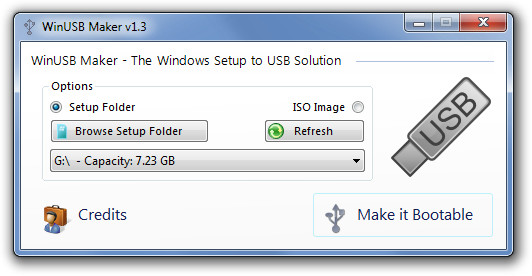
To create a bootable USB, select Setup Folder if the setup files are located inside a folder, or select ISO Image if the setup is in ISO format. Click Browse Setup Folder or Browse ISO Image to select the required files. If multiple USB drives are inserted in your PC, select the one that you want to make bootable from the drop down menu. If any drive is not available in the list, hit Refresh once. With all settings completed, click Make it Bootable to start the file copying process.
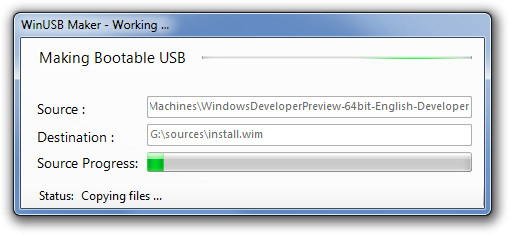
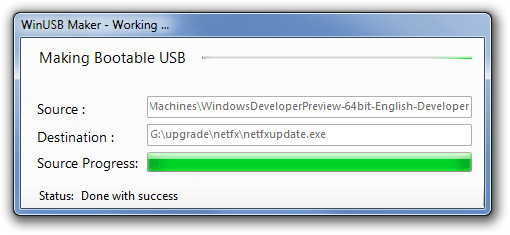
When the process is complete, a success message will pop up, and your bootable USB will be ready to be used.
WinUSB Maker can create bootable images for Windows Server 2008/2011 Family, Windows 7 and Windows 8.

You may not know where to start when you first launch the application and, unfortunately, there s no help file to assist you throughout the whole process and explain the available options.
Hella Malware
Vista is the most stupidest, ugliest and useless OS ever made. Would have been ok if they had support for it but typical microsoft driven by greed stopped the support and made an even stupider OS called 7. Don’t get me wrong 7 is good but you need a supercharged V12 Merlin aircraft engine on crack to run it. What’s worse is their stupid activation system. If you change a hard drive or add more memory, it thinks you are putting it onto another computer and deactivates 7. Thankfully consumer protection in australia put a stop to that and forced microsoft to re-allocate new serials. Greedy mongrels!
Worked like a charm. Thank you so much for this.
You wrote: “WinUSB Maker can create bootable images for Windows Server 2008/2011 Family, Windows 7 and Windows 8.”
My response: It also works on Windows Vista. Windows Vista is a CURRENTLY SUPPORTED operating system. Just because Win7 is maturing, and Win8 is on the horizon does not mean that Vista no longer exists. Win7 is, in fact, just Vista… but fixed. And with certain registry hacks and other mods, there is virtually NO DIFFERENCE between Vista and Win7.
I’ve complained about this several times around here: You write that something is for Win7 (or, now, Win7 and Win8… the latter of which hasn’t even been released yet and so, in my opinion, shouldn’t even be discussed as an OS on which anything can be installed) and you completely ignore that it’ll also run on Vista; and so the only way that the reader can discover if it will also run on Vista is to visit the software author’s web site were, sure enough, time after time I find that even when you say it’ll only run on Win7, it’ll also run on Vista.
PLEASE STOP IGNORING WINDOWS VISTA. It is not Win7’s orphaned little brother, nor a mere stepping stone between XP (which really HAS lost its primary support) and Win7.
_______________________________
Gregg L. DesElms
Napa, California USA
gregg at greggdeselms dot com
lol why are you so butthurt that AT, like everyone else, could care less about vista.
“Just because Win7 is maturing, and Win8 is on the horizon does not mean
that Vista no longer exists. Win7 is, in fact, just Vista… but fixed” – But everyone (except you apparently) DOES wish that vista would just cease to exist. On second thought this has to be a troll post. There couldn’t possibly be someone out there who actually gets pissed his fav os vista doesn’t get no respect at all.