How To Root Samsung Admire Android Phone [Guide]
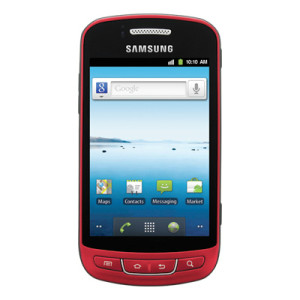
Do you know about Samsung Admire ? Well if you do, then you probably have one. Samsung Admire is a mid-tier Android phone that is meant for social media addicts. The phone launched with Android 2.3 Gingerbread on board and comes packed with all social networking tools without any TouchWiz hindrance. The phone finally stands rooted with DJrBliss’s exploit. It is interesting that a similar exploit, which gained permanent root on Droid 3 and other Droid phones, is responsible for gaining root privileges on Samsung Admire as well.
Here is the step by step guide to root Samsung Admire Android Phone:
Disclaimer: Please follow this guide at your own risk. AddictiveTips will not be liable if your device gets damaged or bricked during the process.
- The first step is to download Samsung USB Drivers and install them on your PC.
- Once done, download One Click Samsung Admire Root package from here and extract it to Samsung Admire Root folder on your desktop. You can make a new folder by the name of Samsung Admire Root on your Desktop.
- After you are done extracting the contents of root zip package, enable USB debugging on your phone by going to Settings > Applications > Development > USB Debugging.
- Once you have enabled USB Debugging on your phone, connect your phone to the computer. Make sure that you do not mount SD Card as flash drive and keep the connection to charge only mode.
- Now open Samsung Admire Root Folder on your desktop and double click on Run.bat file.
- Now follow onscreen instructions closely to gain root on your phone.
- After the process is complete, your phone will reboot.
- You can now download Root Checker app from Android market to verify your phone’s root status.
In case you are facing any difficulty with this method or want to root your phone using Linux or Mac, then head to the Android Forums thread. All credits for this rooting method go to Djrbliss, K0nane and MikesToolz.

Guys this does not work. It looks like it does but permissions are denied. If you read through the .bat file, the author is trying to push the su file without necessary permissions. That’s why in the windows bash, it shows a bunch of fail messages. The only thing the script does is reboot your phone.
Haha. Worked great on second try with my samsung vitality (for those who dont, know its a rebrand of the admire) anyways. thanks alot!!
This is my 2nd Admire. The okder siftware rooted so easily, not 2.3.6! I did it all as stated, my computer recognizes the phone, the phone goes to the “USB Connected” screen, when I run.bat it says it’s complete, but my phone does nothing and root checkers all say it isn’t rooted! I’ve rebooted, taken the battery out, tried it with the SD card removed as someone suggested. No luck 🙁 Am I missing something? Please help! The Pinyin keyboard and bloatware are driving me bananas!
OH, I have tried this on 2 different computers as well and tried other rooting programs even. Boo!
i did this process to my metropcs phone more than 20 times i have even restore the phone to take out everything…but still have the same problem: cannot access to the package manager… i install the super user and busybox and still dont find it…what should i do next??? please helpppp i’m been doing this for the pass 3 days and still donest work.
I have superuser and busybox and hotspots it still wont work indulge-drivers will not install it keeps failing
OMG IM FINNA GO KRAZY… I BEEN SITTING IN FRONT OF THIS COMPUTER FOR HOURS, AND HAVE TRIED EVERY SIGLE THING EVERYONE IS POSTING…BUT I KEEP GETTING THE SAME OL MESSAGE…. ERROR: DEVICE NOT FOUND !!!!!! WHAT IS GOING ON SOMEONE PLEASE HELP!!!!! I HAVE BUSYBOX AND SUPERUSER.APK INSTALLED ON MY PHONE… I HAVE DOWNLOADED THE DRIVERS… I HAVE MY PHONE ON DEBUGGING MODE… I HAVE EXTRACTED ALL THE THE FILES… I HAVE TOOK MY MEMORY CARD OUT. I HAVE TRIED IT ALL, BUT EVERY TIME I HIT RUN BAT IT JUST KEEP SAYING THE SAME DAMN THING! ERROR: DEVICE NOT FOUND!!!!!!! PLEASE HELLLPPPPPP…. THE ONLY THING I THINK IT COULD BE IS THE USB CORD IM USING. ITS NOT THE ONE THAT CAME WITH MY PHONE AND IT ACTUALLY SAYS LG ON IT. BUT MY PHONE IS NOT LG. ITS THE SAMSUNG ADMIRE. COULD THIS BE STOPPING ME FROM ROOTING???? IF SO, I DONT SEE HOW BECAUSE WHEN ITS PLUGGED IN MY COMPUTER MY PHONE STILL CHARGES… I HAVE ALSO CHECKED MY COMPUTER AND IT SEEMS LIKE THE COMPUTER IS NOT RECONISING THAT MY PHONE IS BEING CONNECTED….. HELP ME HELP ME PLEASE. DO YAWLL THINK ITS JUST THE CABLE OR COULD IT BE MORE THAN THAT!!!!!!!!!!!! I REALLLY WANT THIS ROOT BAD!!!!!! HELP
thanks worked well for me!
i installed both busybox n superuser n it says error couold not access the package manager
will your phone have flash?
No flash on android
error couold not access the package manager…..
same here man
same here help any one
make sure that you have superuser and busybox installed on ur phone first.
I downloaded superuser and busybox and it still doesn’t work…sigh.
Did you ever get your phone rooted? did you figure it out? If not I am sorry I am just now seeing your comment. I will try to help you if you want. I was having some problems too at first but now I am rooted and everything working fine. Got rid of a LOT of that MetroPcs bloatware and gained much needed phone storage space, which I love 🙂
Please lemme know if you are still having problems and I will get you fixed up for sure. Usually it is just something small we are missing to get it rooted and working great.
Please reply here, or Message me on youtube at;
www.youtube.com/user/perryinjax
If you PM there on Youtube I will get it right away… Idk when I might see any reply left here on this page. I was lucky to find this one two months old… haha Sorry bout that 🙁 Good luck and maybe you have already figured out what the problem was (hopefully) and maybe you are up and rooted good now. IDK
Please lemme know if I can help if you still having problems.
Begroovy,
Perryinjax youtube channel
Or you can email me at perryinjax@yahoo.com if you are still having problems and I will do everything I can to help you figure out where the problem lie. I posted another reply with the BEST way to contact me, message me on my youtube channel, but IDK if this site’s moderators will allow that comment because I had my youtube channel link in that reply to you. If they dont put it up. Try emailing me at the addy above.. although that is my trash email and I only check it every now and then.. but I will keep a watch just in case you reply and need some help.
Be groovy,
Perryinjax Youtube channel
make sure that you have superuser and busybox installed on ur phone first.
make sure that you have superuser and busybox installed on ur phone FIRST. I was having same problem, until I saw Joshua’s comment down below, I went to market and installed both superuser and busybox and THEN when I tried the instructoins again it worked first try, but before I did that I had tried and tried and tried.. Good luck 🙂
just to let people know make sure that you have superuser and busybox installed on ur phone first. Works with sd card out. took me 5 try but it worked
Dude you ROCK! Thank you soe much. I had tried and tried and to no avial. FINALLY I saw your comment, and after installing superuser and busybox FIRST, Finally the instructions worked on the very next attempt. Very cool, I was ready to throw my phone against the wall! I do NOT understand why this page does not include your comment as part of the instructions, a very important step that will not work without! Thanks again man. You are 2 cool bro 🙂
Just about to do this on my girlfriend’s phone, wish me luck! taking out SD card, and installing samsung drivers first… I hope it works, this admire phone has been screwing up lately, hopefully this will make it all better
worked just fine. I had to download superuser.apk from the market cause it did hang, but all else fine.
They should tell us that in the instructions.. because you are exactly correct sir!
it doesnt do anything for me
it says device not found
My phone gets stuck at turning it on, how do i fix that ?
aye my happen to, what should i do im so sad 🙁
Are you sure you did not turn on usb storage? Make sure you dont do that. Also; you aren’t touching the phone until after you “press any key to finish” in the on screen instructions are you? Let your phone turn off and on by iteself and then when it finishes you should be fine.
Thanks. It works. Use Windows7 and IE browser. Took about 5 mins.
Worked on the first try 🙂
the instructions worked perfectly the first time, thank you
the instructions worked perfectly the first time, thank you
Might want to add that you need to download the Superuser.apk from the Market before you check for root status, for noobs like me who didn’t know. 🙂
According to the run.bat script superuser should install with the packaged exploit
echo “[*] Installing Superuser.apk. If this hangs, just cancel it with Ctrl+C after a few seconds,”
echo “[*] and you’ll be finished rooting your phone. Reboot and enjoy.”
adb install Superuser.apk
the run.bat or run is not in the zip any help would be cool on how to get it. I have the Samsung admire Metro pos phone.
So often times it does not, that it is best to just go ahead and already have it on your phone from the market prior to even coming to this page and beginning. Why mess around with problems it likely encounters trying to do it for you here.. when you can so easily already have it, then it makes these instructions more likely to work for more people.
Same here.
my phone just keep powerin on after step 5 i dont know what to doo
I had the same problem. I got past it by pulling the SD card completely out instead of just unmounting it, then re-running run.bat
The link ot the download of the drivers is no longer there. Can you help out?
Thanks
do you need a cable to connect the phone to the computer?
Yes, you will.
Yes, you will.
the cable should have came with your phone.. it is the cable you charge your phone with, just unhook the usb connector from the wall plug adapter and plug into your computer.