Auto-Organize Files Into Custom Folders Based On Extensions

Keeping our files organized goes a long way; with all our related files neatly organized together, it's easy to find our required files when we need them. With huge hard disks and broadband access becoming common, many of us don’t care about keeping everything organized anymore, and just keep on piling all our downloads in the default download folder. Later, the thought of going through such a huge pile often makes us shy away from the task. As a result, whenever you need a previously downloaded file, you have to do a manual search. One way to avoid all this mess is to transfer the files to different folders based on file types, as soon as they are downloaded. Desktop Intray lets you automate this process by organizing your files for you into folders of your choice, according to their types. Read More

Easily Find & Delete All Files With A Particular Extension

Finding files of a particular type in order to get rid of them can become overbearing at times, especially if the location you're looking through has become flooded with an umpteen number of files. The default download directory for instance, often becomes a victim of this issue, as we keep filling it with random files, leaving everything disorganized and cluttered. Now, you could always right-click anywhere within the folder and sort files according to type to make the required extension easier to spot, but sometimes, even that doesn't cut it. This is where Daanav File Manager comes to the rescue. This lightweight Windows freeware scans any selected folder (and its subfolders), and lists the file extensions within it along with the file count of each. This way, you can easily locate and delete all files with a particular extension in bulk. Further details past the break. Read More

FileInfo: Comprehensive Search Engine For Info On File Extensions [Web]

There are thousands of file extensions related to different applications that perform a variety of functions. A lot of the file extension are native to Windows, while quite a lot of applications have their own extension sets as well that are added to the list when you install new programs to your computer. For instance, if you install Adobe Photoshop, its native extension for saving edited images is PSD. Due to the massive number of these extensions out there, it is impossible for anyone to know the details of all the file extensions that one might encounter while using the computer or browsing through the web. How that affects an average user, is when you come across an unknown file type and are clueless as to which software can be used to open/view it. Today, we have a web service for you called FileInfo that allows you to search for details pertaining to a file extension. It contains a database of thousands of file types and detailed information about each extension is displayed upon search. Along with the description about the file type, the web service also lists down all the programs that are capable of opening the file in Windows, Mac OS X, as well as Linux operating systems. Read More

File Type Manager: Add Or Edit Default File Type Actions & Remove Property Sheet Entries

A while back, we covered an an extremely useful application called ContextEdit that lets you edit right-click context menu of any selected file type. The application has the ability to read all registered file extensions from Windows registry to let you easily modify default actions, such as open, open with, print etc. Today, we came across another similar Windows utility called File Type Manager, which allows you to not only modify the default context menu entries of the selected file type, but also to register new file actions as well as edit default/existing actions. Using the application, you can, for instance, associate text files including .txt, .log, .csv etc., with MS Word or other text processing applications. It even lets you remove unnecessary property sheet entries of all file types. For example, if you want to disintegrate a third-party application's tab/options from file's property sheet, just select All Files from the list, expand Shell Extensions >PropertySheetHandlers, and delete the superfluous entries. Read past the jump for more details regarding the usage and a few screenshots. Read More

Edit Right-Click Context Menu Of Any File Extension With ContextEdit

The right-click context menu of Windows is aimed at increasing the productivity of users by providing easy access to different file/folder related options. Apart from some general options like copy, cut, rename etc., it provides you with additional options related to the specific file type. The information required to recognize the file type and display its related options in context menu is saved in the Windows Registry. Last week, we covered a context menu editor called 7CMenuEditor.INC (reviewed here), which allows you to add custom application shortcuts and URLs to the desktop context menu. The HKEY_CLASSES_ROOT registry hive contains information about all file extensions and lets you add & remove context menu entries of any selected file extension. However, if you want to add entries to the context menu of multiple file types, it becomes quite a tedious and time consuming task. Moreover, messing around with the Windows Registry is not advisable for novice users. Read More

Identify The Extension Of An Unknown/Extensionless File With FiletypeID

Sometimes, we come across files that are without a file extension. In such cases, other than hit-and-trial (trying to open the file with different random software), there is no other way to identify the programs that can be used to open the file. The method can prove to be very time-consuming and inefficient, of course, as you'd always be guessing where to start. The logical method would be to identify the extension of the file. Once that is done, even if you're unfamiliar with the extension, you can always look it up on the web to find compatible programs. FiletypeID is an open source application for Windows that identifies the extensions of such files, and provides you with possible matches listed according to their match percentage. Even though the program does not provide you with one definite answer all the time, it still narrows down your search and saves a lot of time in locating the correct program. Read More

Hifito: Show Hidden Files & File Extensions Using Hotkeys

To identify different types of file formats from each other, Windows provides us with a different icon for each file type. For instance, a text file will have a different icon than that of a music or video file. However, not all file types have different icons. You cannot differentiate a TXT file from an RTF file just by looking at its icon. To know which is which, you will have to look at its file extension. To enable viewing of file extensions, you have to open Folder Options, locate the Hide Extensions for Known File Types and uncheck it. It adds the extension abbreviation at the end of the file name. When you are done, you can go back and check the option again to hide the file extensions from appearing in the file name. This is easy if you have to do it only once in a while, but if you are required to do this regularly, it can be a tedious and time-wasting task. Luckily for you, we have found a tool that can save your time by allowing you to toggle this option through a hotkey. Hifito is an open source utility for Windows that lets you quickly toggle the Hide Extensions for Known File Types and Show Hidden Files options found under the Folder Options. More on Hifito after the jump. Read More

ManageNameExt – Manage Name, Extensions & Modification Of Files In Mac

Like other OS platforms, including Windows and Linux, Mac doesn’t offer a convenient way to rename files in bulk, change file extensions, and change the accessed and modified date and time stamps of files. How about an application which lets you do all such file specific operations in one go? ManageNameExt is a nice application to change file extension, insert suffixes and prefixes in file title, remove and add widely known special characters into file names, change modification date and time stamps, show/hide extensions in titles, and to change the case of file names to upper, lower and title case. Read More

Unassociate File Types With Applications Using Unassociate File Types

Almost all file types in Windows are associated with applications. This association can be changed by right clicking on a file and selecting the required program from the “Open With” option. It can often be quite a hassle to disassociate files once they are tied to a specific program. As a system administrator I once received a ticket (in my former job) to resolve an end user issue of a language trainer who was having problem opening an Excel file. On arriving at the training room, I found out that she had associated the XLSX file with MS Paint. Duh! Read More

Organize Downloads According To File Types With Download Mover

Download Mover is a small yet ingeniously intuitive application to observe user-defined source paths for specific file types in order to move them to target folders. For instance, you can set Downloads folder as source path for separating applications, music, movies, compressed archive files to their respective; Apps, Music, Movies, and Archive folders. This way you won't have to manually find and move the required types of files from Downloads folder to required location, as it will automatically move files having specified extensions to defined target folders. The application is primarily developed to unclutter Downloads directory, nevertheless, you can use it to automatically clean your desktop, documents folders, project folders, etc. Read More

Smart File Advisor Helps Open Unidentified Files In Windows

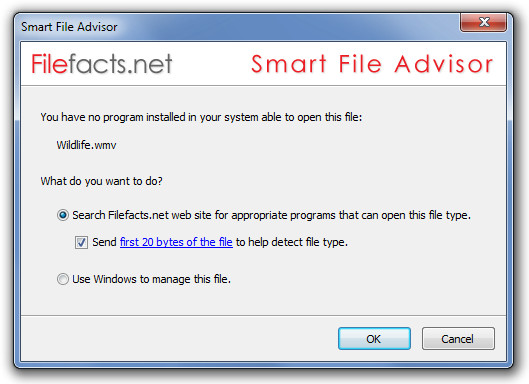
Smart File Advisor is an application that helps in identifying the programs that can be used to open an unidentified  file. It collects information about the file type and provides appropriate history of the extension along with the names of programs that can be used to open it via the Filefacts.net database. If a file has an in-appropriate extension, it also identifies the right extension type to be used with it, based on the analyzed content. After installing Smart File Advisors another option is also added in the right-click context menu, that allows checking the integrity of a file. This can be greatly helpful in identifying the nature of downloaded files. Read More