SchizoCopy Is A File Copying Tool That Allows Resuming Interrupted Copy & Move Tasks

Windows’ native file copy utility is quite fast and seamless. While it was already quite robust in Windows 7, Microsoft has improved it further in Windows 8 by adding options like pause and resume, and a graph that shows real-time transfer speed. That said, the default utility still lacks a few more options that various third party utilities boast. For instance, TeraCopy is one of the fastest file copying tools around. Previously covered UltraCopier is yet another handsome alternative that features a few advanced options, while SuperCopier is a similar app that can queue multiple files for batch copy operation. If you’re still in search for an alternative for Windows’ native copy tool, then you might want to give SchizoCopy a try. According to the developer, it moves files faster than the native utility. The application is particularly useful in situations where you need to move files from multiple folders to one directory. What’s more, the application can automatically resume any interrupted move or copy operations during instances of unexpected shutdowns or system crashes. Read More

Limagito FileMover: Easily Move & Copy Files From One Location To Another

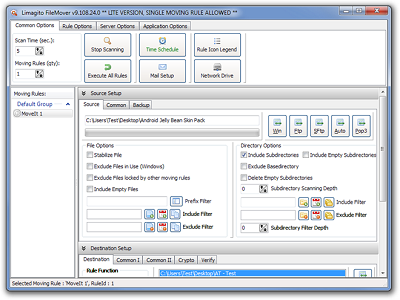
Moving files and folders from one location to another requires you to manually copy them from the source location and then paste them in the destination folder. If the destination is a remote location, you may have to copy the files in a USB flash drive to move them from one computer to another. Even then, you will need to keep track of which files are already transferred and which ones are new. There will always be a chance of, either duplicating the files, or missing a few. Copying the files manually after every couple of days can be a tedious and inefficient activity. Instead of wasting your time, try Limagito FileMover. It is a file copying and moving utility for Windows that allows you to set file and folder filters based on file name, file creation date, and file sizes. You can rename files during the copying or moving process and encrypt them using Blowfish, DES, Twofish and other encryption algorithms. Read More

Cut with Drag & Drop: Mac OS X Dock Shortcut For Moving Files & Folders

We’ve previously covered two apps for Mac, Droppy and DragonDrop, both of which make it convenient to drag & drop files or folders between desktop spaces. Both apps carry a price tag, and while their interface is excellent and they work without any glitches whatsoever, there is still the fact that you have to pay for a very basic sort of functionality. Cut with Drag & Drop is a free Mac app that is somewhat similar to both the former apps. It won't help you move files between desktop spaces; rather, it provides a docking station for moving a file or folder to a new location. Read More

Drag’n'Drop Editor: Change Default File Drag & Drop Behavior In Windows Explorer

Copying and moving files is one of the most frequent computer tasks. Back in the old days,  you'd type DOS commands to perform the said operation, then it was made it easier with the introduction of GUI, as copy and move etc. commands were made available in the context menu. It has been made a lot more easier, as nowadays, almost all major OS platforms offer drag & drop support, allowing users to copy & move items from one location to another. Take Windows for instance; it lets users move and copy files and folders by dragging them over the target location. By default, if you drag and drop a file within the same volume, it is moved from the source to the destination folder. However, Windows also lets you copy and create shortcut of files by holding down the Ctrl button while dragging the file/folder, it copies the file. Similarly, holding down the Ctrl + Shift keys while dragging a file creates only a shortcut of the source file in the destination folder. By default, Windows doesn't let you change that behavior. If you've been looking a for a way to change the default drag & drop function, which moves the file/folder to target location, try out Drag'n'Drop Editor. It's a miniscule application for Windows that allows you to change the default drag and drop behavior in Windows Explorer. Using this tool, you can replace the default Move items action with either the Copy or Create Shortcut action. It can particularly come in handy for those who don't like holding down Ctrl key while dragging files over the target folder in order to copy them. More details about usage up ahead, including a screenshot. Read More

QuickMove: Automatically Move Files To A Folder Based On Name & Extension

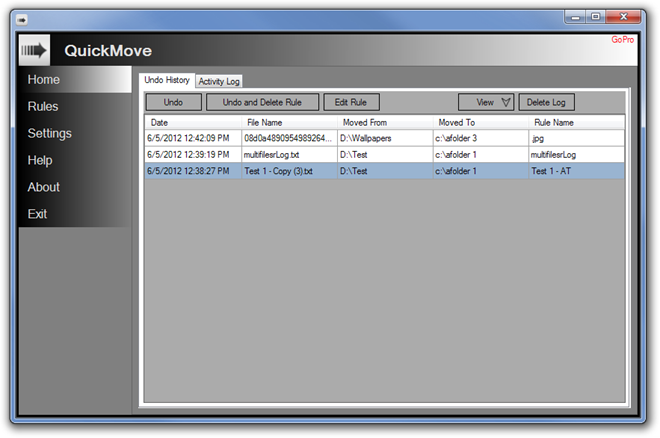
Most users download new items from the internet directly to their desktop or the default Downloads folder. Managing such a default download folder, where all types of downloaded items are present, is not only time consuming, but cumbersome as well. In addition, if downloaded files are not properly named, it becomes quite a tedious task to search for the required file from the huge pile. To be able to quickly search for a file, it is necessary that you have the file in its proper place, with the proper name, and in case of image, audio and video files, have the proper metadata information. Having the files in their separate folders allow you to avoid editing the properties of each file and just look it up in its designated folder. Today, we have an application for you that allows you to automatically move files from one folder to another according to pre-specified moving rules. QuickMove is an application for Windows that allows you to create rules for moving files to separate folders. For instance, you can choose to move the JPG files to Images folder, EXE to Apps folders, TXT files to Document folder and so on. Read past the jump for details. Read More

SymMover: Move Installed Programs To Other Folders & Disks Without Reinstalling

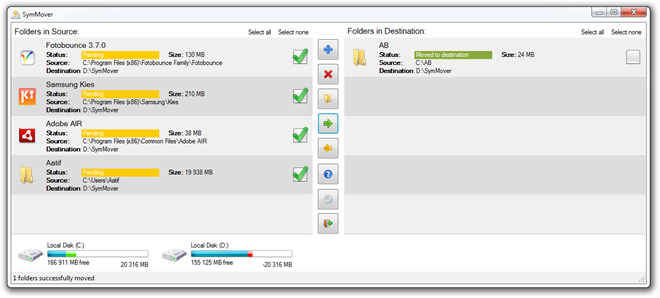
A vast majority of Windows programs follow one certain behavior when it comes to their installation – they set the default install location to your system’s Program Files directory. The reasoning behind such an approach, naturally, is to keep all installed applications in one location. The problem, however, starts when games, which can amass up to over 15 gigabytes in size, also follow the same pattern, and unless you manually change the installation directory to another folder on your hard drive, you can run out of disk space pretty fast on your primary drive. This, in turn, results not only in low disk space, but also performance issues like low virtual memory, larger fragmentation and what not. Normally, in such a case, your rescue means would include uninstalling the programs from their default location, and reinstalling in another one to regain your precious disk space back. If you want to avoid that hassle, SymMover can come in handy. Read More

All About Windows 8 FileName Collisions And Copy/Move Dialog Box

Along with Desktop, Start Search and Start Menu, Windows 8 Copy/Move dialog box has also been revamped with more dynamic user interface elements. The new Copy/Move dialog box includes file copy/move progress graph which helps user visually check the copying/moving speed, along with pause/resume button to instantly pause the copy/move operation and then resume it back. The most notable improvement that you will see in Windows 8 is the new file copy/move conflict resolution, aka filename collision, dialog box. For those who are not familiar with this dialog, it appears when you copy or move files to location where either one or more than one similar files with same titles are already present. In this post, we will discuss some major improvements in both Windows copy/move dialog box and file copy/move conflict resolution window. Read More

Yoink: Easily Drag & Drop Items Between Mac App Windows On Small Screens [Paid]

Even though Mac OS X 10.7 Full-Screen Apps and iOS like Multi-Touch Gesture features make it easy to focus on single application window and switch between multiple Full-Screen feature supported apps, users on notebooks find it quite difficult to move items from one Full Screen app to another due to small screen size. Yoink is an application for Mac OS X that makes drag & drop items between empty spaces and full-screen apps not only easier but also hassle-free. Yoink adds a Drag Bar at left side of the screen, allowing you to drag any item from current window in its Drag Bar and then move it to target window without having to manually adjust windows at the edges of the screen to move items. Read More

Automatically Unclutter, Organize Your Mac Desktop Everyday With Clean

A while back, we featured Desktoday to organize Mac OS X desktop items. The application focuses on organizing files and folders by dates; it lets you move items used today to respective date stamped folder. The only drawback of Desktoday is that it doesn’t include an option to automate the process, thus, requiring user to select the option from menu bar to clean the desktop from unnecessary items. Clean is relatively powerful application for Mac which performs desktop organization in somewhat similar fashion. Clean has been designed specifically to automate the process of cleaning desktop from superfluous files and folders. It can clean your desktop everyday without requiring you to launch the application or select any of its desktop cleaning options. It checks if it is a new day after every 60 minutes in order to clean your desktop. Read More

Move Files In Sub-Folders To Root Folder (One Level Up) With LevelZap

Moving content of a sub-folder which is buried deep in a complex folder hierarchy is quite challenging and it gets more complicated when you have to move files contained in multiple sub-folders to root folder. LevelZap is an open source Windows context menu add-on that allows you to move all the files and folders contained in a selected folder up one level, so you can easily move all the content in the sub-folders to root folder using the right-click context menu option. The application can come useful in numerous situations. Consider yourself finding multiple versions of files which are present in different sub-folders. Instead of opening each sub-folder in separate Windows Explorer window, use LevelZap to collect all the files versions from sub-folders in root folder. Read More

Move, Rename, And Delete System Locked Files / Folders With MoveOnBoot

Dealing with files and folders which are being used by Windows OS is arguably difficult, as many system generated processes and services which use these files / folders lock them up to ensure system stability. There are also instances where one needs to delete some uninstalled application left over data which is, for some inexplicable reasons, being used by Windows, and therefore can’t be removed. In all such situations, MoveOnBoot can help you out. It’s an application developed specifically to perform different file management operations over system (Windows) locked files and folders. So, how does it work? It allows you to list down required locked files and folders over which operations can’t be performed as long as Windows OS is running because the locked files (or folders) are being used by different system initiated services / processes. Once listed, you can specify the action, such as, move, rename, delete, for any locked file / folder. It will put the action in perform on boot queue. On booting the system, it automatically performs the specified operations over locked files / folders. Read More

FastCopy Offers User-Defined Buffer Size For Fast Data Copying

FastCopy is an opensource application which is built to speed up data copying process in Windows OS. On macro-level, its working is based on source & destination of data which is to be copied, i.e, two mechanisms are deployed to provide super fast data copying – if source & destination is on different HDDs, then reading and writing are processed respectively in parallel by separate threads. But if they are on the same HDDs, then reading is processed until the user-defined buffer size is filled. Once filled, data can be written anywhere immediately. According to the developer, it doesn’t use Windows cache for data reading/writing, so users wont be experiencing any lags. Read More

Move Files To Their Respective Folders From Windows Context Menu

Do you have to deal with a huge pile of unorganized files? FileToFolder allows you to quickly create a folder for any file(s) and move file(s) into this newly created folder from the right-click context menu. It can be used in two ways, since it comes with right-click context menu support, you can quickly accomplish aforesaid task via context menu while the main interface lets you manually specify path, apply filters and configure other general options. Read More

UltraCopier – Pause / Resume File Copy Operation, Limit Speed, And More

Windows provides a faster and more seamless copy operation but Microsoft does not give end-users control over this speed. All versions of Windows will transfer data at the speed they find to be plausible, in most cases the speed is the highest, thus, resulting in the freeze of lower-end PCs. UltraCopier is a file move/copy enhancement tool that brings advance options and features and offers a wide range of copy,move and data transfer operation specific customizations.  It includes user-defined speed enhancement options, copy/move controllers, speed limitations, copy list searching, and most importantly pause/resume capability. Read More

Fix Windows 7 Slow Copy [File Transfer]

NiceCopier is a small opensource tool that installs as a shell extension and replaces the default Windows Explorer Copy/Move function. It adds several useful features like pause, resume, calculation of best copy speeds, etc. The interface looks more like a file downloader with accurate description of both file transfer speed and data. A perfect tool to fix up the unaccurate and slow Windows 7 file copy operation. Even though we use it to replace Windows 7 file copy, it can be used with previous versions of the OS as well, and especially with netbooks running Windows 7. Read More