2 Ways To Change Default Text Editor In Ubuntu
Ubuntu offers a wide range of text editors, some of them are installed by default and others are free software which can be installed in a very easy way. If you are uncomfortable with the default text editor of Ubuntu or you want to use your favorite text editor program, then it is not a big deal. Let me share a couple of ways to achieve it.
Method 1
Right Click the text file you wish to open and choose Properties.
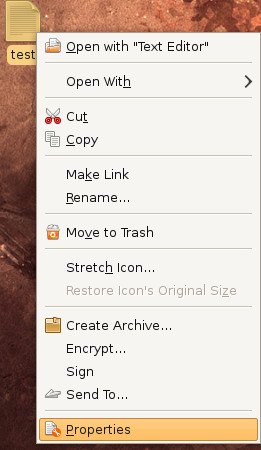
Click Open With tab and choose the editor you want to use. For e.g, I love to work in Cream Editor.
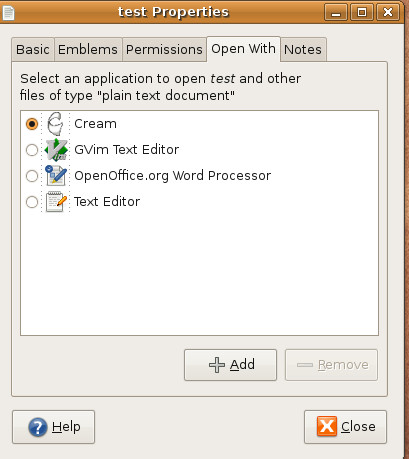
Click Close and now it will be set as your default editor and all text files will open with it now.
Method 2
You can also change the default text editor from terminal. This terminal command will definitely be very useful for those who work on remote servers and do not have graphical end of the system, run the following command and it will let you see a list of installed text editors.
sudo update-alternatives –config editor
Following screenshot shows the output of terminal command.
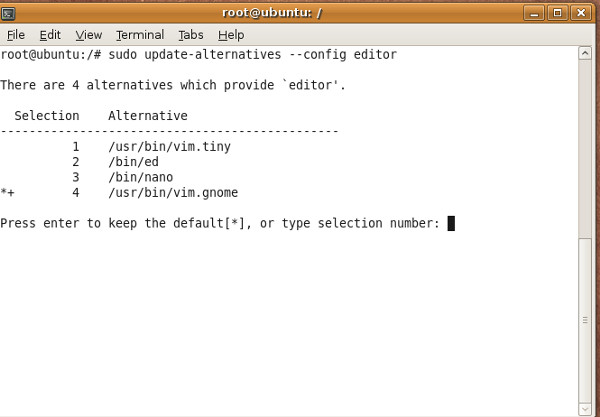
Now set your default text editor by entering its number. Just like I entered 3 to set nano as my default terminal text editor. Enjoy!

this command is actually right but in the “–config” part the “–” got corrected to an emdash which makes it not work 🙂
(This command is actually right but the “–config” was autocorrected to “[emdash]config”)