Fix Laptop Brightness Toggle Issues In Ubuntu 10.10 And 11.04 [Tip]
The laptop brightness key provide easy management of brightness options from the keyboard. This is done with or without the combination of the FN key, depending upon your manufacturer. Unfortunately, some Ubuntu 10.10 and 11.04 users using NVIDIA graphic cards are having problem with using this key and are unable to change the screen brightness from their keyboard. A solution to this problem is to edit dit xorg.conf. Below is a procedure which can make your laptop’s brightness button functional again for your Ubuntu OS (NVIDIA users only).
Note: Before making these changes, it is adviced to backup your system to revert back to your former settings in case of any possible issues. The below mentioned practice is not advised for non-NVIDIA users.
Open Terminal and enter below command to open the xorg.conf file for editing:
sudo gedit /etc/X11/xorg.conf
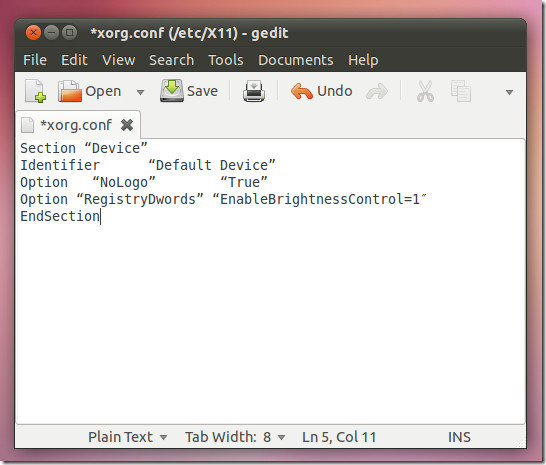
Once the file opens, find Section “Device” and add –> Option “RegistryDwords” “EnableBrightnessControl=1” (as shown below in bold line), and hit Ctrl+S to save it.
Section “Device”
  Identifier “Default Device”

Option “NoLogo” “True”

Option “RegistryDwords” “EnableBrightnessControl=1″

EndSection
This tip was posted by Guskuma in the Ubuntu Forum and has been successful for NVIDIA users with different kinds of laptop models.

Works perfectly 🙂 Thank you!
Works perfectly 🙂 Thank you!
Thank you.. it was very useful
This works Perfect!!
I’m using a Sony Vaio laptop with Ubuntu 10.10. doing this made is so my operating system could not load
This happens to me… if you copy and paste the code tha fix the problem. Boot from Recovery Mode, enter to root shell and do:
sudo nano /etx/X11/xorg.conf
Check that the code is not between the quotes “”.
One point to be noted though. I dint have the xorg.conf in /etc/X11 I had to manually create it.
Thanks Farshad. It worked on my Lenovo T410. This had troubled me for 2 days.
does not work for me. will try a reboot soon and see if it helps, but I doubt it, because then nvidia-bl wont auto load. pommed, gpommed and wmpomme does nothing for me also. loading nvidia-bl allows me to use the brightness buttons (f1 &f2) to bring up the brightness hud, and adjust it, but it does not actually adjust the brightness. when I run sudo apt-get install (or apt-cache search) mbp-nvidia-bl-dkms it returns no such package, or nothing at all (yes I have installed Mactells’ repo, and updated 30 times today. any ideas?
Thanks! Works great now.