How To Disable Ubuntu User Login Window
If you are are the sole user of your computer and are annoyed by the Ubuntu login window during every startup, it is better to remove it. Removing the login window will not actually remove the login password, but it will just skip the step during system startup.
Note: Make sure that you do not remove the login window on a public computer.
To remove it, first go to Login Window utility from System > Administration > Login Window.
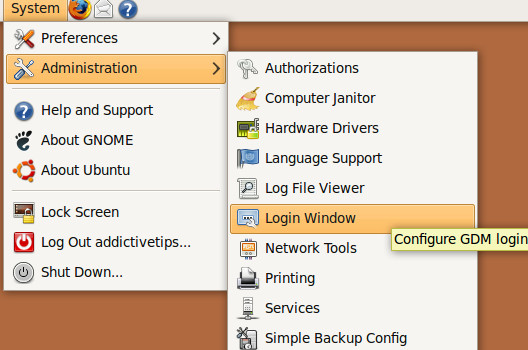
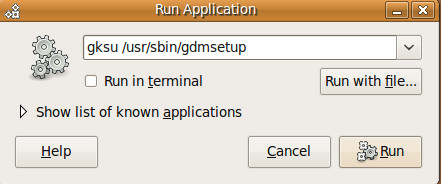
You can also load it by pressing Alt + F2 and typing gksu /usr/sbin/gdmsetup in Run Application box.
This will open the Login Window Preferences window. Now, to enable auto login, go to Security tab and check Enable Automatic Login and enter user name for your system. You can also set delay in auto login by checking Enable Timed Login and selecting time in seconds. If you enable it, your system will wait for specified number of second before logging you.
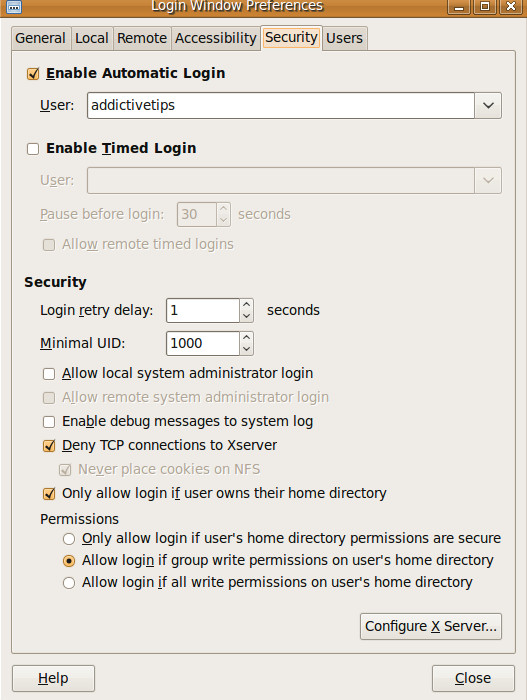
Click Close and reboot your system. Now you won’t see the login windows anymore and won’t need to type the password during every startup. Enabling automatic login is not recommended because it will lead to higher security risk. Enjoy!

This is obsolete! Does not apply to 10.04 and up.
@Sn3akyP3t3,
as you can see in the Title (How To Disable Ubuntu User Login Window), this post is from Jun 19 2009. Is normal that 2 years later this info can be obsolete, hum?
Ubuntu 10.04 and up (11.04) you can disable easily the login option, too. Or, if you want, try http://ubuntu-tweak.com/ for other easy administration tasks without using the console 😉
Cheers,
Benny.