6 Ways To Free Disk Space In Windows 7
Disk space matters a lot, if you are running short of disk space then its important that you should consider removing unnecessary files, programs, and features, so as to avoid consuming more space. Let me share some common ways to free up space in Windows 7 without using any third party tool.
Run Disk Clean Up
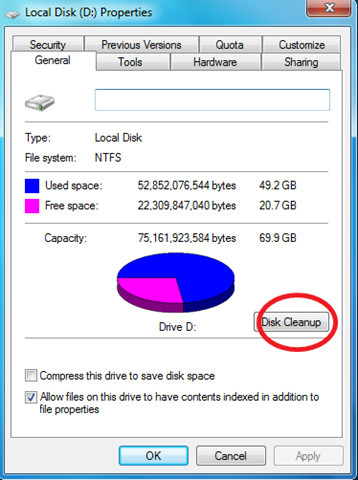
This is the first thing you should do to get plenty of disk space free, right click the drive, choose Properties and hit the Disk Cleanup button, you will free up a lot of space in this way, as windows removes lots of files which are stored in the temporary location. Are you a Firefox user? Try adding Clear Firefox Cache option in Disk Clean Utility.
Remove Unwanted Programs
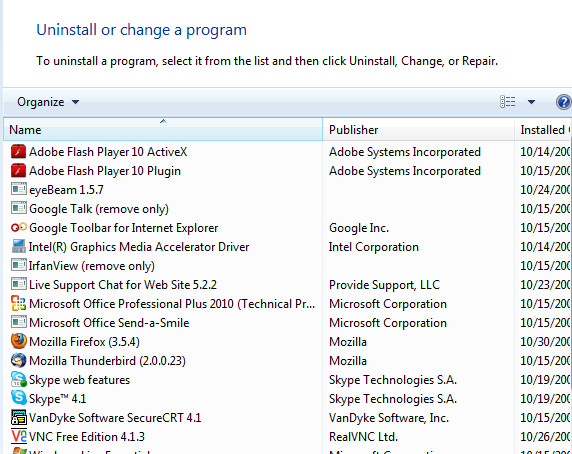
Please have a look at your installed programs, you might find many in the list which are no longer needed or they don’t work according to your needs, remove such programs.
Disable Page File
The page file works in communication with the virtual memory and if the page file is enabled then some of your disk space is being consumed. So if you don’t have much hard drive or you are running short of disk space then it is better to disable the Page File.
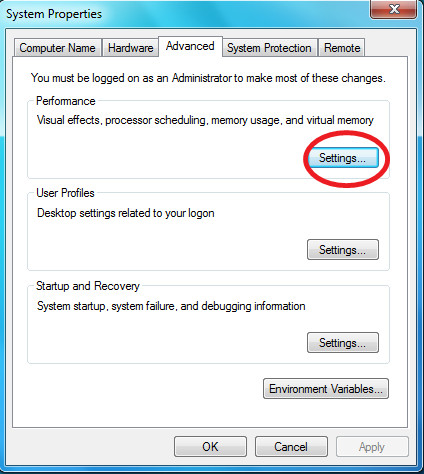
In order to disable the page file, Right click Computer and choose Properties, then choose Advanced System Settings, the System Properties dialogue box will be displayed. Once it is loaded, click the Settings button.
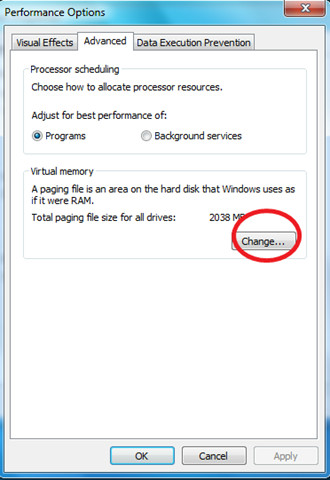
In the Performance Options Dialogue box, click the Advanced tab and then click the Change button under the Virtual Memory option.
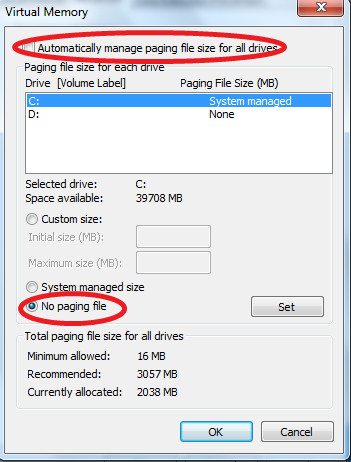
Now in the Virtual Memory dialogue box, uncheck the Automatically manage paging file size for all drives option, and choose No Page option. This can also help free up space if you need extra room for large installs, want to compare requirements like GTA 6 disc storage, or need to free Windows upgrade space by removing leftover setup files.
Disable System Restore
System Restore is a very useful feature of windows, but it consumes some space according to your system settings and installed programs. On a low disk space system, it is better to keep this feature disabled. You can read the full details about disabling System Restore here.
Disable Hibernate
The Hibernate feature is enabled by default in Windows 7, you can find it located with the Shutdown option.
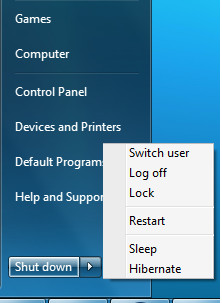
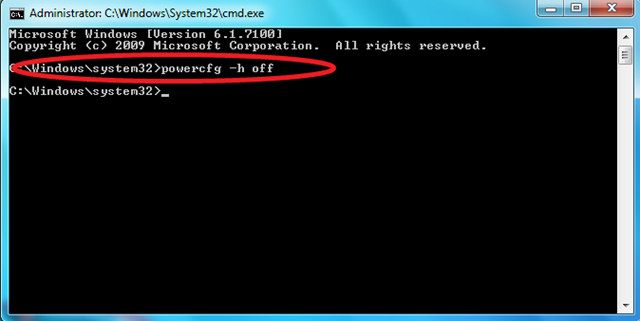
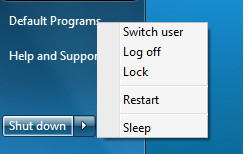
If hibernate is enabled, then you will find the Hiberfil.sy file present in the system which consumes a lot of space, even up to 1GB. So if you are not using the Windows Hibernate feature, then its always better to disable it. The simplest way to disable hibernate is to open the command prompt and run the following command.
powercfg -h off
Remove Unwanted Windows Features
Microsoft installs few features by default. But if you are an average computer user, there is a high chance that you don’t need most of the extra features. You can disable the components that you don’t need, thus saving a large amount of disk space.
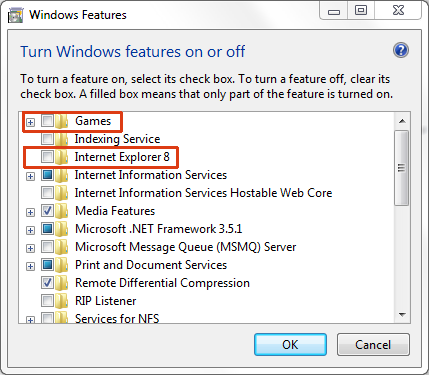
In the screenshot below you can see that both Games and Internet Explorer 8 are disabled to save disk space and speed up the computer. To learn more about it, go here.
That’s it, we have listed some common ways to free up disk space on your Windows 7 computer. These tips are also applicable in Windows Vista as well. If you know of any other way, feel free to share it. Enjoy!
Editor’s Notes: I would never recommend disabling System Restore and Page File since both are critical for the system. You can however follow the other four steps to free up the disk space. Disabling System Restore and Page File is only for those users who are in urgent need to free up disk space, but they should later enable them both back.

Well author tryes, but if you know about computers you will see that author not really.
For example – Remove Unwanted Windows Features – disable them but NOT remove files from disk, nor free space. Disabling pagefile would put you additionaly into troubles.
Thanks so much for this post, I have a 32G solid State drive Tablet and needed 16G free to install windows 8 and found the extra space with your tips, now its installed and I am changing the settings back, thanks so much for taking the time to share those tips, much appreciated.
Yes, thank you so much I now have 1.41 GB free space lol but still no more popups of ” Cleanup up hard drive and critical and all”
Thanks
Emanuel
Thanks… it works…with hibernate option disabled….
Thanks, very helpful that was
Hello guys, I’m facing a strange situation, I have a HDD with 298GB of space, I’m currently using only 112 GB but in the disk overview it shows that I have only 68 GB.
There’s more than 110 GB of space that are free but they don’t appear as free space in the system, I was executing some testing with VMWARE installing some OS and then removing the images and I suspect that once the files were removed the space wasn’t release at all, would you have any idea on how to release this space?
Thanks and regards,
Im having the exact same problem. My 500GB hard drive is showing it is only 37GB. Did you figure out how to fix it?
I have a problem which I do not understand.
If I look how much space my user folders is using I get 64 GB.
BUT when I look into the two users I have and look for that space I says the folders together have only 32GB!?
Why is that and where are the half of my memory. Is this something with restore etc.
I try to show hidden folders but can not see where the rest of my 32GB are stored.
thanks for any response!
thank’s for this recommanded
Thanks for the tip. Setting the windows restore space allocation from 6 to 1 GB really helped me out. I have been looking for a way to free some space for a long time. 30GB for windows 7 is too much. Especially when the SSD is 30GB too.
Thanks again
Hi, i need some help in here guys yesturday i used my pc with windows 7 for only 3hours now the disk lost 3gb with out of downloading or doing any thing any suggestions ? i really need that space
hey how to diable hibernate feature?
when i follow the above procedure it says ‘u do not have permission to turn off hibernate”
i am well the only administrator of the system… can u guys help out?
Click Start, then accessories and right click on Command Prompt. Select run as administrator and then you can disable hibernation.
yes right click cmd and then run as administrator
System restore is such an utter waste of disk space and resources. Don't do stupid fucking things to your computer and take the time to understand what it is you are doing. This will probably make you a better person overall too.
System restore is such an utter waste of disk space and resources. Don't do stupid fucking things to your computer and take the time to understand what it is you are doing. This will probably make you a better person overall too.
hi nice tips..But as in my case, i'm using windows 7 x64 7100 and i've installed VS2005 and my windows partiton is of 25GB, now i'm left with only 2 GB free space, i have not installed anything else.,,how do i free up my space ..i've tried above methods already..i didn't have anyting saved..like media or document in windows partition.Please help
Nice tips. Btw, if you really want to get back some space try using DiskMax. It invariably ends up reclaimig 500mb+ space. You should seriously consider reviewing it. I think your blog readers will love it.
Thing is, your pagefile would most probably be 8GB then as well, which is not really necessary. So manually set a maximum size is ok.Furthermore, the best way to save space is to strip down Windows to the bone. Although XP was especially suited for that (nLite), it is also quite possible with Windows 7 through the use of vLite in the first place, and through DISM to remove some more packages in the second. A combination of both methods can be found here: http://www.msfn.org/board/windows-7-x64-vlite-e… (Careful! For pro's only, and you're bound to do some hit 'n misses first)
“Editor’s Notes: I would never recommend disabling System Restore and Page File since both are critical for the system. You can however follow the other four steps to free up the disk space. Disabling System Restore and Page File is only for those users who are in urgent need to free up disk space, but they should later enable them both back.”If this was not edited later to the comments, this is quoted from the article. People have to read the entire articles before making a single change in their computers so they can understand all that's going on.Cheers
Numerous test over at Tomshardware and other Sites have showed that removing pagefile altogether has adverse effects on system stability.. As for system restore, its actually more space eating than anything else.. one cud always try to keep the latest restore point and remove the few 🙂
I agree, Windows has a pagefile for a reason. I don't care if you have 8 GB RAM, you still need it. It doesn't have to be large, but you need to have one. A lot of programs use it no matter how much RAM you have and will crash if it can't write to it.System Restore is indeed very helpful, but again you don't need to allocate a lot of space for it. Same goes for the Recycle Bin.
Well, you can say that *ALL* programmers use page file, since it is used like RAM when it's full. That is, page file expands your RAM size (OS is responsible for that), but it's a lot slower than real RAM.
If your windows ran fine with 3 GB ram and 3 GB page file
then it will run even better with 9GB ram and no page file at all.
That’s all page file does : give windows extra, slow, working memory on disk that is a poor performer compared to real, fast physical memory.. The programs don’t know they are using page or real memory.. only windows knows the difference..
Windows (as does Linux) relies on that there is a pagefile and the memory algorithms are optimized for that. Even setting the “wrong” size of the pagefile will slow down your system and might create other problems. Setting a max size is ok though.
duh: dont answer stuff you do not know much about.
I recommend reading: Hennesay & Pattersons Computer Architecture book.
I turned off my page file 2 years ago, when I bought 8 GB of RAM. I’ve never a RAM related problem/application or system crash in those 2 years. The computer performance improved drastically (where a page file would be used, e.g. switching from full screen app to desktop).
Are you just trying to sell your shady books?
Telling people to disable both system restore and pagefile is pretty damned ignorant.
I agree with you here since I would never personally recommended disabling them both. But those users might want to disable it if they have very critical amount of space left.Following the other four steps might free up some disk space.
System restore is such an utter waste of disk space and resources. Don't do stupid fucking things to your computer and take the time to understand what it is you are doing. This will probably make you a better person overall too.
They did not tell people to do that, they gave them the idea to remove. Dont jump down peoples throats if you dont know what your talking about.