Slow Computer Fix: Why Your PC Is Slow and How to Speed It Up
There are few things more frustrating than sitting down to get something done and watching your computer crawl through every task like it’s running on fumes. Whether you’re in the middle of a work deadline, a video call, or just trying to load a webpage, a slow computer fix can feel urgent — and knowing where to start makes all the difference. The good news is that most slowdowns have a clear cause, and the majority of them are fixable without spending a dime.
Quick Answer: Why Is My Computer Running So Slow?
A computer runs slow because one or more of its core resources — CPU, RAM, storage, or network — is being overloaded or underserved. The most common culprits are too many startup and background apps consuming memory, a hard drive that is nearly full or physically aging, malware running silently in the background, outdated software creating inefficiencies, or simply not having enough RAM to handle what you’re asking the computer to do.
That’s the short version. The longer version depends on your specific situation — and the sections below will help you figure out exactly which problem you’re dealing with and which slow computer fix to apply first.
The most common causes of a slow computer
- Too many startup programs launching automatically when you boot up, draining resources before you even open an app
- High CPU or RAM usage from background processes, often from apps you didn’t realize were running
- Low storage space — when your main drive is nearly full, especially below 10–15% free, performance drops noticeably
- Malware or unwanted software consuming processing power without your knowledge
- An aging or failing hard disk drive (HDD) that reads and writes data far more slowly than a modern SSD
- Outdated operating system or drivers that haven’t been optimized for your current hardware
- Insufficient RAM for the workload you’re putting on the machine
The fastest fixes to try first
Before diving into diagnostics, it’s worth knowing that a simple restart clears temporary memory, stops stuck background processes, and often resolves slowdowns that seem mysterious. After that, checking startup programs and freeing up disk space are the two moves that fix the most computers the fastest. If neither helps, the diagnostic steps below will point you toward the real issue and the right slow computer fix for your situation.
How to Diagnose What Is Slowing Down Your Computer
Jumping straight to fixes without understanding the cause is like taking medicine without knowing what’s wrong. Two minutes of diagnosis can save you an hour of trial and error.
Check CPU, memory, disk, and startup usage in Task Manager
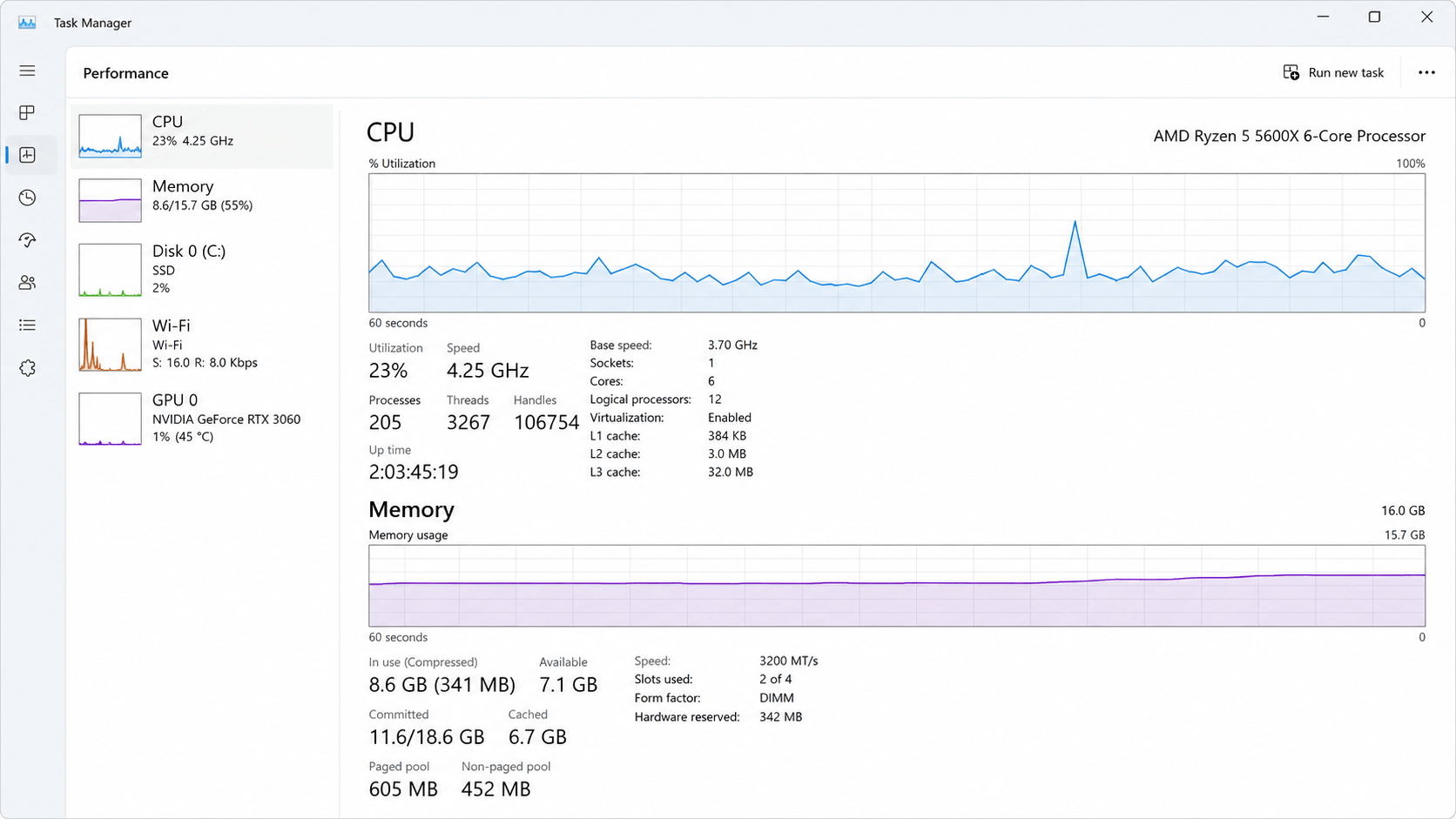
On Windows 10 or Windows 11, Task Manager is your best first tool. Press Ctrl + Shift + Esc to open it, then click “More details” if it opens in the compact view.
Head to the Performance tab first. Here you’ll see live graphs for CPU, Memory, Disk, and Network usage. If your CPU is consistently above 80–90%, something is working overtime. If your memory usage is near its maximum, for example 7.5 GB used out of 8 GB, you’re running out of RAM.
If the Disk shows near-constant 100% activity, that’s a major red flag — it often points to an aging HDD struggling to keep up or a background process hammering your storage. Identifying this early is a key step in any slow computer fix.
Next, click the Processes tab to see exactly which apps and background services are consuming the most resources. Sort by CPU or Memory to find the heaviest offenders. This is where you’ll often spot a browser with 15 open tabs, a cloud sync service going haywire, or a Windows update installing quietly in the background.
Finally, click the Startup tab in Task Manager. This shows every program that launches when your computer boots, along with its “Startup impact” rating. A long list of High-impact items is a direct explanation for why your computer takes so long to boot and feels sluggish in the first few minutes of use.
Use Activity Monitor on Mac to spot heavy apps
Mac users have an equivalent tool called Activity Monitor, found in Applications → Utilities. Open it and check the CPU and Memory tabs to see which apps are consuming the most resources. The Memory Pressure graph at the bottom of the Memory tab is particularly useful — if it’s consistently yellow or red, your Mac is running low on available RAM and is compensating by using slower storage, which degrades performance noticeably.
Is the slowdown sudden or gradual?
The timing of a slowdown tells you a lot about its cause.
Sudden slowdowns — where the computer was fine yesterday and is struggling today — typically point to a specific trigger: a new app installed, a Windows update that didn’t finish cleanly, a malware infection, or a background process that started running out of control. These are usually fixable with targeted steps.
Gradual slowdowns that have crept in over months or years usually reflect accumulation: more startup programs, more junk files, a hard drive filling up, or hardware that’s aging out of relevance. These take a bit more systematic cleanup but are equally fixable in most cases.
Knowing which type you’re dealing with helps you prioritize. Sudden slowdown? Start with a malware scan and check what changed recently. Gradual? Work through the cleanup checklist below for the right slow computer fix.
Quick Fixes That Often Speed Up a Slow Computer

These steps are ordered by how often they solve the problem. Work through them in sequence before moving on to more advanced changes.
Restart your computer
It sounds obvious, but many people leave their computers in sleep or hibernate mode for days or weeks at a time. Over that period, RAM fills up with temporary data, background processes accumulate, and small errors compound. A full restart clears all of that and gives the system a clean slate. If you haven’t restarted in several days, do that before anything else — it solves more slowdowns than people expect and costs nothing as a slow computer fix.
Disable unnecessary startup programs
This is one of the highest-impact changes you can make on a slow computer, especially if boot times are painfully long or the machine feels sluggish for the first 10–15 minutes after startup.
On Windows 10 or 11: Open Task Manager (Ctrl + Shift + Esc), click the Startup tab, and right-click any program with a High startup impact that you don’t need immediately at boot. Select “Disable.” Common candidates include Spotify, Discord, Teams, Skype, OneDrive if you don’t use it actively, and manufacturer-installed utilities you never open.
On Mac: Go to System Settings → General → Login Items. Remove anything you don’t need launching at startup.
You’re not uninstalling these apps — you’re just telling them not to run automatically. You can still open them manually whenever you need them.
Close background apps using too many resources
Even after startup, apps continue running in the background. Return to Task Manager on Windows or Activity Monitor on Mac and look for processes consuming significant CPU or memory that you’re not actively using. Right-click and select “End Task” in Windows to stop them immediately.
Pay particular attention to browsers — a single browser window with many tabs open can consume several gigabytes of RAM. If your computer feels slow and you have Chrome or Edge open with dozens of tabs, closing unused tabs alone can produce an immediate improvement without any other slow computer fix needed.
Free up storage space and remove temporary files
When your main drive — whether it’s an HDD or SSD — gets close to full, performance suffers. Windows and macOS both need free space to create temporary files, run virtual memory operations, and perform system functions. A practical threshold to keep in mind: try to keep at least 10–15% of your main drive free at all times.
On Windows, the built-in Disk Cleanup tool is a reliable starting point. Search for “Disk Cleanup” in the Start menu, select your C: drive, and let it calculate how much space it can recover. Check the boxes for Temporary files, Recycle Bin, and Temporary Internet Files. For a more thorough clean, click “Clean up system files” to also remove old Windows Update files, which can take up several gigabytes.
Storage Sense is a newer, more automated option built into Windows 10 and 11. Go to Settings → System → Storage, and turn on Storage Sense to have Windows automatically delete temporary files and empty the Recycle Bin on a schedule. You can also run it manually for an immediate cleanup.
On Mac, go to the Apple menu → About This Mac → Storage → Manage. Apple’s built-in recommendations will show you large files, downloads, and other items you can safely remove.
Beyond temporary files, take a few minutes to uninstall old or unused programs. On Windows, go to Settings → Apps → Installed Apps in Windows 11 or Apps & Features in Windows 10 and sort by size. Removing software you haven’t used in a year not only frees up storage but also eliminates background services and scheduled tasks those programs may have added — making this a highly effective slow computer fix.
Update Windows, macOS, and important apps
Running outdated software is a surprisingly common cause of sluggish performance. Updates often include performance improvements, bug fixes, and security patches that resolve issues causing slowdowns. On Windows, go to Settings → Windows Update and check for pending updates. On Mac, go to System Settings → General → Software Update.
Don’t forget to update your drivers as well, particularly your graphics card driver, which can affect overall system responsiveness. On Windows, you can check for driver updates through Device Manager or by visiting your hardware manufacturer’s website directly.
Run a malware scan
Malware — including viruses, spyware, adware, and cryptocurrency miners — can silently consume significant CPU and memory resources, making your computer feel slow even when you have no programs open. If your computer is running slow all of a sudden with no obvious explanation, a malware infection is a serious possibility worth ruling out early.
On Windows, Windows Defender built into Windows Security is a capable scanner that most users already have. Open Windows Security from the Start menu, go to Virus & Threat Protection, and run a full scan. If you want a second opinion, Malwarebytes offers a free version that’s widely respected for catching threats that other scanners miss.
On Mac, while macOS has strong built-in protections, it’s not immune. Malwarebytes also offers a free Mac version worth running if you suspect something is wrong.
Browser Fixes If the Computer Feels Slow Mostly Online
If your computer feels fast when you’re in local apps but sluggish the moment you open a browser, the problem may not be your computer at all — it may be your browser. Applying a browser-specific slow computer fix can make a significant difference in these cases.
Too many tabs and extensions
Modern browsers are RAM-hungry by design. Each tab you open is essentially a small web application running in memory. Thirty open tabs in Chrome can easily consume 3–4 GB of RAM, which on a computer with 8 GB total leaves very little for anything else. The fix is straightforward: close tabs you’re not actively using, or use a tab management extension that suspends inactive tabs to free up memory.
Browser extensions are another overlooked culprit. Each extension adds overhead, and some — particularly ad blockers with large filter lists, VPN extensions, and screen capture tools — can noticeably slow down page loading and overall browser responsiveness. Open your browser’s extension manager and disable or remove anything you don’t use regularly.
Clear cache and restart the browser
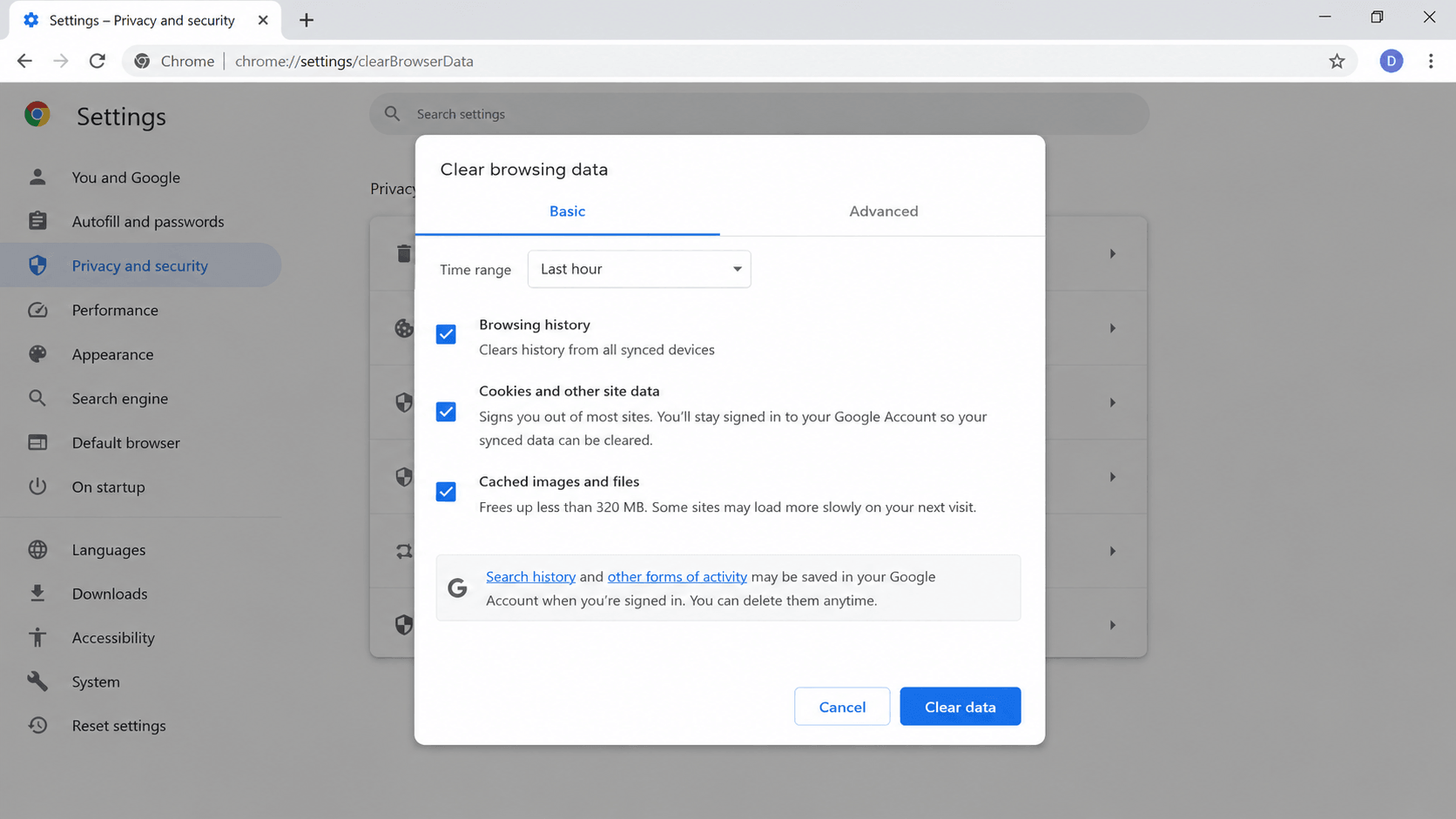
Over time, your browser’s cache — the stored data it keeps to load websites faster — can grow large enough to actually slow things down. Clearing it periodically is a simple maintenance step. In Chrome or Edge, press Ctrl + Shift + Delete, select “Cached images and files,” choose a time range of “All time,” and click Clear data. Restart the browser afterward.
System Tweaks for Older or Low-Spec Computers
If your computer is a few years old or came with modest hardware specs, some of the default settings in Windows and macOS are working against you. These tweaks won’t transform an old machine into a new one, but they can recover meaningful performance and serve as a practical slow computer fix for aging hardware.
Reduce visual effects and animations
Windows applies a range of visual effects by default — animated windows, shadows, transparency, smooth font edges — that look polished but consume CPU and GPU resources. On older hardware, turning these off can make the system feel noticeably snappier.
Search for “Adjust the appearance and performance of Windows” in the Start menu. In the Performance Options dialog, select “Adjust for best performance” to disable all effects at once, or manually uncheck specific items like “Animate windows when minimizing and maximizing” and “Show shadows under windows.” The visual change is minor; the performance gain on older hardware can be real.
On Mac, you can reduce motion effects by going to System Settings → Accessibility → Display and enabling “Reduce motion.”
Turn on built-in cleanup tools like Storage Sense
As mentioned earlier, Storage Sense in Windows 10 and 11 is worth enabling if you haven’t already. Beyond its automatic cleanup features, it also manages the Delivery Optimization files that Windows uses for updates — these can accumulate to several gigabytes over time without you realizing it.
To configure it fully, go to Settings → System → Storage → Storage Sense → Configure Storage Sense. Set it to run monthly, automatically delete files in the Recycle Bin after 30 days, and clean up temporary files from apps.
Check sync and download activity
Cloud storage services like OneDrive, Google Drive, Dropbox, and iCloud can create significant disk and network activity when they’re syncing large amounts of data. If your computer feels slow and your disk usage in Task Manager is high, check whether a sync service is actively uploading or downloading files. Pausing sync temporarily is a quick way to confirm whether it’s the cause — and if it is, you can schedule syncing for off-hours or reduce what gets synced automatically.
Background Windows Update downloads can cause the same issue. If your disk is at 100% usage and you haven’t recently installed updates, check Windows Update in Settings to see if a download is in progress.
When Hardware Is the Real Problem
Software fixes solve a lot of slow computer problems, but not all of them. If you’ve worked through the steps above and your computer is still sluggish, the bottleneck may be physical — and no amount of cleanup or tweaking will fully overcome a hardware limitation. In these cases, a hardware-level slow computer fix is the only real solution.
Signs your hard drive is the bottleneck
The most telling sign of a failing or underperforming hard drive is persistent 100% disk usage in Task Manager, even when you’re not doing anything demanding. If opening a folder takes several seconds, if your computer takes five or more minutes to fully boot, or if you hear clicking or grinding sounds from inside the machine, your hard drive is likely the problem.
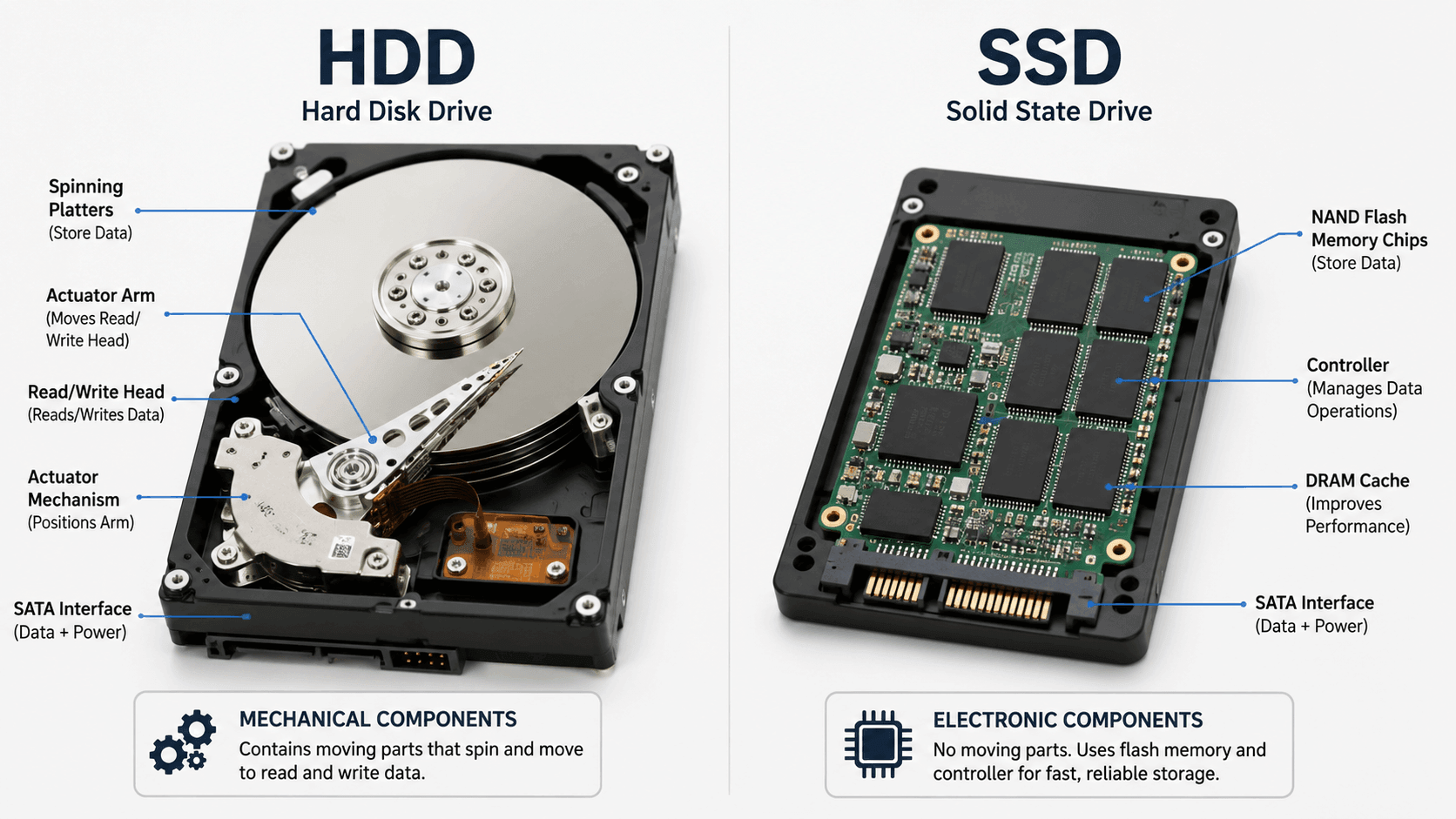
Traditional spinning hard disk drives have moving parts that wear out over time. As they age, read and write speeds slow down, and the drive may develop bad sectors — areas that can no longer reliably store data — which causes the system to work harder to retrieve information. A drive that’s more than five years old and showing these symptoms is a strong candidate for replacement.
You can check the health of your drive using free tools. On Windows, CrystalDiskInfo is a widely used utility that reads the drive’s S.M.A.R.T. data — built-in diagnostic information the drive records about its own health — and flags warnings like reallocated sectors or spin-up time errors. On Mac, the built-in Disk Utility can run a First Aid check, and third-party tools like DriveDx offer more detailed S.M.A.R.T. reporting.
Why upgrading to an SSD is often the best slow computer fix
If your computer is running on a traditional HDD and you’re willing to make one hardware change, replacing it with a solid-state drive is almost universally the most impactful slow computer fix you can make. The difference in real-world performance is dramatic: computers that took several minutes to boot often start in under 20 seconds after an SSD swap. Apps open faster, files copy faster, and the system feels more responsive in general because it’s no longer waiting on a mechanical component to spin up and seek data.
SSDs have no moving parts, which makes them faster, quieter, more durable, and more energy-efficient than HDDs. Entry-level 500 GB SSDs are widely available and reasonably priced, making this an accessible upgrade for most computers that are otherwise still functional.
Many repair shops and tech-savvy individuals can perform this swap in under an hour, and most SSD manufacturers provide free cloning software to transfer your existing data to the new drive without reinstalling Windows.
It’s worth noting that SSDs also benefit from having adequate free space — keeping at least 10–15% of an SSD free helps maintain its performance over time, as SSDs use that space for internal operations.
When adding more RAM will help
More RAM helps specifically when your computer is running out of it. If Task Manager consistently shows your memory usage above 85–90% while doing normal tasks, adding RAM will make a noticeable difference. The computer will stop relying on the page file — a portion of your hard drive that Windows uses as overflow memory when RAM is full — and everything will feel more fluid.
Common scenarios where a RAM upgrade pays off: you work with many browser tabs open simultaneously, you use memory-intensive software like video editors, virtual machines, or large spreadsheets, or you’re running a 64-bit version of Windows on a machine with only 4 GB of RAM. Upgrading from 4 GB to 8 GB, or from 8 GB to 16 GB, can meaningfully improve performance in these situations.
However, if your memory usage is consistently below 70–75% and your computer is still slow, adding more RAM won’t help much. The bottleneck is elsewhere — likely the CPU, storage, or software — and RAM won’t fix what it didn’t cause.
When the computer may be too old to keep up
There’s a practical limit to how much you can speed up aging hardware. A computer running a first-generation Intel Core i3 processor from 2010 with a spinning hard drive and 4 GB of RAM is genuinely struggling to run a modern operating system and modern web browsers, both of which have grown considerably more resource-intensive over the years.
If your computer is more than eight to ten years old, runs a 32-bit operating system, or has a processor that can’t be updated to Windows 11, the honest assessment is that software fixes will only go so far. At some point, the cost of repairs and upgrades approaches or exceeds the cost of a new or refurbished machine. A refurbished business-class laptop from a reputable seller can offer significantly better performance for a few hundred dollars — sometimes less than the cost of a full slow computer fix involving multiple hardware replacements.
That said, if the machine is otherwise functional and you’re not doing demanding work, an SSD swap alone can extend its useful life by several years. It’s worth evaluating what you actually need the computer to do before deciding whether to repair or replace.
Windows and Mac Steps at a Glance
If you want a quick reference without re-reading the full article, here are the core steps organized by operating system.
Windows 10 and Windows 11 checklist
Working through these in order covers the most common slow computer fixes for Windows users:
- Restart the computer if you haven’t done so recently.
- Open Task Manager (Ctrl + Shift + Esc) and check the Performance tab for CPU, Memory, and Disk usage.
- Disable high-impact startup programs from the Startup tab in Task Manager.
- Run Disk Cleanup — search for it in the Start menu, select your C: drive, and clean up temporary files and system files.
- Enable Storage Sense under Settings → System → Storage to automate future cleanup.
- Uninstall unused programs from Settings → Apps.
- Check for Windows Updates under Settings → Windows Update and install any pending updates.
- Run a full scan with Windows Security (Virus & Threat Protection) or Malwarebytes.
- Adjust visual effects — search for “Adjust the appearance and performance of Windows” and select “Adjust for best performance” on older hardware.
- Check disk health with CrystalDiskInfo if the machine is several years old or showing signs of storage slowdown.
macOS checklist
For Mac users dealing with a slow computer, the equivalent steps are:
- Restart the Mac fully rather than relying on sleep mode.
- Open Activity Monitor (Applications → Utilities) and check CPU and Memory tabs for resource-heavy processes.
- Remove Login Items under System Settings → General → Login Items.
- Check storage via Apple menu → About This Mac → Storage → Manage, and remove large or unused files.
- Uninstall apps you no longer use by dragging them from the Applications folder to the Trash, then emptying the Trash.
- Check for macOS updates under System Settings → General → Software Update.
- Clear browser cache in Safari (Safari menu → Settings → Privacy → Manage Website Data) or in Chrome and Firefox using their respective settings.
- Enable Reduce Motion under System Settings → Accessibility → Display if the machine is older.
- Run Malwarebytes for Mac if you suspect unwanted software is running in the background.
- Run Disk Utility First Aid (Applications → Utilities → Disk Utility) to check for file system errors.
When to Get Professional Help
Most slow computer problems are fixable by following the steps in this article. But there are situations where the issue is beyond what software maintenance and basic settings can address — and pushing forward without the right knowledge can make things worse.
Possible signs of hardware failure
Some symptoms point to hardware problems that need hands-on attention from a technician. These include:
- Frequent random crashes or blue screens (BSOD on Windows) — these can indicate failing RAM, a corrupted operating system, or a dying hard drive
- The computer freezing completely and requiring a hard shutdown by holding the power button
- Unusual noises from inside the machine — clicking, grinding, or repetitive ticking from a hard drive are serious warning signs of imminent failure
- Overheating — if the computer gets very hot, shuts down unexpectedly, or the fan runs at maximum speed constantly, the cooling system may be clogged with dust or failing
- S.M.A.R.T. errors reported by a disk health tool, particularly warnings about reallocated sectors or pending uncorrectable errors
If you’re seeing any of these symptoms, back up your important data immediately before doing anything else. A drive that’s showing S.M.A.R.T. errors can fail without further warning, and data recovery after a complete failure is expensive and not always successful.
When DIY fixes are no longer enough
If you’ve worked through every relevant step in this article and the computer is still significantly slow, or if you’re uncomfortable performing a hardware upgrade like an SSD swap, a local computer repair shop is a reasonable next step. Many shops offer a free or low-cost diagnostic assessment that will tell you definitively whether the problem is software, a failing component, or simply a machine that has reached the end of its practical life.
It’s also worth considering a clean reinstall of Windows or macOS if software fixes haven’t helped and hardware checks out as healthy. A fresh operating system installation removes accumulated software clutter, corrupted system files, and lingering malware more thoroughly than any cleanup tool — and can serve as the most thorough slow computer fix available when nothing else has worked.
This is a more involved process — you’ll need to back up your data first and reinstall your applications afterward — but it can restore a computer to near-new performance.
How to Prevent Your Computer From Getting Slow Again
Fixing a slow computer is satisfying. Keeping it from getting slow again is even better. A small amount of regular maintenance goes a long way toward avoiding the gradual accumulation that causes most slowdowns — and means you’ll rarely need a slow computer fix in the first place.
Simple monthly maintenance habits
You don’t need to spend hours on this. A few minutes once a month covers most of what matters:
Restart regularly. Even if you use sleep mode day-to-day, a full restart once or twice a week clears accumulated temporary data and lets Windows or macOS apply updates that require a reboot.
Keep your storage from filling up. Check your disk usage periodically and make sure you’re staying above that 10–15% free space threshold. If Storage Sense is enabled on Windows, it handles most of this automatically. On Mac, the Storage Management tool makes it easy to identify what’s taking up space.
Review installed apps every few months. It’s easy to install something for a one-time purpose and forget about it. Every app you install has the potential to add background processes, startup items, and scheduled tasks. A quarterly pass through your installed programs list to remove what you no longer use keeps things tidy.
Keep the operating system and apps updated. Staying current with updates isn’t just about security — it’s also about performance. Developers regularly release optimizations alongside bug fixes, and running outdated software means missing those improvements.
Run a malware scan monthly. Even if your computer feels fine, a monthly scan with Windows Security or Malwarebytes is a low-effort way to catch anything that slipped through before it becomes a noticeable problem.
What to keep installed and what to avoid
The single most effective long-term habit for keeping a computer fast is being selective about what you install in the first place. Every piece of software you add has some cost — storage space, potential background processes, startup entries, and system integration points that can interact unpredictably with other software.
Be cautious about “free” utility software that promises to speed up, clean, or optimize your computer. Many of these tools — often called PC cleaners or registry cleaners — do little measurable good and some actively cause problems or bundle unwanted software. Windows and macOS both have built-in tools like Disk Cleanup, Storage Sense, and Disk Utility that handle legitimate maintenance tasks without the risks that come with third-party utilities.
When you do install software, pay attention during the installation process. Many installers include optional add-ons, browser toolbars, or additional programs that are pre-checked by default. Unchecking these during installation prevents them from landing on your system in the first place.
Finally, keep your browser lean. Extensions are useful, but each one adds overhead. Install only what you genuinely use, and revisit your extension list every few months to remove anything that has accumulated without purpose.
Frequently Asked Questions
Why is my computer running so slow?
A computer runs slow when one or more of its core resources — CPU, RAM, or storage — is being overloaded or is underperforming. The most common reasons are too many programs running at startup or in the background, a hard drive that is nearly full or physically aging, malware consuming resources silently, outdated software, or not enough RAM for the tasks you’re asking the computer to handle. Identifying which resource is the bottleneck — using Task Manager on Windows or Activity Monitor on Mac — is the fastest way to find the right slow computer fix.
Why is my computer so slow all of a sudden?
A sudden slowdown — where the computer was performing normally and then became sluggish without warning — usually points to a specific trigger rather than gradual wear. Common causes include a malware infection, a Windows update that installed in the background and is still processing, a cloud sync service uploading or downloading a large amount of data, a background app that crashed and is consuming resources, or a new program that installed itself as a startup item.
Start by checking Task Manager to see what’s using your CPU and disk, and run a malware scan if nothing obvious stands out.
How do I fix a slow computer?
Start with the basics: restart the computer, disable unnecessary startup programs in Task Manager, and free up disk space using Disk Cleanup or Storage Sense on Windows. Then run a malware scan, check for and install pending updates, and close any background apps consuming significant resources. If the computer is still slow after those steps, check whether the hard drive is nearly full or showing signs of age, and consider whether a hardware upgrade — particularly an SSD or additional RAM — would address the underlying limitation. Choosing the right slow computer fix for your specific situation is what makes the difference.
What causes a computer to run slow?
The most common causes are too many startup and background programs consuming RAM and CPU, a hard drive that is nearly full or physically degrading, malware running in the background, outdated operating system software or drivers, and insufficient RAM for the workload. On older machines, hardware that was adequate when the computer was new may simply no longer be capable of running modern software at a reasonable speed.
How can I speed up a slow PC?
The most effective steps, roughly in order of impact, are: disable unnecessary startup programs, free up disk space, run a malware scan, update Windows and your drivers, reduce visual effects on older hardware, and check whether a hardware upgrade like an SSD or more RAM would address the root cause. For most computers, working through the startup programs and disk space steps alone produces a noticeable improvement as a quick slow computer fix.
Why does my computer take so long to start up?
Slow startup is almost always caused by too many programs launching automatically when Windows or macOS boots. Each startup program consumes RAM and CPU during the boot process, and a long list of them means the computer spends several minutes initializing software before it’s ready to use.
Open Task Manager on Windows, go to the Startup tab, and disable any high-impact programs you don’t need immediately at boot. On Mac, check Login Items under System Settings → General. An aging hard drive is the other common cause — if the drive is slow to read data, every step of the boot process takes longer.
Will more RAM make my computer faster?
More RAM will make a meaningful difference if your computer is actually running out of it. If Task Manager shows memory usage consistently above 85–90% during normal use, adding RAM will reduce the system’s reliance on the page file and make multitasking noticeably smoother. However, if your memory usage is well below its limit and the computer is still slow, the bottleneck is likely elsewhere — in the CPU, storage, or software — and adding RAM won’t address it.
Will an SSD fix a slow computer?
For computers running on a traditional spinning hard drive, upgrading to an SSD is often the single most impactful slow computer fix available. Boot times, app launch speeds, and general system responsiveness all improve dramatically because SSDs read and write data far faster than HDDs. If your computer is otherwise functional but feels sluggish in everything it does, and it’s currently running on an HDD, an SSD upgrade is worth serious consideration. It won’t help as much if the computer is already running an SSD and the slowdown stems from insufficient RAM or CPU limitations.
How do I know if malware is slowing down my computer?
Signs that malware may be causing a slowdown include: the computer became slow suddenly without any obvious explanation, CPU or disk usage is high in Task Manager even when you have no programs open, your browser behaves strangely with unexpected redirects or pop-ups, or your antivirus software has been disabled without your action. Run a full scan using Windows Security built into Windows and a second scan with Malwarebytes, which is free and effective at catching threats that other scanners sometimes miss.
Why is my computer slow even with no programs open?
If your computer feels slow even when you haven’t opened anything, the most likely explanations are background processes running without your direct involvement. Windows Update may be downloading or installing, a cloud sync service may be actively transferring files, antivirus software may be running a scheduled scan, or malware may be consuming resources silently.
Open Task Manager and sort the Processes tab by CPU and Disk usage to see exactly what is running. Background Windows processes, sync clients, and security software are the most common culprits in this scenario. Once you identify the source, you can apply the appropriate slow computer fix.
Conclusion: Start With Diagnosis, Then Use the Right Slow Computer Fix
A slow computer is rarely a mystery once you know where to look. The core principle running through everything in this article is the same: identify the actual bottleneck before applying a fix. Whether it’s a startup program list that has grown out of control, a hard drive quietly failing after years of use, a browser with too many tabs and extensions, or malware running in the background — each problem has a specific solution, and applying the right slow computer fix is far more effective than trying everything at once.
For most people, the combination of restarting regularly, trimming startup programs, keeping storage space free, staying current on updates, and running occasional malware scans will keep a computer running well for years. If those steps aren’t enough, a hardware upgrade — particularly an SSD on a machine still running a spinning hard drive — often delivers a transformation that no software slow computer fix can match.
Start with Task Manager or Activity Monitor, find out what’s actually consuming your resources, and work from there. The right slow computer fix is usually simpler than it seems — and in most cases, it’s already within reach.