Cameyo – Free Application Virtualization Software For Windows
Many IT workers find it frustrating to deploy applications quickly across multiple computers, this is where Application Virtualization comes in. While application virtualization technology has been around for years, good application virtualization products have been expensive and complex to learn, according to the developer of Cameyo. The free open-architecture application virtualization product that combines the best application virtualization technology with simplicity.
Cameyo is a first ever free application virtualization product for both home users and enterprise IT administrators. It packages entire applications into a single standalone executable, eliminating the need to install.
Launch Cameyo and you will find the main interface with two options – Capture installation and Edit existing packages.
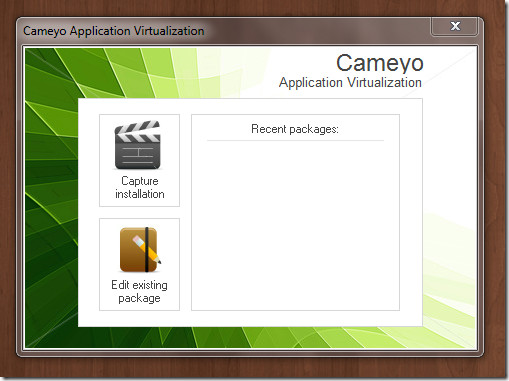
To begin, hit Capture Installation and it will start taking initial system snapshot before installation.
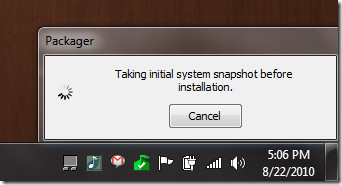
Once the initial snapshot is done, it will show a new window asking you to install the software you wish to package. At this point, you have to install all applications on your computer that you wish to virtualize.
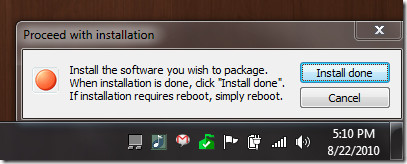
Hit “Install done” and it will start taking post-installation snapshot. This process is the longest one and will take some time to complete.
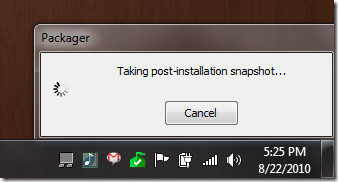
Both initial and post-installation snapshots are necessary to find out which applications have been installed, so that they can be virtualized.
Once it has done taking post-installation snapshot, a new window will pop-up, as shown in the screenshot below. Here you have to give application a name, select an output directory, and finally select the application’s main executable.
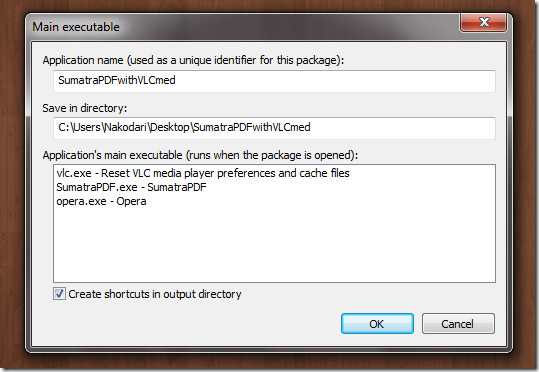
To understand how this works, Cameyo uses application virtualization technology that packages entire applications into a single standalone executable. In layman’s term, it means that everything will be installed inside a single main executable (which you have to select) to virtualize it, thus eliminating the need to install applications when deployed on other systems.
Once this step is complete, hit OK and it will start building the package. The time it takes will depend on how many applications you have installed on your system before clicking “Install done” to virtualize them.
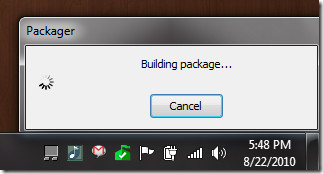
This is the last step, after which, you will find the folder in the output directory with all the virtualized application in it.
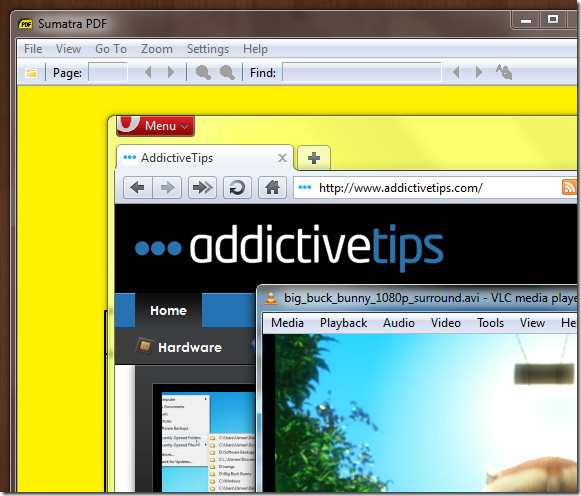
In the screenshot above, you will find Sumatra PDF Reader, Opera, and VLC Media Player, which are all virtualized applications, working seamlessly on my Windows 7 32-bit system.
We have embedded the official screencast video below demonstrating how Cameyo works.
The application works on Windows 2000, XP, 2003 Server, 2008 Server, Vista, and 7; testing was done on Windows 7 x86 system.

in which lang u hav implemented this?????????
SVS is still free !!!
https://kb.altiris.com/display/1n/articleDirect/index.asp?aid=29519&r=0.377453
Cameyo trial: Well, yesterday I tried Cameyo on two small programs–foobar and Auslogics Disk Defrag. The first trial with foobar simply didn’t work at all. All I had at the end was a .txt file. I figure this is the trial and error part of using a new program. With Disk Defrag I did have the fortunate pleasure in a completely virtualized program which ran quite well on the host machine which was used to package it. One problem: I took the virtualized program over to another computer, and it wouldn’t run. End of test.
Cameyo, I hope the developer continues. Virtualized applications have a place when using computers. No doubt, I will try the program again and again until I have success. I’m not so sure that the program isn’t working as much as other factors. Thanks for the tip.
So, I assume technically this would work with virtualizing Microsoft Office as well? Purchase a license for 1 computer, but run it virtualized on 2 others? Is that a possible scenario for the poor college student? Heh
I haven’t tried it out on Office 2010, but you can contact the developer to ask him if it would work. Keep in mind that it takes some time to virtualize small freewares, such as, Firefox, Opera, VLC Player, Filezilla, Sumatra, etc. So when you are considering an application like Office 2010 (which is huge), then it might take half a day to virtualize (this time will vary depending on how fast your computer is). Also if an installed application takes 100MB space in your hard disk, then the same application in virtualized form will take 300MB.
My experience with Thinstalled apps (now owned by VMware-ThinApp) resulted in saving all sorts of frustrations; however, to get a virtualized program to work perfectly requires some trial and error, and some apps can never truly be virtualized (meaning the program runs entirely within its own space leaving no registry keys or files on the host machine). Firefox provides a great example, especially if Flash is desired.
Large programs were never any concern. You may want to search around for some of the old Thinstalled apps so you can make a decision.
Jasray, we only review freewares. VMware-ThinApp is a paid software.
Yes! I was only referring to Thinstall (now Thin App) for clarity’s sake. There are abundant programs which have been Thinstalled posted on the Internet. The following link has numerous applications which are virtualized.
http://www.thindownload.com/
The only reason for mentioning Thinstall was that virtualization tools such as Cameyo are wonderful, totally cool, awesome, phat, but . . . those who try Cameyo (I’ll be one of them–thinking what program I want to try) should realize that this type of virtualization has limitations.
In other words, if they try to virtualize VirtualBox, it won’t work (theoretically possible and has been accomplished provided one realizes files and registry changes are being made–true virtualization doesn’t touch the host machine).
Linux Live USB Creator, which includes portable VirtualBox if a user wants it, works if the host machine doesn’t have administrative restrictions. And I tried virtualizing VirtualBox. No luck. Windows Virtual PC works; again, one will need administrative rights.
Nevertheless, I may be wrong about all of this. Who knows? I shall use the program on a test machine and see what happens. Maybe technology made a leap I missed, yes?
There are indeed certain limitations and I do agree with you. Thanks for sharing the link for virtualized applications. I shall try them out. As for Cameyo, it is still in beta and the developer is working hard on improving it further, so don’t expect some good results yet.