Fix ‘Cannot Delete Folder/File’, ‘Access Denied’, ‘File In Use’ Errors
Have you ever tried to delete a file or a folder and gotten ‘Access Is Denied’ error? Or while copying a file it seen ‘The Source File May Be In Use’ error. These types of errors can occur due to many different reasons, maybe the file is being used by the operating system or some other program, or maybe you do not have administrator privileges.
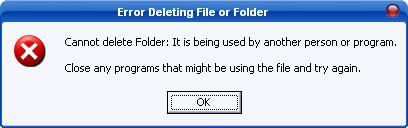
If you get an “Access is Denied” error while accessing a folder then it means the administrator has not allowed you permission to access it. If you are not an Administrator then you will probably never be able to fix this error. But if you are an Administrator and receiving this problem then there is a software called Unlocker that is going to come in handy.
UPDATE: Lock Hunter seems to be working better in Windows 7(both 32-bit and 64-bit)
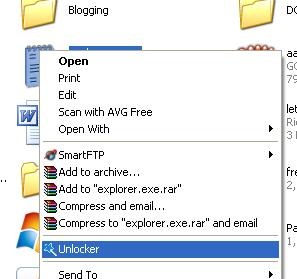
Unlocker is a small, free, and powerful software that lets you see which process is holding the lock on the file/folder and then helps you unlock it. After Installing this software you can simply right click the file/folder that is giving “Access is Denied” or “FIle May Be In Use” errors and then click on Unlocker.
A new window will now pop-up showing the processes as shown below. Now you can either unlock all of the processes or kill the process.
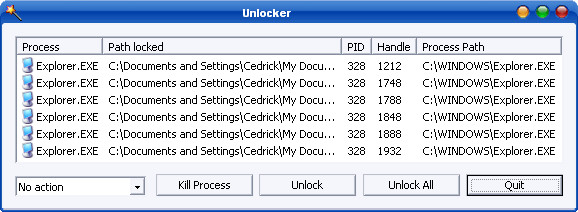
On the left of the ‘Kill Process’ button there is a dropdown menu where you can select Copy, Move, Rename, or Delete functions for a locked file.
This program is useful for the following types of errors,
- Cannot delete file: Access is denied
- There has been a sharing violation.
- The source or destination file may be in use.
- The file is in use by another program or user.
- Make sure the disk is not full or write-protected and that the file is not currently in use.
Using Microsoft Support
There is also an alternative way using Microsoft support help for such errors, following MS steps will basically reset the file/folder settings.
https://support.microsoft.com/kb/810881
I frequently use the Unlocker software for quick solution, and I have personally never tried using the Microsoft support method. I hope you will also get rid if these errors using the above procedure, looking forward to hear feedbacks from you. 🙂

I suggest you try Long path tool is the very good program for easily
delete, copy & rename long path files, error, unlock solution.
Try it and solve your problem.
I used long path tool and I solve my error, unlock problem solution.
I suggest you Long Path Tool will let you easily delete, copy or rename long path files, you can try it for better service.
If you want to copy or delete the data and facing this error which says “file in use”. This is a common problem which occurs during cut, copy, paste and deletion of files. Now there’s a solution that copies the files you want, in the manner you want, without endless error prompts and user intervention. The solution is called GS RichCopy 360 Enterprise by GuruSquad. In my experience and opinion no other file copy application does it better and simpler than GS RichCopy 360 Enterprise.
Long Path Tool a great solution to path too long issue.
plz try ;Long path tool”
I am getting this same issue, i guess the best thing to do is to use a
third party app like Long Path Tool. Just download it and use it to
solve this issue. I hope this would help.
Just download Long Path Tool software and start using it for copy, paste, delete, extract, etc., it is so easy.
FCUK unlocker – bloatware POS.
Try “Long Path Tool ” is also useful in situations where you see these error messages: Cannot read from source file or disk, there has been a sharing violation, cannot delete file or folder, the file name you specified is not valid or too long, the source or destination file may be in use and many other file managing errors.
anyone used “Long Path Tool”
This tool is great
Thanks
hello friends,use long path tool its unique and awesome
very easy to delete this type of file or folder, just rename by pressing F2 and SHIFT+ DELETE, rename whenever error massege is coming. WOW…. SOLVED…
the helpful another way, i think u must try use long path tool. 🙂
Hi
I suggest to try “Long Path Tool” program .
before I have problem cannot copy file because file name too long. and after I found long
path tool and now my problem solved
Hi
I suggest to try “Long Path Tool” program .
and after I found long path tool and now my problem solved
Thanks
Patrick
Thank you very much! I have been struggling for months to delete some directories that were held back by the windows media player network sharing exe. 🙂 Now my HDD is clean, thanks! 🙂
Thank You Very Helpful
I Use Permissions Time Machine v1.1 to restore default permissions and remove “Access is denied” message for folder or files or registry keys or windows services or wmi objects it’s free and fast and easy
I download it from AMYD Projects
I Use Permissions Time Machine v1.1 to restore default permissions and remove “Access is denied” message for folder or files or registry keys or windows services or wmi objects it’s free and fast and easy
download it from amyd projects blog
start– > Run –.%Temp%
files not deleted always get message Access is denied.
help to delete this…….
thanxx … this software is awesome
Nice post. I’ve also tried “Long Path Tool” as an alternative, and it works like a snap.
I agree, “Access denied error use “Long Path Tool” to get fast and easy fix .
And what if I simply get an Error: “The object could not be deleted. Do you want to perform the requested delete operation at the next reboot?” What should I do in this case?
Try ” Long Path Tool ” is also useful in situations where you see these error messages: Cannot read from source file or disk, there has been a sharing violation, cannot delete file or folder, the file name you specified is not valid or too long, the source or destination file may be in use and many other file managing errors that you encounter in your computing use.
Try this “LongPathTool” tried and tested.Guaranteed fix. Here you can rename, delete, open and move your files instantly without the worries of error messages saying that there is some sort of a problem.
Well, none of these solution worked for me… instead all i had to do was to:
1) rename another folder which had some contents to the same name as the inaccessible/non-deletable folder.
Note of caution: Make sure you have backed up a copy of the folder before you rename it.
2) It then asked me if i wanted to merge the 2 folders –> clicked on Yes.
3) I was then able to access/open the folder–> Deleted all the contents of the folder.
4) Now i tried deleting the folder.(And this time it surprisingly let me delete it )
Anyways, thanks a lot guys. Wouldn’t have posted this, if i wouldnt have come across such a forum that helps a lot when in a desperate situation.
Thank you.. its working like charm…
Thumbs up bro!
supeb,,,,,,,,
awesome, small yet powerful program, thanks bro
excellent! it worked well.
Works really well …. thanks!!
Great recommendation! Thumbs up bro!
thanks
hi … Thank u so much …. it works really well…
hi … Thank u so much …. it works really well…
thanks a lot pal.
thanks a lot pal.
Sir now you this trick.
Don wana say something more but thanks
Hi all, I have been suffering from accessing, managing and even renaming files that have more than 255 characters over a long time. I have tried various ways but failed. Then I have searched this problem in internet. Then I have found a solution. This software is very easy to use. Named Long path Tool. To use the program all you need to do is to download this program online and save all the settings to your computer. This program is compatible with Windows NT, 2000, XP, Vista and Windows 7. you can find it from longpathtool(dot)com
i have same problem.Long path tool worked perfect for me.Visit the following site for details Pleasehttp://LongPathTool.com
i have same problem.Long path tool worked perfect for me.Visit the following site for details Pleasehttp://LongPathTool.com
I
love this tool and am using it now for this type or errors. I have
tried a number of ways for it, and also I have used “Long Path Tool”
software in this situation and it helped me easily and quickly.
I
love this tool and am using it now for this type or errors. I have
tried a number of ways for it, and also I have used “Long Path Tool”
software in this situation and it helped me easily and quickly.
I like this tool, and I have already a useful software like this one, which is know as “Long Path Tool”.
Thank you so much… I’ve installed unlocker and it worked for me when a file was giving ‘Access Denied’ while deleting a file.
you can also try and deleting this kind of “can’t be deleted” files and folders with LongPathTool. I use it in this kind of situations 🙂
It was helpful… I googled it just now, after trying many methods to delete an empty folder which used to have some music files in it – unsuccessfully ofcourse… So, thanks…
It was helpful… I googled it just now, after trying many methods to delete an empty folder who used to have some music files in i t- unsuccessfully ofcourse… So, thanks…
it was useful
THANKS
This Post helped me
when deleted file using the unlocker, the file will totally delete right? it will be not available in the recycle bin or others file right?
when deleted file using the unlocker, the file will totally delete right? it will be not available in the recycle bin or others file right?
Another reason is if you have the preview pane open. I had the same problem, but it went away when I disabled the preview pane in Windows 7 explorer.
Orangize>Layout>Preview
Thanks…..First time I was hearing this tool………It works well….. 😀 Small software effective…
Well, I’m running Win7 64-bit and trying to delete a folder. I log in as Administrator and when I try to delete I get the dreaded Access Denied. Cannot Delete. When I use LockHunter it does not resolve the issue. It does, however, tell me the folder is not locked. I click “Delete It!” and it informs me I can’t delete the folder.
Any suggestions will be greatly appreciated…
fantastic thanks
I’ve needed this so many times. Wish I found it before
hey thanx for the information.
i have tried so many times to delete a file but after using the unlocker it deleted in a second….:)
unlocker worked..thanx a lot..
I tried to delete a file named USBCα=}é.showing capacity 1,261,568 KB in folder but 0 KB in properties through unlocker. A small window pop upped with drop down menu with 4 options. Delete was selected, object deleted shown but actually was not deleted.
I have faced a similar problem.
any luck with solving your issue?
Great software!! Thanks for the info.
thanks brother its very usefull tool thankss alot for sharing you solved my problem
Well, I just used the Windows Support path after having tried both Unlocker and LockHunter without success. Lo and behold, Microsoft actually solved the problem for me this time. Is the end of the world coming?
yay, its work for me after i tried many other methods before..thank you a lot
Hi. I runned into that damn problem too. And after days of searching I finally found this software: Delete Long Path File
Tool.
It’s GREAT. You can find it here: www.deletelongfile.com
But www.deletelongfile.com is stolen version of Path Too Long Utility from www.pathtoolong.com. You will not receive support or software update there, so you’d better go to the original version provider.
I have a external hard drive – 1tb Lacie – and I can’t access my movies folder. It says access is denied even though I can access it with my LG TV. I’ve tried unlocker but it says that there is no lock on that file, therefore the problem cannot be solved. Have you got any suggestions as to what I can do?
Did not work for me on most files folders
i fin’ly got a solution for this… try using unlocking software. it automatically detect locking code and if it found nothing it gives you option just chose delete and it will disappear… thanks peps…
Thanks for this article and introducing me to the unlocker tool…. worked like a charm on an annoying problem folder that would not delete.
these comments are fake lol
thank you very much! i have been searching answers and followed every procedure that i found in the net but this is the only thing that worked for me, thanks again and GOD BLESS!
i have also used this tool which works perfectly
www.unlocklertool.com
Fantastic little program, I would have bought it if it had cost money.
googled how to delete files that can't be deleted, and DL'd this lil tool. Bam problem fixed in 2 minutes tops.Lol at my quick email name 😀
googled how to delete files that can't be deleted, and DL'd this lil tool. Bam problem fixed in 2 minutes tops.Lol at my quick email name 😀
This little application will resolve my long lasting problem.Thanks v much
This little application will resolve my long lasting problem.Thanks v much
Why haven't i seen this program before. Folder issue resolved 1 min after reading this 🙂 Cheers
Definitely a program that deserves mention. While I’ve always gotten around this program the “long way” (finding out what program is using it and then shutting down that program manually) this can certainly save time for a lot of inexperienced PC users.
If you have long file names and can’t move or delete them, try to rename them to a shorter name as well as the $%# long folder name they are found in. Once you shorten the name past the Windows name character limit you can do what you want with the file. (I think the limit is 256 characters)
Unlocker rocks!! love it.
Please give answer to this querry
I have a whole folder filled whit files that can not be deleted. i have tried many different programs to delete them. unlocker & FileAssasin too. they didnt work. i have even tried some extreme erasing programs they did not work. so unlocker is god but sometimes it do not work.
Try using this tool to see if some malware or some unknown process is trying to lock your files, https://www.addictivetips.com/windows-tips/analyzemanage-processes-auto-start-items-and-loaded-modules-in-windows/
You can also remove them permanently using this tool.
I tried many options suggested to remove this mongrel file without any success. Not a confident user as yet, was unsure about using the suggested software. So I restarted my machine, f8 into safe mode, located file and sent to recycle bin, emptied bin and could not believe it, its gone! Restart again and the error file has really gone. Hope this helps others. Maybe you techo’s can check this and see why it works. I felt I just fluked it. Anyway thanks everyone for communicating ideas to help each other. Cheers
Unlocker isn’t portable, and it was flakey when I used it. Get killbox. If it can’t force-delete the file, it’ll delete it on reboot. Killbox also doesn’t need to be installed, as it’s just a standalone app.
Have any of you tried restarting? Usually if you try to delete the file as soon as you can after a reboot it works just fine. I’ve never had any trouble after a reboot before.
Thank you very much! I’ve wondered for years how to delete those stuff which cant be deleted. 😀
Thank you about your tutorial, that tips was can fix network slow transfer.
Thank you,
Best regards,
Indra
indra@yahoo.com
just used it ..i was so pissed untill i found this thanx 🙂
Sounds good! So where can I get “Unlocker” for XP?
thanks… good one..
thanks… good one..
Thank man!
www.library-book.co.cc << Free Download IT Programmer Java Linux ASP Flash PHP and much more Books
Have been using unlocker for ages and no doubt, it’s one of my MUST have app for windows .. TFS!
Unlocker doesn’t delete file names longer than 255 characters on windows XP.This I know for fact the only way I have found to remove veryfrakkenlongFilenames is to copy everything I want to keep from file then delete the whole file.I know sometimes that sucks but I wish I had a better way.
@Rambo
Thanks for giving a caution to the users, I should have posted this warning in my post.
Used this app, it works good but sometimes if file is not getting deleted, it should be left as it is and you could delete it after next restart of your computer.
Unlocker is in fact, the only tool I’ve found that can successfully perform this task (every time).
But as BV says, it can be dangerous if used incorrectly.
Windows itself uses a lot of files, and interrupting a Windows process by deleting one can cause major problems.
Unlocker should only be used when you have a file like a document, or a music file, etc… that you would “typically” be able to delete.
For newbies – say you are watching a video file, don’t like it & try to delete it. The video player may have that file locked for its use, preventing its deletion. You can clear this most times by playing another file, therefore releasing the first one so you can delete it. Maybe, though, you have to close the player program, to release the file before deleting it.
If you click on a video file, to open the video player you use, then that first file may be locked until you close the program, no matter how many other videos you play.
If it still won’t delete, then some other background process may have it locked (say, a screen-capture utility you clicked to get an image of the video) – this is where Unlocker comes in handy.
There really are ENDLESS possible reasons for the locked file.
So be cautious – it’s locked for a reason…
In the example given by the author, the screen image shows EXPLORER.EXE as the process, with a LOCKED file or folder in My Documents… it’s safe to assume he’s trying to delete a document or folder there – maybe Word still has the document open while trying to delete it… doesn’t work. But if you Unlock it, you can delete it, and Word will get confused. So again, be cautious.
sad.. sad.. If you’ve waited this long to find out how to unlock your processes (and haven’t Googled it before) you don’t deserve to use the program..
I actually said Fuck you aloud when I read your post. I just got win 7 and this is the first time I am having this problem!
@ Bill Vincent
I totally agree with you. Thanks for adding this precaution so others can know. 🙂
@Geoserv
Thanks for stumbling, I appreciate your support. 🙂
I’ve been using Unlocker for a couple years now, and I recommend it for anyone with the brains to use it. If you’re one of those folks that say “Oh, I don’t know much about computers” then you could cause some damage (or at least more troubles) with this, shutting down explorer.exe, for example. 🙂
Will this tool remove a folder( not being used) that gives persistent “Acess Denied” error?
Thanks,
RC
STUMBLED!
First time I have heard of this tool.
Thanks.
I have uses Long Path Tool software. It is really helpful. You can try.