Open Elevated Command Prompt in Windows 7/Vista
There is a security feature in Windows 7 / Vista that comes with User Access Control (UAC) which means processes are launched in restricted mode unless users specifically accept the elevation confirmation. For example running a regsvr32.exe command which is used to register DLL/ActiveX or opening a batch file or script requiring administrative privileges require you to open an elevated Command Prompt. Elevated Command Prompt always run under administrative privileges so users need to launch command prompt will full admin rights and permission state. Here are a few ways to open elevated command prompt.
Method 1
Navigate to Start menu > All Programs > Accessories, here you will see Command Prompt shortcut.
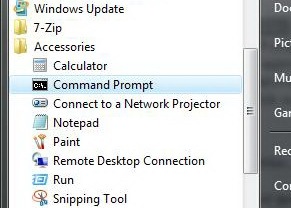
Right click on Command Prompt and select Run as Administrator.
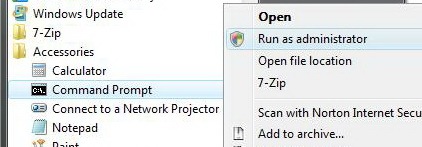
Method 2
Go to Start menu.

Type cmd in the Search Menu
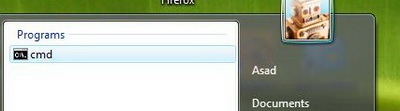
Press Ctrl + SHIFT and Click on the cmd shortcut on the Start Menu. Ctrl-Shift-Enter is the general keyboard shortcut that triggers elevation to “Run as Administrator”, which is also useful when you need to run apps as admin.
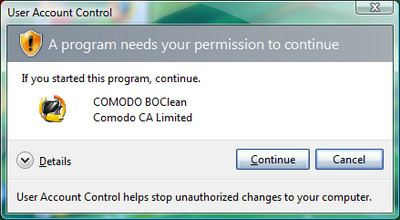
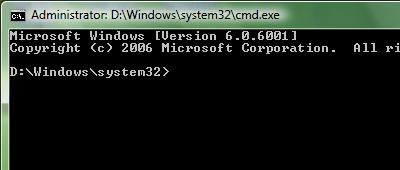
Press Alt+C from the keyboard or click Continue to confirm the UAC elevation warning prompt and the administrative privileged command prompt will be opened.
Method 3
Create a new desktop shortcut to CMD.EXE

To run the shortcut as an administrator by default, right-click the Command Prompt shortcut you created on the Desktop, and choose Properties.
In the Shortcut tab, click Advanced.
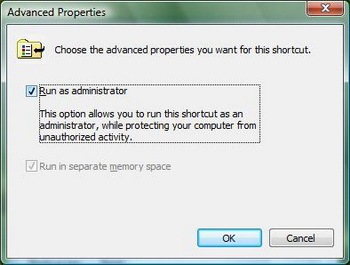
Check the option Run as administrator. Click OK and OK. Now, every time when you double-click the shortcut, command prompt window will open elevated
Got any questions, suggestions, or comments? Feel free to leave a comment.

Hi
I was wondering how to make a batch file that opens up cmd on an administrator level to close a program
What ive got:
(AT)echo off
taskkill /IM (Program name) /f /t
But when i run it it says it denied because of not having adminitrator privilages
Can you help??
hello
anybody help me to clear my usb device problem,when i put my flash drive to computer showing usb device not recognise
Try disabling this in Control panel:
http://windows.microsoft.com/en-US/windows-vista/Turn-User-Account-Control-on-or-off
How do you do this from within command prompt
Still i have to give username and password..I felt it is like runas command. I want pass password also because i want to run batch file from standard user (who dont have any administrative privilages)
Ben Langton Thank you. I have been looking for this information for what seems like ages. This will make it easier for my users to run the files.
Thx for the elevating command. That was were I was looking for!!Now I can install and start a service with my batch file without have to worry about admin rights. Will be a lot easier for our users…
I'm using win7 and this only works with the shortcut in Accessories folder. Any ideas what might help when I run cmd.exe directly through run command? I use commander quite a lot and it's much easier to just press win+R and type three letters than it is to search for a shortcut in start menu.
i want to delete a file using command prompt in admin account but it is displaying that “Access is Denied”…..The files i wanted to delete using the command 'del *.*'
Here's what I use. It requires PowerShell. Basically, this causes a batch file to call PowerShell to re-run itself in an elevated command prompt. Just paste this at the top of the batch file. It hasn't been extensively tested, but it seems to work.:: ****************** Prompt for elevated permissions *************************:: This makes the batch file prompt for elevated permissions on Windows Vista:: or Windows 7, then re-run itselfVER | FINDSTR /IL “5.1.” > NULIF %ERRORLEVEL% EQU 0 SET Version=XPVER | FINDSTR /IL “5.2.” > NULIF %ERRORLEVEL% EQU 0 SET Version=2003VER | FINDSTR /IL “6.0.” > NULIF %ERRORLEVEL% EQU 0 SET Version=VistaVER | FINDSTR /IL “6.1.” > NULIF %ERRORLEVEL% EQU 0 SET Version=7If “%Version%”==”XP” GoTo SkipElevationIf “%Version%”==”2003” GoTo SkipElevationPushD “%~dp0″If Exist “%~0.ELEVATED” GoTo SkipElevation:: Have to escape double quotes because they are passed to Cmd.exe via ShellExecuteSet CMD_Args=%0 %*Set CMD_Args=%CMD_Args:”=”%Set ELEVATED_CMD=PowerShell -Command (New-Object -com 'Shell.Application').ShellExecute('Cmd.exe', '/C %CMD_Args%', '', 'runas')Echo %ELEVATED_CMD% >> “%~0.ELEVATED”:: If there are single quotes in the arguments, this will failCall %ELEVATED_CMD%Exit:SkipElevationIf Exist “%~0.ELEVATED” Del “%~0.ELEVATED”:: ****************************************************************************
hello ,
i have used the above scirpt to open the administrator cmd prompt automatically.
what i have done is i have a created a separate batch file called common.bat where it will contain the above script as mentioned by you.
i have used the batch file in other batch file where on click of that batch file it should open the administrator cmd prompt and then it should continue with the installation
so what i did is i have written the below cmd in the batch file
start /B cmd /c \\KOR308479\DOORS_ERS\common.bat \\KOR308479\DOORS_ERS\doors93.bat rbin_tst_db profile_mm install > %TEMP%\doors_setup.log 2>&1
but its not executing it will open the cmd prompt but it will not contiue further
so kindly do the needfull.
thank you
Regards,
shruthi
Here's what I use. It requires PowerShell. Basically, this causes a batch file to call PowerShell to re-run itself in an elevated command prompt. Just paste this at the top of the batch file. It hasn't been extensively tested, but it seems to work.:: ****************** Prompt for elevated permissions *************************:: This makes the batch file prompt for elevated permissions on Windows Vista:: or Windows 7, then re-run itselfVER | FINDSTR /IL “5.1.” > NULIF %ERRORLEVEL% EQU 0 SET Version=XPVER | FINDSTR /IL “5.2.” > NULIF %ERRORLEVEL% EQU 0 SET Version=2003VER | FINDSTR /IL “6.0.” > NULIF %ERRORLEVEL% EQU 0 SET Version=VistaVER | FINDSTR /IL “6.1.” > NULIF %ERRORLEVEL% EQU 0 SET Version=7If “%Version%”==”XP” GoTo SkipElevationIf “%Version%”==”2003” GoTo SkipElevationPushD “%~dp0″If Exist “%~0.ELEVATED” GoTo SkipElevation:: Have to escape double quotes because they are passed to Cmd.exe via ShellExecuteSet CMD_Args=%0 %*Set CMD_Args=%CMD_Args:”=”%Set ELEVATED_CMD=PowerShell -Command (New-Object -com 'Shell.Application').ShellExecute('Cmd.exe', '/C %CMD_Args%', '', 'runas')Echo %ELEVATED_CMD% >> “%~0.ELEVATED”:: If there are single quotes in the arguments, this will failCall %ELEVATED_CMD%Exit:SkipElevationIf Exist “%~0.ELEVATED” Del “%~0.ELEVATED”:: ****************************************************************************
dear sir/madam
i want to know how can i open the command prompt in administrator mode using the batch file………
actually i want to make a batch file which can open the command prompt in administrator mode…pls help me..
Here's what I use. It requires PowerShell. Basically, this causes a batch file to call PowerShell to re-run itself in an elevated command prompt. Just paste this at the top of the batch file. It hasn't been extensively tested, but it seems to work.:: ****************** Prompt for elevated permissions *************************:: This makes the batch file prompt for elevated permissions on Windows Vista:: or Windows 7, then re-run itselfVER | FINDSTR /IL “5.1.” > NULIF %ERRORLEVEL% EQU 0 SET Version=XPVER | FINDSTR /IL “5.2.” > NULIF %ERRORLEVEL% EQU 0 SET Version=2003VER | FINDSTR /IL “6.0.” > NULIF %ERRORLEVEL% EQU 0 SET Version=VistaVER | FINDSTR /IL “6.1.” > NULIF %ERRORLEVEL% EQU 0 SET Version=7If “%Version%”==”XP” GoTo SkipElevationIf “%Version%”==”2003” GoTo SkipElevationPushD “%~dp0″If Exist “%~0.ELEVATED” GoTo SkipElevation:: Have to escape double quotes because they are passed to Cmd.exe via ShellExecuteSet CMD_Args=%0 %*Set CMD_Args=%CMD_Args:”=”%Set ELEVATED_CMD=PowerShell -Command (New-Object -com 'Shell.Application').ShellExecute('Cmd.exe', '/C %CMD_Args%', '', 'runas')Echo %ELEVATED_CMD% >> “%~0.ELEVATED”:: If there are single quotes in the arguments, this will failCall %ELEVATED_CMD%Exit:SkipElevationIf Exist “%~0.ELEVATED” Del “%~0.ELEVATED”:: ****************************************************************************
wowwwwwwwwwww thank you lorrdzzzzz
This is great. Thank you for posting this addition to add.