How To Play Audio Through HDMI And Speakers Simultaneously In Windows 7
High-Definition Multimedia Interface (HDMI) is an audio/video interface for transmitting digital data which provides better quality output than analog. Normally, one can only select one device for audio playback in Windows. This causes a common annoyance of having to continually switch between the sound card and HDMI speakers. However, it is also possible to receive output from speakers and an HDMI device simultaneously to play audio from a single application at the same time. If you would like to get audio output from both an HDMI device and your speakers, read on after the break.
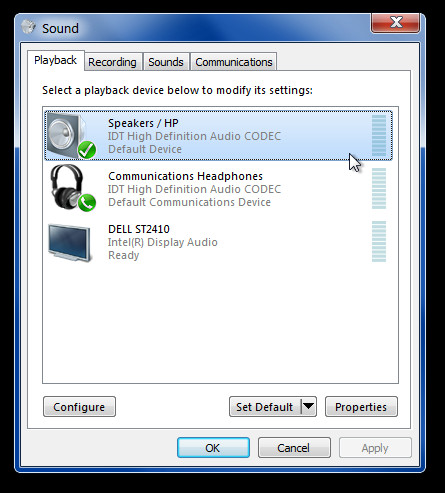
To get started, open Sound Properties from Control Panel. From the Playback tab, select speakers and click Set Default. If you need to connect 5.1 speakers to your computer, this is also the place to confirm they are selected correctly.
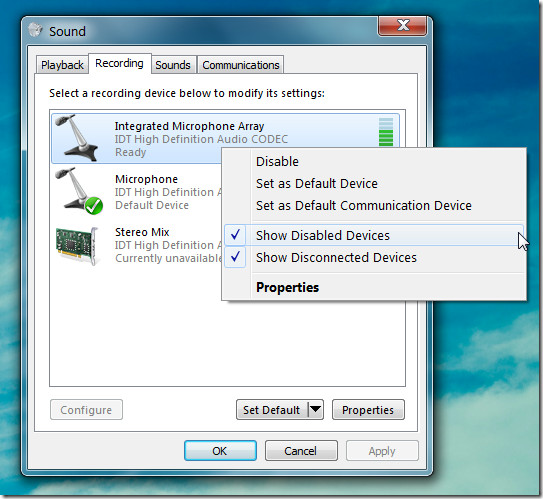
Once done, head over to the recording tab and select Show Disabled Devices from right-click context menu. This will display another recording device which named Mono Mix or Stereo Mix. Right-click on the new device this new device and click Enable. Then set it as the default device by selecting it and clicking on Set Default button.
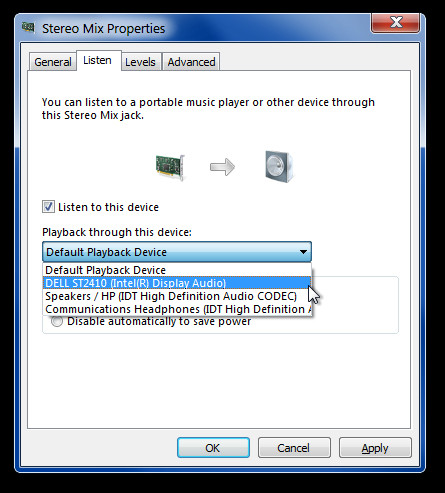
Double click on the new device or select Properties from right-click context menu and head over to the Listen tab. Check Listen to this device option and select your HDMI device from the drop down menu. Click Apply, OK for the changes to take effect
RELATED READING: To protect your online privacy do check the best VPNs for Windows and make sure you’re protected.
This nice little trick will provide you with simultaneous playback from both your speakers and HDMI device. We tested it on our Windows 7 64-bit system.

Works with Win 10. Got the sound from the HD Audio and the USB Gaming Headset at the same time.
ok, but my system win xp!? WTF hdmi!? need my subbufer song & my tv in hdmi
I don’t have the ‘stereo mix’ device and the ‘listen’ tab in Windows 10. How do I do this in windows 10?
Doesn’t work.
my hp xw4600 does not show the device builtin only hdmi, I have installed correct and original audio driver from HP
To solve audio lag download Voicemeeter and in MENU -> System Settings/Options -> Monitoring Synchro Delay set some ms (in my case it was 150). You can find on youtube how to use this program if u cant set everything well.
don´t work.
This was quite helpful; thank you! If anyone can answer this question it would be most appreciated:
I’m running Windows 7 on my laptop, and have an HDMI converter to plug it into my TV. On my laptop I duplicate and extend the screen so I can draw different tabs to one side that show up on my TV, so I can watch a movie fullscreen on the TV while also reading and stuff on my laptop.
What I’d like to do is split the sound between displays. Whatever I drag to my second monitor, the TV, I’d like the sound for whatever’s on that screen to just come out of those speakers, while at the same time on my laptop, I can watch a random YT vid or whatever and it only comes out of my laptop speakers.
So I need to split the sound between the monitors and each operate independently. I’ve looked many places and nobody has seemed to ask quite this question yet, so I figure I’d leave it here. Thank you!
FYI, this method now also works with Windows 10. Thanks so much!
This is very helpful.
Thanks. I’ve been looking for this since a long time!
I used this method for years, but it Does not work with windows 8 or on my new computer MB. The sterio is not present in my record devices only mics.
If you have another suggestion – than
works on window 10; however there is a slight echo or tin can effect so the trade off is between the sound too low and this, ….or go buy amplified speakers and adjust the volume there
Thank you very much! Worked perfectly!
This is simple but brilliant. Thanks so much for this!!!!
Saved me money and a lot of hassle.
this does work on windows 10 aswell but still get the lag issue. i cant seem to find a program that wud help
there is no listen tab when i attempt to do the last step. is this because of a update or because i dont have a sound card?
Thanks, very useful!
Works on Windows 10.
Just (re, as in did it in win 7) tried it, now sound through both system speakers/headphones and HDMI at same time.
the echo is because you’re using the built in microphone’s audio output.there is no way to fix the lag
Thanks for the post! just updated to windows 10 and this really helped.
Yes, this is what I was searching for!… Great help!… Thank you! 🙂
اصلا بدردم نخورد
doesn’t seem to work with creative’s “what u hear” anyone know how to fix it?
it works but there is a lag … can anyone tell me how to fix it?
thank you so much!!
Using Stereo Mix always cause a noticable annoying lag… Fortunately for me I needed it only for playing movies on my TV and there is way better solution for multiple audio streams. If you want to watch movies with audio both on your PC speakers and TV speakers just use KMPlayer and change Audio->2nd Audio Renderer and add there your HDMI device. No lag at all!
There’s noticeable delay coming from the speakers. It sounds weird.
I get slight lagg, anyone know how to fix it?
Slight lag over here . I turned off any special stereo features on the Hdmi Display and it cleaned it up
What special features are you talking about? And where did you turn them off at?
its in the actual display’s settings. i just did it and it worked. set it to not do any special surround sound things ect.
Does not work for me. Can not get list tab to display.
thank you very much, works as a charm
I’ve been playing with this method but it doesn’t seem to function unless the HDMI output it plugged in and turned on when Windows starts (despite it still showing up in the list as an output on the Listen tab). This is a problem if your second output is a TV that you don’t always have on. for reference I’m running Windows 7 64-bit with a Realtek chipset.
works for me, thanks
playback on speaker and HDMI output through a AV receiver
Many thanks!!!!
to whoever comes here, i found a solution! the program VAC (virtual audio cable) allows me to do just that! i stream the pc’s “speakers” (hd realtek auio output) AND the “hd tv” through “LINE 1” (which in the windows audio preference panel is set as the default audio output device)… and the microphone through “LINE 2” (which in the windows audio prefference panel, under the “recording” tab, line 2 is set as the default recording device). you don’t really need to do thast thpugh, since stereo mix is not longer in play anyways 🙂
my tv is connected via dvi > hdmi cable. it took me TWO WEEKS to figure it out!! Woot!
correct sir
did anyone found a solution about using a mic as well? maybe somehow using Virtual Audio Cable??
20 websites later, I finally get to yours with a proper solution! I have HDMI TV sound as my only source of sound and wanted to record what u hear from an adventure game’s beautiful music. I had stereo mix already on with my on-board VIA sound but hadn’t carried out the crucial last stage of Listen to Device. THANK YOU! Cool Edit Pro now records it perfectly after selecting the correct device properties as well.
Udaman!
Walski 🙂
how do you get rid of the audio delay?
Thank you, thank you, thank you. Your tip worked perfectly. I have been trying to solve this problem for over a month.. I had contacted the PC manufacturer and a couple of computer stores.,. no one had an answer. I did not get the Stereo Mix or Mono Mix like Kevin so I searched in my PC and found it in my pc set up. Ran the set up and I got the Stereo Mix and continued with your instructions.
Thank you so much. This is exactly what i was looking for after being told several times it could not be done on Windows. 🙂
I get same lag on my HDMI. For the Mic to work all you do is set it as Default, that’s what I did, I didn’t set the Stereo Mix as default. BTW if you don’t have Stereo Mix, download it from C|NET Realtek High Definition Audio drivers, they have both 32 and 64 bit, worked for me.
32-bit
http://download.cnet.com/Realtek-High-Definition-Audio-Codec-Windows-Vista-Windows-7-32-bit/3000-2120_4-10788600.html
64-bit
http://download.cnet.com/Realtek-High-Definition-Audio-Codec-Windows-Vista-Windows-7-64-bit/3001-2120_4-75317047.html
thanks it works but there is a delay in one of the sound output is the a way to fix it ?
After I use this workaround, I have the audio output to both outputs, which is what I wanted. Thanks. But now my mic does not work anymore… Anybody have an idea how to fix the mic now? I can undo the changes and then the mic starts working, but this is tedious.
This worked perfectly for me with Windows 7 but having swapped to Windows 8 the ‘stereo mix’ option is no longer there. Any suggestions would be welcomed.
Very good article, not a few months before I had read that the very same thing wasn’t possible… Now, is there a way to have the programs on my hdmi output only have sound through that particular source and not the speakers, and vice versa for the main display?
I am looking to accomplish the same. If you do find out please let me know!
Worked perfectly. Thank you.
If you cannot see the audio mix driver and you built your own rig, or replaced the motherboard USE THOSE DRIVERS. they are from the manufacturer, not windows. the problem here is a huge copyright issue trying to be resolved by microsoft. if you use drivers ripped off the internet they WILL NOT contain the stereo mix option.
If you cannot see the audio mix driver and you built your own rig, or replaced the motherboard USE THOSE DRIVERS. they are from the manufacturer, not windows. the problem here is a huge copyright issue trying to be resolved by microsoft. if you use drivers ripped off the internet they WILL NOT contain the stereo mix option.
when i get to the recording tab and right click, it already has it highlighted but doesnt display anything other than the microphone tab. do i have to install or update driver software?
This technique worked just fine with my HTPC and ASUS P6T Deluxe V2 motherboard after installing the SoundMax audio driver (replaced the original Microsoft HD Audio driver).
thanks
Excellent! Got a slight audio delay, but software will take care of that.
i have the same problem can you please enplane to me how to fix it?
thanks for this post!!! this saves me a lot of time switching default playback devices… and i do it 20x a day. 😀
I am almost able to do this but when I go to the drop down menu under the listen tab in the Stereo Mix options, I only have “Default playback device” “Speakers and headphones” and “communications headphones” I do not have the option that you have in the screenshot “Intel ST2410” ANY HELP???
It works, but there is an echo, any advice??
HDMI — ATI 6850
Audio—- motherboard Z68
Same mobo as you and too have audio delay
i know is 4 years aago but did anyone find how to get rid if the echo !
lol
I know it is 5 years ago, but anyone have an answer?
Super Tip! Funktioniert! Danke. Endlich geht beides gleichzeitig.
Thank you for this! 🙂
thanks a lot, dude
Thanks for this tip. Trying to figure out how to get playback from HDMI and SPDIF at the same time. (Not everytime I would want to play sound through my Home Reciever). Only thing my card doesn’t have “Stereo Mix” but “What-U-Hear” via Creative X-Fi Sound Card.
My Sound Setup:
AMD Radeon 6850 (HDMI) out to TV
Creative SB X-Fi (Optical) out to Receiver
Many thanks, this is exactly what I needed, now I can stream via my PC and play out my TV. This will also be awesome to use for the new Star Wars Old Republic MMO. Again, many thanks.
It works great on my Win7 64b, although I needed to download new drivers for my motherboard for stereo mix to appear…
Working great! Many thx, this was what i was looking for! Don’t care about the lag because me problem was that my HDMI receiver always switched channels when a sound appeard… this is history now!
When I do this I get lagged audio output to my HDMI output tv. How can this be resolved? Thanks.
Yeah, it happens the same to me (HDMI via HD6970…)
hhh
Same was happening with me, i disabled my audio enhancer software and now its fine with surround sound as well
Thank you, thank you, thank you Farshad! For years, I’ve had to mess around with one thing or another in order to get my HTPC to work the way *I* want it to work, and you’ve just eliminated one of those little annoyances…
Even though I’m also running Win7 64, what I see on my system is slightly different from what your instructions show, but using your directions as a general guide, it was easy enough to follow.
I dont have that stereo mixer, i only have the microphone. Im still looking for a program similar to Indievolime that works in win7 x64.
I’m using the same method to eliminate audio lag which occurs when I switch to SPDIF mode.
and what method is that?
yes please what software are you using
I know this posting is 2 years old, but I am wondering what method is used to eliminate the echo?