How to Resize Desktop Icons in Windows Vista
Do you find the icon size on Windows Vista desktop too big or too small? The effect of visual appearance on shortcuts and programs icons, is more stark when users adjust and change the monitor screen resolution or font size in DPI scaling, where the icons size becomes bigger and smaller to an uncomfortable level. Users can easily resize Vista desktop icons or change the size of icons on Vista desktop. There are four methods to resize the desktop icons, depending on your preference and also the ’size’ that you want to change the icons to. Let’s delve inside and see what they are.
Mouse Wheel Method
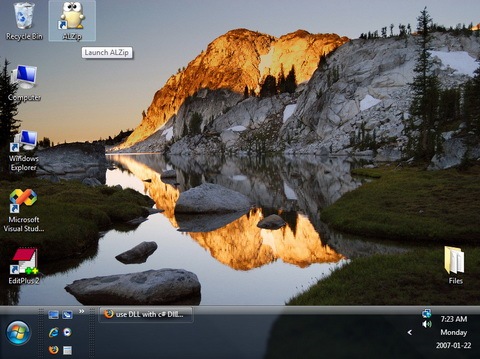
The first one in the list is the Mouse Wheel Method. As the option to select from only three available sizes wasn’t satisfying enough, I found this method to be highly expressive. To get started, make sure the desktop has the focus, just click anywhere on the desktop before starting this process. Press & hold Ctrl on the keyboard and scroll with the mouse wheel up or down to get the desired size.
Using ‘Color And Appearance’ Method
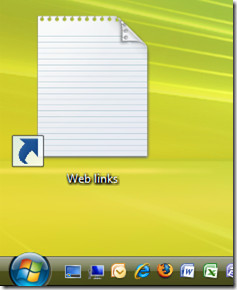
The above method was actually much better. You can have variety of sizes and one for sure will suit you, but what if you don’t have a mouse wheel? The closest I could find is to do this: Right click on an empty spot on your desktop and choose Personalize, now choose the first item on the list Windows Color and Appearance, and then click the last link Open classic appearance properties for more color options.
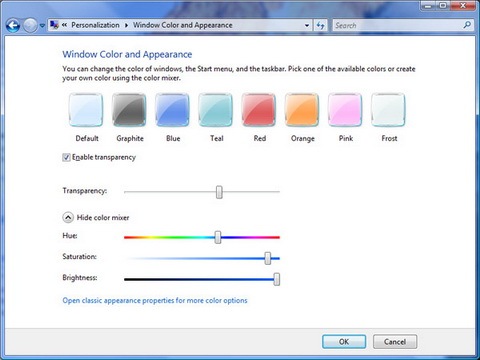
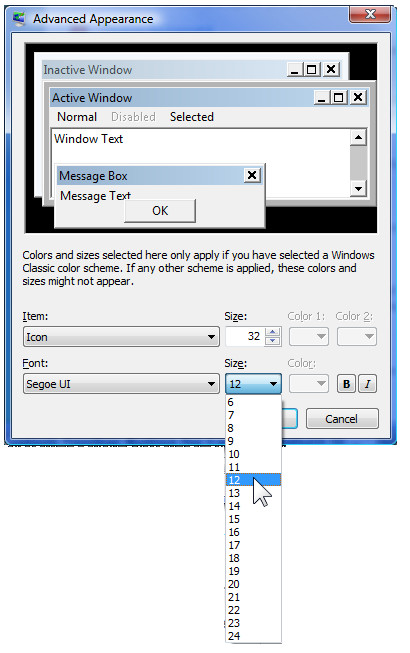
You will get the Windows XP type dialog. Click on Advanced, Under Item choose Icon, Set the size to your liking. Range from 16-72, hit OK and again hit OK on the second dialog.
Registry Tweak Method
If you like to tweak around the registry (like I do), then that can be set under that key,
HKEY_CURRENT_USER\Control Panel\Desktop\WindowMetrics
Using the first method it will instantly update the icon size on your desktop and you will see the changes, while working through the registry I couldn’t get it to refresh without logging off first. I tried F5 on the desktop and choosing Refresh from the shortcut menu on the desktop, but it had no effect. Note that changing the icons with the registry key manually will also reflect on the Windows Vista dialog and vice-versa.
I am sure I haven’t missed any method to resize the icons, but if I have, do let me know about it. And if you ever need assistance adjusting settings or troubleshooting display issues, check out our guide on how to get help in Windows for step-by-step support.

Perfect! Mouse Wheel Method is more than every thing ….cheers..
Brilliant! Thank You! this helped after a student had resized all the icons by “accident”.
Thank you SOOOO much for this. I had accidentally resized my icons with Ctrl + scroll wheel and couldn’t figure out how to get them back to the right size.
HI JERRY
Thank you for the mousewheel tip! I did this by accident the other day and it was driving me crazy. This tip gave me the ability to size my icons back to the size I was used to.
Thank You!! That Mouse wheel tip was awesome – exactly what I needed!
Thank a lot.
Thank you addictive tip, i had an issue that i had managed to change my icon size by accident and you helped me save the day!!! you’re alright, you know that?
First solution is Perfect thank you
THANK YOU!
Thanks a lot. Worked perfectly
Bravo
thank you very much. Wonderful!!!!!
Thanks so much.ස්තුතියි.
thank you sooooo much my icons were the same siz as my screen and I would have been screwed thank you so much
Thaaaaaaaankss u are the best!!!!
Great! very helpful
Thanks. I probably used the mouse method without knowing it, and changed the icons to an unwanted size.
Awesome. Very helpful, thanks.
Thank you sooooooooooooooooooooooooooo much!!! you are amazing!!!
That was very helpful, Thank you
lot of thanks to you
you are so helpfull , thank you
very simple yet helpful, maraming salamat (thank u very much)
Learn somehting new everyday! Thank You!
*Something!
Thank you so much
thanks buddy
Thanks a lot!
Thank you so much, I thought I’d brocken the laptop!!!!
Hello, I have a problem with my desktop. It’s like my whole desktop went smaller. The text, the icons, the gadgets, the taskbar, even my browser. It’s like my Desktop grew in size and made everything smaller. How do I change it back?
Hello, I have a problem with my desktop. It’s like my whole desktop went smaller. The text, the icons, the gadgets, the taskbar, even my browser. It’s like my Desktop grew in size and made everything smaller. How do I change it back?
Thank you. Very helpful and simple.
OMG thank you so much!
Thank you…i was struggling since so long to resize the desktop icons!! this was really helpful..It was just so simple..I clicked on the screen n used ctrl n scrolled with the mouse! Lovely!!! Thanks a lot again! Cheers m/
I agree with every word!
Thanks a lot.
Brilliant! thanks.
if ya ain’t got a mouse, the right side scroll on the pad will work fine
This will especially come in handy when using safe-mode with low res video. Thanks!!
Ctrl Mouse wheel method … THANX
Great!!!!!!!THANKS
THANK You! This was driving me crazy!
the CTRL and Mouse Wheel method was the simplest one! i read the second one after i tired out the first and found the mouth wheel much more simplistic 🙂 x
Thanks! This was absolutely perfect!
great method…thanks alot
Hey, It really works …….I changed my laptops icons’s size by clicking Ctrl and mouse wheel up and down>>>>>>>>>
Fantastic. Just installed Windows on my Mac so I can run both and not knowing my way around, needed a little help making it look good. Will keep rolling through the rest of the site as the day progresses.
Ctl-Wheel method – brilliant. Stay helpful!
thank you so much
Genius!
thanks it helped!
Thanks for the tips. This fixed that faint white line problem that appeared on some of my desktop icons. As it turned out the desktop shortcuts were a size bigger than default, and since not all icons have a bigger version faint white borders appear.
thx for help
mouse wheel method is brilliantly simple and effective on Windows 7 home. Thank you for an easy solution.
I left the keyboard and mouse on, came back and folders on desktop were huge… spent hours with other options under control panels and re-setting graphics card to no avail. Was going to call my brother, but thought “I’ll look it up on the internet!” Found this page. Can’t believe I didn’t think of the mouse wheel thing, since it works in excel for the same thing. Thanks for helping me with what was a simple fix (kicking myself in the A@@).
OMG, I had tried and tried to change the size of the icons and nothing. Until I tried the mouse wheel method. Got it done in less than 5 seconds. Great method, dont bother doing it any other way, unless you dont have a mouse…
i like the one with ctrl wheel for resizing icons. nice
Thanks!
thank you. that is a neat little shortcut. lan party trick anybody??
The mouse method worked like a charm.
Thank you!!
thank you. really helpful
thank you, thank you, thank you!
Thanks so much, very helpful! Especially the Crtl tip.
Thank you!!! Thank you!!! Thank you!!! For some reason the icons on my screen were huge and I tried everything to shrink them back down to the size I like them to no avail.
thanks alot! Very informative. Keep it up! =))
thanks
really help
wow genius! I know that pressing the ctrl worked on emails and files, but never thought it would work on desktop icons =)
Thankyou soooo much for that, the large icons were really annoying me, been trying to figure this prob for ages.
just curious why when I do this and then restart my computer, I need to resize them again.
thank you so much for the first method. I really enjoyed it. good luck man!!!!
thanks!!!
thanks alot. it works on my windows7
solu windows 7 soon in microsoft by birlada
thanx man
Thanks a lot.
Great advice. Good presentation. Many thanks. The solutions work!
Thank you so much this was a help for me im new to Windows 7 im used to XP and Vista i wish & had some of Vistas stuff on it i liked the Areo moving backgrounds on Vista but thank you for giveing us the info on how to change the size of the desktop icons
Thanks!
Thanks!
What about Windows 7 in Personalize – can’t get the options. Then the ctrl and wheel works. and right click and view change size
Most of the icons you add to your desktop will be shortcuts, but you can also save files or folders to the desktop. If you delete files or folders that are stored on your desktop, they are moved to the Recycle Bin, where you can permanently delete them. If you delete a shortcut, the shortcut is removed from your desktop, but the file, program, or location that the shortcut links to is not deleted
hey! thanks chum.. this is great help, the large display icons were really a bother.
This was Helpful. Thanks a lot!
Thanks very much for the desktop Icon resize method. Straight to the point and works flawlessly even on a laptop. Good Job
Registry tweaks.. and 5-level depth menus for what? Just right click on desktop VIEW -> [select size]
Like the author said, some people enjoy playing with the registry.
Anyhow, let’s suppose that none of the options provided in the method you’ve given (small/medium/large) is suitable for someone; that 5-level depth menu method will let someone tweak their desktop to exactly the way they want it.
If you’re going to act all smug and crap all over the author’s attempt at presenting all the methods known for re-sizing the desktop icons then the least you could do is bring something new to the table; instead, you merely present a method that was last mentioned on this blog over two months ago, and first mentioned over two years ago.
Top Guy/Gall Ctrl and mouse scroll just the ticket
Mouse + control. Thank you!
“Scrolling by pressing ctrl(control) button” – best option
thanx! the mouse wheel method realy helps! =)
Yes there should realize the opportunity to RSS commentary, quite simply, CMS is another on the blog.
I Think first one is the best way for re sizing the size of icon on your desktop.
Thanxs
Mouse Wheel method worked great. nice find!
thanks buddy
The first method rocks! Thanks!
thanks googles web services
coool thanks
Mate, the ctrl+mouse is brilliant….
I almost was thinking I am a total idiot, just upgraded to 7 on one machine. one day I even will get my front and rear jack for the sound working at the same time… hehe
On my PC the mouse wheel method doesn’t work. (Advent, Windows 7 Home)
After a little experimenting I discovered how to do it.
If yours is like mine, then you have to left click on the desktop, then hold down CTRL key and click and hold the right mouse button. Keeping both of these depressed, use the scroll wheel to resize.
The right click – view method described by Tanvir Alam doesn’t work either, the only options it gives on my PC are normal and large.
Thanks for the tip. I use the first method and its worked, and easy to use.
There is still a easy way you all missed. Just right click on blank area of a desktop. on the right click menu, at top, there is a option, “VIEW” >>>> LARG, Medium< Small, RTC…..
The easy way.
Wow Tanvir Alam, thats got to be the fastest and easiest way yet! Thank you very much–
i like this way cause many people don`t have wheel in their mouse!!
The right click on an a black bit of screen, then ‘view’ works easy!!! thanks for the post. my 3yr old got hold of my laptop and changed them to ‘massive !!’ I could not work out how to change them back!!
Thanks! One day I accidentally shrunk my icons and wasn’t able to fix them, until I found this! Thank you so much for helping me!
it is a great help !
thanks, so easy i feel stupid. i couldnt find xp style settings, but i guess i messed up with scroll wheel and cntrl cos thats how i fixed it. too easy i dindt even think about doing it lol.
The first method worked best – I had spent at lease 40 minutes trying to find a way to change the icon size. Thanx to a friend who gave me this method thru you.
Brill the ctrl and mouse wheel method on windows 7 worked a treat ..mwah luv u
I guess MS has changed things a bit or it is different on the home version. Here are the latest instructions:
– Right click the desktop
– Click Personalize
– Click Window Color
– Click Advanced Appearance Settings…
– Continue as above with “Advanced Appearance” except it is now called “Window Color and Appearance”
Thanks EddyQ!! I was getting frustrated.
Yes! the CTRL and mouse wheel worked like a charm! My Incon Sizes were driving me crazy!!
Thanks so much the mouse and wheel worked great !
Ctrl and mouse wheel, excellent job, well done and thank you. Peace & Blesings.
The Ctrl-Zoom option was great! Thanks!
that was really simple and cool … thanks.. 🙂
thx man its awesome helped me a lotzzzzzzzzz
It was helped! Thank you!
Thanks this was very helpful. 😀
thanks .it really help me
Mouse Wheel Methos is the most good method i ever learn here.
it was awesome!
thanks alot, it really helped ! i’ve got windows 7 and the icons were just growing bigger and bigger every time i shut down my laptop, anyhow, thanx !!!!!
cheers mate…great tip!
The control/ scroll advice was very helpful. Thanks
if it’s not, then how did you get that boxes around the desktop icons in the first image when you take the mouse pointer over them?????????????
pls replyyy!!!!!!!!!!!!!!!
Is this windows 7?????????
Wow! I was wondering how to do that!
Thanks alot!
wow thanks a lot
THANKS A MILLION for saving my sanity. I have just got a new Sony Vaio touchscreen and wanted the desktop icons made smaller. Having looked almost everywhere for help you were my last resort ( should have been my first ). Silly me.
that was awesome….
Thanks very much !!!
Thanks
Really the mouse method showed me how to do it. thank you very much
The mouse method is awesome. Thanks a lot!
Simple:
Right click on the desktop and select “View” then choose from Small, Medium or Large.
No fuss
Cool, thanks
XP
Only experimenting, the scroll method doesn’t work on XP Pro. I even tried pressing holding scroll ‘button’ while scrolling it. No effect.
Vista Home
Vista icons at the lowest “16” are annoyingly oversize on 17″ display. In the past, I’d had the icons smaller, using a forgotten messy sequence of settings. But that wasn’t working in recent tries.
This Ctrl+Scroll method worked. ‘wooooooOO’
In both Vista and XP, Desksave backs up icon locations. I disable the automatic stuff in options.
“having no text at all on my icons”
Search for info on text color. iirc, when bgrd color reaches a middle level of light/dark, text color switches.
However, you might be able to tile a 1pixel image as ‘wallpaper’. Use a color dropper to sample the text color (or just assume dark text is black and light text is white!), and create the 1pixel image in that color.
The text will be there, but you won’t see it.
Thanks!
thank you!
THANKS ALOT ! THAT HELPED A BUNCH !(:<3 !
Awesome, it works good!! thanks a bunch!!
thanks dude!!!
Hi.
You forgot right click on desktop -> view -> Large icons (or another).
🙂
Bh.
Hi Byron, that was it!!! All the other options didn’t work for me.
Thanks a ton!
Thanks for this post!!!
Thanks for this post! One of my kids accidentally made my icons huge and I could not figure out how to get them back. It was driving me nuts 🙂
thanks for hellping me
Tried the beta of Chrome – DON’T DO IT. On my Win 7 the results were disastrous. Stopped Outlook from opening a Firefox site (no work-around), caused IE8 to disallow updates, required re-boot close all start-ups and only open IE before updates were available.
Used Control Panel to remove Chrome and clean the other directories and things came back to normal.
WOW what a terrible experience..
thanks !!
This is awesome! Thank you!!!!
thanx for this educational post.
Unbelievable it was so easy thank you man.
now i know why the icons got larger accidently :). Thanks a ton.
Awesome tip, struggled for a bit initially and got used to it. Feels so good to be able to dump all on one view! Kudos!
Thanks. Awesome tip!
Thanks, this was helpful.
Grateful for this post. I’ve had my Win 7 laptop for 8 months, and the smallest size of desktop icons was way too large for me, but I just thought I had to live with it. Today I have my old laptop open (w/much smaller icons on it), and decided to search on making icons smaller in Win 7… I had no idea it was so easy to change!! I’ve bookmarked your site. Thanks for this piece of simple brilliance!!!
None of these choices works AT ALL with my Gateway (piece of garbage) laptop with Windows 7 Home Premium O/S
i was searching, thanx alot !!!!!
THX a lot!!!
THX man. You are my hereo!
THANX MAN!
thenks alot .. it was areal problem for me
thx men u rock….
What a useful tip – and so easy. Makes me wonder what other gems I am missing! Thanks.
Great tip! Mouse wheel worked perfectly for me! Many thanks!
Nice Tip! 🙂 Thanks
heyy !!! alternate to resize icons is perfect…..it working yaar !!
thanks !
Thank you! So helpful : )
Mouse wheel method is exactly what i’ve been looking for. Thanks alot
i am running windows 7 ultim when windows did an update i lost about 2 inches of display ,i now have a black borader around my desktop , i an running a ati 5800 hd vid card and an hd 21.5 inch monitor , i have tried everything i know how any one help me????
•Right-click the desktop, point to View, and then click Large Icons, Medium Icons, or Classic Icons. (Classic icons are the smallest size.)
simpler. thanks.
thanks very much for the tips man! Veeeery useful 🙂
Great stuff! Thanks Mousewheel did the trick
thanks a lot
that just saved hours. now how do you change the icon text color in win7 ultimate? option is greyed out in the desktop appearance settings…..
works great ow u 1
The mouse wheel technique is just awesome.. really loved it
It works! you deserve credits – sponsors clicked. Thank you!
Mouse wheel control – so simple, once one knows 🙂
Many thanks for sharing.
I took your advise and started playing around with the sizes of different things – now everything is either too big or too small to a point where i can no longer access parts of my computer – nightmare. is there any way or restoring the original “default” size settings?? Need help.. quick!
Well, yeah. Thank you! No mouse wheel for me, just a laptop pad and the 2nd one works. Not as small as I would like… but its better!
thx, i was looking high and low on how to make the icon smaller…
10x a lot bro !
Mouse wheel option really nice….thanks
You are a life saver. I accidentally increase the size of my desktop icon by 4x and the mouse wheel solved the problem. The help icon was of no help what so ever. What else do you know that I should know????
Thanks Again!
Thanks for the tip. Mouse wheel worked great. Now if I can get my roommate to stop changing the settings on my comp. lol.
mouse wheel! -who knew??
– thanks from a new Windows 7 user
That mouse wheel tip… WOW! Thanks for that one!
Top tip works with Windows 7 as well. Thanks
Thanks so much, finally the smallness is over!!!!
Man, that icon re-sizing fix worked super fast and perfectly !!! Thanks so much.
Tks much, the wheel worked fine.
Nice! The mouswheel trick is like so obvious!
mouse wheel method is great!
This mouse wheel method is great! Why didn’t I accidentally find this out myself. I’m always so clumsy on the keyboard hitting the wrong key and such I could hardly have missed this error 😉
Thanks a lot!
Nice!! I am SO going to be messing with peoples computers…. LOL
Such a simple little easter egg. Why aren’t things like this more well known….
Thnx man!!!
THANK YOU! THAT WAS SO HELPFUL!
Very Nice & Effective tricks ………………………………………………. Thanks
thanks asad, mouse wheel shortcut its works great 🙂
Great, thank you! This wasn’t in the Win7 help files.
i love learning new and or lesser known tricks/functions like the mouse wheel resizing! Thank you, thank you, thank you!
g8 tips… i was looking for icon resizing
Hahahahhahahahahah……..Coool!
Ya learn something new everyday, I had no idea it was so simple to enlarge icons using the mouse wheel. Perfect! I do have some icons that remain small (e.g. iTunes) but make a larger “blank space” around them…so those I’ll need to tweak…but for the most part it doesn’t get easier than this.
Thank you for the tip!
RJ
Your registry location is useful for changing the distance between icons and some other settings, but not the size of the icons. Same for the advanced settings. Another method is to Right click -> View -> select between Small, Medium, and Large
Have to agree. anything with the mouse wheel ROCKs
Mouse wheel method a piece of cake! Thanks!
Mouse Wheel Method is so cool.. it really works.. Thanks a lot
Excellent, love the mousewheel technique, very fast and efficient. Thanks!
mousewheel method is very effective tnx!!!
Mousewheel method works great!
great tips thank u
ASAD FOR PRESIDENT!
You absolute star. I LOVE the scrolling wheel method
I have a machine that does not have the middle mouse. Sometimes it works (when I don’t want it to) to use the thumb screen, as I call it to scroll like the mouse, but sometimes it doesn’t (when I want to change it back). Any suggestions?
This is great. Thanx
PERFECT!!!!!!!!!!!!!!!!!!!!!!!!!!!!!
THANK YOU!!!!!!!!!!!!!!!!!!!!!!!!!!!!!
OMG!! i started to get frustrated on how to make the icons smaller as it would not no matter what i do or didn’t do until i found this solution.
You just made my day and saved me a few gray hair!!
Thanks a million!! 🙂
thank you..
very helping for me…
Resizing the icons on the Windows 7 desktop has never been easier. Thank you!!!
re;Font size & DPI scalingIs there a similar ctrl/mouse method to correct DPI scaling? The DPI scaling on my Vista desktop – uncooperative as ever – is now so oversized that I cannot access “OK' or “Apply” at the hidden bottom of the page. For that matter, I cannot do anything on the desktop.I am using my trustworthy laptop with XP to send this cry for help.
It really works , Many Thanks
another fan of your tips ! nice advices thanks for the job
OK…that worked well…in WinXP that also resized the Icons in the taskbar if the desktop was hidden…however the hidden desktop Icons on the taskbar remain large in Windows 7any ideas???fos
hey it really worked dude
Very helpful…even for the very tech-savvy just getting used to Windows 7 for the first time!
Amen, just got a new computer at work with Vista. The large icons have been bugging me since. Thanks for the tip.
Thank you. Googling to this page was way easier than mashing my way through windows help!
ctrl+schrol mouse easyest,. Ty!!!
Wow, thanks a lot. I have been wondering since the release of vista. Come to this page, read a sentence, and walla! with one key and a scroll pad I have a choice in icon size, Thanks!
the font size really change but not the text icon description. any idea here?
I had this problem for few days and really tried many ways,but invain. Finally, your solution worked out. Many thanks.
Ctrl + mouse wheel…. should have thought of this myself. But nonetheless, brilliant method. Thanks a lot. 🙂
the mouse wheel method is brilliant!!!! thanks so much!
Thanks man it did helped.
Awesome n easyReally addictive
Thanks the ctrl button with the mouse scroll did it.
thank you so much!
How can I reset/adjust size of desktop icons in Windows 7?
How can I reset/change my Windows 7 desktop icon size?
How can I reset/adjust size of desktop icons in Windows 7?
LOL guessing you've figure this out by now.umm the whole article was about icon resizing in vista and or seven.”How To Re-size Desktop Icon In Windows 7 or Vista” Show your desktop and click on an empty part on your desktop. Press and Hold the Ctrl key on your keyboard. Without letting go of the Ctrl key, use your mouse (the middle button on the mouse) to scroll up or down to change the icon's size. If you're not using a mouse it's still the same method, hold the Ctrl key and scroll to change the size.”Mouse Wheel MethodThe option to select from only three available sizes wasn’t satisfying enough, so I found another method. Make sure the desktop has the focus, just click anywhere on the desktop before starting this process. Press & hold Ctrl on the keyboard, Scroll with the mouse wheel up or down to get the desired size.”lol just wondered if you've read the article.He also explains other methods of resizing your icons.
finally someone has said that, because that is not what should be put on an article about how to do it.
thank you
How can I reset/change my Windows 7 desktop icon size?
Just back to report that I tried again and this time there was no crash and everything has remained stable since. Obviously the problem I had before was due to something else, not to the tip. Many thanks again.
So simple and so brilliant. I spent an hour going around through various help topics peovided by windows 7 but no one proved to be of any help.Thank you indeed!
I have the desktop icon size set to 16, which seems to be the lowest value available, but still find the icons too large. I was delighted when your Ctrl/Mouse wheel method instantly shrank the icons, but unfortunately Windows 7 then froze, giving me a blue screen text message (which unfortunately I didn't note down) and then rebooting into Safe mode.So it looks as though I have to live with the icons the size they are. Glad to hear it works for others, though.
Wow! Thanks!!! just saved me two hours of frustration.
Thank you VERY much DAVE, I could not change my Icons on my own. Thank you for the work around! Just a moment…Just a moment…I am not longer malfuctioning. Unfortunately the crew is already gone now.Regards…HAL9000
Thank you VERY much DAVE, I could not change my Icons on my own. Thank you for the work around! Just a moment…Just a moment…I am not longer malfuctioning. Unfortunately the crew is already gone now.Regards…HAL9000
Brilliant. Thanks.er… but is there a way of having no text at all on my icons, since the icons achieve for me what they're meant to?
Please publish registry settings. I love to mess around with the registry, but not blindfolded. Iconspacing is -705 on my Windows 7 system (why minus?), there is no IconSize key.Color and appearance settings only work in a very limited number of ugly themes.I tried the mouse wheel, but although I can scroll with scroll-button and ball on my Logitech Marble, it does nothing on desktop icon size.
I agree… the scrolling mouse option was genius! I can't believe I overlooked that!Thanks!
Great tip.Thanks.
Scrolling mouse wheel method – brilliant, I've been scratching my head since installing windows 7
Hmmm and another, desktop, right click, view 'small, medium, large' icons….
This article is for people like me, my roommates and friends who didn’t like preset sizings “small/med/large” and want to customize.
Because small wasn’t small enough. Mousewheel method let them all fit on the screen.
ROFL! EPIC, I was reading all this going WTH? Why go through all this when you can just right click on drsktop and change under view???
Because you might want a size other than those 3 defaults. Hitting control and mouse wheel up is hardly “going through all of this”.
thank you!!!!!!!!!! that was way simpler!!!!!!!
thanks
+1
lol, the Ctrl Mouse wheel method…………….thank you , it was that easy.
Hi,
Thanks for the tip, it worked wonderfully, i was trying to make my icons bigger after reading :
http://37signals.com/svn/posts/1901-desktop-littered-with-tiny-icons-bump-your
Believe it or not it worked instantly, as soon as the icons were bigger, i found a way to remove a bunch of them that were just sitting there unnoticed 😀
Hi , your comments on changing the desktop icon really helps!!! On Windows 7 pre release, I tried doing the same but I could not able to get the interface to resize desktop icons. The second method of holding the CTRL key and moving the mouse roller up or down is really surprised me. Hey man you rock!!!!!!!!!!!!!!!!!!
Prashant Lenka
Project Manager
India
Thanks!
hal
Changing the Vista desktop icon size and spacing as been the most frustrating aspect of my professional carrier (50+ years)! The icon size changes to a different value (usually much smaller) during startup and has to be resized each time the computer is restarted. I have tried each one of these suggestions without resolution. I am fixin’ to implement the registry update recommended by http://www.jcxp.net/forums/index.php?showtopic=24160 but I don’t have much faith in this procedure either. It seems the icon specifications are in more then one location. I am testing Windows 7 and I will try these same procedures on the beta and post the results in a few days.
Hi Jerry,On desktop, I did a right click, selected 'view small icon'. However, after rebooting, the size went back to “medium”. My changes were not saved which is similar to your case. Were you able to fix it ?
If you have a laptop you are able to hold down Control and Shift while using the track pad's scroll bar to adjust icon size on your desk top. (Scroll Bar may look like silk screen or raised up and down or left and right arrows found on the tracking pad).
I have Lenovo T61 think pad, that has no track pad scroll bar. And I want to reduce icon size less than the default 100%, how do I do it? Can you pl.help?
Most laptops have the ability to enable or disable the scroll bar. Google it for your laptop, or try the following: Control Panel, Mouse, then click the tab that says device settings. under that you should be able to select your touch pad and click settings. Depending on your model there should be options to enable the scroll bar and other options.
My laptop didn’t come with it enabled either. Go to Control Panel – Mouse – and enable the bells and whistles you want for your touchpad. If you don’t find what you want, get the updated driver on the web – maybe your trackpad company added features later in an upload. Finally, if you have Synaptic touchpad, you can definitely do everything in this article from the touchpad.
As a last resort, go to Personalize – Window Color (custom) – scroll down to Advanced appearance settings… – choose “icon” from drop down Item list – and use the size box next to it to choose and click apply to see the changes. When you find what you want, don’t forget to SAVE on the Windows7 personalize window to keep your settings.
If you have a dark desktop and title bar fonts are hard to read, try changing “Active Window” font from this same drop down box to white or another lighter color while you’re in there.
thank you so much, now i know!