How To Start Firefox and Internet Explorer Without Add-ons
Did your browser become unstable due to a recent installation of some add-on? Sometimes when we install an add-on, it may become the root cause of crashing or slowing down of the web browser. In this situation it is better to use your browser without the add-ons. By doing this you can find out if the problem and fix it easily, or just simply remove the add-on that was causing the problem. If you are a security freak like me, you can run your browser without add-ons while making online transactions because any 3rd party add-ons could be tracking your activity.
For Internet Explorer
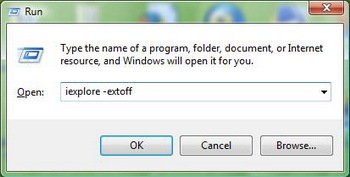
To run Internet Explorer without add-ons, first go to Start > Run, type iexplore –extoff and press Enter.
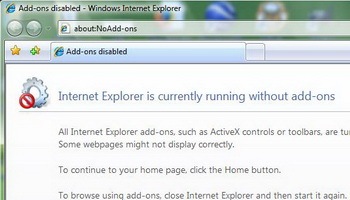
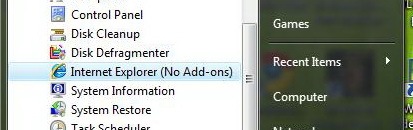
Alternatively, you can find the shortcut of Internet Explorer (No Add-ons) in start menu.
Navigate to Start > All Programs > Accessories > System Tools > Internet Explorer(No Addons)
For Mozilla Firefox
For starting Mozilla Firefox without addons follow these simple steps:
Go to Start > Run and type Firefox –safe-mode
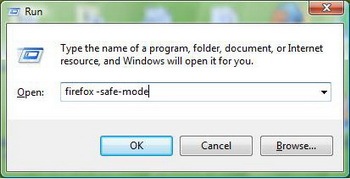
A windows will pop up, Check the option Disable all add-ons, if you want you can check other options too but it is not mandatory.
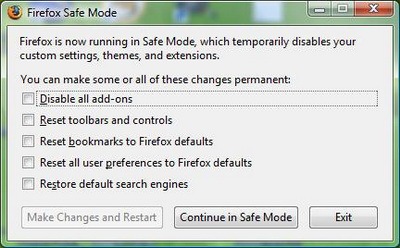
Now press Make changes and Restart for the changes to take effect
Alternatively you can find the shortcut of Firefox to load without addons in start menu.
Navigate to Start > All Programs > Mozilla Firefox ( Safe Mode)
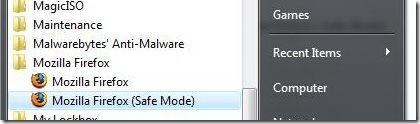
Note that if you start Firefox through start menu, it won’t ask which options to disable, if you want to disable some items and enable the rest of them use the run command method.
Since you are done now, don’t forget to leave your comments 🙂

in windows > run type this : “firefox.exe -safe-mode” thats what worked for me( with out the quotes of course)…..oh yes one more thing: the folder mozilla firefox is installed in should be on the environment path of the Os for it to recognize the app and run it for you. hope this helps.
bad info, it doesn’t work at all…..
IT WAS REALLY VERY VERY HELPFUL FOR ME
THANK YOU SO MUCH
thanks. useful
In Firefox portable you can go to /FirefoxPortable/Data/profile/extensions and remove the extension that causes trouble by simply deleting it.
Topic: how to remove add ons that causes crashes on start up in Firefox Portable – We are no really bothered by Internet Explorer because it is lame 🙂
Thanks for this site, very helpful. I only wanted to watch a streaming movie and felt that since I'm working on other things as well, the browser and cpu would be happier if my very useful add-ons were quiet. FireFox. Thanks again for the article.
hey please help me when i open Firefox it gives the following error:Firefox is already running, but is not responding. To open a new window, you must first close the existing process, or restart your system. And i opened the task manager and looked for firefox.exe but it was not there. i tried opening the firefox options but it gave the same error and then i tried opening in safe mode and then again the same error. PLEASE help
Ah. I’ve gotten this before. I’ve right-clicked on my screen with nothing running and no shortcuts highlighted and selected ‘refresh’, which seems to work. Maybe you should give it a try?
Using the command line doesn’t show the Safe Mode options either.