Microsoft Security Essentials Automatic Virus Signature Updates
In one of our posts earlier today we talked about MSE command line utility MpCMdRun.exe. We also discussed that running it via Scripts or the build-in Windows Task Scheduler can come useful. In this post we are going to show how you can check for Microsoft Security Essentials Signature Updates on daily, weekly, or monthly basis using the Task Scheduler. Side Note: We are using Windows 7 Ultimate 64-bit.
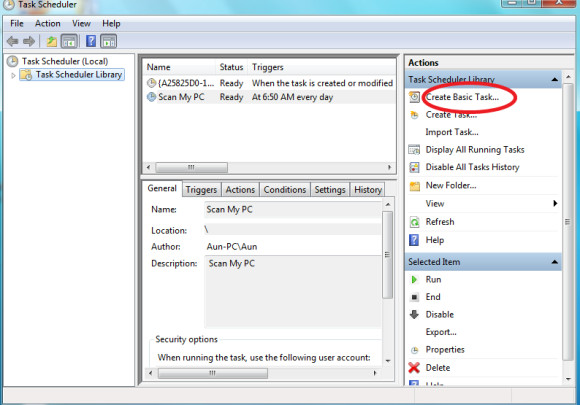
First of all launch Task Scheduler from Start > All Programs > Task Scheduler and click Create Basic Task option. You can also launch it by typing Task Scheduler in the Start Search.
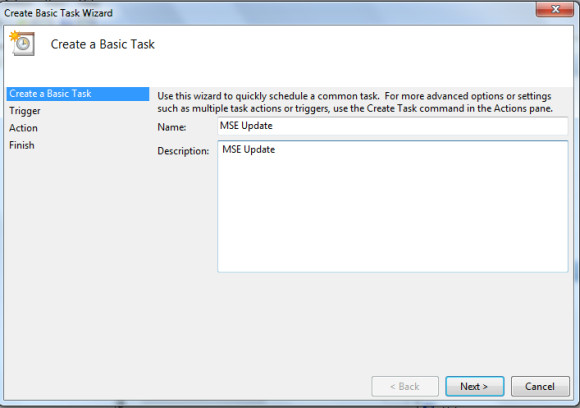
Specify the task name and description.
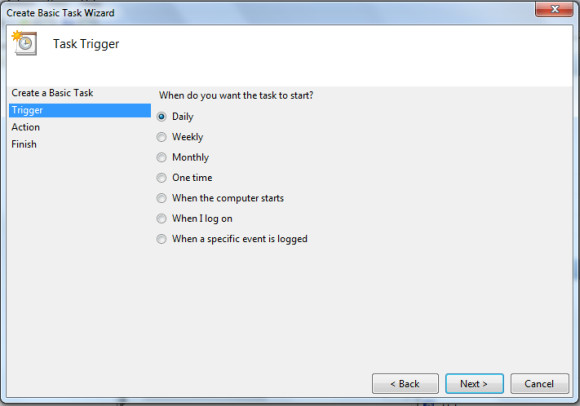
Next, choose when you wish to run the task. You can either run it daily, weekly, monthly, one time, when the computer starts, when I log on, or when a specific event is logged. We would recommend that you select either Daily or When the computer starts.
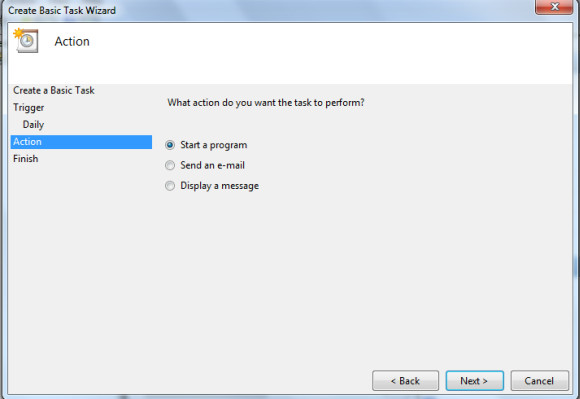
Next select what you want to run when this task is executed. In this case, choose Start a Program.
Now enter the full path of the directory where the MpCmdRun.exe is residing. You have to put SignatureUpdate command next to MpCmdRun.exe as shown in the screenshot below. So the full path becomes:
[Directory]/Microsoft Security Essentials/MpCmdRun.exe SignatureUpdate
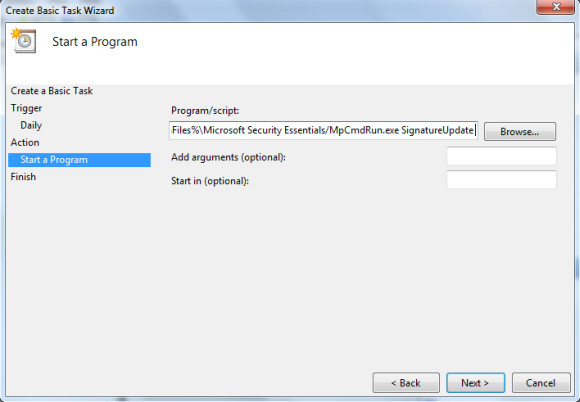
In the final step, confirm the task details and click Finish.
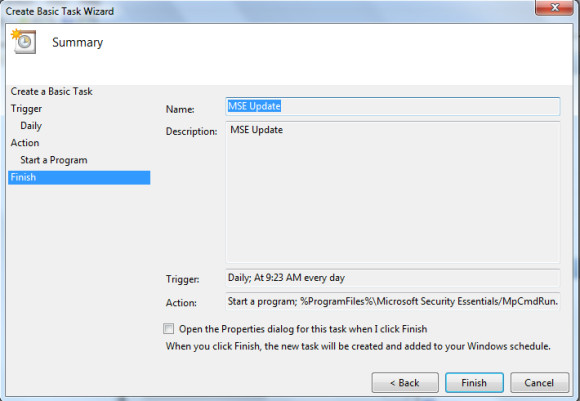
That’s it. Microsoft Security Essentials Signature Update will now run according to the specified schedule. There is no need to manually download the Virus definitions any more. 😉
One must be wondering why to create a task to update the virus signatures, does MSE not update the virus signatures? The reason is that MSE doesn’t update the virus definitions if Windows Update is disabled, so creating a task can be useful in such situations. While Microsoft Security Essentials was a solid option in its time, you may also want to explore our guide to the best antivirus software (2026) for more current protection options. Enjoy!

I’d rather NOT update this more than every 3 days.
How do I INCREASE the delay between updates.?
There are more than 1000 new viruses released per DAY. Why in the world would you like to be susceptible to all those viruses for several days????
hi
m suffering from error 0x80070426,
neither i can download updates from windows updates…
and even when try Mse update button, it shows same error as mentioned above(0x80070426).
can this task scheduling method work for me.
plz tell i m in serious need.
In vista and later, check “hidden” in the advanced properties dialogue
I can't find a way… sorry for the typo
I can find a way to minimize the task, I always get a black command line window popping up :(is there a way to solve thisBTW I've got windows update set on automatic and always install updates, but MSE never updates without me clicking on the update button (he warns he's no updated in the tray area though)
I can't find a way… sorry for the typo
If MSE is not updating automatically, I would uninstall and then re-install.Mine updates once a day (but sometimes goes 2 days)I read that to get rid of the command line window that you should that you should change the name of the user account under security options.Double click on the task, select Action in the top bar, and then Properties.Under General tab, click Change User or Group.In the box “Enter the Object Name” type SYSTEMI have tried this but I was not around when the definitions updated, so I can't be sure it works yet !
Thanks for that tip. It works perfectly under WinXP Home SP3. BTW, you can test run this or any task by right-clicking it and choosing “Run”. (Some system setups may also run the task by double-clicking it.)
I can find a way to minimize the task, I always get a black command line window popping up :(is there a way to solve thisBTW I've got windows update set on automatic and always install updates, but MSE never updates without me clicking on the update button (he warns he's no updated in the tray area though)
Better do it multiple times a day…
Better do it multiple times a day…