Speed Up Windows 7 Folder Loading Time
Are you tired of the slow loading time every time you visit a folder in Windows 7? The loading is usually slow and takes long time if you have a folder with large collection music, videos, documents, or photos.
What happens when you open a folder is that Windows 7 starts caching all thumbnails, thus taking a lot of time. Ofcourse you can always change the view to List or Detailed to prevent thumbnail from being displayed and cached but this is not what most users are looking for.
One way to speed up loading time is to go to Properties of any folder and then navigate to Customize tab. Here under “Optimize this folder for” option, choose the content of the folder from the drop-down menu and hit OK.
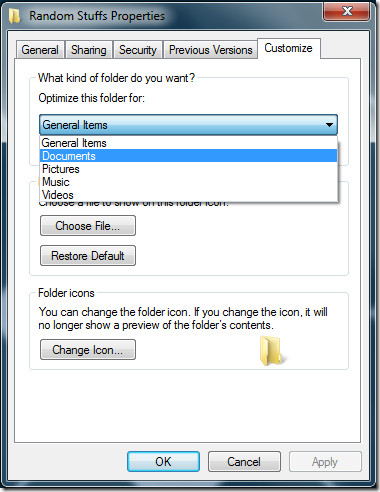
For example, I have a folder called Random Stuffs that contain random documents, so I will choose Documents from the drop-down menu to optimize the folder and decrease the loading time.
Please note that the folder will automatically be optimized for photos if you have a folder that contain nothing except pictures and sub-folders with more pictures. The same is the case with Music and Videos.
An important question arises here, why does Windows 7 takes so much time to cache the thumbnails since they were cached the last time as well? As it turns out, Windows 7 will delete the cache and rebuild it from scratch every time a user changes the content of that folder.
Yes we know that it is a headache, this is why we have posted a fix to this problem here. You can always disable Windows 7 from deleting the cache, thus speeding up the loading time of your folders.

None of these solutions is correct. Right-click and select ‘sort by’ and then ‘more’. Check the box for ‘date modified’. Then ok. Right click again, select sort by, and then ‘date modified’. The pics folder will load instantly now unless it is the first time you are opening it. The reason for the problem is that if you ‘sort by date’, windows tries to pull possibly non-existent data from the files each time and it takes forever.
THANKYOU THANKYOU THANKYOU THANKYOU THANKYOU THANKYOU
thanx, worked for me!
Its a good suggestion to speed up pc. thanks for sharing this important post. It was helpful for me.
Thanks! This eliminated the half minute wait to display my Downloads folder! Have a great day!
I had a similar issue, 5-20 seconds to open folders. Uninstalling the antivirus ended up solving the problem.
Awesome tip, thank you!
Thanks. Your solution worked fine and now i can access my folders faster
thanks!!
For Cristoph: It is very simple to change settings, just follow these steps
Right click on folder/Properties/Customize
That’s it
Yes i could do that but Customize tab is missing. It has only General,Sharing and Previos versions tab. Any other configuration needed ? I am using Windows 7 Home premium
tk my computer – window 7 home premium now open files faster !! thank yOu
I am using Windows 7 Enteprise and can't seem to find the “Customize” tab. Any ideas about this?ThanksChris
select any folder right click choose properties it will display window with Tabs
Christoph, did you ever find out why you didn’t see the Customize option? I have the same issue.