Take Full Control Over Your Windows Desktop Icons With Iconoid
Do you want to change background color of the desktop icons, change the text color of the these icons, save and restore the positions of your desktop icons, or simply want to reduce the clutter on your desktop?
Iconoid is a free tool for Windows that gives a user complete control over all his/her desktop icons. You can customize the color of your icons, hide them, select a background, position them easily, or do whatever you want.
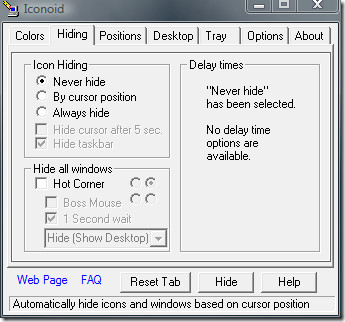
Don’t panic when running this tool for the first time, it will hide the icons(whole desktop) depending on your cursor position, because it’s the default setting. Open this tool from the system tray, go to Hide tab and select Never Hide. This will bring your icons all back instantly.
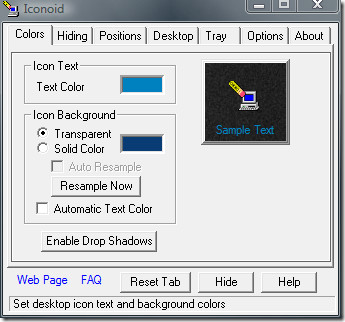
You can choose to customize the colors of both icon’s text and background by going to Colors tab.
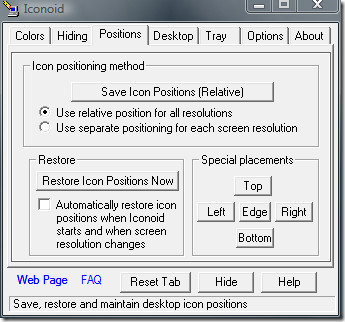
By going to Positions tab, you can save the position of all your icons, it also has the ability to use separate positioning for each screen resolution.
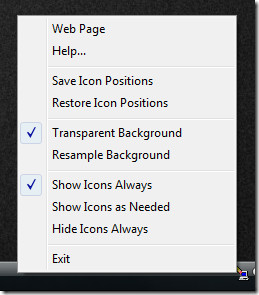
You can also set hotkeys, change the way icon settings are displayed in the system tray context menu, and much more.
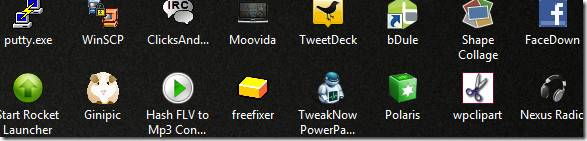
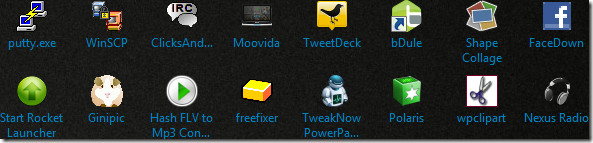
Below is how my icons looked like before and after a simple customization.
Before
After
In the below screenshot you will notice that all my desktop icons are hidden along with the taskbar. If your setting is set as default, moving the cursor over the desktop will bring all the hidden icons back immediately. But moving the cursor over the taskbar area, will only bring back the taskbar, not the icons. 😉

One thing that is quite noticeable is that it does not hide the Start Orb button which is also a part of the taskbar, which is pretty good. Although the tool is not new, according to the developer it works on all versions of Windows, including the latest Windows 7.
For more, check out Change Folder Icon Color and Resize Desktop Icons In Windows. Enjoy!

I’ve had just the same lack of success with W7 Home Premium – I tried it in all the compatibility modes available having downloaded the latest version which claimed to work.
It’s a real shame as I’ve been using it for years since XP days….I wish someone would sort out the problem and correct it – it’s a brilliant piece of software.
Iconoid does not work on my Windows 7 Home Premium program. Please help