What Is DEP & How to Disable It in Windows 7/Vista
What is DEP ?
In Microsoft’s own words,
Data Execution Prevention (DEP) is a security feature that can help prevent damage to your computer from viruses and other security threats. Harmful programs can try to attack Windows by attempting to run (also known as execute) code from system memory locations reserved for Windows and other authorized programs. These types of attacks can harm your programs and files.
DEP can help protect your computer by monitoring your programs to make sure that they use system memory safely. If DEP notices a program on your computer using memory incorrectly, it closes the program and notifies you.
Why disable DEP ?
I was running multiple processes on different tabs in Firefox 3, finally my Firefox crashed and Microsoft gave a very beautiful reason for the crash which you have read above. Actually it happened the moment I clicked on a YouTube video, it sounds weird, right? If you are a heavy geek like me, who works on multiple Firefox tabs and also use online services that need to access your system memory, then your Firefox is definitely going to crash unless you don’t disable DEP. Another reason to disable it is when it does not allow you to open Executable files that needs to access your system memory.
Note: Only disable DEP if your executable file is not getting installed or if your Firefox is crashing all the time(and Microsoft keeps giving DEP excuse).
How to disable DEP ?
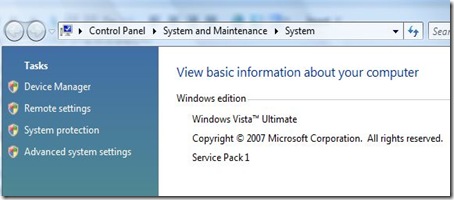
Go to Start, right click on Computer and finally click on Properties. Now in the System window click on Advanced System Settings in the left sidebar as shown in the screenshot below.
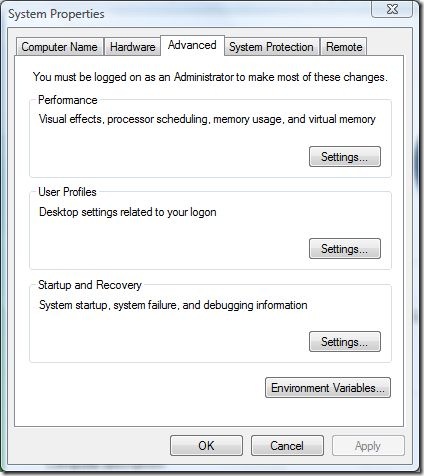
Now in the System Properties Windows, under Performance click Settings as shown in the screenshot below.
Finally in the Performance Options windows, navigate to Data Execution Prevention tab and select the second option “Turn on DEP for all programs and services except those I select:” as shown in the screenshot below.
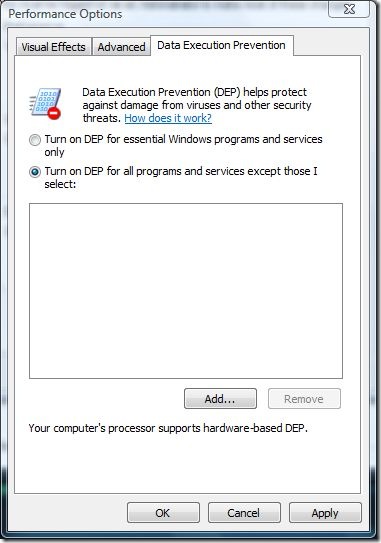
Now suppose you have to disable DEP for some executable file, just click on Add, and then select the file to add it in the list and you are done. 🙂
Well you can’t add Firefox because it is not an executable file, but it pretty much solved my problem.
Alternative Method – Disabling DEP completely from Command Prompt
Warning: Do not use this option if you are not an administrator. Make sure that you fully understand what you are doing.
From the Start menu, select All Programs, then go to Accessories and then finally right-click on Command Prompt and click Run as Administrator.
Once the command prompt is open, you can now disable the DEP by entering the following command line.
bcdedit.exe /set {current} nx AlwaysOff
Keep the Command Prompt open and run the executable file that DEP was preventing from running before. After you are done with the installation, simple type this command line to enable DEP back on again.
bcdedit.exe /set {current} nx AlwaysOn
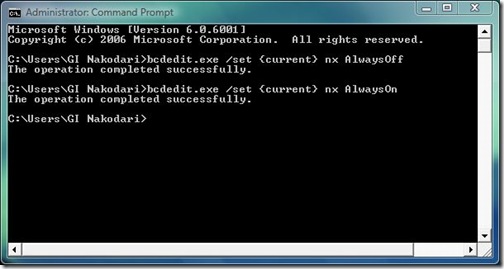
If you want to completely disable DEP then you will have to remove “{current}” from the command line.
bcdedit.exe /set nx AlwaysOff
And to enable it back,
bcdedit.exe /set nx AlwaysOn
After you execute using the command prompt, the options from Data Execution Prevention tab in Performance options will vanish.
You can use OptIn and OptOut to give it a purpose,
OptIn – Enables DEP only for operating system components, including the Windows kernel and drivers.
bcdedit.exe /set nx OptIn
OptOut – Enables DEP for the operating system and all processes, including the Windows kernel and drivers. However, administrators can disable DEP on selected executable files by using System in Control Panel.
bcdedit.exe /set nx OptOut
Recommendation: I would recommend that you try the first method, if it fails, then you can try this second method(command prompt method) only if you are an expert user.
Comments, Questions, and Suggestion, all are welcome in the comments 🙂

Follow my solve bellow : (DEP solved)
First you need to disable the DEP, enter cmd as administrator (right click , run as administrator)
type “bcdedit.exe /set nx AlwaysOff”
Ok now, is that work ?
Most say yes, but some say NO
Dont worry !!
Next, install your graphic driver (for me :nvdia is my VGA card) so i install my nvdia.
After that you must restart your PC
*now
The last step :
Open your graphic card setting , choose your graphic card, then apply.
(Me : open NVDIA control panel, set NVDIA for physx configuration and 3d settings)
Apply
Thats all (hope this solve yours)
(Thumb me up if this help you)
Regards
KingGeneral
i have a problem where i cant use the dep becasue i am “not an administrator” any suggestions on a fix?
Try my step in the post comment and see if that work
my DEP its off i want to open but it doesn t work this : bcdedit.exe /set nx AlwaysOn
Try step in this post comment and see if it is work
when i try bcdedit.exe /set {current} nx AlwaysOff in command promt
i get this error “THE BOOT CONFIGURATION DATA STORE COULD NOT BE OPENED.THE SYSTEM CANNOT FIND THE FILE SPECIFIED”
tell me how to fix???
I was unable to play FIFA 14. So I disabled DEP from cmd promt (bcdedit.exe /set {current} nx AlwaysOff) as suggested on a website. After that also, the FIFA 14 game was not opening. Now, my laptop has started slowing down and sometimes the display freezes or hangs;
Specs- intel core i3 processor, 4GB DDR3 RAM, 500GB
HDD, (40GB FREE ON C DRIVE), nVIDIA GEFORCE 512MB GRAPHIC CARD, WINDOWS 7
HOME PREMIUM – 64 bit. I tried system restore; but there is no system restore point prior to that. then I tried enabling the DEP from comd promt
(bcdedit.exe /set {current} nx AlwaysOn); but it says “the boot configuration data could not be opened. Access is denied.” I also tried updating the display driver (nVIDIA GEFORCE 310M) But it did’nt work; then driver rollback was performed. I even tried increasing TDR. It also didn’t work. Now; I am facing problem in playing even movies and basic operations. please help.
You need to set your nvdia in nvdia control panel, then apply
See my post comment in this site
i’ve executed both methods with alwaysoff and dep is still at large, what else can i do?? Post to the nasa!
Can’t you disable hardware ‘no execute’ support in BIOS?
This is not working! I disabled it with the {current} and it didn’t wotk! Then I did it with without the {current} and it still doesn’t work! The DEP is still working without problems and it hasn’t even disapeared from the taps in the Performance Options like you mentioned!
Try my step in comment post and see if that work
Works..Thanks much guys!
I found that Real Player (current version as of August 2011) was causing the crash and DEP error…
I removed it and everything seems to be working fine now…
Please, Help me too. When I use the second method, it just says that file or command named bcdedit.exe cannot be found or similar. Seriously, help. I have XP SP3
Does anyone know what the cons of disabling DEP are? MS dont explain it in plain english enought for me>? anyhelp would be v appreciated. ty
help! some type of virus ,attack on my system and DEP block my window xp2
I tried both and am still having this problem.
Help! I tried the alternitive method and my Vista wont boot! I get a blue screen everytime!
I am having this same problem too now…. I wish I never used this 2nd method!After a lot of digging, read this http://www.tech-forums.net/pc/f9/unknown-blue-s…
i still have the problem on how to disable the data execution prevention..what is the other remedy?
I restarted, I did everything. I can’t find which executable file is causing the crash, (I am trying to print coupons off of a coupon site.) I can’t figure out what to do.
I am trying to print coupons, I have tried everything and it keeps shutting down firefox. Help?
Thank you very much! The second method worked perfectly for me. Before, I didn’t have any problems with Firefox, but after installing I think version 3.0.8, it started to give random crashes because of a BEX error from DEP. The first method doesn’t work for me because it says that Firefox requires that DEP is on, so I did the second method instead. Thanks again!
Oh, and you may want to note that you have to restart your computer for the second method to work.
Glad to know that it helped 😀
I installed X-Men Wolverine: Origins and im still having the APPCRASH problem, even using the bcdedit method!!
Hi, I tried your methods to delete DEP because it keeps shutting down internet explorer on me and it is causing alot of problems, but when I type the command in the com. prompt screen it says that “the data is not valid as specified”. What am I doing wrong? Please advise asap.
Thank you,
christine
u can copy,go to command prompt and right click paste?
Why won’t Mozzila fix this problem??????????????????
A Firefox support responder told me to try this page to fix Firefox’s constant crashing. My Command Prompt (running Vista) says “bcdedit” is not a valid command, or something. ????
Try to disable DEP using the first method and then later turn it off completely with command prompt if it still doesn’t fix your Firefox problem.
And for the problem of bcdedit command being invalid, make sure you are running the Command Prompt in Admin mode and also make sure you have entered the complete code correctly.