Windows 7: Convert/Export Windows Contacts To VCF & CSV File Format
Recently I wanted to migrate all the contacts from Sony Ericsson mobile phone to Nokia, both companies provide application to manage and sync contacts. The problem I faced was after Sony Ericsson successfully synced the contacts on my computer, the contacts were saved in Windows Contacts folder. These contacts have .contact extension at the end of their name, but Nokia’s application suit only supports importing of vCard(.vcf) and Comma Separated Values(.csv) contacts.
The first thing everyone does is to start finding a freeware app to convert Windows Contact(.contact) to VCF and CSV file format. After failing to find any app, I returned back to Windows Contacts folder only to find a build-in option to export contacts in both formats.
Apart from Exporting the contacts, there is also an option to Import the contacts from CSV, LDIF, vCard, and Windows Address Book file. You will also find additional options, such as, creating a new contact group, adding a new contact, and sharing the contacts over network.
Hit Export and select the desired format from the Export Windows Contact dialog window.
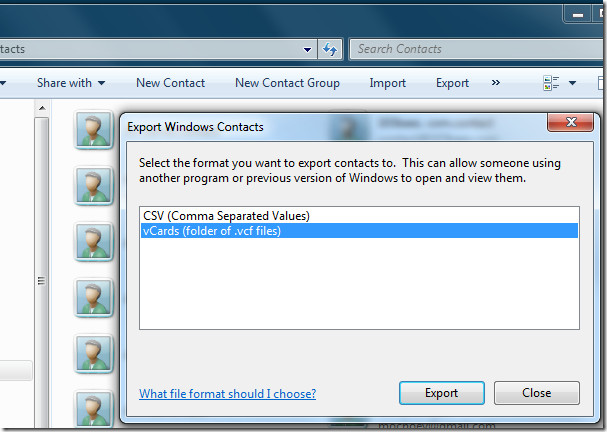
Click Export and select the destination where you want to save the converted contacts into.
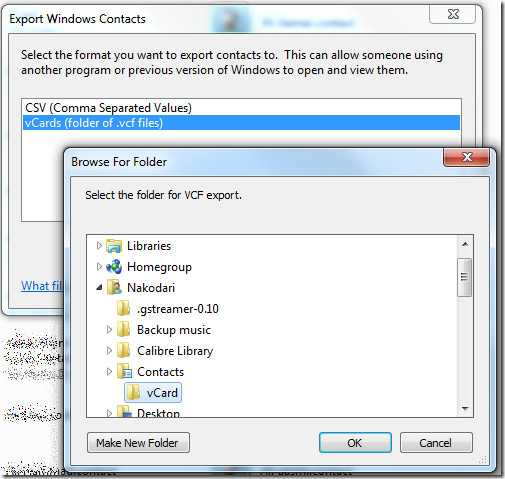
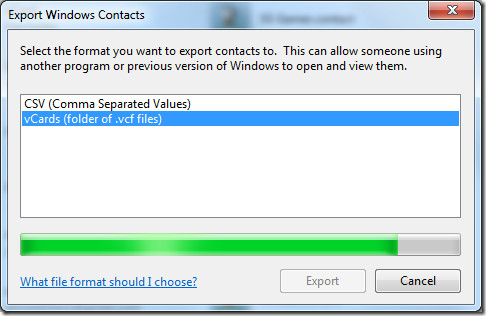
You will now find all exported contacts in the selected destination. Once the contacts have been converted, you can import them in any other application. Windows 7 can only export contacts to CSV and VCF format, developers can take advantage of this functionality to add more formats.

Hi All!
I have a big problem .
I’ve imported my merged contact csv file . . It contains 2978 entries.
But when check it in the phonebook on the phone I can see 1753 entries.
I’ve found an opportunity how to export all entries . So I’ve exported into one file .
It saved automaticly vcf format .
I’d like to convert this vcf file to vcs format to identify which entries missing .
I found this great opportunity .
But after 14 entries I get an error message. “Application error in importing dll c:Program FilesWindows Mailwabimp.dll”
I use Windows 8.1 professional .
Have anybody this error message ? What is the root of the problem? How can I solve it?
Thanks in advance,
BR Z
I am having a different problem than others seem to be experiencing.
Although I do get to the dialog window asking for the output format (this already is in Windows 10, by the way), after selecting the .vcf, I am not asked about the folder, where I would like to export the contacts. I am simly informed, that the contacts have been exported into the selected folder. Since I have never selected any folder, it is hard to say, where these new .vcf files are to be found or whether they have been exported at all. I am guessing that this Q&A is long past its active days, but I am leaving the comment anyway in a hope, that someone might have had a similar problem before.
All you talked about was Exporting a file not Importing the .Contact file and converting it to a .CSV file. I have Windows 7 Home Edition and nothing you’ve said addressed this common conversion issue that people have when migrating ot upgrading from Windows XP/Vista to Windows 7.
THANKS A LOT>>> BIG TIME 🙂
well i tried the same way however it dint worked ,, everything is been converted and still its nt showing in the folder. where i exported the file,, the file is already in .vcf format in windows contacts and i want to use wats app in my laptop, so i was importing the contacts from the laptop to wats app application provided by blue stack, however wen i am importing the contact it is saying invalid format so i tried changing the format from .vcf to .csv by the above mention procedure.. so i selected all the above mentioned option but it is not showing in the selected folder.. wat can be done., is there any way i can convert the windows contacts which is showing in .vcf format to .csv format
I love you man
thanks dear… it was easy. just a way was needed that how to do that…
Great help, thanks
Trashsonic’s Comment 2 years ago helped me find the export button…..
i’ll repost it for the sake of those finding trouble
“For all who can’t find export button YOU HAVE TO GO /user/contacts folders in C: there will be the export button. If your contacts are in other location move/copy them into contacs folder and export them from there.”
itsvery helpful.. thanks…
TNX <3
Thank you! Now it’s so simple 🙂 best wishes 🙂
Thanks a lot man!! Awesome!!!
After 3 years still was useful for me, this time was from my Iphone’s backup to a Samsung. Thank you
thank uuuuuuuuu
thanx ,,,,,,,,,,,,,,,,,
Thanks so much. It was better than any software.
nice
nice
thanks man. very useful
thank u that was so easy but helpful 🙂
God bless you! been struggling with this for hours but finally found the solution here
Really awesome, last two days I was mad with the problem when I am changing my cell phone but now solved very simply, thanks bro. in comments some person cannot understand the solution for them: pls go My computer => windows default drive c: => Users => than open your user folder you will get contacts folder open it than you go through Nakodari borthers instruction, hope you will solve your problem, thanks everyone. bye and again thanks to Mr. Nakodari.
many thanks!!! that was easy and saved a lot of time for me
thank u very much i dunno no how to
Perfect. Works great with Nokia exported file from .csv file. I just imported the file into windows contact and converted into vcf format to move to Nokia n8 phone.thanks
thanq ….it is very useful information….:-)
🙂
🙂
🙂
🙂
🙂
Thank you very much, its very useful for me
AddictiveTips is GREAT!
thank you so much, its very helpful for me……..this is highly appreciable.
thank you so much…., its help full for me….
thank you so much…., its help full for me….
Does anyone know how to convert .vcf to .contact ? Please help 🙂
You rock. Saved me so much grief with such simplicity. Wish i used eyes while on the comp.
Thanks a Lot dude…..u like really saved a lot of time by finding this!
dts gr8…my prob fixed… m eppy…….:)
thanks a lot …GOD bless u…my problem fixed …m epy
gr8.. saved me lot of time n money!! 🙂 thnx!!
simply beautiful, thanx allot 🙂
Its great…..
thank u so much:).. helped a lot
Problem Solved 🙂 Thanks
Problem Solved 🙂 Thanks
I had the solution in front of my nose
thanks a lot
you saved my life
great idea …;love this
Great!
Just Awesome way mannnnnnnnnnnnnnnnn………
u rockssss….
thanks. works well. just need to remember that the contacts need to be in the contact folder to see the export option.
cheers
26 Feb 2012
Awesome !!
This was really very useful
thanksssssssssssssssssssssssssssssssssssssssssssssssssssssssssssssssssssssssssssssssssssssssssssssssss
Thx a lot man! u saved my life 🙂
THANK YOU VERY MUCH !!!!!.. These manufacturers should create more customer friendly softwares & support systems! arghh.. thanks to you I SUCCESSFULLY transferred my dad’s 893 contacts in a jippy. Last time it took me 2 HRS to transfer them via bluetooth.
Thanks a lot again!!!.. 😉
Thank yoou!!!
There seems to be an issue with the contacts folder in Windows 7 Home Premium 32bit, when I browse to C:/users/MYNAME there is no contacts folder there, but when I click my name from the start menu the folder is there. It appears that Windows doesn’t recognise this is the contacts folder therefore doesn’t offer an export button. The only way I could get around this was to copy the contacts to another computer running 64bit Windows, although I doubt the version has anything to do with it.
you should use “” instead “/”
thanks great man >>> realy you solved my problem with that easy way >>>:))))))))
just done within a second….gr8 tips
thxx a lo0o0o0o0o0o0t )))))))))))))))))
Thanks a lot.
Thanks a lot, it was easy to do.
really nice one thanks.. it really helped me a lot
really nice one thanks.. it really helped me a lot
thx a lot !!!
High for me i am not able to find this export option. When i open my contact the export option is disabled.can you tell me how do i get to export option.
kindly help me out
Thanks in advance.
Deepak
thanx a lot
thanks dud ………
this problem made me crazzyyyyyy
it’s my about 4 hrs of hard work to do this, finally you halped me ….
again thanks
keep it up
Thanks a Lot!!! Its Awesome …. Really saved a lot of effort.
thanks a lot
Start / Run / “wab” thanks for this !!!
THANKS ALOOOOT !!
ALLAH bless you 🙂
Really helped me man……thanx a lot
THANKS
Guys, you have to create new folder inside “Contact” folder (here the author create “vCard” folder). Then right click and choose “Customize”, and choose “Optimize this folder for… (choose Contacts)”. Export-Import button will finally appears on the “vCard” folder, but not in “Contact” folder.
It makes my stomach sick to figure out, so I come back here just to tell you all.
Hope it helps and good luck – Yuliono
Incredible brilliant!! I had the same problem… Now finally it works. Wow… Great job!!!
This is exactly what I want! Nakodari, you save my time & my life, thanks a lot man… Wish u a lot of luck in your life 😡
so good work
For all who can’t find export button YOU HAVE TO GO /user/contacts folders in C: there will be the export button. If your contacts are in other location move/copy them into contacs folder and export them from there.
thanks man it is helpful to convert nokia cell contacts to iphone cell contacts too easily,,,,,,,,,,thanks alot
hi
i have some tell numbers that type of file is ” contact file”, this file not read in ovi suite , may you help me how to convert this file to “vcf file” ?
Awesome buddy thanx a lot
I have export button, but my win7 does nothing when I push it 🙁 Any ideas?
thanks a lot .that was so easy but we should try to open our eyes to find out that 😀
Thanks man, this REALLY helps!!!
thnx lot dude…Really saved a lot of effort…..
Thanx alot dude .. u kindaa save my sole ….was trying to transfer the contacts from my HTC phone to Samsung Galaxy S mobile for past 3-4 days. Tried every kinda option but finally you gave me the right option .. thanx alot … cant say u made ny day cos its 00:25 hrs here but u certainly made my night 🙂
were is the dl link
A tons of thanks really i got ma prob. solved…………..
thanks a lot, I really apprciate it.
it took me alot of time looking for way to transfer the contact from my iphone to new HTC mytuoch
really helpfull
Thanx!
Thanks a Lot!!! Its Awesome …. Really saved a lot of effort. Love you windows 7
Thank you so much. It works 4 me.
I’ve did it by using wab.exe. Just type wab after you press Windows button, and It’ll redirect to your contact folder, where all of .contact files stored.
Hope it helps.
thank you a lot.I also was really confused to convert
thnxXxXxXxXxXxXxXxXxXxXxXx AAAAAAAAALLLLLLLLLLOOOOOOOOOOOOTTTTTTTTTT
THUMBS UP and shame on me for being unaware of an in-house tool that is available right at my finger trip.
my data is in excel (and hence in CSV).
how better i convey my THANKS to you
thk a lot.
There is a huge mistake, he say ‘go to Windows Contacts Folder’ but this folder doesnt show the buttons to export, the right way is: Start / Run / “wab” and then the Windows Contacts program will execute and you can see all the buttons
yuppp!!!! this is the right wayy
thanks to both of you! 😀 😀
wohooo
@ leonardo :
yuppp!!!! this is the right wayy
thanks to both of you! 😀 😀
wohooo
Wab, spot on now I can see export
Thanks alot, worked….
i cant see the import or export options can u help me
Man you helped me a lot, one million of thanks
Merry Christmas!
Coulld anyone teel me how to export correctly my contacts?
While i exported them they contain no information at all. 🙁 only the names….
Any suggestions?
waaaaaaaaaaaaaaaaaaaaaaaw
Okay I am seriously annoyed. I have the contact file but NOWHERE do I find the Import or Export window…..I have experience in importing/exporting .wab or .vcf so I get the concept. I have right clicked on everything I can find and HELP says “click on export from the toolbar” it’s not there! Any ideas on where my import/export option might be hiding????
Thanks a Lott man…srsly thanks a tonnn
I was having problems finding the the view of Contacts with the export tab. I followed the instructions above. Go to Start Search, type contacts, and hit Enter. This will take you to Contacts folder with the extra tabs.
I cannot find the folder with the extra tabs!!!!!! Arrrrgggg
Thanks a ton….been struggling for a week to transfer my contacts to my new Nokia E72 from my Blackberry….you are god sent! 🙂
Looaaaadds of Thaaanks !!
After searching in vain for so long on other sites, finally I found this!!
I was getting reallly mad trying to sync my 535 contacts to the new phone from Windows 7…this was really a life saver!!!!!
😀
thanks lot. 😉
I can’t see options mentioned either. Not in the drop down menus even. Using win 7 ultimate 32 bit. Oh, and there’s no little >> icon either…. This appears to be the procedure for vista?
No. This is done on Windows 7. Go to Start Search, type contacts, and hit Enter. This will take you to Contacts folder.
You really rally really helped me thanksssssssssssssssssssssssssss
Try click “>>” button to expend and see it.
THIS GUY IS A FUCKING RETARD.. HE ISNT USING WINDOWS 7 … THOSE OPTIONS ARE NOT IN IT
actually they are. do some research….
May or may not be a retard but I cannot find those options either!
i am using windows 7 and i am unable to see any of the above options under my contact folder. and whenever i try to export a file it displays an error message.
Me too!
wwaaaa…. excellent… logically done.. why i never think this easy way for that solution.. i already used csv app. but i forgotten the operation… hehe… okla.. thnk u very much..
What version of windows 7 are you using?
I am using Windows 7 Home edition and I do not see all of those options listed.
And the only way I can even add a new contact is by right clicking on the desktop and selecting new.
thanks man ……..
Thanks a LLLLLLLLLLLLLOOOOOOOOOOOOOOOOOOOOTTTTTTTT! Was already mad cos of this issue.
THANKS A LOT MAN!!! It taken me about a week trying transfer contacts onto my new phone. Now I’ve done it! Thanks again! 🙂
good assay!! it helps me a lot!!