Outlook 2010: Test Email Auto Configuration
Outlook 2010 contains some features which are difficult to use or comprehend by novices and that’s why they are concealed by the Outlook Dev – team. In this post we will explore two new functions provided by Outlook 2010, which is not very apparent: Connection Status and Test E-mail AutoConfiguration are for viewing the connection status and testing email protocol and server configuration settings, respectively. The Connection Status is a feature that verifies the current status of connection with mail account servers, informing users about the issues they may be encountering while syncing the mail folders.
The Test E-mail AutoConfiguration, on the other hand, conduct a number of tests to check whether the mail accounts are properly configured or not. While you don’t have to test the configuration frequently, it may help you in situations where Outlook fails to sync the mail folders and goes offline without throwing any exceptions. The connection status and test email auto-configuration are basically developed to test connection with MS Exchange Server. However, you can use them with both POP3 and IMAP mail accounts.
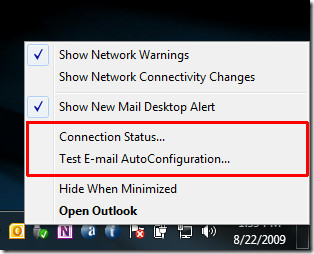
To get started, launch Outlook 2010, hold Ctrl key and right-click the Outlook system tray icon. You will see two new options in the context menu, i.e; Connection Status and Test E-mail Auto Configuration.
Click Test E-mail AutoConfiguration to verify and check the email server configuration. Even though we have mentioned earlier that Microsoft Exchange integration is preferable, you can also check out the configuration details about the IMAP account you are using and perform broader Outlook mail setup checks. Upon click, it will lead you to Test E-mail AutoConfiguration dialog. Click Test to start the configuration setting test. If the E-mail Adress and Password fields are empty, enter your mail account details and then click the Test button.
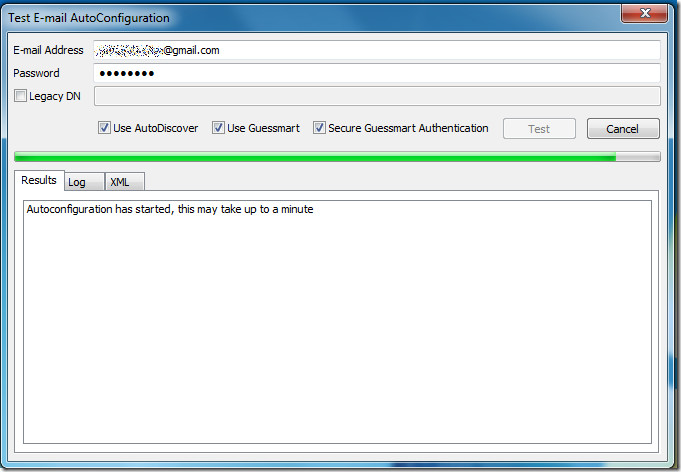
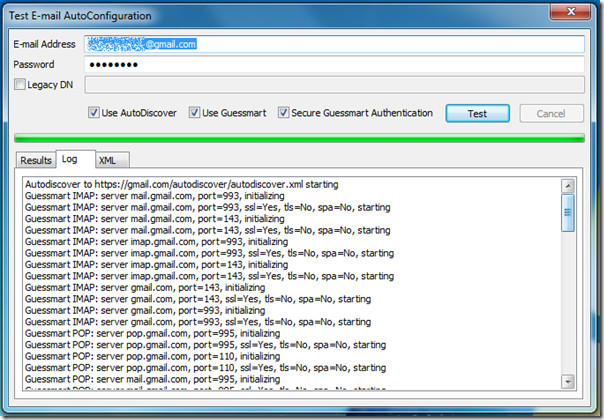
During testing you can also view the detailed log of each process by switching to Log tab. For viewing the complete XML file, click on XML tab.
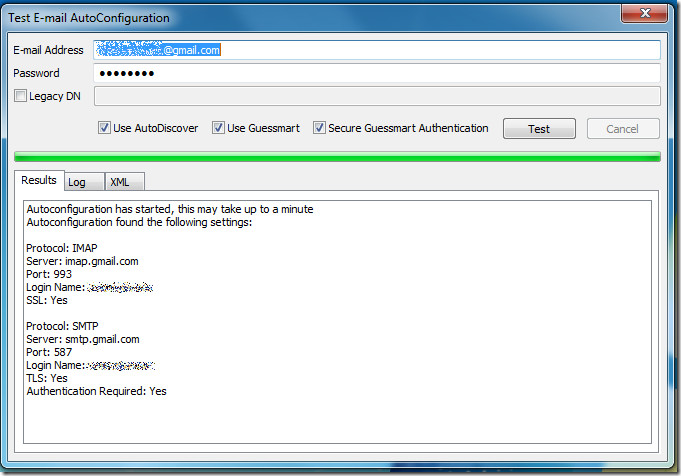
After the testing is completed, you can see the results for the selected IMAP account. It will show you the complete details of the account like Protocol, Server, Port, Login Name, SSL (enabled) etc.
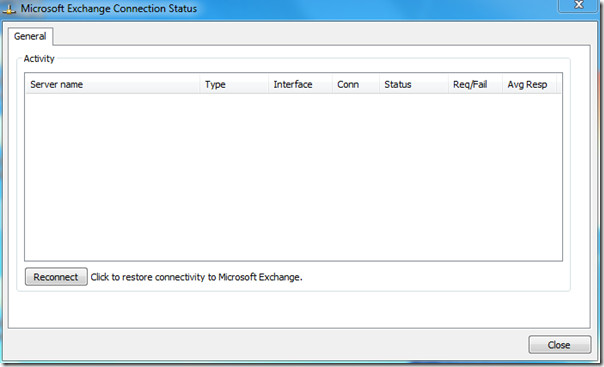
Now, if your account is properly configured with Microsoft Exchange Server 2007/2010, then you can use Connection Status feature. Just click it to bring up Microsoft Exchange Connection Status dialog, you need to connect it first by clicking Connect/Reconnect button. It will display the information like; Server name, Type Interface, etc.
You can also check out another hidden feature in Outlook 2010 for advance searching, called Query Builder.

Great we have a test tool. So let me ask how did this tool get past QA.
WITHOUT A FREAKING EXPORT TO NOTEPAD FEATURE! FFS! That is some lazy programmers.
What’s smaller to send a desktop screen shot or a text file?
It was introduced in Outlook 2007, nothing new.
Make sure you are pressing the CRTL button and right-clicking the icon in the SYSTEM TRAY (Lower-right task bar, to the left of the clock)
Got, the menu, I wasn’t looking in sys tray. Sorry,…
I also do not get the ‘conneciton status’ or Test… options. Can this be disabled on a network so the sys admin has to check and/or make corrections?
my situation: Win 7, Outlook 2010, Exch 2010 server
Any insight is greatly appreciated as we are receiving sync errors, password requests, and loss of connection.
How can I get this feature on Outlook 2011 for Mac? Thanks!
Oh Lord, why do you blame MS? You configured Outlook, did you?
you need to also hold down the control key when right clicking on the MS Outlook icon.
Enjoy.
WHERE IS MS Outlook icon?
lower right hand corner
The crtl-right-click does not pull up that menu for me due to some form of icon corruption! Yep MS strikes again! Well done team! Rah Rah Rah! (NOT!)