How To Take Screenshots Of Android Device
With the Apple iPhone, taking screenshots of the device was as simple as pressing the power and home buttons together, and the current screen got saved under Camera Roll. With Android, no such option is available. While there are third-party apps that make this task possible, there is the native ability as well that allows you to use a component of the Android SDK to capture screenshots of your device.
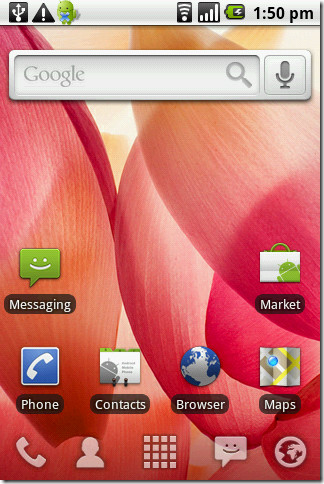
To use this, you need to have Android SDK installed and configured, along with the USB drivers. If you already have, great, but if you don’t know how to do that, check out this guide here.
First, you must have USB Debugging enabled. Do so by going to Settings > Applications > Development and enabling USB Debugging.
Connect your device to your PC via USB cable. Go the the tools folder in Android SDK, and run the batch file titled ‘ddms’
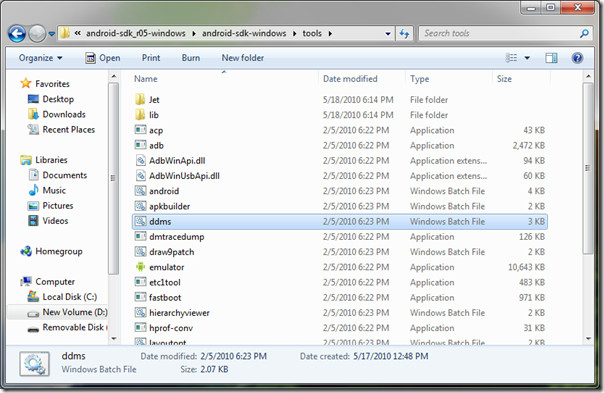
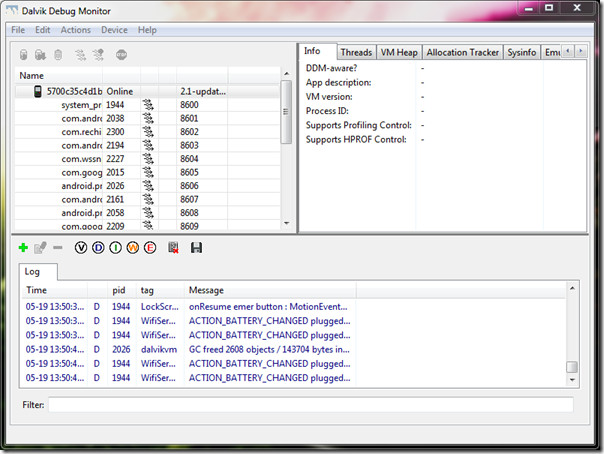
This will launch the Dalvik Debug Monitor Service. You should be able to see your device connected on top. In the bottom messages pane, the debugger may continue to give errors, just ignore them.
Under Device menu, click Screen Capture or press Ctrl + S within the Debugger window.
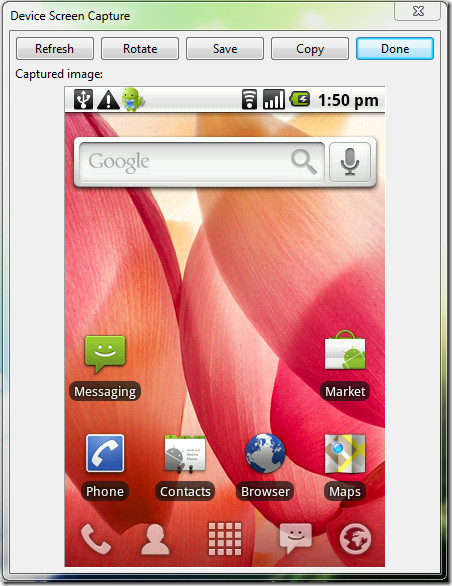
Now you will have the Device Screen Capture window at your disposal. showing the current screen of your device. You can rotate the image, save it, or copy it to clipboard. When navigating to a new screen on device, click Refresh on the one you want to capture and the image will change. Click Done when you are finished.
This method may not be the easiest, but this is the official way to do it. The images are saved in PNG format and don’t take much size. A caveat of using this method for taking screenshots is that your memory card is not accessible to the device while in debug mode. Hence, screenshots of movies, music, etc are hardly possible.
The screenshots can be of any interface in the device as long as the USB Debugging interface remains intact.

On a Motorola Electrify M ( XT 901 ), press the Power button and Volume Down Button at the same time.
this may not be true for all Androids. my galaxy s 2 it’s able to take a screen shot by applying what IPhones do. press the power and home at the same time. your photo will show up in your gallery of photos and downloads.
Excellent tut, very easy to setup and simple to understand.
Power button and home button at same time also works on galaxy phones
does anyone know how to take a screen shot on the HTC incredible S ?
i dont want to download software to my cumputer and hook it up and everything. i want it simple!!!!!!!!!!!!!!
What if you have an HTC inspire. How can I screen shot. I’m pressing the home button & the lock button, & nothing.
What about for the razr?!?
Power and home one EVO 4g LTE
I have the Motorola Razor and I knt seem to do it??
Android 4.0 (Ice Cream Sandwich) for my HTC Sensation XE – just press power button + home button at the same time. It works!!! =)
Well, that’s for a Samsung Galaxy Y — a commodity Android device! 🙂
PEOPLE. YOU DONT HAVE TO ROOT THIS OR THAT.. HERE IS WHAT YOU DO !!! All you have to do it press your power button and home button at the same time. DONE !!!! (ps. this is for the HTC EVO 4g 3d) not sure for other phones. =)
OMG THANKS! I LOVE YOU!
The easy way to do it is by pressing the HOME button on your physical device and the power button at the same time…..
Works well on my LG Optimus 3D. Just press “Home” button and quickly press “Power” button. You will hear a click sound. Screenshot will be saved in a folder called “CapturedImages” (or similar) in the internal memory, not on the external SD card.
I have a Mytouch LG 4G and i really dont want go through all this process just to screen capture. pluse SOME How i was able to do it but i really dnt knw what is the steps or process to do it. please if anybody can help me please its driving me insane
excellent work .. thanks a lot
you can actually take a snapshot I HAVE AN HTC 3D AND ALL I DID WAS PRESS THE TURN OFF WITH OUT LETTING GO then tapping the house looking symbol AND IT DID THE JOB.
you can actually take a snapshot I HAVE AN HTC 3D AND ALL I DID WAS PRESS THE TURN OFF WITH OUT LETTING GO AND IT DID THE JOB.
My EVO 3D takes screenshots with Home+power button too.
This is the opposite of helpful. All developers already know how to take screenshots with the SDK, and the last thing on the planet that anybody else needs is to install more bloatware and connect their phone to their computer. That’s like telling them to wait until they get home to take sports photos – totally useless. If you can’t take screenshots with the device itself whenever and wherever you want then there’s no point.
Well I know this is a VERY old pasting, but you take one without apps and without all this mucking around on your pc…hold the power button and press home. Voila
Screen shots easier when holding “HOME” and pressing “LOCK”
My android 2.3 samsung glxy s phone randomly takes screenshots and dumps them in my pics folder. It happens when i accidently hit more than 1 button at once(not osd inputs). If this article is accurate it leads me to believe my phone is hacked. 🙁
Also..no pc connection and no sdk installed. it just randomly craps screenshots and dumps them in my pics folder in a folder NAMED screenshots…lol. there is a way somehow people…
thank you very much.. it works fine with my device and emulator 🙂
If you have root you can actually do all of this over WIFI and not even have to connect your phone to the computer physically. Google search for ADB over WIFI to find out how to connect your phone via WIFI. Once you are connected follow the rest of the instructions as posted above. When connected to ADB over WIFI you can still access your SD card so even movies could be screenshotted (Yes I have tested it, and Yes I know that isn’t a word.) I have only been able to connect via WIFI on a rooted phone though.
Its very easy i almost did it in 1second..
hold back key and press home(middle) button..u ll hear a capture sound that’s it…
works on almost every android…..
Yay! Thanks!
Not necessary : hold down the menu-button and tap the power-button, then click .
This works on many android-mobiles
Not true… I have the galaxy 2 an screenshot is holding the home key an pushing the power button or lock button
Droids suc azz!!!
I have the EVO design and i haven’t rooted it or downloaded an app, and I’ve taken screen shots. But…I’ve only done them on accident, so I’m working on it and will let you know(:
Thanks for posting! Worked like a charm, also on MacOSX.
I have a galaxy s 2 skyrocket running gingerbread and it is as simple as pressing home and power. i didn’t have to install any app or download anything. This may be exclusive to the Galaxy Family but it works for me
hold the lock key,hen press the home button for screen shots
hold the lock key,hen press the home button for screen shots
Hi, My name is Edward and I’m the developer of an app called No Root Screenshot It. This app lets you take screenshots on your phone without having to plug it into a computer and without having to root it.
Hope this information is useful to some people and let me know if you I can help in any way!
I have an Android, and I’m able to take a screenshot the exact same way I used to on the iPhone…Power button + home button. Works perfectly.
Correct ! It workd exactly like as in the iPhone
Thank you very much! I just tried it on mine and it worked perfectly!
Brilliant! Thanks!
Wow! thanks for the tips.
Lies I take screen shot of my htc Evo 3d without any apps or rooting just plain ordinary snapshots
Screenshots of ALL unrooted android phones
http://goo.gl/Go9Pk
fail… I dont own a computer only a smart phone so I still cant take screen shots
Is this possible on the Motorola Backflip?
Thanks for this great bit of information! This makes it easy to make screenshots while developing. Works great.
Mark, it works for me in Charge Only mode. But you probably need to do a coupe things: 1) Turn USB debugging on in the device and 2) Install an appropriate USB driver (I had to install HTC Sync for my HTC device to get this).
Pretty good tutorial but you never say which mode to put your device into when you connect it to your computer via USB. Charge only? HTC Sync? Disk drive? USD tethering? I’ve tried all four connection types and yet I still get nothing showing up in the Dalvik Debug Monitor. It’s like the device is just not found. Any ideas?
GREAT, but is ths possble on iDroid?
Thatd be nice 😛
Please find detailed process of taking screenshot in android at http://imobil.in/post/9062944438/android-screen-capture-shortcut
Thank you for this well written tutorial! It helped me a lot and was just what I needed!
Or you can simply hold back button and click on the middle button on samsung galaxy phones.. more info here http://www.geeksonwork.com/how-to-take-screenshot-on-android-froyo-or-gingerbread.html
For the love of God, it’s funny reading those comments like “That’s bullshit it works” or other to the effect of: “I accidentally made it, but don’t remember how now…”).
Can’t you guys read first what this really is about?
It’s about capturing screen while the phone is in any state, such as even in Recovery mode (after installing of CWM and kernels and things…), and not in normal operation…
Nice guide. Thanks!
Thank you very much for this post and the companion post on downloading ADB I took it step by step and it worked! I felt like I had voyaged into the Amazon rainforest, picking my way past sleeping crocodiles to get to the treasure! And finally I came back with it, the crocs didn’t get me, and now I can take as many screenshots as I want.
this article: http://www.gadpedia.com/take-screenshot-from-android-without-rooting-pc/
says you can take screen shot on android with out connecting to pc. Can any body please tell me that if there is any app or its a virus or some thing else ? I am on goolge nexus
I am wondering how to tape the screen shot right on the phone. I know its possible because i did it 3 times before
Really nice tutorial Aatif. Inspired by your post I have written a comprehensive tutorial on how to take screenshots on Android. I have listed the different methods to take screenshots. Check it out here : http://goo.gl/1Wrui
That’s bullshit it works on my Optimus x2 the same way as with the Iphone
How do you do it on the optimus?
On the Galaxy S II you just need to press continuously Home+Power and the screenshot image will appear under your Gallery.
QtADB does this very smoothly!
http://qtadb.wordpress.com/
With 2.2 on a Samsung Fascinate, just hold the back button and then press the power button. The screenshot will appear in a folder called, “ScreenCapture”.
Just tried this with my new Sony Ericsson Xperia Arc – kinda works as stated, but the images are all tinted red, in the preview on my PC and the saved images.
If anyone can suggest why, I’d be extremely keen to hear :¬)
WORKED!! First try booting ddms gave me an error but i just retryed and worked properly! thanks! 🙂 CHECK OUT MY CUSTOM ANDROID UI FROM MY DEVIANTART ACCOUNT http://mushcube.deviantart.com/
Dude, ok this is totally unrelated. But what is up with the all the ghost like ads on this site? I launch this page, and I am bombarded with audio from ads. Yet I see nothing. No video ads or anything. Its a preroll for a Black Ops walkthrough video.
On my Galaxy s I am able to take screenshot without additional software :
– just hold the “back button pressed”,
– click twice on the main button,
– your screenshot is saved (in a directory called ScreenCapture)
Christian is right, sorta. The pics end up like the one I linked to. Anyone know why?
where is the screen capture?
OMG thanks so much! I couldnt figure out why my Galaxy would take screenshots when I didnt want them to but would never do it when I tried. It was driving me crazy!
Thanks for tutorial, very helpful
screencap here:
http://i51.photobucket.com/albums/f354/Labantnet/20101129065400.jpg
Anyone know how I took a messed up Screen shot on my Transform, Unrooted, on the phone?
Hi there..
I followed every step in your guide, and have installed the Android SDK successfully (even checked by running the cmd prompt, and my device showed up..)
However, when I get to the step of running the ddms batch file, a screen will pop up but then close after what seems like a millisecond! It’s not even long enough to read what was on that page. I tried to do this same thing with another guide, and got the same results.. do you know what the problem could be?
By the way, I am running Vista Home and my device is HTC Incredible with Froyo. Thank you!
Oh and my device is unrooted if that matters ( I was told it didn’t need to be rooted for this method)..
So you did it Without rooting your Phone?
Sorry, it’s me again.. I apologize for all the comments… but I just wanted to let you know that I solved the issue! It was because I did not have the proper Java JDK installed. I did that and now it works perfectly! Thanks so much for your guide- this is awesome!
There’s also an app called ShootMe that can grab screenshots on the device itself, without needing to connect it up to a development machine. Details here: http://blog.matthewashrafi.com/2010/11/14/taking-screen-shots-in-android/
I followed these steps and while it connects to my phone, the screen on the screen capture window is black.
If you have a rooted Android phone, try this method: https://www.addictivetips.com/mobile/how-to-take-screenshot-of-android-phone-from-web-browser/
Launcher Pro
Hi Aatif!
Great guide, helped me a lot. But what’s the name of the theme that you’re using? I mean the Icons on the bottom.