Filedrop Allows AirDrop-Like File Sharing Between Windows & Mac

AirDrop lets you share files from one Mac to another on the same Wi-Fi network. Unlike network sharing, Airdrop automatically discovers other nearby computers and lets you very easily share files between them using drag & drop. Filedrop is a free app available for Mac and Windows (and coming soon to iOS and Android) that makes the same drag & drop file sharing cross-platform. It searches the network for other Mac and Windows PCs running Filedrop, and these other computers then show up on your side in the app, allowing you to drag & drop files to any one of them for quick sharing. Likewise, your own computer also becomes visible to all other systems on the same network that are running the Filedrop app, and they can send you files in a similar manner. Transfer of files is subject to the receiving system’s acceptance. Being incredibly easy to use, the app greatly simplifies file sharing on the same network. Read More

Easily Share Images & Screenshots To Imgur Via Drag & Drop With MyImgur

Imgur needs no introduction when it comes to sharing photos and pictures over the web. If you have ever used Reddit, you'd probably be as much familiar with this acclaimed service as you like viewing those cat pictures over at Reddit. MyImgur is a Windows application that lets you upload images or screenshots to Imgur right from your desktop. You don’t need to fire up your favorite browser, open Imgur’s website and then upload the images. MyImgur consolidates all these steps into one. You simply drag and drop your image over the application window and it will swiftly move to Imgur server. The application also lets you sign in to your Imgur account in order to upload images straight to your profile. Read More

dragdis Is A New, Dead Simple Way To Save Web Content Via Drag & Drop

Evernote combined with its web clipper forms what is currently the best way to save web content. Then there are services like Minus that focus a lot on drag and drop to provide users with a quick way to share files over the web. dragdis is a web service that changes the game entirely; to use the service and not fall in love with it would be astounding. It has a web interface and browser extensions that allow you to save videos, images and text to your own repository by dragging & dropping them onto a sidebar. The sidebar appears only when you’re dragging something to it and remains invisible otherwise. Items can be sorted to a new or existing folder as they're being added. The items themselves can be previewed on the service’s web interface and shared on Facebook, Twitter or Google Plus. dragdis is in private beta, but they’re quite quick to send out invites. Read More

Resize Images To Multiple Sizes At Once Through Drag & Drop

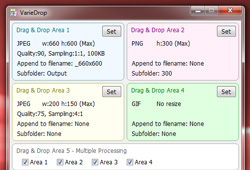
If you are a blogger or frequently post images on the internet, you must know the importance of resizing an image. Most forums and some other image hosting services have their own rules as to what the dimension for an image should be if you want to upload it to the server. Moreover, bloggers have to deal with the image resolution restrictions of their own blog. Even though there are a lot tools that people use for resizing the images, a major problem faced by many is that the image quality drops down significantly during resizing. Previously, we have covered several images resizing applications such as Cooltweak that lets you resize images from the right-click context menu, and Shrink Pic that lets you resize images through drag and drop. Different types of images require you to resize them using different configurations, and changing the settings of the resizing program each time can be a bit tedious. Today, we have found an application called VarieDrop that allows you to set four different profiles for resizing images, supports drag & drop and using multiple resizing profiles for each image simultaneously. Read More

Drag & Drop Multiple Files On Firefox To Open Them In Separate Tabs

Browsers have come a long, long way from being a mere means of accessing websites. They’re now equipped to help developers and designers work better, and all browsers have some basic features at the very least for this. Firefox, for instance, has the ability to open files from your desktop. If you’re an end user you can drag & drop music or video files, or images and text documents onto a Firefox tab and it will open them. Though restricted to some select formats, it’s still a great feature, and Drag-n-Drop Multiple Files is a Firefox add-on that makes it even better. Select any two files on your desktop and drag & drop them onto a Firefox tab; nothing happens. Install Drag-n-Drop Multiple Files and repeat the process on the Firefox home page, and those two files will open in separate tabs of their own,. Read More

Cut with Drag & Drop: Mac OS X Dock Shortcut For Moving Files & Folders

We’ve previously covered two apps for Mac, Droppy and DragonDrop, both of which make it convenient to drag & drop files or folders between desktop spaces. Both apps carry a price tag, and while their interface is excellent and they work without any glitches whatsoever, there is still the fact that you have to pay for a very basic sort of functionality. Cut with Drag & Drop is a free Mac app that is somewhat similar to both the former apps. It won't help you move files between desktop spaces; rather, it provides a docking station for moving a file or folder to a new location. Read More

My Time Organizer For Chrome: Elegant Task Management Tool With Weekly & Monthly Schedules

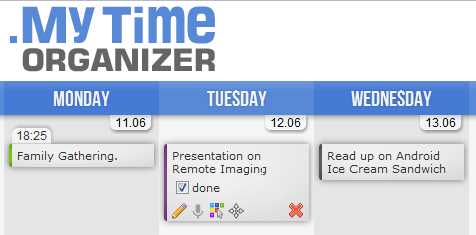
Looking for help in managing your time in an efficient manner? Do you wish to organize your time and activities a month in advance? Are you a person who makes to-do lists and then forgets where you put them? If so, My Time Organizer, a Google Chrome extension, is definitely worth giving a shot. It’s an application that lets you manage your time in the easiest yet the most stylish way. Through an interface governed by drag & drop, it allows users to add information about events, tasks and/or notes and receive notifications for upcoming events, meetings, lectures, tests, exams, etc. You can even edit the text using voice input. Read More

Drag’n'Drop Editor: Change Default File Drag & Drop Behavior In Windows Explorer

Copying and moving files is one of the most frequent computer tasks. Back in the old days,  you'd type DOS commands to perform the said operation, then it was made it easier with the introduction of GUI, as copy and move etc. commands were made available in the context menu. It has been made a lot more easier, as nowadays, almost all major OS platforms offer drag & drop support, allowing users to copy & move items from one location to another. Take Windows for instance; it lets users move and copy files and folders by dragging them over the target location. By default, if you drag and drop a file within the same volume, it is moved from the source to the destination folder. However, Windows also lets you copy and create shortcut of files by holding down the Ctrl button while dragging the file/folder, it copies the file. Similarly, holding down the Ctrl + Shift keys while dragging a file creates only a shortcut of the source file in the destination folder. By default, Windows doesn't let you change that behavior. If you've been looking a for a way to change the default drag & drop function, which moves the file/folder to target location, try out Drag'n'Drop Editor. It's a miniscule application for Windows that allows you to change the default drag and drop behavior in Windows Explorer. Using this tool, you can replace the default Move items action with either the Copy or Create Shortcut action. It can particularly come in handy for those who don't like holding down Ctrl key while dragging files over the target folder in order to copy them. More details about usage up ahead, including a screenshot. Read More

Firewall App Blocker : Add Applications To Firewall Block List via Drag & Drop

Windows Firewall is a vital system security and packet filtering component of Windows. This celestial feature enables users to create inbound and outbound data traffic rules to protect their PCs and network from malicious external sources, such as trojans, viruses, and hack attacks. The major function of Windows Firewall is to restrict third-party applications from sending and receiving data to unauthorized users/apps. Firewall generally automatically identifies trusted sources and adds an exceptions. Likewise, if a software seems fishy, it asks you about manually granting or blocking the permission. However, the Windows Firewall is not utilized up to its full potential by most users because it seems a bit tedious to configure and unleash its prowess. Most casual users cannot get the hang of its inbound and outbound rules. Back in 2008, we brought you a detailed guide on How to Create Exceptions in Windows 7/ Vista Firewall. Today, we have an application for Windows, which might provide an alternative and easier solution. It is called Firewall App Blocker, and allows you to add applications to the Windows Firewall block list via simple drag and drop operation. In addition, the application lets you set Windows Firewall policies by providing you with easy access to Windows Firewall with Advanced Security dialog box. Read More

Yes, Pix Me!: Real-Time, Drag & Drop Image Sharing With Desktop Notifications [Web]

Love sending pictures to your buddies and loved ones, but hate emailing or uploading them to various cloud services? If that is the case, then you really need to try out Yes, Pix Me! This simple yet useful collaboration tool lets you share pictures instantly using drag & drop functionality. The service does not require any sort of installation or registration; all you have to do is drag & drop the image from your local storage to generate a unique URL for it, which you can then share with as many people as you like. Anyone with the link will see the images or screenshots pop up on their screen as soon as you drag & drop them onto the website, and they can do the same – upload their own images for you to see. More past the jump. Read More

Get Multi-Use Clipboard In Chrome With Drag & Drop Support

Want to quickly paste multiple items from the clipboard without having to switch between tabs over and over again? Browser Clipboard enhances the copy/paste functionality within Chrome by providing you with a panel that can hold multiple copied items at the same time. This Chrome extension displays a panel at the top of the page, and all you have to do is select text or images and drag them to the panel. When you start dragging items, the Browser Clipboard panel appears at the top of the page, and items can then be dropped onto it. After items have been copied to the browser clipboard, they can be dragged and copied to any other page. In addition to that, the context menu can be used as an alternative for copying text or images, and a double-click in the browser clipboard creates a new item. Read More

FileDrop: Transfer Data Between Dropbox & Android via Drag & Drop

The official Dropbox client for Android is pretty simple to use, but it still requires one to navigate through multiple screens and options in order to upload/download required content to/from local and cloud storage. What if you could transfer data back and forth between your device’s local storage and Dropbox account via quick and simple drag and drop gestures? Enter FileDrop – a neatly designed unofficial Dropbox client for Android that does just that. Using the app’s beautifully-designed split-screen file explorer, you can speed up your part in the uploading and downloading of files through drag and drop. To keep you apprised of the progress of file transfer, the app also sports a native Upload Download List. That’s not all; FileDrop also features a Mail Mode and Link Mode to let you share local as well as Dropbox files via compatible apps including Gmail and Facebook. Read More

Plastiliq ImageResizer: Resize & Convert Images Using 7 Resizing Modes

Whenever you need to use an image in a project, the first thing that comes to mind is if it the selected image of the right size or not. Using the wrong image size will cause the whole project to look bad. For instance, if the image that you use is bigger in size than what the project requires, it might get distorted or even cut from one size and the complete image will not be displayed in the final version of the project. Some days ago, we covered an application by Plastiliq called Plastiliq PixelPicker, that allowed you to view color codes in 10 different formats, such as RGB, ARM, HTML, CMYK, HEX etc. Today, we have another application from the same developer, titled Plastiliq ImageResizer. As the name suggests, it is a simple image resizing application with a beautiful GUI, which allows you resize the height and width of your images, as well as change their output format just with a few clicks. Adding files and folders is just a matter of dragging and dropping them onto the main interface. Moreover, it can also convert files to different formats, and currently supports JPG, PNG, TIF and BMP output formats. More on Plastiliq ImageResizer after the break. Read More

JMC Photo Resizer Is A Simple Yet Useful Image Resizer For Windows

Image resizing comes in very handy especially if you run a website and need to constantly upload images to the internet. Larger size means that the image will take more time to upload, will consume more space on your website, and resultantly, people visiting your website will have to wait longer for the images to download and get displayed on their systems. You can check out some very good image resizing applications for Windows, such as Image Resizer and Free Resizer. Back in 2009, we reviewed an image viewing application called JMC Photo Gallery, which we liked so much that we rated it as an alternative to Windows Live Gallery and Picasa. The same developer has come up with an image resizer, JMC Photo Resizer, and we thought we'd check it out and review it for you guys. Read on to find out more about JMC Photo Resizer. Read More

Hopper: Save Links, Images, Text & Files With A Few Clicks [Web]

Hopper is a fresh-baked web app that allows you to save and share a variety of content in a very elegant and minimal way. Managing massive amounts of data can be a pain, and emailing links, text and images to yourself can get too complicated. With Hopper, all you need to do, is simply drag & drop files from your desktop, or use the Ctrl+v combination to paste text or links. Hopper does not only upload & save content, but it also displays this content beautifully in a slick interface. URLs for uploaded content are instantly generated, which can then be copied or shared with others on social networking websites. Click on an image to expand it, or click the full-screen button to open it in a new tab. Hopper works perfectly, and you can even use it without signing up for the service. Read More

DPWipe: Drag & Drop To Shred Files And Folders Using Multiple Methods

When you delete something from your computer  in the normal way, it goes into the Recycle Bin. You can select the Restore option available in the Recycle Bin to recover anything that you did not want to delete. Even after you delete the data from the Recycle Bin, it is still recoverable using the proper tools. This recovery option is what is used by data recovery tools that allow you to bring back accidentally delete documents, images and other important files. The data is still recoverable because when an item is deleted, usually, only the MFT (Master File  Table) entry is removed from the hard drive and the file data is actually still there. So, if you are deleting any sensitive files, keep  in mind that they are still recoverable. Previously, we have covered file shredding gadgets such as Multi Trash and Freeraser that allow you to shred files by dropping them over the gadget, as well as applications such as Hardwipe and Secure Wipe that let you erase file and folder contents. The aforementioned gadgets don’t allow you to use different shredding methods, while the applications don’t support the drag & drop functionality. DPWipe is a file and folder shredder that allows you to wipe files by just dragging and dropping them over the application. It allows you to choose a wiping method, such as Single Overwrite with Zeroes and Psedoram, RCMP, DoD Wipe etc. Read More

PerCal Allows Keeping Track Of Your Events Even When Offline [Chrome]

Most people have probably done away with their table calendars but that doesn’t mean they’re gone. Online calendars are some of the most basic and often best types of to-do list managers and, having one on your desktop, on your phone or even inside your browser, are useful. PerCal is a Google Chrome app that adds a calendar to your browser. The app is lets you browse to any month of any year and add different types of reminders. Reminders are categorized by colors and several different reminders can be added on the same date. The app allows you to schedule and keep track of your life, letting you manage personal and work events . Featuring drag & drop editing, quick navigation and an uncluttered interface, PerCal is a simple personal calendar app that tracks different types of events and gives a quick monthly view of upcoming events. Read More

Desktop Is A Firefox Add-on For Customizing New Tab Page

If you are a frequent user of Firefox, and need speedier access to your favorite websites, then you may want to check out Desktop. Desktop is a Firefox add-on that allows you to set web pages as thumbnails or widgets in the new tab page. You can place them anywhere on the page by drag & drop, and also create sub-folders. The layout you create will be displayed in every new tab you open. Visual effects can be applied by setting a background image for the new tab page in Firefox. Read More

Facebook Photo Uploader – Drag & Drop Images To Create Albums [Chrome]

Facebook modified their image uploader a long time ago; the need for the change was the fact that no one has the time to upload a hundred pictures, five at a time. The new uploader allows you to upload any number of images at once. The revamped photo uploader may be better than its predecessor, however, uploading anything online is now best done by dragging & dropping. It’s easier and users who don’t like to click around like nuts might prefer it over the Facebook interface. Facebook Photo Uploader is a Chrome application that lets you create albums by dragging & dropping images on its interface. The app runs in Chrome and requires an active internet connection to upload the images. Read More

Yoink: Easily Drag & Drop Items Between Mac App Windows On Small Screens [Paid]

Even though Mac OS X 10.7 Full-Screen Apps and iOS like Multi-Touch Gesture features make it easy to focus on single application window and switch between multiple Full-Screen feature supported apps, users on notebooks find it quite difficult to move items from one Full Screen app to another due to small screen size. Yoink is an application for Mac OS X that makes drag & drop items between empty spaces and full-screen apps not only easier but also hassle-free. Yoink adds a Drag Bar at left side of the screen, allowing you to drag any item from current window in its Drag Bar and then move it to target window without having to manually adjust windows at the edges of the screen to move items. Read More