Bring Back Windows 7 Explorer Toolbar In Windows 8 With Ribbon Disabler

The latest installment of Windows from Microsoft comes with a lot of new features. The user opinion is divided, with some welcoming the new direction Windows is heading towards, while others complaining about deviating this much from what they have been using. To learn about the changes in the OS, check out our detailed review of all the new features introduced in Windows 8. Ever since the Consumer Preview of Windows 8 came out, people started getting an idea of the magnitude of changes they will have to face, such as the replacement of Start Menu with the Start Screen, and Explorer toolbar with the Ribbon UI. Developers are still coming up with tools that let users get back the feel of the previous versions by reintroducing the Windows 7 UI elements that are no longer present in Windows 8. Previously, we have covered several tools that bring back the Start Menu, and today we have a tool called Ribbon Disabler that disables the Ribbon UI and brings back the old Explorer toolbar. Read More

FileMind Is A Simple Windows File Manager That Focuses On Speed

A few days ago, I reviewed a comprehensive file management utility called FenrirFS, an application with the ability to generate profiles and labels to identify local items and directories. However, not everyone feels comfortable with utilities sporting a plethora of options. If you're looking for something more simple, then give FileMind a shot. It's an application for Windows that makes file management a breeze. Main features include instant search results and an insanely fast launch bar, the option to browse your directories and bookmark your favorite folders for quick access. Perhaps, the most noteworthy feature of the app is Eye Catch, which lets you filter files by extension. If you, for instance, want to list down all MKV containers from the current folder, just select the respective extension to filter the list of files accordingly. Read More

Proto: Keyboard-Only File Manager & Application Launcher For Windows

If you watch a lot of movies, you must have noticed how actors using computers never seems to touch the mouse or trackpad, getting their jobs done in a jiffy using just the keyboard (The Matrix, anyone?). All that surely looks cool in films, but if you really like to get your tasks done in a quick and efficient manner, especially without using the mouse, then you should consider giving Proto a shot. Developed by Mieszko Lassota, this file launcher and management utility is reminiscent of the Windows CMD (Command Processor) utility. You can manage your files and launch applications using just the keyboard. According to the developer, it’s based on Humane Interface and is aimed at people who favor working using a keyboard over a mouse and value speed in everyday computer tasks. Although there is some sophistication involved during the first run, but once you get a hold of how it works, this nifty application will prove to be extremely useful. Read More

Desk & Archive: Windows File Manager With Smart Sort & Advance Filters

Most power users need more than just Windows native File Explorer to manage data saved on the hard disk. Although Windows Explorer provides you with a lot of useful options to view, search and access stored content, sometimes we need some additional features to efficiently organize the files in a folder. Along with the native features of Windows, we always keep covering third-party software that can increase your usability and reduce the amount of time you spend while performing simple tasks. We stumbled across one such application today, a file explorer named Desk & Archive, which lets you manage your stored files and helps you create, copy, and move files and folders to specified locations. It comes packed with some additional file management features including Smart Sort that lets you quickly change the file and folder sorting criteria, Ad hoc Item Lists to open files from multiple folders in a single pane, and Filters to group similar files together for easy access. Keep reading to find out more about Desk & Archive. Read More

Just Manager: Clutter-Free Dual-Pane File Explorer With An FTP Client

There are several third-party file managers out there that provide an easy way for accessing files by simultaneously displaying two different directories side by side. When talking about such (dual-pane) file managers, you might say that Total Commander is the true king of the throne, but there are also some other (simpler) alternatives that give you the same facility in a rather clutter-free environment. One such tool that we have come across is Just Manager, which provides a simple double-panel interface to manage your files and folders, and enables you to access basic Windows utilities directly from its toolbar including CMD, Run command console and Map Network drive. It also comes with a built-in FTP client, which lets you quickly connect to any FTP server by inputting server Name, Host, Port, Username, Password and Remote directory path. More details just after the break. Read More

Handy File Tool: Batch-Rename Files By Criteria & Replace Defined String In Multiple Filenames

We have covered a lot of useful applications that let you search for and rename files in bulk, replace a single text string in multiple files at a time, and rename files according to a specified criteria. However, using a different software for each function means that you'll have to keep your system stuffed with lots of programs to perform all aforementioned tasks. Wouldn't it be convenient if you could perform all these file management-related operations from a single, unified interface? Today, we came across an application called Handy File Tool, which helps you perform numerous file-related tasks at a time, under one hood. The application features a file browser, file Finder (search utility), Replacer (to replace text string in multiple filenames) and Renamer (to rename multiple files at once according to set criteria). More on Handy File Tool after the jump. Read More

FileDesk LITE: Tabbed File Browser With Command+X Cut Support [Mac]

Mac’s default file browser, the Finder, isn’t one of the things you hear users complain about. It works reasonably well and for the few things that are missing, you can always enable them via a few simple Terminal commands or apps. For some, the Finder may not be a matter of too few features, but rather too many of them that you might not use or need. FileDesk LITE is a simple file browser for Mac that lets you browse files in tabs. The app mimics how you would use a web browser and has a ‘up one level’ button that lets you return to the previous or parent folder. Additionally, the app has Command+X support for files (cut functionality), which is missing in Finder. The app doesn’t support complex features; labels and shortcuts (aliases) are supported but the app is interface focused and is meant for someone with simpler needs. The app runs in a single window and tabs allow you to view different folders separately. Read More

Solid Explorer: Holo-esque, Dual-Pane Android File Manager With Root Access

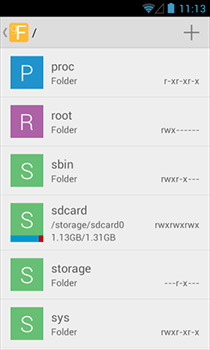
Google Play Store is filled with plenty of quality file explorers and file management apps for Android. As we saw in our compilation of the ten best Android file explorers, you have apps ranging from multi-pane file explorers to those that let you explore and edit root directories. Arguably the best and most feature-rich ICS-themed file explorer to hit the Google Play Store yet, Solid Explorer (currently in beta) seems to pack enough features to topple most (if not all) of its competitors. To begin with, this root-level file explorer expedites your file management needs by providing you with a user-friendly dual-pane interface, complete with all the usual features that you’d find in a contemporary file browser. The interface may not follow all Holo UI conventions, but it looks great nevertheless and is a treat to use. Maneuvering files between various directories can be done through simple drag-and-drop gestures, whereas batch selection of content is enabled by default. The app also supports universal index search, which means that you can search for content from within device search. Read More

File Explorer Is A Basic Android File Manager With A Holo (ICS-Themed) UI

Although a stern emphasis on aesthetics is not something that most Android users have at the top of their priority list while selecting a nifty file management solution for their device, it is something that can’t be completely overlooked either. There is no doubt that robust file management features, when coupled with an easy-to-use interface and fluid navigation options, spell a well-crafted all-round file explorer for any operating system, and Android is simply no exception. This is something that we just recently found while creating a compilation of 10 of the finest Android file managers that are available in the Google Play Store. While all listed solutions sported their own unique and, for the most part, satisfying graphical UI, none of them comes close to File Explorer when talking of an Android file management app whose layout is designed in utter compliance with the latest version of Google’s mobile OS, Ice Cream Sandwich. Before proceeding with the app review, we would like to especially thank our readers for bringing our attention to this awesome app that has been floating around for quite some time, but somehow missed the limelight; albeit only thus far. If you’re looking for an app that brings some of the basic file management features along with plenty of eye-candy, File Explorer is the way to go. Read More

10 Best File Explorer Apps For Android

One of the sweetest advantages I find in Android over iOS and WP7, is the ability to use an Android device as a USB mass storage medium without any strings attached, and with that, the ability to go through all these contents right on your mobile phone or tablet. Delete, copy, move, rename are all very powerful options that otherwise, are way more restricted on an iPhone and a WP7 device. Not surprisingly, the Android market is flooded with file management apps, and a new user is left bewildered with the choices at their disposal. Which one would you pick if you were new to Android and why? It is to answer this question we have grouped together, what we believe, are the 10 most brilliant file explorers for Android out there today. Read More

File Manager ES: A Multi-Pane, Root-Level File Explorer For Android

Just yesterday, we covered Web Browser ESP – a free Android browser that lets users explore as many different websites on a single split-screen interface as they like. Released by the same developer, File Manager ES is an extremely simple to use root-level and multi-pane file browser for Android. The app allows opening as many different file browser panels on a single screen as required, and allows moving content from one directory to the other via simple drag and drop gestures. Moreover, the app allows bookmarking important directories to help you easily and instantly navigate to them. If you don’t want to clutter your screen with too many panels, you can resort to the app’s Sliding Panel feature that lets you navigate to various file explorer panels by simply swiping left/right from either edge. All aforementioned features, when combined with a handful of conventional file management features, such as batch select mode, option to rename, delete, move and one-tap select all data, make File Manager ES a worthy candidate for your default Android file explorer. Read More

MIUI File Explorer Available For All Android ROMs, Now With Root Access

The popular Chinese-made custom ROM, MIUI, has plenty of feature-rich options to offer to Android users. The elegant and frequently updated themes, the crowd-favorite native music player, customizable lockscreens, a control-packed notification drawer, and the overall goodness of the ROM itself makes it a favorite custom ROM for many Android users. Previously reviewed apps, MIUI Music Player and MiLocker, have already provided non-MIUI users with a chance to get a taste of the ROM’s native music player and various lockscreens on their devices, respectively. Adding to the list of native MIUI features that have been ported to non-MIUI ROMs is Mi File Explorer – a standalone MIUI file explorer that requires Android OS v2.2 or higher to run. Developed by an XDA member, apooonet, Mi File Explorer serves as a handy alternative file browser for Android, and comes with the additional capability of allowing users to access the root directory of their devices. Being a port of the MIUI File explorer, the app offers you the same three tab style explorer interface, using which you can view all your device’s content on a category-based dashboard, browse the internal as well as mounted storage (SD card content), and remotely transfer files between your computer and device using a built-in FTP server. Read More

ISO Extractor For Android: Browse & Extract Content From ISO Images

Although there are quite a few apps available in the Android Market that let you browse and extract content from within compressed archives, not many allow you to do the same for ISO files (virtual disk images). Enter ISO Extractor – a free Android app that, as its name suggests, enables you to explore raw ISO image files right on your device. The app sports a built-in file explorer that allows selecting files and folders in batch. The copying mechanism of ISO Extractor is not just effective but ultra-swift too, allowing you to easily extract files from the ISO images on to your device's local storage/SD card. Read More

Disk Investigator: View MFT Zone, Check Raw Data Saved On Disk Sectors & Clusters

Disk Investigator is a multi-purpose, powerful hard disk tool that lets you find raw data saved on disk partitions, and check unreadable disk clusters and sectors. The application is built to navigate through the disk sectors, while showing the raw data in HEX, TEXT, and Decimal form. This not only helps you identify identical data written on the disk partitions, but also verify the performance of data shredding utilities. If you’ve recently used a file shredder to securely delete data from disk partition, it lets you view the current raw data present on the disk. Moreover, the application gives detailed insight into disk structure, including total logical sectors, bytes per sector, sectors per cluster, cluster size, MFT start cluster, MFT zone clusters and more. Additionally, it includes a simple, yet feature-rich file explorer that lets you view files and folders saved on disk, check raw data (in Text, Dec, and Hex form) of selected file, and check CRC-32, and MD5, Hash, RipeMD, and SHA hash value. Read More

FileSlick For Android Is A Swipe-Based File Explorer With Root Access

XDA Developers member RyanZA is well-known for his infamous z4root app that has helped many a user in gaining root access on their Android devices (including my very own Huawei IDEOS u8150). After raking rich accolades for his proficiencies with said app, the renowned developer has now tried his hand at a file manager for Android, going by the name of FileSlick. FileSlick (in beta as of now) offers a unique, swipe-based navigation into/out of folders, and presents the users with comprehensive file management features, ranging from basic actions such as copy/move/delete, batch selection, extended attributes/properties (such as file size/extension & modification details), advanced assortments and filter-based search to rather complex, yet simple to access features such as toggling read/write permissions for various mount points, modifying user permissions for root mode and Server Message Block (SMB) support to let you easily retrieve your shared resources. Read More

Magician File Is Windows 7 Style Explorer For Mac; Finder Alternative

Mac Finder, unlike Windows Explorer, doesn’t offer address bar and file management buttons in toolbar, such as, copy, paste, move, move to Trash (delete), with other important options which would’ve made using Finder and sifting through open windows a lot easier. Advance search option is another reason why so many proficient Mac users rely more on system search utilities instead of Finder native search option. If you’re using multiple utilities to enhance these core features of Finder, have a look at standalone application for Mac called Magician File. Read More

Total Commander: The First Ever Dual-Pane File Manager For Android

Although there are quite a few file explorers available in the Android Market, none of them come with dual-pane support for easy file transfer/management of device directories. But the wait seems to be finally over for Android users because Total Commander is closing in on its official release. Total Commander is a handy file explorer that can be lauded as a first-of-its-kind effort in Android spheres as it brings the concept of dual-pane file exploring on your smartphone/tablet along with some of the most sought-after file management tools. Update: Total Commander is now available on the Google Play Store. Link added at the end of the post. Read More

Multi Commander – Customizable, Tabbed File Manager With Dual-Panel Layout

Multi Commander is a portable dual pane, tab-based file manager which is designed as an alternative to Windows Explorer. It has many of the commonly used file manager features lined up on the main interface in the form of buttons to make it convenient for users to find and apply useful options like system drive access,copy, move, rename, view, etc. The main feature of Multi Commander includes auto-unpacking and auto-sorting of files, fast file browsing, customizable layout, scripting, search bar, as well as quick access option to connect to an FTP server. You can also use Multi Commander to extract , Zip, 7-Zip, Rar , Tar , GZ , Bz2 and Jar  archives with it's file unpacking utility. It has many complementary features like movie information from IMDB/Rotten Tomato, extensions and plugin support. Read More

Windows File Manager & Explorer With Tabbed Browsing

There are plenty of file managers out there, but none has the ability for tabbed browsing, except Nomad .NET. Just like there are tabs in web browsers which makes browsing much more easier and faster, Nomad .NET has full tabs support as well that allows a user to open multiple folders, thus allowing a much more faster overall experience. It supports threaded file operations, such as, delete, move, copy, etc. Read More