Get Windows Phone 8 Lock & Start Screen On Android With LauncherWP8

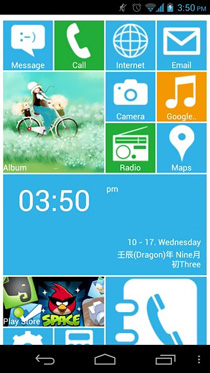
Originally released in the Google Play Store in Chinese and later on translated into English by a couple of XDA members, LauncherWP8 is a Metro Modern UI-based free, customizable home and lock screen replacement app for Android. The launcher replicates the Windows Phone 8 UI to quite an extent, and puts you in complete control over the modification of various home screen elements, including the overall theme, the number, title, placement & layout of tiles and the associated app shortcuts & widgets. LauncherWP8 comes with a search tool for apps and a Windows Phone-like app drawer that displays all apps in alphabetical order on a vertically scrolling list. In addition, it comes packed with a customizable lockscreen whose layout, background image and font color can be tweaked as desired. While the launcher impresses with its extensive set of customizable features, it has leaves much to be desired when it comes to performance. However, if you are willing to overlook the slight lag, you will find the Windows Phone 8 launcher a treat to use. Read More

Skip Metro Suite: Bypass Start Screen, Disable Charms Bar & Switch List In Windows 8

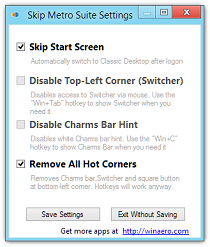
Microsoft has changed a lot in Windows 8. From the whole interface to the way we interact with the operating system, everything has been revamped to give it a more modernized look. Moreover, since both the PC and tablets will have exactly the same operating system, some of the previous features are disabled, and/or replaced with new ones, to make it more compatible with tablet devices. The famous Start Orb has been replaced by the Start Screen, and instead of clicking the orb from your desktop and opening applications through menus, now you have Tiles for accessing all the installed apps on your system. Instead of being the main workspace, the Desktop is also just another app, and when Windows 8 starts, you are greeted by the Start Screen instead of the Desktop. You can click the Desktop tile to open the desktop workspace; however, that adds an extra step for something that was only natural till Windows 7. Previously, we have covered applications like Classic Starter that let you bypass the Start Screen and move directly to the desktop. Today, we have another application called Skip Metro Suite that allows you to skip the Start Screen and make Desktop the default workspace that opens when Windows 8 loads. Read More

Espera: Windows 8 Metro Inspired Music Player With Party Mode

Windows 8 launch is just around the corner and various Metro ‘Windows 8 UI’ inspired apps are already making their way into our PCs. Even though the Redmond giant has promised to launch a full blown Windows Store with the new OS, akin to what Apple has been doing for quite long via Mac App Store, open source community is one of the most convenient places to download applications without paying a dime. Today’s Windows 8 UI-esque recipe is a music player called Espera. It’s an open source app that seems to be carved directly out of Microsoft’s next major operating system release. Along with being a decent music player, the application is designed to stream YouTube videos (provided you have VLC media player installed on your computer). The keystone feature of the application is its Party Mode, which allows you to lock various user interactions with the player itself, a feature that can be used amidst dance parties so no one can alter your music library and/or delete your playlists. The user-interface is very minimalistic, and admittedly, the application as a whole still seems to be a work in progress. More to read after the jump. Read More

MetroApp Link: Create Shortcuts For Native Metro Apps On Windows 8 Desktop

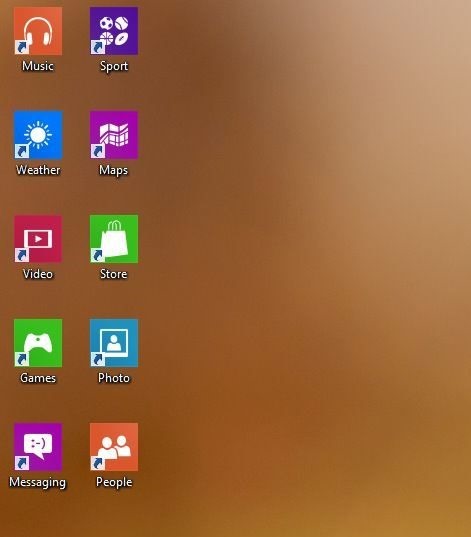
Windows 8 allows access to the installed apps only through the Start Screen. So, if you want to access an app, you have to first open the start screen, look for the required app, and then open it. It is quite easy if the number of installed apps is low; however, if you have a significant number of apps installed, looking for the one you want to launch can become difficult. One solution is to use the search feature of the Start Screen that allows you to search for apps, files, folders, settings and everything else on your computer, just by typing its name directly on the screen itself. You can think of this as the same search feature provided in the Start Menu of Windows 7, but since Windows 8 does not have a Start Menu, it works through the Start Screen. In previous Windows versions, Desktop shortcuts allowed you to quickly launch the frequently-used applications and save the trouble of either searching for them or going to their install directory. Today, we have an application for Windows 8 that lets you easily add shortcuts to the Desktop. MetroApp Link is a portable tool that lets you add shortcuts of default Metro apps to the Desktop workspace in Windows 8. Read More

How To Skip Windows 8 Start Screen & Go Directly To Desktop On System Startup [Tip]

With Windows 8, Microsoft has let go of the iconic Start Orb and replaced the Start Menu with Start Screen. Now, instead of clicking the start orb to access installed software, users have to use the Start Screen and search for the items stored in their computer. It would be safe to say that Windows has seen, effectively, a replacement of the Desktop with the Metro Start Screen, and now Desktop is also just another app. By default, there is no option to make Windows 8 go to the Desktop app when the computer starts. Previously, we have covered a couple of ways that allow you to skip the Start Screen and go directly to the Desktop; however, since both methods work using the Show Desktop shortcut in Windows, the Start Screen does come on for some time before going to the Desktop. Today, we have an application that does not let the Start Screen appear at all during startup, and the system goes directly to Desktop. In this post, we will explain how to use the tool in Windows 8. Read More

mStartEx: Metro-Style Start Menu Replacement For Windows 7, Vista & XP

Microsoft has hugely changed the UI of Windows in the latest iterations of the operating system. While all previous versions of Windows were based on the Desktop workspace, Windows 8 has been laid heavily on the Metro looks. In the Metro UI of Windows 8, the Desktop is not the main workspace; instead, it is just left as an app that runs within the operating system. The Metro apps for Windows 8 work somewhat in the same way as the Android or iOS counterparts. Other than the apps, almost every other UI element is also changed to give it a more modernized look. People switching from the previous version of Windows, such as Windows Vista and Windows 7, will surely have a lot of difficulty in getting used to the new Metro Style UI. Even though, the final version has not been released yet, the Consumer Preview and Release Preview have given us a taste of what to expect from the upcoming release. You can download and install Windows 8 following the procedure available here. However, if you don’t want to install the complete operating system and still want to have a feel of the Metro UI, check out mStartEX. It is an application for Windows that works as a Start Menu replacement and displays programs in Metro style tiles. Read More

D7 For Android: Calendar-Based To-Do List Manager With Metro UI

The Metro UI has amassed a lot of praise for its elegant and functional interface, and rightly so, for it surpasses most other smartphone OS when it comes to aesthetics. Although there are plenty of Android apps designed using elements of said UI, if you’re looking for a Metro-styled to-do list manager, look no further than D7. Dipped in pure Metro flavors, D7 brings several simple-to-use features to expedite your routine task management. Unlike most to-do list management apps, D7 employs a calendar interface to help you easily create new to-do tasks for relevant days. In addition, the app supports various swipe gestures to let you navigate to the required date/day on the calendar, and to let you mark tasks as done/complete. That’s not all; you can also change the app’s theme color according to your liking, and set custom images as the background for tiles of as many as three different days of the week. Read More

Get Windows 8 Themes On Windows Phone 7 With Themes Install [Homebrew]

Windows 8 is all about Metro, the beautiful interface that is full to the brim with live tiles and colorful themes. Before implementing the Metro UI to Windows 8, Microsoft used it in Windows Phone 7. We can’t say that WP7 doesn’t have its critics, but most people tend to agree that Mango has the most beautiful interface among all smartphone platforms. Despite the similarities in Windows 8 and WP7, you have to remember that Windows Phone is a mobile platform, and hence, can’t have all the features available in its desktop counterpart. Consider the accent colors for a basic example, where WP7 sports only approximately half of the themes available in Windows 8. Well, that’s one area where WP7 has caught up with the future desktop OS, thanks to the new Homebrew app named Themes Install. If you have a rooted Mango phone, you can now extend the themes section in your device to include all the Windows 8 color accents! Read More

Get Windows 8 Metro Task Manager’s Compact View Mode In Windows 7

Perhaps one of the most awaited event of 2012, is Windows 8 launch. All eyes are fixed on Microsoft's upcoming OS. Software giant didn't leave us waiting though by giving an early preview of what to expect from this revamped operating system. If you have been following our Windows 8 coverage closely, you must know that the Consumer Preview of Windows 8 has a lot of similarities to Windows 7, but there are also a lot of changes as well, especially in terms of features and GUI. Windows 8 is the first PC-based operating system featuring the Metro UI, with support for tablets in conjunction. After the Windows 8 Consumer Preview got released, most developers have since been coming up with various software that port Windows 8 features to Windows 7 (and Windows Vista, too). If you're already using Windows 8 Lock Screen, Charms bar, Start Screen and other Windows 8 UI elements in Windows 7, check out Metro Task Manager, as well. Similar to the aforementioned ones, it's an application that brings Windows 8 Metro style task manager to Windows 7. For those who aren't familiar with the new task manager, it has been vastly improved and is more robust, offers 2 view modes namely compact and extended view mode. You can read a detailed guide on Windows 8 Task Manager, its new features and options here. Read More

Mysites: Get Windows 8 Metro Start Screen-Like New Tab Page On Chrome

MySites, a Chrome extension, adds a Windows 8 Metro-inspired new start page to your browser that is fully customizable, with the most visited websites, apps and bookmarks speed dials. This slick extension gives you a personalized, stylish and practical start page with large, colorful, attractive tiles, which you can click to instantly access your most frequented websites and bookmarks. Additionally, MySites lets you search the web directly from the start page. The tile sizes are directly related to the number of visits, so the design allows you to quickly get from the new tab page to your desired websites with minimal friction. Read More

Tiny Notepad Is A Metro-Based Text Editor For Windows 7, Vista & XP

Notepad is the most basic text editor available for use in Windows. It is meant to provide users with the most basic options for editing text-only documents, such as cut, copy, paste, word wrap, change font etc. There are no options to include and edit images, include page margins etc. For those type of advanced editing functions, Microsoft Word in the Office instalment can be used. Previously, we have covered some very good applications that provide you with an alternative to the default Notepad, such as Glass Notepad, a free portable notepad for Windows that is similar to the default notepad but its interface is transparent, and Notepad7, a text editor with all the options included in the default Notepad, but it has a different ribbon-based GUI. Today, we have another notepad for you, called Tiny Notepad, with almost the same options, albeit with a completely different user interface based on the new Metro UI of Windows 8. Keep reading to find out more about Tiny Notepad. Read More

Bypass Windows 8 SmartScreen Filter To Run 3rd Party Desktop Apps

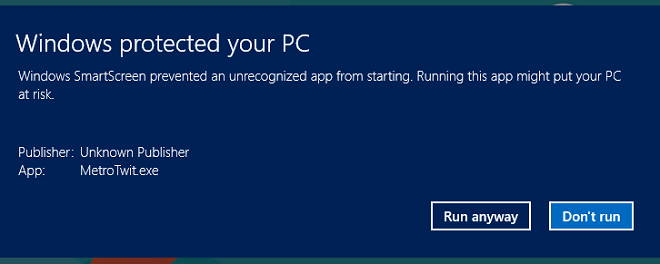
Among Windows 8’s new features has been the rather-hyped SmartScreen Filter. The filter itself is nothing new, as users of Internet Explorer have been familiar with the said protection measure implemented in Microsoft’s internet browser to provide precautions against phishing websites and malicious downloads. With Windows 8, Microsoft brought the same security concept to third-party programs (applications downloaded from the internet), and the default behavior of SmartScreen does not allow many applications to run when they’re downloaded. There is an easy method to change that, however, and you can find out all about it just past the jump. Read More

All You Need To Know About Windows 8 Store [Review]

With Windows 8 comes the Windows Store, your ultimate stop to finding Metro Apps. To make matters easier for users, Microsoft has provided this central hub for finding and installing Metro Apps on the new Windows 8 operating system. The concept of app stores is nothing new, as OS X already has one (and a highly populated one, at that), and so does the iTunes App Store exist for iOS. Add to the mix Android Market and Web Marketplace, and the list of application hubs becomes almost complete. Borrowing from the same concept, the Windows Store follows almost the same pattern, providing apps divided in categories like Games, Social, Entertainment etc., as well as lists for Top free, Top paid, New releases and rated apps. Read past the break for our first impressions. Read More

Windows 8 Charms Bar: System-Wide Access To Search, Sharing, Settings & Basic Actions

A lot of things have been revamped in Windows 8. A very massive and very noticeable difference in Windows 8 is the removal of the Start Orb from desktop. Even though the Developers Preview had the Start Orb in the lower left corner of the screen, Microsoft has completely removed it from the Consumer Preview. A very prominent feature related to UI of the system included in the Windows 8 is the Charms Bar. We will discuss how to access the Charms bar and the functionalities that it offers. Read More

Is Adapting To Windows 8 And Its Metro UI As Hard As It Seems?

The Windows 8 Consumer Preview release is just around the corner, and while you get ready to see what features Microsoft decided to scrap, which ones it decided to keep, and what’s new, you will either be reading a recap of its new features or what the general expectations are. This is neither of those two. This article looks to address what the initial expectations and reservations were that circulated the web and how much truth there is to them. Be warned that the post does not address anything on the developer end, and is based on my perception solely (which includes my giddy excitement for new things). It does offer you some insight on what it’s really like to use Windows 8, and will hopefully put you at ease about using the new system, and perhaps at arms, if you hadn’t taken them up at first. Read More

Get Windows 8 Start Screen & Lock Screen On Windows 7

Apart from its tablet and desktop integration, Windows 8 has attracted a lot of attention due to its Metro Windows 8 UI. Some liked the refreshing look while other called the UI to be doomed. However, the reaction from both the camps is quite equal (my own opinion is skeptical towards the new user interface). Recently, we have been covering a lot of tools that brings the Windows 8 UI elements to Windows 7, such as, Metro7 which adds Metro Start Screen to Windows 7, Metro Sidebar which lets you add Windows 8 style sidebar to desktop, and Newgen which brings Windows 8 Metro Tiles to Windows 7 desktop. All these applications are for folks who like the new Windows 8 elements but still want to stick with the former operating system. Today, we have an application called Windows 8 Start Screen Full, which adds Windows 8 Start Screen and Lock Screen to Windows 7. It also includes user-configurable tiles, Start Screen widgets, and shortcuts to Windows Media Player, My Documents, local drives and more.  Although it doesn't come packed with Window 8 native apps such as Socialite, News, Tweet@rama, Weather etc., it uses these applications' tiles as widgets to let you configure social media accounts, RSS feed list, and access Gmail inbox. Read More

Metro Cheat: Get Classic Start Menu Without Losing Metro UI In Windows 8

Since the release of Windows 8 developer’s preview, there has been a debate among users regarding the utility of the Metro UI and its elements. For those users who did not like the Metro UI, tweaks such as the Windows 8 Start Menu Toggle were introduced shortly after the pre-beta release of Windows 8. However, it appears that it is not the Metro UI itself, but the start menu of the said interface, that has mostly annoyed users. Metro Cheat is a portable application, which allows you to acquire the Windows 7 style classic start menu, while keeping other Metro features intact (e.g.,  the new Task Manager, Explorer Ribbon and Metro Apps). Before using this tweak, please make sure that UAC (User Account Control) is disabled, as the application will not be able to auto start if UAC is even partially enabled. Read More

Windows 8 Start Screen Editor: Change Background Image & Color Of Windows 8 Metro UI

Windows 8 Start Screen Editor is a Windows 8 tweak that allows users to change the background image and color of the Windows 8 Metro UI. It provides simple options to change the Windows 8 Metro color (including color for the logon screen and other Metro elements), and/or to add an image for the Metro start screen. After this portable application is launched, it shows the default green background color with green shade texture of Windows 8 start menu (on the main interface of the app). You can either change only the background image, background color or both. Read More

Instant Beautiful Browsing: Windows 8 Metro Workspace In Windows 7

If you don't like spending your time under a rock then you must have heard about Windows 8 Developers Preview by now. That's it, the upcoming Windows operating system from software giant. One of the new things about Windows 8 is its  Metro UI, which has been under a lot of love and hate discussion since the release of Windows 8 Developer’s Preview. Some stated the OS is doomed as the Metro UI is more suited for tablets and less for desktops, but we can't comment until the final release. Microsoft has also done away with some other useful features that we all know and used to. If you really like the Metro UI but don’t want to leave Windows 7 just for the sake of UI change, you can now enjoy Windows 8 Metro interface in Windows 7, too.  How? By using Instant Beautiful Browsing. IBB is an open source project aimed at developing a workspace that includes applications such as multi-view browser, clock, weather app, store and links to other applications in a eye-candy Metro User Interface. Its aimed at people who absolutely adore the new Windows 8 look. Although still under development cycle, it seems to have much potential. We went ahead to see whether its gonna quench the thirst of Metro UI aficionados. Read More

Metro7: Get Windows 8 Style Metro Start Screen In Windows 7

Since the release of the Windows 8 Developer's Preview, there has been a lot of talk regarding the pros and cons of using the Metro UI (update: Microsoft has now changed the name from Metro to Modern UI due to some legal issues). If you are one of those users who are thinking of sticking with Windows 7 or just cannot upgrade to Windows 8, you can still enjoy the Metro UI with Metro7. It is a widget filled application that brings the Metro UI style interface to your Windows 7 desktop. It provides instant access to built-in widgets and a custom store from where you can install more applications. Obviously, the applications are not the ones that you would find in the original Windows 8 operating system, but some of them (like the weather app), come pretty close to providing you with the functionality of the real Metro applications. Read More