How To Prevent Mac OS X Spotlight From Indexing A File Or Folder

Hiding files on your Mac is not easy, and Spotlight is the reason why. Without a doubt, OS X has a very smart file indexing feature - a little too smart even, making it really hard to get around it. Hiding or protecting your files in the absence of an efficient encryption tool is a challenge in itself. The problem with encryption tools is that you have to go back & forth between encrypting and decrypting files whenever you need to access or modify them. It’s one area where Windows’ users have it easy. Coming back to Spotlight, the feature is what will most likely help someone find the files you want to hide the most. There is a built-on option to mark files that Spotlight shouldn't index but it isn't as effective as it should be. Here’s a much faster way to get the same results. Read More

Disable Two-Finger Horizontal Swipe Gesture For Chrome Or Any Other Mac App

The swipe gestures in OS X are an impressive way to move between desktop spaces, open the Launchpad, or do a number of other impressive things. Though they can also be annoying at times because they work system wide and there are some apps where a two-finger swipe function wouldn't make sense or even cause inconvenience. Unfortunately, the OS offers no way of customizing these gestures. A common beef that some of you might have is the way the two-finger swipe gesture, when accidentally executed in Chrome, will move you to the next or previous page in your browser’s history. Fortunately, there is a little script to disable it. The method works not only for Chrome, but for any other app as well, only requiring a change in the command to refer to the appropriate app. So, let's get it up and running, and get rid of this annoyance from Chrome on OS X. Read More

How To Add Facebook Chat To The Mac OS X Messages App

Both the Facebook app itself as well as the dedicated Facebook Messenger app allow you to chat with your Facebook friends on your smartphone, giving you two very easy ways to keep in touch with them. When it comes to OS X though, despite Facebook’s integration in Mountain Lion, no native chat feature exists in the OS itself that would allow you to connect with your Facebook friends. If you would like to integrate Facebook chat with OS X itself without having to resort to a third-party app, you need look no further than the Messages app in OS X that is more than capable of acting as a chat client for Facebook. Here’s how you can set the app up to send and receive chat messages from Facebook, Read More

How To Create A Split Zipped Archive From Mac OS X Terminal

OS X comes with the aptly named Archive Utility that can be used to extract contents of compressed zip files, or create zipped archives of your own from your files and folders via the options provided in the right-click context menu. With no UI to speak of, the app works in the background and is fairly basic. What the default utility can’t do is create an archive of a folder that’s split into smaller zip files that can later be extracted as a whole into a single folder. There are several third-party apps available that allow you to do this but if you just want to quickly do it without using a third-party app, and don't mind typing in a command for the purpose, you can easily do so from Terminal. In what follows, we are going to show you how to use a Terminal command to easily create split zip archives of the contents of any folder. Read More

How To Force Google Chrome For Mac To Open In Incognito Mode

Most Chrome users use the Incognito browsing mode every now and then, while others use it quite often. If you prefer incognito browsing over normal browsing sessions (we’re not judging) but are vexed with the fact that there is no one-click method to launch Chrome in Incognito by default, you can do so with a little script. This particular method is meant to work in OS X only, as Windows users can always directly launch Chrome in Incognito mode from its Jumplist (just as Mac users can do so from the Dock icon’s options). The script is meant to launch Chrome in Incognito mode with one click using a dedicated shortcut created in form of an AppleScript app. Read More

How To Easily Access & Use Screen Sharing In Mac OS X

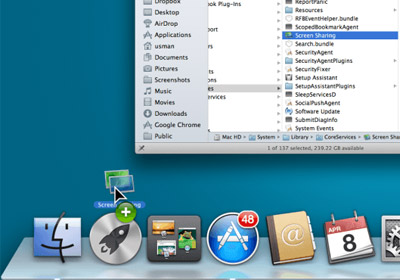
Mac, like Windows, has a built in remote desktop tool. It’s also got a screen sharing tool that is super easy to use, but not as easy to access unless you enjoy going to the System Preferences each time you need to share your screen. If you often share your screen or remotely access another Mac (or PC), then perhaps you might be interested in a more convenient way of doing it. Screen sharing in Mac is commonly accessed from the System Preferences under the Sharing head, and it's entirely possible that some users aren't even aware of what it can do, due to there being no prominent shortcut for it like many other system apps have. In truth, screen sharing exists as just another app that - for some reason - hasn't been added to Launchpad or the Applications folder. This post details how you can access and use Screen Sharing as easily as any other OS X app. Read More

Mac OS X Tips & Tricks That You Might Not Know About

OS X has some really great features that Windows’ users might envy; There are the well documented and much talked about features like Mission Control, Desktop Spaces, and the Launchpad, but OS X is also stocked full of several smaller and less hyped about features and tricks that even some veteran Mac users are unaware of. Regardless of how long you've been using the platform, it's always nice to learn a new trick or two that your Mac can do, and we've complied whole list of them to help you use your Mac more efficiently. Read More

How To Hide App Icons From OS X Launchpad With A Script

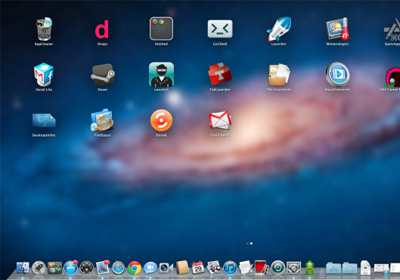
The Launchpad in OS X is great not just for launching apps, but also for keeping them organized. The folders you create in Launchpad aren't real folders created in the Application folder, and that allows you to keep apps you frequently use grouped differently from the list of installed apps. The only problem with app icons in Launchpad is that you can only move them to a folder, and not hide them completely. This is pretty much like sweeping dirt under the rug; the app icons are still there, though hidden in a folder and just out of sight. The good thing is that you can remove app icons from Launchpad with a simple little script, and not worry about the app being deleted from your system. Read More

How To Change Default Font Size In Mac OS X Notes App

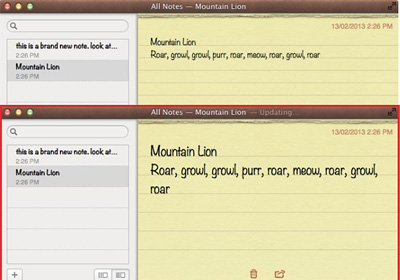
Notes is a simple OS X app that allows you to create notes, organize them into folders, search for them, and sync them with the Notes app on your iPhone, iPad or iPod touch over iCloud. The app offers a reasonable number features that any ordinary note-taking app would have, and a few customization options that allow you to change the color and type of the font in a particular note. What it doesn’t have is a way for you to change the default font size for all notes. The app has no settings that you can change, but that doesn't mean you can't do anything about it at all. All it takes to change the default font size, is a little change in the app’s DefaultFonts.plist file. The file can be edited using any text editor of your choice. The change is easily reversible, and does not require running any complicated commands. Read More

Schedule ‘Do Not Disturb’ In OS X Mountain Lion With Automator

"Do Not Disturb" is a feature in Mountain Lion borrowed from iOS 6 to mute notifications from Notification Center. Unlike iOS, OS X does not allow you to schedule when the feature will be enabled or disabled. It needs to be toggled manually when required. It is programmed to enable itself at midnight each day, and there is no way to stop it from doing so. Though if you are interested in scheduling the Do Not Disturb feature by date and time of your choice, you can do so with the help of a simple AppleScript and Calendar. You will need to create Automator workflows for enabling and disabling Notification Center. The process is detailed below. Read More

How To Select & Copy Text From A File In OS X Quicklook

OS X comes equipped with everything a regular user might need to complete everyday tasks. You will, of course, need to install apps to serve your specific needs, but even in their absence, OS X ensures you can manage the basics like opening/creating documents, viewing pictures, chatting, and sending & receiving emails without the need for third-party software. For viewing documents, OS X has Preview - a feature rich app that opens a large number of file formats, allows you to fill PDF forms, and open old versions of a file. In addition to Preview, OS X also offers the Quicklook feature that, as its name implies, gives you a quick view of a file. It’s the go-to app if you want to see what’s in a document without actually opening it even in Preview. The only problem with it is it won’t let you select text when you open a text or PDF file. That’s not to say it can’t be done; the feature is very much there and can be enabled with a Terminal command detailed after the break. Read More

How To Create A Smart Playlist For Multiple Artists In iTunes

A smart playlist in iTunes is better than several regular ones for the simple reason that you can set parameters for the list to update itself. As opposed to being dependent on you for manually updating it, a smart playlist will maintain itself automatically. It can be created based on multiple parameters and this post details how you can create a self updating playlist of your favorite artists. It requires nothing more than your music collection and iTunes. Any version of iTunes should work but we’re using iTunes 11.0.1, (the latest one) so if you’re on an older one, you might see options appear slightly differently. Read More

Enable AirDrop Over Ethernet On Unsupported Macs [Tip]

AirDrop is OS X’s native utility for sharing files between Macs over Wi-Fi. You can find a lot of apps that add this same functionality, but the default utility does it best (and for free). Unfortunately, not all Macs support AirDrop (the earliest Mac models that support it are Late 2008 MacBooks, Late 2012 MacBook Airs, early 2009 iMacs and Mid 2010 Mac Minis). MacBook Airs and Mac Mini’s that are more than two or three years old do not support it. However, since apps you download from the Mac App Store allow you to do somewhat the same thing, there is a workaround for some of the unsupported Mac models. With the slight limitation of being connected with an Ethernet wire, you can enable AirDrop on an old Mac by running a simple Terminal command. Read More

What Is Fast Startup In Windows 8 & How To Disable It

When you shutdown your computer, power from its components, such as CPU, RAM, CD-Rom, and hard disk is removed in a controlled manner. As opposed to plugging the power cable out, or a power outage, during the shutdown process, Windows closes all the open applications one by one and turns off the system in the end. When you boot the computer, it starts in a refreshed state. You can customize your system to a great extent using default options, as well as third party applications. The local group policy editor is one such built-in set of parameters that allows you to control the behavior of your system. Many of these changes require you to restart your system in order to apply them. Windows 8 includes a lot of new features and one of these is Fast Startup. It is a newly introduced setting that enables your computer to start faster than normal by saving system information to a file during shutdown. The system information includes caching the registry, and saving many system files. Since this setting is enabled by default, in this post, we will explain how to disable and enable it, and when is it required to perform a complete reboot. Read More

Teach New Words To OS X Dictation By Adding Dummy Contacts [Tip]

Dictation, one of the new features in Mountain Lion, lets you dictate text to your Mac. With such a feature, the one thing that comes to question is how well it can understand you. Accents and dialects notwithstanding, Dictation appears to work well. That doesn’t mean it will get every word you speak right, since there will most certainly be other sounds in the room. Hence, for that reason, Dictation learns to understand you better the more you use it. To help it learn new words, you can employ this neat trick of creating rogue contacts, especially for those words that Dictation has been failing to learn despite multiple attempts, and one that you use quite often so it cannot be ignored, either. Read More

6 Handy Tips For Mountain Lion’s Notification Center

Notification Center has been one of the most impressive features in Mountain Lion, and undoubtedly, having that panel on the side makes it much easier to view multiple notifications. It’s very likely that this side panel that allows you to Tweet and view alerts from other apps might just be the difference maker between Growl, a popular third party app that largely took over notification management for apps in Lion, and itself. For those of you who are benefitting from the use of this feature, here are 6 little things you can do with it. Read More

Fix “App Can’t Be Opened Because It Is From An Unidentified Developer” Error In Mountain Lion

The past few months saw quite a number of Macs get infected with Trojans and what not, implying that security needs to be taken much more seriously. Even Apple has admitted that its miracle machines are prone to attacks, and as opposed to their notorious stance from the past, Macs can now get infected, too. Apple rightly thought they needed to be more proactive about this and introduced new security features in Mountain Lion, some of which target apps. The new OS by default restricts apps from running if they haven’t been downloaded from the Mac App Store and that means some of your favorite and frequently used apps will not open. This new security feature is called Gatekeeper, and it will give you a message that says ‘Application cannot be opened because it is from an unidentified developer’. Here’s how you can solve that little problem. Read More

Change The Notification Center Background In OS X Mountain Lion [Tip]

Notification Center is one of the highlights in Mountain Lion, and it is a direct adaptation of the same feature from iOS. The execution is spot on, but you will see a rather familiar background in Notification Center; the very same grey linen background that was previously used in Dashboard, and is still used in iOS. Not many users felt enthusiastic about the said background in Dashboard, which could easily be changed with tweaking tools or from within the system files. It might not have mattered much though since the Dashboard can be disabled and few people use it; however, the Notification Center is an entirely different story. It can’t be disabled, and it’s also incredibly useful, which means you will be using it even if bleeding kittens are in the background. This post describes how you can change the Notification Center background easily for one that appeals to you. Read More

Send Any Link From Mobile Safari To Chrome For iPhone & iPad [Tip]

Chrome for iPhone and iPad came out a couple of days back, much to the delight of the iOS user community. The browser brought with a lot of the familiar goodies of its popular desktop and Android variants, including Google Sync, speed dial tabs and loads more. We even did an article elaborating the goodies in Chrome for iOS just yesterday. Whether Chrome is the best browser our there for your iDevice or not, is yet debatable, and while there are mixed feelings on that ground, a majority seems to believe Chrome is definitely better. faster, and more feature-packed. Wherever you lie in the spectrum, sometimes we do things just because we can. And so it turns out, while you cannot change the default browser in iOS (well, actually you can, if you are jailbroken), you can still play a cool little JavaScript trick to launch any page that has been opened in Mobile Safari directly in Chrome, with there mere tap of a button! Read More

Remove Or Turn Off Facebook Notifications Directly From Drop Down

Facebook had the early-mover advantage when it comes to social networks, and although there were the likes of Orkut and Hi5 already in the market, the concept that the Paulo Alto-based giant brought to the market was entirely fresh and something that users took a liking to immediately. Despite its massive popularity, there were many qualms about a lot of Facebook’s offerings, privacy (or lack thereof) being the biggest among them. That aside, there were (and still are) the changes that are forced on users (Timeline, anyone?), and those that go unannounced altogether, until the blogosphere raises hue and cry over them. However, that doesn’t imply that all Facebook changes are evil, and some new ”features” can turn out really useful, too. One such unnoticed feature has been the ability to dismiss, remove and even turn off notifications from a certain user or application, right from within the notification drop down! Read More