Quickly Switch To Related Code Or Design File In Visual Studio 2010 [Add-in]

You may know that Visual Studio Solution Explorer not only loads the all the projects in a solution, but also design, code and other related files of the project, allowing you to quickly navigate and open the required file in editor. Opening related files in Visual Studio editor becomes quite tedious, especially when you’re dealing with multiple individual code files and projects. Wouldn’t it be better if you could easily open related files without having to find them from Solution Explorer? Switch is a small add-in for both Visual Studio 2008 and Visual Studio 2010 that lets you switch between related files of current code/design file opened in Visual Studio editor, with a click. The add-in comes without any settings or configuration console. It supports switching between CPP and H (header) files, WinForms Designer and C# Code, and XAML and its code files. Read past the jump for more. Read More

Collapse & Sync Visual Studio 2010 Solution Explorer To Current Item [Add-in]

Exploring project files from Visual Studio Solution Explorer becomes difficult when you’re dealing with multitude of code files. If multiple Projects are present in your Solution, you may find yourself scrolling up and down the Solution Explorer in search of required code files from each project. The best way to avoid this is to streamline the Projects’ file lists in Solution Explorer, so you can easily find the files that you want to open in Visual Studio editor. Solution Explorer Tools is a Visual Studio 2010 plug-in that lets you easily browse through Project files in Solution Explorer without having to manually expand project files. It adds 3 convenient collapse/expand buttons in Solution Explorer toolbar to collapse all the lists at once, collapse to currently opened code file, and expand the Solution Explorer file lists to file which is currently opened in Visual Studio editor. Read More

Remove Unused References In Visual Studio 2010 With Reference Assistant

Wondering how to remove all the unused references from Visual Studio 2010 document that were never used,in one go? If you find it tedious to follow the classic method of determining the invalid/unused references by compiling the code file and then looking into error Output Console to find and remove each unused reference, Reference Assistant may help. It is an extension for Visual Studio 2010 that effectively removes unused references from VB.NET, C sharp, and Visual C++/CLI projects in a single click. With Reference Assistant installed, you won't need to manually find the unused references to delete them; it locates all the references in the current project and shows the list, from where you can easily delete them in one go. Read More

Code Jumper – Jump To Visual Studio 2010 Code Segments & Declarations

Like previous versions, Visual Studio 2010 also has a built-in feature to bookmark segments of code through Find and Replace dialog. The Bookmark feature lets you easily navigate through significant segments of code and declarations by adding blue glyphs in left sidebar. These glyphs helps visually scan the important code modules. But what about navigating through code segments and declarations? Read More

BatchFormat – Remove Unused ‘Usings’ And Format Visual Studio Document

Do you often find it challenging to clean code file from unnecessary statements, imported snippets, functions, etc., and also to indent code, sort or remove unused Using directives in Visual Studio document? Visual Studio, just like many other software development IDEs, doesn’t provide features to clean the code file from such superfluous content, which makes it hard to not only dry run the code but visually scanning the important code modules present in document a tiresome task as well. What you probably need is a plugin which can automate the process of formatting documents without requiring you to find code format irregularities. BatchFormat is Visual Studio 2010 add-in to format document by removing and sorting different elements of any code file in current solution. Read More

Compare Visual Studio 2010 Code Modules With ClipboardDiff

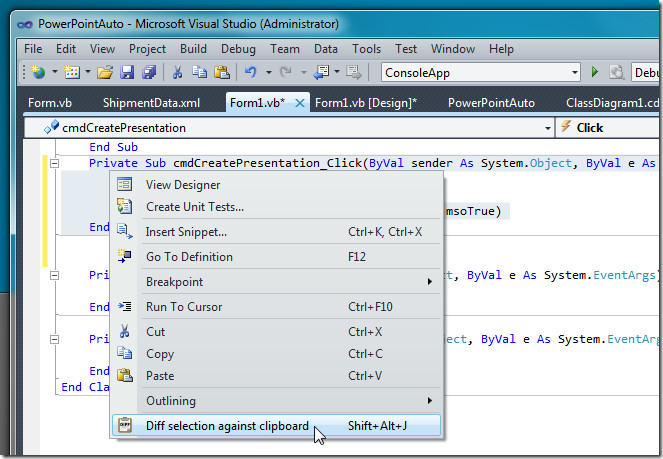
It happens quite often that we come across two apparently same modules in code file opened in Visual Studio. Since comparing code structure in Visual Studio is relatively difficult than other lightweight software IDEs, one has to find other ways than to open two Visual Studio windows to find differences between code structures/modules in question. Many users simply copy the code modules to plain text file and then compare them side-by-side to find differences. If you hate going through long winded processes to compare two code structures from Visual Studio, ClipboardDiff provides a simple yet quick solution. It’s a small add-in that lets users compare code modules, moved to Windows clipboard, through any external file comparison tool. Read More

View And Share Visual Studio 2010 Snippets With SnippetDoc

Code Snippets containing code to perform a certain function help developers in application development process. Visual Studio includes an option to insert snippets in current code file via right-click context menu but doesn’t provide convenience of viewing the saved snippets. Although the previously reviewed add-in for Visual Studio 2010 namely, Snippet Designer offers a handy manager to view, design and organize new snipptets, it doesn’t have a convenient snippet viewer, plus there is no option to share snippets across your team members connected in LAN network. SnippetDoc is a standalone, open source application which lets your team members view and access your Visual Studio code snippets from a nicely designed web UI. The application generates a HTML page to view and navigate through snippets saved in specified directory. Read More

Pepper – Backup & Sync Visual Studio 2010 Settings File (vssettings)

Visual Studio Settings file (.vssettings) contains a whole lot of configurations and details regarding the current setup and layout of Visual Studio. Unlike other software IDEs, Visual Studio is flexible enough to let users easily modify and replace default settings files with custom one to quickly apply required configurations. Many users share vssettings file with other team members before starting a new project to ensure that everything from setup, layout to projects and debug configurations will remain same across all the systems throughout the software development phases. Although Visual Studio 2010 lets user change vssettings default path and specify team settings file, it doesn’t have an option to directly backup current vssettings file to import it on other Visual Studio 2010 configured systems. Pepper is a small yet powerful add-in for Visual Studio 2010 which provides a simple solution for this very problem. Read More

Debug Single Thread Keeps Focus On Single Thread [Visual Studio 2010]

One of the problems which many developers face while building and debugging multi-threaded application is that it often becomes difficult to focus on single thread to check whether thread is working fine or performing required functionality or not. Single thread debugging helps users thoroughly test functional requirements of multi-threaded applications. Even though Visual Studio 2010 lets you switch between processes and threads from toolbar when an application is being debugged, it is deprived of an option to keep focus on single thread and to move through each thread/process one by one. This compels users to manually find and select the next thread from Thread drop-down menus. Debug Single Thread is add-in that adds two convenient buttons next to debug drop-down menu in toolbar to focus on current thread and move to next thread, respectively. Read More

SwitchStartupProject Changes Visual Studio 2010 Startup Projects In Solution

Users working with multiple startup projects in a solution have to manually set required project as startup before running the debugger. Switching between startup projects may become tiring for those who frequently debug different projects in their solution. In Visual Studio 2010, the default way to set a project as startup is to right-click the project in Solution Explorer and then select Set as Startup Project from right-click context menu. When you select a new startup project, its title in Solution Explorer turns bold, indicating that startup project has been changed. If you don’t like navigating through Solution Explorer just to switch between startup projects, add SwitchStartupProject to Visual Studio 2010 extension list. Read More

Assign Load Priorities To Projects In Solution In Visual Studio 2010

The reduced solution load time is one amongst many significant improvements of Visual Studio 2010 which provides quicker access to your top priority projects. If you’ve set up load priorities in Visual Studio 2010, you must’ve noticed quicker access to projects while loading an enormous solution having multiple projects. In previous versions, when one huge solution was loaded, users weren’t allowed to access any of the projects until all projects in a solution were finished loading. This leaves users with no other option than to wait until solution loading process, with all underlying projects, gets completed. Although Visual Studio 2010 lets user gain control over which projects in their solutions will be loaded first, it doesn’t provide an easy way to allocate priorities to different projects. The only known way is to use solution load manager API for assigning solution load priorities. Read More

Locate And Filter Visual Studio 2010 Solution Files With VSSolutionFinder

Visual Studio Solution file is a text-based structured file that defines the project workspace, containing information regarding the project environment and project state. The solution file groups project related information required to compile and build an application. Just like previous Visual Studio version, Visual Studio 2010 doesn’t provide option to locate SLN files from the working directory. Therefore, finding SLN files from the working directory can become difficult when you’re dealing with a lot of solutions. VSSolutionFinder is an add-in for Visual Studio 2010 which integrates into File menu, letting you bring up a dedicated search window to find and open solution without having to find them the default way. Moreover, it supports wildcard entries to let you easily filter solutions files. Read More

BreakAll Sets Breakpoint In Every Access To Class [Visual Studio 2010]

Visual Studio Breakpoint feature is considered to be most important tool to debug .Net applications code. Breakpoints is referred to as markers which tells debugger to stop at certain line of code to check whether a defined condition is met or function is performed properly or not. There could be many scenarios where breakpoints help user identify the problems with code module. As you may already know that Visual Studio 2010 offers a handful of Breakpoint options accessible from Debug menu, including, Toggle Breakpoint, Create New Breakpoint by Function and New Data Breakpoint, Disable and Delete all Breakpoints but doesn’t support finding all functions and properties of class to automatically set breakpoints. That’s the reason why users have to either manually set breakpoints or look for other means to set breakpoints on every function of class in order to properly debug the current document. Read More

Send Selected Lines Of Code From Visual Studio To PasteBin

The Pastebin desktop client offers a quick way to send text and individual code files to pastebin.com but when it’s required to send selected lines of code from software IDE, like from Visual Studio to pastebin.com, copying code manually to pastebin desktop client is not only time wasting but wearisome task as well. Send to PasteBin is a Pastebin add-in for Visual Studio 2010 that allows you to instantly send selected lines of code to pastebin.com from within the Visual Studio interface. Unlike other Pastebin clients, it lets you select text format and number of days after which copied text/code will expire. Additionally, you can send the code directly to your pasteboard or choose to send it to Pastebin anonymously. Read More

Favorite Documents – Bookmark Visual Studio Code Files & Organize Them

If you’re working on multiple Visual Studio projects, you must be looking for a way to quickly access most frequently used code files of each project without having to close current project. Since Visual Studio  2010 doesn’t offer an option to keep a list of frequently used code files handy, you have to manually open code files to quickly switch between them. How about an add-in which lets you open selected code files and other Visual Studio documents on the fly without having to switch between projects manually? Favorite Documents is an add-in for Visual Studio 2010 which is written to quickly open individual Visual Studio documents and also to access specified files in groups. Read More

Switch Between Visual Studio 2010 Settings Files With Settings-Switcher

Like previous versions, Visual Studio 2010 supports importing and exporting of Visual Studio settings file between PCs. You can include team settings file to keep Visual Studio settings same across all the team member PCs. Sadly, there is no easy way to switch between multiple Visual Studio Settings file, as you have to open Visual Studio Settings folder and replace CurrentSettings.vssettings file with custom settings file. Settings-Switcher lets you manage and switch between multiple Visual Studio settings (.vssettings) files, effortlessly. In addition to changing Visual Studio settings, it groups up all the Visual Studio settings file related options in its own section accessible from Visual Studio Options window, allowing users to create new settings file, view existing ones, and tweak with Visual Studio settings file Load and Format configurations. Read More

Highlight All Occurrences Of Selected Text In Visual Studio 2010

What would be the most suitable way to highlight all method calls, objects, function arguments/parameters, or plain text string in a Visual Studio document? Sometimes using Visual Studio native Find & Replace utility doesn’t help, as one has to click Find Next multiple times to cycle through all the occurrences of selected text. The Bookmark All feature (present next to Find Next) lets you add bookmarks in left margin to quickly find all the specified search keywords, but it requires you to manually find the entered text string from bookmarked line of code. Highlight All Occurrences provides a solution for this problem. You don't have to enter the keywords to select all the occurrences in the document; just select the word you want to find in the document and it will not only add glyphs in left margin but highlights all the occurrences of selected text string as well. This saves you the trouble of finding all the existences of the text from the document manually. Read More

CleanProject – Remove Bin, Obj & Source Bindings From Visual Studio Project And Zip It

Before sharing Visual Studio project with others via email or uploading to development project showcasing platforms like, MSDN, it’s recommended to clean your project folder from unnecessary bin, obj, resharper, test results folders and source control bindings. If you send, for instance, source code bindings along with project files, recipient will get source control errors and eventually fail to test your code. CleanProject is an open source application that unclutters your Project folder and automtically zips only those files and folders which are required to build/compile your project. Apart from providing an option to clean files and folders in Visual Studio UI, it integrates with Windows shell context menu, letting you remove redundant Project files from right-click menu. Read More

Apply Alternating Line Color Formatting In Visual Studio 2010 Code Editor

Do you find it difficult to find certain code modules from an ever-growing source code file? Since Visual Studio 2010 code editor doesn’t provide options to customize the background in order to make code lines look more prominent, users generally try out different themes to get their focus straight on code editor. Alternating Line Color provides a simple yet effective solution. Just like what Format Painter can do with Excel sheets, it applies alternating color to each line of code, so that users can easily differentiate line breaks and code modules. Additionally, it doesn’t require configuring any settings to bring the alternating colored lines formatting. Read More

Spell Checker For Visual Studio 2010 Corrects All Spelling Mistakes

Since Visual Studio doesn’t have native spell checker, you must’ve been missing those small squiggly red lines that appear whenever you make spelling mistakes in word processing applications. By default, Visual Studio doesn’t mark spelling mistakes in code comments and descriptions, license headers, associated code text files, etc. Thus it becomes an extremely wearisome task for user to manually scan each line of code to identify spelling mistakes. Spell Checker is a small extension for Visual Studio 2010 which not only marks spelling mistakes but gives suggestions as well to quickly fix them. This enables users, who often struggle to identify spelling mistakes in their code descriptions, comments and SLA details, to easily replace wrongly spelled words with correct ones. Read More