How To Increase In-Call Volume Up To 200% On Your iPhone 5

Quite a long time ago, we covered a Cydia tweak by the name of Volume Booster, which did a pretty good job of enhancing the maximum volume level of iOS devices. iOS has come a long way since then, but some things haven’t improved a great deal. While the bottom speakers in iPhone can play sounds at a pretty high volume, many people still complain that the in-call volume could have been a lot better. Since iPhone 5 comes with hardware that is different from any of its predecessors, a lot of users assumed that the call volume issue won’t rear its ugly head in it. Sadly, this isn't the case, and in even slightly noisy environments, users are hard-pressed to understand what the person on the other end of the line is saying, no matter how much they crank up the volume. Volume Amplifier is a new tweak that doesn't tinker with the bottom speakers on an iPhone, but only deals with increasing the in-call volume, making it possible to increase the volume by up to 200%. Read More

Define Global Volume Control Keyboard & Mouse Shortcuts With 3RVX

Multimedia keyboards offer a lot of advantages over normal ones. Along with providing extra keys for navigating the web browser and controlling playback in music players like iTunes, Windows Media Player and more, many keyboards also let you control volume without having to do so from the options built into Windows or the hardware volume knob on your speakers. That’s why I always prefer and recommend a multimedia keyboard whenever a friend asks for suggestions or I myself need to purchase one. But if you don’t own a multimedia keyboard, or simply prefer a standard one, but would like to have volume controls on it, fret not! You can still do exactly that, thanks to 3RVX. I have been playing with this minuscule tool for the last couple of days and have found it very handy for what it does. This tiny app lets you change speaker volume output via hotkeys, and the great thing is that you can use a combination of keyboard and mouse shortcuts for the purpose. Read More

Define Multiple Sound Profiles In Windows For Different Times Of Day

We’ve covered apps that let you manage networks, and then we've also reviewed some that allow you to manage your daily tasks. But how about an app that could let you manage, or more precisely, automate your speaker’s volume? Speaker Admin is a Windows app that does exactly that, allowing its users to automate their volume level according to the time of the day. You can basically specify time slots during which you want the volume to stay at a certain level. You can also entirely shush it down at night by selecting the mute option. If you’re among those of us who usually leave their speakers at full volume but don’t want to hear complains from their family, roommates or neighbors regarding their distasteful music choice, Speark Admin can come very handy. Further details after the jump. Read More

Intelligent Ringer Dynamically Tweaks Android Ring Volume Based On Ambient Noise

So you’re driving, listening to your favorite tracks and have just reached your destination. You pick up the phone and realize you have a bunch of unattended calls, consequently realizing the phone was on silent and the vibrator buzz was just not loud enough in all that music. This has happened to me a lot, and there are plenty of other moments it skips one's mind to turn of the silent mode, or even turn it on – which can be embarrassing at times. Enter Intelligent Ringer - the app that adjusts your phone’s ring volume based on the ambient noise level, and uses the proximity sensor to detect a pocketed phone to enable the maximum ring volume. The app is a breeze to set up as well, and you wont get lost in a heap of complicated settings. Read on after the jump to see how well the app fares and what more it has to offer. Read More

Get Album Art & Gesture Controls In The iPhone Volume HUD

The translucent box that shows up on your iPhone’s screen every time you change its volume might not be the most important feature of iOS, but the Cydia store already has a few tweaks that focus on this HUD to enhance it. Some tweaks let you add more information to the volume display but if you don’t want to alter it too drastically, there are options like Hud that add album art to the box whenever you are listening to music. Music HUD is a new Cydia release that can be deemed a combination of the two aforementioned tweaks. It doesn’t focus on a single particular feature, though everything it offers is related to music. Thanks to Music HUD, it is possible to control song playback by performing gestures on the HUD, add album art to it and tweak the music info that is displayed. Read More

Use iPhone Volume Keys To Control Screen Brightness With BrightVol

Usually a Cydia tweak is considered good if it brings something new to your iPhone without taking away any of the existing options. You can get almost any useful feature on iOS if you have a jailbroken device and are willing to alter its looks for the worse. Screen brightness is something that iPhone users can control only from the stock Settings app, unless they have a jailbroken device. Even with access to the Cydia store, you get tweaks that add unsightly buttons to the SpringBoard, but then there is also the rather neat SBSettings control for brightness. BrightVol is a tweak allows you to adjust your phone's brightness level in a completely new way. Read on to find out how. Read More

Add Gesture Control, Time, Date & Song Info To iOS Volume HUD

Those developers over at Cydia really don’t leave any area of iOS alone. Even something as small as the volume HUD can be enhanced quite a bit thanks to a number of tweaks available in the jailbreak store. HUD Pro is unique compared to other tweaks of its kind, though, since it adds some new functionalities to the HUD rather than merely changing its appearance. The volume indicator in iPhone and iPod touch devices becomes visible for such a short period of time that it goes largely unnoticed, but after you install HUD Pro, this is sure to change for you. The tweak lets its users perform gestures over the HUD to accomplish tasks like locking the screen, controlling music or viewing song lyrics. Even if you aren’t a big fan of gesture control, the volume HUD becomes much more useful than before by displaying complete time, date and music info above the volume icon. Read More

Manage & Automate Android Sound Profiles With Smart Volume Control

Smart Volume Control is a powerful multilingual sound profile management app for Android that vows to be the ultimate solution for your device’s volume adjustment, automation and tweaking needs. Besides supporting hyper-customizable sound profiles, the app brings to the table several features that are hard to find in most similar solutions. For instance, it offers multiple profile presets under a accelerometer-controlled Speed Volume Mode that can be availed to activate personalized sound settings for when you’re out on the road, cycling, or crossing a subway. The app lets you schedule activation of profiles according to desired time, or as per your Google and/or Microsoft Exchange calendar events. Want your device to automatically silence, or redirect incoming calls to Bluetooth when at your workplace? Smart Volume Control’s location-based profile automation has your back. Then there is a fully customizable profile for when your headphones are plugged in to your device. The app’s many thoroughly customizable widgets allow you to play around with the desired sound profiles and settings directly from the home screen itself. Read More

Set System Volume To Decrease Over Time Before Hitting The Bed

When I go to sleep at night, I like to play my favorite playlist in Windows Media Player. Even though, it has a built-in auto volume leveling enhancement, some of the tracks have sudden bursts of high sound, which can prove to be quiet disturbing when I am trying to sleep. Like me, a lot of other people do the same. They like to listen to music, a radio stream or a podcast when they lie down to sleep and a sudden burst of loud volume can disturb them (especially if the next track has higher volume than the current playing track). If you are one of those people who love to listen to your favorite playlist when going to sleep and want to avoid such situations, VolumeOut is your friend. It's a lightweight and portable app for Windows that lets you set a countdown timer. Once set, it will gradually reduces the volume from the current state to zero. Read More

AudioSwitcher: Quickly Switch Between Audio Devices & Set Input/Output Volume [Mac]

Switching between audio input and output devices on Mac isn’t that hard. If you plug in a pair of headphones, it automatically detects and sets it as the default output device. If you have multiple devices connected to your Mac, you can hold down the Option key, click the volume icon in the Menu Bar and switch to another source. Strictly speaking, this is probably as much as the average user needs. For users with slightly more complex needs, including frequently switching to different audio input or output devices, you might even find holding down the Option key a bit inconvenient. AudioSwitcher is a small utility for OS X that allows you to quickly switch between audio input and output devices connected to your Mac. Not only that, it also allows you to control the volume for input and output separately without having to visit System Preferences. Read More

Sound Lock: Limit PC’s Maximum Volume To Avoid Sudden Loud Spikes

Sometimes, while watching a movie (especially horror movies), it happens that the scene changes and the sound level of the new scene is a lot louder than the previous one. That is OK if it happens at day time, but it can be quite disturbing for others if the same thing happens at night, when everyone else is sleeping. Sure, you can use headphones at night, but some people, including myself, like to keep speakers as the default sound output device because of the higher detail. If you turn the volume down, you will not be able to properly hear the parts with low sound, and if you turn the volume up, there is always the risk of a loud bang disturbing everyone. Today, we have a small application called Sound Lock, which solves all those issues and allows you to set a maximum level for the sound coming out from your speakers. This way, you can select any level of volume required and still not worry about it spiking up during a movie. Keep reading to find out more about Sound Lock. Read More

How To Set Mac OS X Sound Volume To A Level Lower Than The Lowest [Tip]

Some people are embarrassed by the sounds their computers make; no matter how great the start up chime or tune is, it has the ability to annoy people at large and is one of the main reasons why people mute their system’s sound. Of course, not all situations allow you to keep the sound off and if for your comfort, reassurance or need, you feel there has to be some sound coming out of your system , you can set it at the very minimum. What might surprise you is that the lowest volume level in Mac isn’t actually the lowest it can go. This little tip tells you how you can use the volume and mute keys on your Apple keyboard to enable the lowest volume level there is. Read More

Assign Global Hotkeys To Control System Volume With Sound Volume Hotkeys

Many media players allow users to control volume using mouse wheel; you roll mouse wheel in upward direction to increase the volume, and similarly rolling down the mouse wheel decreases the volume, but when we have to increase/decrease the system volume, we move to system volume indicator (icon) present in system tray, select the volume control and then increase/decrease the system volume. The media players like VLC and Winamp let users control volume through hotkeys as well, which are, Ctrl + Up cursor key to increase and Ctrl + down cursor key to decrease the volume, but unfortunately, these hotkeys only work when the said media players are active. This leaves users with no other option than to either manually increase/decrease the system volume, or first activate the media player and then adjust the volume. Read More

Volume Step Lets You Customize The Volume Level Jumps In iOS [Cydia]

If you are a perfectionist, and really picky about how you listen to your favorite songs on your iPhone, iPad or iPod touch, then Volume Step is a Cydia tweak which is tailor-made for you. Most of us have been there when the perfect volume for a song is somewhere between two steps, and hitting the volume down key once can either makes the sound too low, or turning it one step up proves to be too much. This tweak for jailbroken iOS devices will let its users customize the way volume keys affect the volume. It is also helpful if you just want to save a few extra taps, and make volume controls more simplified, so that a single press is enough to get the volume on full level. Read More

Volume 2 Updated, Adds OSD Notification Support For Volume Features

Volume 2 is an open source volume controller that aims to replace Windows default Volume Control utility. Since our review, the application has seen quite a lot of improvements and features such as better display OSD features, added battery status display and default device highlight feature. Apart from these major improvements, the latest version has OSD (On Screen Display) for changing screen brightness with hotkeys, function set for original brightness hotkeys, OSD for changing volume, additional keyboard shortcuts to Pause, Scroll Lock, Home, Insert, Page Up, Page Down, Del, End, option to set device as default and a lot  more. Read More

Control Your Android Tablet’s Volume From Notifications Panel [Honeycomb]

Volume enhancements and management tools for Android are available in large numbers in the Google Play Store, but few cater specifically to the needs of tablet users. Volume In Notification is a handy little Android app for Honeycomb tablets, in particular, that lets you control your device’s volume from within the notification panel. Although Honeycomb tablets do sport hardware volume buttons through which you can adjust volume levels of your device, using/accessing it can prove to be a nuisance especially if you’ve mounted your tablet on a stand or slipped on a cover. Even in routine circumstances, having an alternative option to control your device's volume can make life much easier. The app can be used to control the volume of your apps, music, games and videos while they’re being run. Once launched, Volume In Notification keeps running actively until you reboot your device. The app does not require root access and runs flawlessly on Android 4.0 ICS as well. Read More

Volume Rocker: Easily Switch Between Multiple Customizable Volume Presets [Android]

Android users looking for an effective way to manage the volume/audio settings of their device need not look any further than Volume Rocker. Sporting a customizable, extremely simple-to-use interface, Volume Rocker offers you with as a many as five (5) different volume presets, each carrying customizable volume/audio levels for your alarms, notifications, calls, media et al. Switching between various presets (audio profiles), too, is quite simple and requires just a simple swipe on a slider to jump from, say, normal to loud mode. Moreover, the app comes packed with multiple themes and displays the currently selected/active volume preset on your notification bar. Read More

Fine Volume Control – Volume Dial, Threshold, Temporary Mute [Android]

For Android users looking to enhance the looks and features of  the volume settings/controls on their devices, here’s an effective as well as as elegant solution called  Fine Volume Control. Created by XDA-Developers member richardop, the app replaces your default media volume with a turn-able volume dial with a glow effect that can be used to change the device volume. Once the app is installed, you can launch the volume dial by pressing the volume keys on your device. To change the volume of the device and other apps, you can simply roll your fingers over the dial. In addition to the volume dial, transition volume, temporary mute and ample customizable features are some of the highlights of Fine Volume Control. Read More

Hearing Saver Automatically Changes Volume On Plugging In / Unplugging Headphones [Android]

Do you listen to a lot of music on your Android device? Then you probably know how much of a hassle it is to adjust the media volume every time you plug in your headphones and again up when you unplug them. Well, no more. Introducing Hearing Saver for Android - a small yet extremely handy tool that allows you to set separate media volume levels for when your headphones are plugged in and when they’re unplugged, saving you the trouble of touching that volume rocker each time. In addition, the app can be set to automatically mute ringer and notifications whenever headphones are plugged in – once again, a pretty impressive option to have up your sleeve. Although notification sounds are usually no longer than a beep, most users would rather want they weren’t disturbed by the sound of, say, an incoming SMS or email, while listening to music on their devices. What Hearing Saver offers is a functionality that many would like to see as part of the Android OS. However, even if the guys at Google stick with manual volume control, custom ROM developers can always integrate said functionality into their ROMs. Hearing Saver is free and open source. Read More

Adjust And Schedule Volume Controls With Volume2

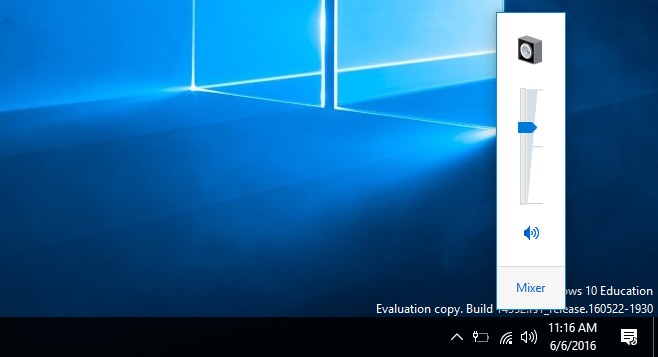
Volume2 is an advanced Windows audio mixer, which can be used as a complete replacement for the standard Windows Volume Control. Volume2 provides easy to configure options to assign keyboard hotkeys and mouse for toggling system volume and allows scheduling the execution of applications or changes in sound configurations. Volume2 comes with a multi-lingual interface and supports English, Russian, Greek, Chinese, Armenian, and Bulgarian languages. What makes Volume2 better than the default Windows mixer is it’s ability to provide mouse wheel, hotkey and scheduling support for changing volume options. Read More