8 New Features In VLC 1.0 That Will Make You Rejoice
VLC Media Player 1.0 gets launched after years in development, you download it instantly and launch it up. “Huh! There seems to be nothing new”, you proclaim. This is exactly what this post is about, showing you eight new useful features of VLC 1.0 that your faint eye can’t see otherwise.
Instantaneous Pausing
Live Recording
Frame By Frame Playback
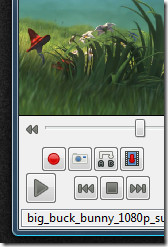
So you are watching a superhero movie with your friends and a huge explosion goes off. To enjoy it once again, you can now go over it frame-by frame with the frame by frame playback functionality. When you enable advanced controls from the View menu, apart from Record, Snapshot, and Loop buttons, you will find the Frame-by-Frame Playback button. Clicking it once will move your video to the next frame, pressing it again will move it to another frame ahead and so on.
Before VLC 1.0, if you had to take a snapshot of any part of the video the quickest way would be to hit snapshot button at the right time during the video. If you don’t get lucky, an alternative way is to try hitting the Pause button which will actually pause the video after missing few seconds. Frame by frame playback makes tasks such as snapshot much more easier.
Customizable Interface
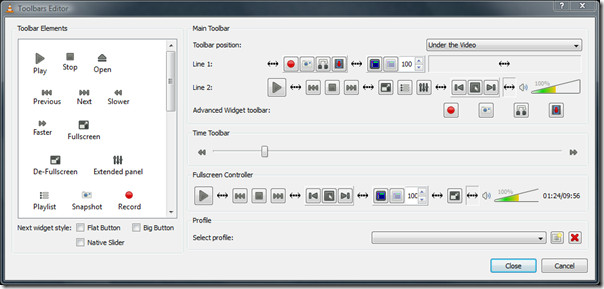
So you don’t like the look, right? No problem, now you can customize the interface according to your own styles and needs. Simply head over to the View menu and hit Customize Interface. Now go ahead and select the buttons that you want, the position at which you want them, and much more. There are also some pre-configured Profiles that you might want to try out.
AirTunes Streaming
For those who don’t know what is Airtunes streaming, it is a functionality for Apple’s Airport Express that allows you to play media files on your home stereo speakers. Originally it was developed to work with iTunes but now VLC has officially added the support for AirTunes streaming as well.
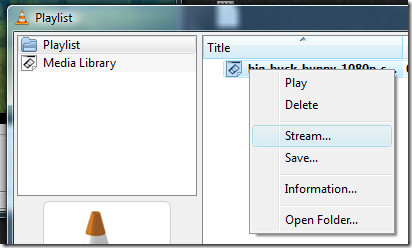
If you have Apple’s Airport Express properly installed, all you need to do is to load up your favorite media file on VLC Media Player, head over to the playlist, right-click the media file and hit Stream. Ofcourse you will need to tweak some basic settings later, but it works flawlessly.
Full screen Interface/Minimal View & Better Video Scaling
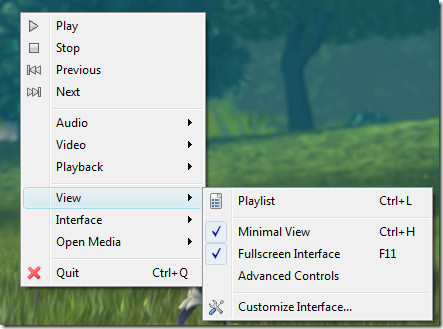
Whether you have an old 17” monitor or the latest 40” LCD, VLC Media Player will now scale your videos better in fullscreen mode. Don’t get confused between Fullscreen Mode and Fullscreen Interface, the former is the same old fullscreen when you double-click the video, while the later is the new functionality. Fullscreen interface and Minimal view, both can be accessed from the View tab and are important in their own terms.
– Fullscreen Interface comes useful when you have to watch the video in fullscreen and at the same time want access to the menus. (Hotkey: Ctrl+H)
– Minimal view comes useful when you want to watch the video in fullscreen mode and keep watch on other windows in the taskbar as well. (Hotkey: F11)
Finer Speed Controls
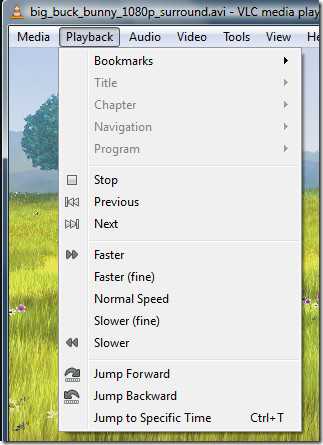
Remember the good old days when you were able to easily forward and reverse your movie in the VHS Player, such a functionality is back in the latest release of VLC but in a whole new way. Head over to the Playback menu and you will find all types of Speed Controls from faster/slower to jump forward/backward.
New Formats And New HD Codecs
If you are searching for a good video player that can play HD-DVD and Blu-Ray movies seamlessly, you just found one. The latest release of VLC brings many new HD codecs, formats, and adds some improvement to various Demuxers and Encoders. Now you can play Blu-ray and HD-DVD movies without any lag.
Note: If you experience lagging while playing HD Movies, make sure that your hardware actually supports it before complaining about VLC to the developers.
Miscellaneous
Apart from the features that we have mentioned above it now also supports two new playlists: Windows Media Player Playlist(WPL) and Zune Playlist(ZPL). It also brings some core improvements to the subtitles and allows you to export the playlist in HTML format. Another important improvement has been made to the video when running in fullscreen mode, you can now zoom inside while keeping the black borders. To see the full list of changes, check out the changelog.
Haven’t downloaded the latest version yet? You can still grab it now.
Enjoy!

i want to watch movie with my girlfriend online by using vlc she’s in other city for 4 years i wanna watch titanic with her how can i do it by using vlc?
Yes there should realize the opportunity to RSS commentary, quite simply, CMS is another on the blog.
I am a huge fan of mediaplayer classic BUT it cannot play mkv movies on my computer without de-synchronising sound. VLC can do it way better BUT the zoom at full screen is very limited. I usually zoom in loosing some of the sides and with this taking better use of the screen. (less back up and below). With mediaplayer classic this zooming is easy and without any limits. In VLC it is simply not possible or needs technical tweak knowledge which I do not have. a real pitty as I am not gonna watch movies in these small zooms becasue they have to fit horizontal always :((((
After one year looking all over for a media player I still use VLC I have adjusted my I-tune player to play minus plus audio but it is not like VLC If VLC had the plus minus on audio it will be the best player in the world. Can I buy one that du it?
if anyone know please letme know
Thank you
Most of the functions in playback, audio and video are not enabled in the download version 1.1.5, appreciate advise how to enable those functions ? Thks
I’m a former Windows user that now primarily runs Mac. That being said I used to run WinAMP on Windows for the playback of video files and absolutely loved the feature of pressing the left or right arrow keys to advance five seconds at a time forward or backward. Now that I’m using Mac, I have chosen VLC for my default video player but miss this feature big time and find the seeking in VLC to be rather difficult to use especially when trying to rewind just a few seconds.
Is there something I have overlooked? Is it possible to advance or rewind by five second intervals in VLC? If anyone knows a way to do this in VLC for Mac, I would greatly appreciate hearing a reply explaining how to do it. Thanks!
Hover over the seek bar and scroll the mouse wheel during playback. This should seek similar to the way Winamp functions.
thanks for sharing this very useful information. Really really like it!
Can someone make a post explaining how to set up VLC’s airtunes support using a mac? I cannot figure out how to navigate all of the settings….
Thanks!
but the sound output of vlc isn’t that great… i mean compared to wmp12
great and informative post ,but i think vlc still have problems in playing flv videos
Love VLC…………
-your movie’s video & audio out of sync???? no problem with VLC… go to “extended settings” then to “synchronization” and adjust (while video is playing)
-radio stations on VLC: go to “playlists” then “additional sources”
I always used to use vlc, but I’ve found the newest version of quicktime blows it away. VLC has this weird quirk where the video will freeze for 5-10 seconds but the audio will keep going. Quicktime plays smooth, and the new version supports most common video formats. The only upside to VLC is its superior subtitle support.
Zoomplayer blows. especially the issues it has with my computer. (it causes shit to go AWOL). Gives me a headache. Watch DVDs on a DVD player or learn how to select which codec it uses. VLC is all you need.
Still blows, especally hte issues it has with setpoint and logitech mice. (it makes them max out their dpi). Gives lots of computers errored video on dvds, ect. It’s still overrated and utter crap. KMP/Zoomplayer is all you need.
I have been using VLC from long, but I never knew it was so powerful…
For Macs VLC is the best…
I am using VLC from the past 2 years, however i never know that it has these many useful features. Thank you so much for letting me know about these features. I have to check each and every feature which you have described and utilize them.
Thanks
Sankar