Quickly Compress Mp3 Music Files For Free
Compression of music files can save plenty of disk space and allow more music to be added to the iPod or any other mp3 player. If you have a music file that has a very high bitrate but you only listen to it on stereo speakers or an mp3 player, then even if you reduce the bitrate a little, it will remain immensely difficult to find a change in the overall sound quality. In short, reducing the bitrate a little does not harm the overall quality of the music much, but can save you plenty of disk space.
Mp3 Quality Modifier is a free standalone/portable tool for Windows that can reduce the bitrate of your mp3 music files, thus saving you disk space. You can either add individual files or a whole music folder. Once done, you can then choose the quality and it will set all other settings accordingly. If you are looking to add music files to your mp3 player, the best setting is ‘Portable’.
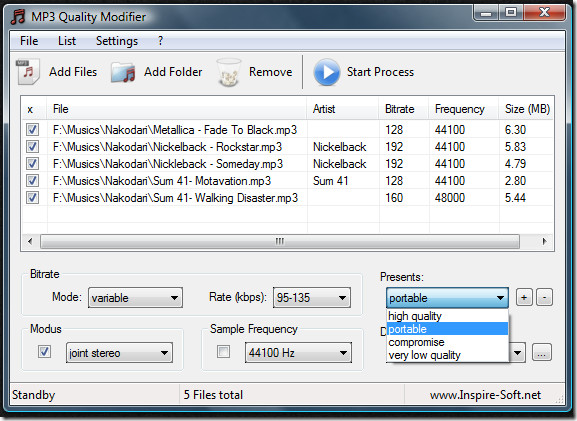
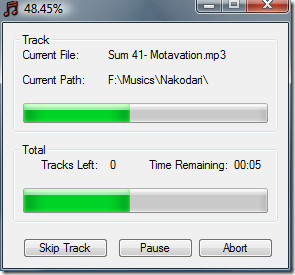
Now select the destination where you want to save the compressed music files, by default the location is Output folder on the desktop. To begin the compression, click Start Process. You can skip tracks during compression which can come handy if you have mistakenly added a file or when it taking too long.
After the compression is complete, you will see the final results showing the percentage change in size, the original size, and the final size of the mp3 file. The total disk space saved is also mentioned in the summary.
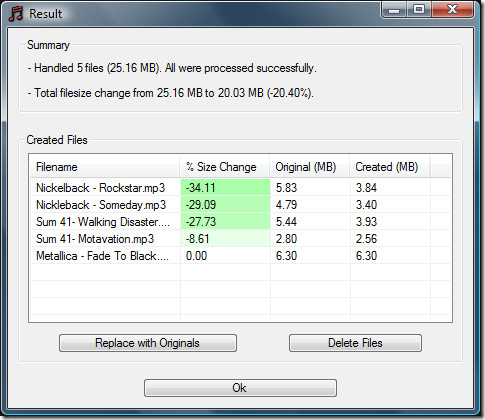
There are two more options given at the end: Replace with Originals and Delete files, both of which are useful. When done, click Ok and it will take you back to the main window where you can compress more mp3 music files. It works on Windows 2000, Windows XP, Windows Server 2003, Windows Vista, and Windows 7.
It is compatible with both 32-bit and 64-bit OS. For more, also check out remove duplicate music files and download lyrics for iTunes. Enjoy!

I use iDealshare VideoGo to compress MP3, FLAC, APE, WAV, AIFF, Apple Lossless audio file size or MP4, MKV, ProRes, R3D video files size
Wow, how stupid!
wow!!! amazing little software 🙂
this app is working only in win XP not in Win7
thanx
Weird, it created a larger file than the original one.
Great application…simple, fast, easy to use, nice user interface. Doesn’t try to do too much – It does exactly what is claimed.
For some reason when i used this it made some of my files bigger rather than compressing them… How do i fix that?
Do you want to play DVD movies on your Windows Phone 7 devices? There is no DVD-Rom or port for connecting, and the DVD videos with MPEG-2 codec do not play on Windows Phone 7. Aunsoft DVD Ripper comes as a fascinate solution to rip Aunsoft Thanksgiving DVD movies to Windows Phone 7 by removing the copy protections on commercial DVD, and you can even hard burn subtitles on the Windows Phone 7 videos.
I don't know what to do after downloading it, I tried to open it but WINZIP pops out
You need to “Extract” the contents from the Winzip to a folder and then access the file.
Can help me compressing mp3 files?
u go to download total video converter… enjoy
or sound forge 6.0, 8.0 can be download music file: openwith to sound forge software
and save as the file other location mp3 file format reduse bit rate eq:112kbps the good output file.. try and enjoy