Maximize A Window To Auto-Fit Screen Space Between Other Windows

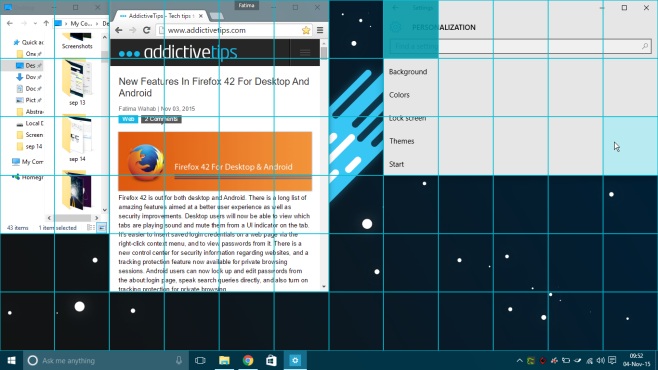
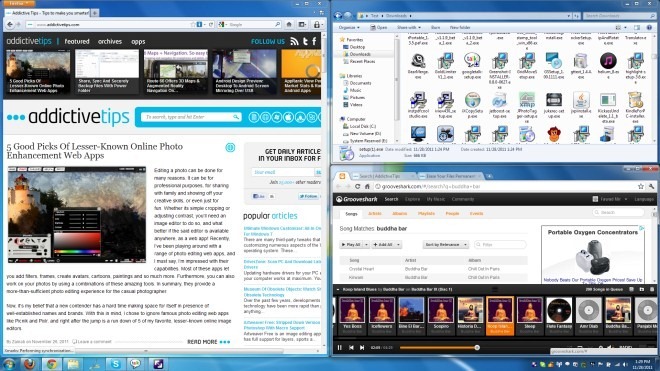
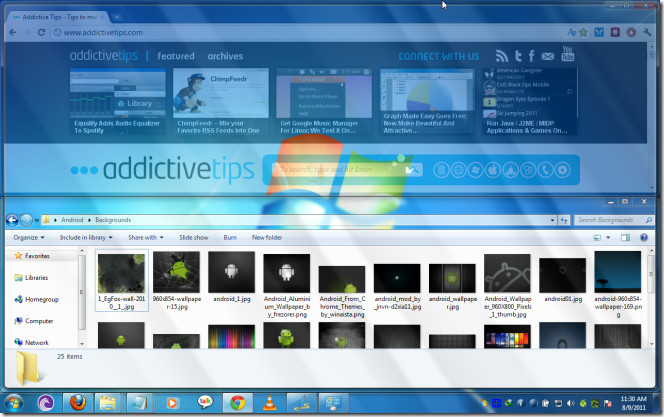
Aero Snap is one of the Windows features that I use the most while working. The ability to open multiple windows at a time and snap them to the left and right side of your screen makes certain tasks a lot easier to do. Especially if you have a large monitor, the feature can help you take full advantage of the extra screen space, and in a quick, convenient way. Several third party tools have been developed to enhance Aero Snap and allow advanced window arrangement options. We have covered several of these desktop window management utilities here at AddictiveTips; for example, reSizer and GridMove, both of which provide you with quite a few options to rearrange windows in a grid. However, sometimes you just need a simple solution that feels more natural and is easy to understand. WinMaximumize perfectly fits that description. This simple tool lets you maximize an active window in such a way that it consumes all the free screen space left over by other windows. Read More

How To Disable “Drag To Close” For Modern Apps In Windows 8

Windows 8 includes a lot of changes in the way apps are handled. Since the OS is created for both tablets and PCs, some of the UI enhancements are suitable more towards a certain device. For instance, in order to close the apps, there is no longer the famous “x” button. Instead, you have to grab the app from the top and pull it down to close it. Another major change in Windows 8 is that desktop also works as an app. So, you can close the desktop app in the same way (by dragging from the top). It is possible to close it accidentally, say, when you quickly drag your mouse to take a screenshot. In this post, we will explain how to disable the "drag to close" feature of Windows 8 to avoid accidental closure of apps. Read More

Position Multiple Windows On A Large Screen In Different Sizes

Both, Windows 7 and Windows 8 has AeroSnap, a feature that can quickly position two equally spaced windows side by side. However, everybody has their own workflow, what works for many users might not work for you. It certainly doesn't work for me since I have to work on 4 windows at one time, and I prefer working on a single large monitor than two small ones side by side. There are plenty of apps that lets you snap your windows to pre-defined locations, however, they lack the option to choose the size of each window yourself. Let's say your workflow consists of working on 3,4, 5 or 10 windows at one time, all of them having different sizes, how will you quickly position them using hotkeys every time you turn on your PC? That's where WindowManager comes in. The app lets you position any focused window onto the predefined corners via customizable hotkeys. If you are not happy with the default size or positions available, open the virtual grid with Alt+Space hotkey and use your mouse to refine the position of your window in the virtual grid. Read More

Automatically Adjust And Resize Application Windows With Plumb

When i first used Windows 7, one of its most fascinating features i found, was AeroSnap. Since i have always worked on bigger screens, am usually used to plenty of screen real estate, and working under multiple windows in conjunction. AeroSnap helped me out in a lot of ways, as window resizing and moving them around became more lucid and fluid experience. Various companies and developers have taken the AeroSnap idea and have developed their own applications, making it even more robust. Earlier, we covered AeroSnap-based desktop window management applications such as reSizer and GridMove, which would let you resize the active desktop windows to make full use of the available screen space. These applications allow you to resize windows either by using hotkeys, or by dragging windows to the side of your screen, but wouldn’t it be easier if an application can resize and adjust your desktop windows for you automatically? Plumb does exactly that. It is an application that arranges the desktop windows automatically as you open them, based on a pre-defined criteria. You can choose to resize already open neighbor windows, enable mouse swap, maximize single window and select horizontal or vertical split mode between two windows. It contains plethora of settings and you can make it work absolutely the way you want. More to follow after the break. Read More

Take Full Advantage Of Your Widescreen Monitor With SplitView

Aero Snap is very useful which is used a lot by people who need to keep multiple windows open at a time, but do not have more than one monitor. If you have a big monitor, you can use the space instead to host multiple windows instead of just one but resizing them manually can take a lot of time. Aero Snaps simply automates the process, however, it is only available in Windows 7 and above. SplitView is an application that lets you split your monitor into multiple virtual monitors, enabling you to take full advantage of your widescreen or high resolution monitor. Aero Snap, which performs almost the same function, is only available in Windows 7, whereas, SplitView brings the same functionality to Windows XP users. You don’t have to manually move or resize your application windows to fit your desktop. You can run two or more application side by side, simplifying tasks like copy/pasting and comparing documents. Moreover, when using extended desktop, it allows you to snap application windows to the left and right side of your screen with just a click. Read More

FlipCorner: Activate Windows 3D Preview Mode Using Mouse Cursor

Among the plethora of useful features of Windows, it provide an easy way of switching between opened programs via the use of Alt + Tab key, which helps in instant navigation. Although, it has been around for a while, Microsoft opted for another alternative route for switching or peeking at your opened programs, in Windows Vista and then Windows 7. Microsoft named it as Windows Flip 3D and this function can be triggered by using Win + Tab key. Flip 3D (as the name implies) gives you a 3D preview of running applications, and lets you cycle through them via your mouse scroller. Not only is it quite robust, but also looks damn good. Even if your watching a video, it is rendered in real-time in Flip 3D. Even though launching Flip 3D via the Win + Tab key is quite easy, however if you find this hotkey combination to be somewhat tiring, try out FlipCorner. It is a portable application that lets you enter the 3D preview mode by moving your cursor to a corner of your computer screen. The good thing is that you can set the corner of your choice, change the activation delay and define the size of reaction area to enable the function. Read on to find how it actually works. Read More

reSizer: Move, Resize And Toggle Windows Using Number Pad

With Windows 7 came AeroSnap, a handy feature that lets you resize your windows, and automatically adjusts multiple windows on the computer screen. reSizer is an AeroSnap-based system utility that allows you to use keyboard shortcuts to focus, resize and change windows in a fast manner without touching the mouse. You can toggle the opacity and always-on-top properties of active windows, and instantly place windows to fit specific areas of your screen. The application is programmed to work with the numeric keypad to enable faster switching between open applications. reSizer also lets you define application shortcut mappings to instantly access active applications. Read More

PowerResizer Extends Windows 7 Aero Snap Windows-Docking Features

Even though Windows 7 native application window docking and snapping features are arguably great, we often experience some specific annoyances. For instance, Windows 7 Aero Snap lets you quickly open two application windows side-by-side for doing comparisons, keeping tab on two active processes, etc, but it is unable to automatically adjust size and positions of windows when you resize any of the opened window. Similarly, Windows 7 Aero Snap doesn’t support docking windows at top and bottom of the screen. PowerResizer is an open source application that extends the functions of Windows 7 Aero Snap without replacing any of its original functions. The application works in conjunction with Aero Snap to let you easily manage multiple active windows without having to manually adjust them at different sides of the screen. Read More

Use NumPad Keys To Position Application Windows With WinNumpad Positioner

We have previously reviewed TicClick – a Windows AeroSnap supported application which lets user easily adjust active application windows to different sides of the screen, it offers 9 positions in total with a small on-screen position adjuster to select the position of the window. Nonetheless, the only downside of TicClick is that it doesn’t offer hotkey combinations for adjusting windows, therefore users have to bring up its adjuster and then select the position. WinNumpad Positioner offers what TicClick doesn’t – simple hotkey combinations to adjust windows quickly. As it name implies, it enables user to dock window at any side through Numpad keys combinations. All the Numpad keys are mapped with the screen positions. You can for instance press Win + 5 to bring active window to center of the screen, using 7 instead 5 will dock the window at upper-left corner. Read More

TicClick: 9 Positions To Quickly Adjust Active Windows On Desktop

Previously we have covered two efficient windows adjustment tools namely WinSplit Revolution and Window Manager, which assists user to quickly adjust the active windows on the screen. Window Manager offers nice grid interface to select the position while WinSplit Revolution can manage up to 8 different active windows positions. TicClick is however small but can handle 9 active windows positions with an ease. Read More

How To Enable / Disable Aero Snap In Windows 7

Like previous version of Windows, Windows 7 come with aesthetically pleasing graphical user interface and theme style called Windows Aero, which not only makes it easy to manage multiple windows on the screen, but also helps users easily navigate between opened window, view live thumbnail preview of active applications etc. One of the features of Windows Aero is Aero Snap, which is responsible for snapping active windows to the sides / edges of the screen. If you don't like the Aero Snap feature in Windows 7 or you feel it to be boring or unnecessary, just go through the following steps to disable it. Read More

Get Windows 7 Aero Shake & Aero Snap Feature In Windows Vista/XP

Do you know about those awesome Aero Shake and Aero Snap features in Windows 7? Now you can get them on both Windows XP and Vista. For those who don’t know what AeroShake and AeroSnap are, here is a small intro for them. Aero Shake: Minimizes all other windows, when one active window is shaken. Aero Snap: You can maximize, minimize, resize window by just dragging-dropping it to the side of the the screen or to the screen corners. Read More