Use Activator Gestures To Quickly Change iPhone Screen Brightness

There are already a few pretty good ways to control your iPhone’s screen brightness, if you have a jailbroken device. The famous SBSettings has a brightness toggle in its dropdown window and Notification Center options list, Springtomize lets you put the iPad-like brightness slider in the App Switcher, and then there is a whole collection of tweaks for other easy ways of changing your iPhone’s brightness level. In the past, we have seen the likes of LSBrightSlider, BrightVol and Brightslide trying to offer quick and efficient ways of controlling screen brightness using various means. Most such tweaks, however, focus on bringing the brightness slider in action. The new Brightivator, on the other hand, does not depend upon any buttons or slider. Thanks to this Activator-based tweak, users get to define any gestures they want for increasing and decreasing the screen brightness. There are no intermediate steps involved, and the tweak can work from anywhere in iOS. Read More

Fix iOS 6 Auto-Brightness Issues By Calibrating iPhone Light Sensors

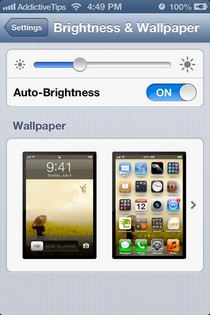
With every major iOS update, Apple announces some great new features, but a new feature addition is deemed successful only if the masses grasp its usage correctly. Siri rose to fame almost overnight due to its simplicity, while on the other hand, iCloud took months to catch on since most users were thoroughly confused regarding its configuration. Siri and iCloud are marquee features, but there are always a lot of smaller goodies in iOS that can make your life easier. In iOS 6, Apple rolled out over 200 new features and changes, but you might not be able to notice all of them right after updating your device. If you were waiting for a jailbreak until now, chances are that you are quite new to iOS 6 and haven’t yet mastered the use of all the new options added in this OS update. One thing that has bugged a lot of users is the revamped auto-brightness function, which has fooled many into thinking that their iPhone’s ambient light sensors just don’t work anymore. Fortunately, it can be fixed simply by recalibrating the light sensors. Read More

Use iPhone Volume Keys To Control Screen Brightness With BrightVol

Usually a Cydia tweak is considered good if it brings something new to your iPhone without taking away any of the existing options. You can get almost any useful feature on iOS if you have a jailbroken device and are willing to alter its looks for the worse. Screen brightness is something that iPhone users can control only from the stock Settings app, unless they have a jailbroken device. Even with access to the Cydia store, you get tweaks that add unsightly buttons to the SpringBoard, but then there is also the rather neat SBSettings control for brightness. BrightVol is a tweak allows you to adjust your phone's brightness level in a completely new way. Read on to find out how. Read More

LSBrightSlider: Add Brightness Slider To iOS Lock Screen [Cydia]

Jailbreaking your iPhone, iPod touch or iPad not only opens the device up to several useful tweaks, but also a lot of appearance enhancements. The Cydia store is full of themes and fonts that let you make cosmetic changes to your iDevice, while utilities and tweaks add or change functionality of certain aspects of the OS. It is a testament to the comprehensiveness of the Cydia store that there is no area of Apple’s mobile OS that cannot be altered using the tweaks available in it. A large percentage of Cydia tweaks focus on the lockscreen, and LSBrightSlider is the latest addition to the list of such tweaks. The functionality it offers is a simple but useful one. Using LSBrightSlider, people with jailbroken iOS devices get a new slider on their lockscreen, which can be used to change the brightness level of the display. Read More

Brightslide: Gesture-Activated Brightness & Flashlight Control [Cydia]

Gesture control has become the latest rage in the iOS development world, and a lot of Cydia tweaks, or even apps, have started taking full advantage of gestures. With the release of iOS 5, some stock gestures were added to iPhone, iPad and iPod touch as well, and the jailbreak developers were quick to make huge additions to that list. Some gesture-related tweaks have been around for a long time, like Activator, and the newer ones mostly rely on activator to bring new functionality for users. Brightslide is a similar tweak, which works on the basis of Activator gestures, and using it, you get a slider on the Springboard of any iDevice. The slider offered by Brightslide has a dual purpose; it can be used to control the display brightness, and there is a flashlight button available alongside it as well. Read More

Slider Widget: Android Homescreen Widget With Brightness & Volume Sliders

Slider Widget, as implied by its name, is a handy 4x1 homescreen widget for Android that presents you with various sliders to manually adjust the levels of your device’s brightness and different volume settings. The widget comprises six different buttons, using which you can control your device’s screen brightness, ringtone volume, music volume, notification volume, alarm volume and the overall system volume of your device. Tapping any of the aforementioned buttons on the widget reveals a slider that can be used to manually adjust the corresponding levels of the selected component. The brightness slider carries an additional option of letting you enable the automatic brightness mode with a mere tap. The ringtone slider, apart from letting you adjust volume levels accordingly, contains a couple of thresholds so that you can easily put your device to silent as well as vibration mode. Don’t fancy swiping on the slider? You can use your device’s hardware volume keys to adjust the levels as desired. In addition, the widget also offers you the option of binding the notification and ringtone volumes together so that you do not have to adjust both said volumes individually when the need of doing so arises. The widget also lets you use each of its buttons as a separate toggle, so that you can instantly switch between any two predefined values/levels of a selected category. On the customization front, you get the option of adjusting the widget’s on-screen appearance by modifying the slider position. Read More

Easily Dim Out Your iPhone’s Wallpaper With WAlpha [Cydia Tweak]

It is always nice to add spice to stuff that you have to view daily. This is the reason wallpapers exist, but even changing wallpapers gets boring after a while. WAlpha is a free tweak for jailbroken iOS devices, that adds a small degree of customization to the wallpaper. It allows you to reduce the wallpaper's alpha value, effectively dimming it out - roughly the same effect you see within Spotlight search. It is already possible by default to change the size and placement of your wallpapers in iOS, and that can give you some customization. The functionality offered by WAlpha should be considered an extension of this minor customization capabilities. Of course, you can edit the whole image in some other app, reduce its brightness and then apply it as a wallpaper, but why go through all that trouble when you have got WAlpha, which does the stuff with a simple slider. Read More

Adjust Screen Brightness From System Menu Bar [Mac]

You use your Mac for a lot of things - watching movies, reading, designing and what not - and it is well equipped to do all this, and more. The slight annoyance that you might often experience could be that the brightness of your screen, while great for watching a movie, might not be exactly suitable for reading. Brightness Slider is a Mac app that rests in your system menu bar, and allows you to control the brightness of your screen. More to follow. Read More

Control Screen Brightness And Turn Off Monitor With iBrightness

Picture clarity in modern displays depend on the difference between brightness and contrast ratio. The farther these two are to each other, the better your image or video would look. Surely, keeping your LCD brightness high during gaming sessions or while watching a movie does make sense, as the picture becomes more vivid and bright. But when you're using your PC at night with the lights turned off, doesn’t the screen seem a bit too bright? It puts strain on your eyes, and in the worst case scenario, can also harm your eyesight. Furthermore, when you're surfing the web or doing some writing stuff on MS Word or writing an important email to your boss, you don't want to keep the brightness level to the full. Whether you know it or not, more brightness also squeezes out more electricity, thus hefty bills to be paid at the end of the month. Although, you can change brightness level from within your LCD's OSD, with iBrightness, a brightness control tool for Windows, you'd keep monitor power and display brightness controls at your fingertips. Whilst you can change the screen brightness from native display options available in Control Panel, iBrightness provides you a unified interface to change brightness. What's more, it also enables to turn off monitor and activate desktop screensaver. More details after the break. Read More

Brightness Icons: Adjust iPhone/ iPad Brightness From The Home Screen

Sometimes the smallest of features can make life a lot simpler. If you are a bit of a lazybones or just like to perform tasks on your iOS device in the fewest possible taps, then you are sure to appreciate this little jailbreak tweak. Brightness Icons does the simplistic task of adding two icons to your iPhone, iPad or iPod Touch’s Springboard which can be used to adjust screen brightness. The Cydia app is free and available for all jailbroken users. More after the break. Read More

InvisiBright For Android – Swipe Or Tilt To Control Screen Brightness

New to the Android Market, XDA-Developers member dannygirsh’s InvisiBright is a handy little tool that allows you to increase or decrease the display brightness of your Android device from anywhere simply by swiping up and down along a side of the screen or tilting the device forwards or backwards. This isn’t the first time we’ve come across such an app. Its functionality is quite similar to that of Brightness Motion. However, said app only uses motion (the accelerometer) to control the level of brightness and owing to the fast right-to-left and left-to-right flicking motion that it requires, is rather uncomfortable to use. InvisiBright, on the other hand, allows you to control screen brightness with slight motion and easy swipes. Read More