Bandwidth Monitor NetWorx Updated With Quota Management, Speed Meter & Enhanced Reports

Nowadays, high speed internet with unlimited bandwidth is available almost everywhere. You can use as much internet as you like for browsing, online gaming, streaming videos, downloading etc., without worrying about a usage cap. However, if you're using an internet connection with limited bandwidth, then keeping a constant eye on usage becomes essential to avoid unnecessarily hefty bills at the end of the month. We have covered quite a few useful internet bandwidth usage monitoring apps, including NetSpeedMonitor, which monitors the current upload and download rates, and the total amount of total data transferred, by days and months. The dev team behind a similar app called NetWorx, reviewed way back in 2009, has added a lot of new features to their utility. Now, it offers a Speed Meter, an enhanced Usage Reports console, a Quota option to put a limit on internet usage and a Ping tool for checking active connections on the network. Read More

WifiInfoView: View And Monitor Wireless Networks Around You

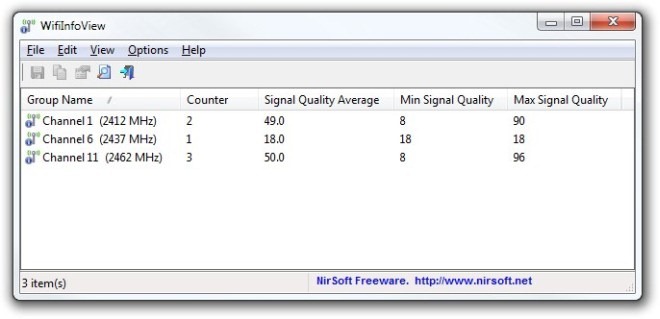
NirSoft is renowned for creating user-friendly and minimalistic applications. They never ceased to amaze us with simple yet highly useful utilities, especially their network related tools - such as the previously covered NetBScanner that lets you view computers on your network within specified IP range, and WakeMeOnLAN that remotely wakes up computers on your network. The company's latest creation, the WifiInfoView, is another addition to the ever-popular Nirsoft's software archive. It's a portable application that keeps an eye on wireless networks around you. WifiInforView is designed to scan all the wireless networks in your proximity and provide you with a wide range of information. You can view an Access Point’s SSID, Mac Address, PYP Type, Signal Quality and so on. The application also allows you to specify the refresh frequency for all Wifi related information. The users can also change the view mode of the application among five different categories. Read More

Signal Displays WiFi Connection Strength & Stats In The Menu Bar [Mac]

A while back, we covered Network Strength (reviewed here), a free Mac app that shows the Wi-Fi signal strength as a percentage in the Menu Bar. Additionally, the app tells you the Ping time, local and public IP and the noise level. Signal is a free Mac app that is similar in concept, but differs slightly in the stats it reports. This app shows connection strength as a series of vertical bars and gives you information about the router you’re connected to, including the signal quality, strength, noise level and signal to noise ratio. The app icon changes to show when you’ve lost connectivity or when there is an error in the connection. Read More

Yale: Monitor Bandwidth Usage Of All Active Network Adapters & Connections

Albeit we have broadband internet connections now, various ISPs cap monthly data volume. It can be quite frustrating sometimes, because you can easily go pass your data plan, especially when the internet content is so rich now. Similarly, sometimes we want to check whether we are getting an optimum internet speed that we are paying for. Yesterday, we covered EmproNetUsgAlert, an application for Windows that is designed to monitor bandwidth usage and alert users when a specified limit is reached. It only shows you an overview of the total upload and download bandwidth usage. Personally, I use NetSpeedMonitor, a network monitoring application that displays the current upload and download rate and maintains a record of the total data transferred during a day, month and year. Both aforementioned tools display the bandwidth usage of only one selected network adapter. If you are using multiple network interfaces or have configured virtual network connections for guest operating systems, then you may need an advance network usage analyzer, such as Yale. It's an application for Windows that allows you to view the bandwidth usage of all network interfaces and connections. It also shows you the CPU usage as well as, the hard disk transfer rate. Continue reading. Read More

EmproNetUsgAlert Alerts You When Daily Allowed Bandwidth Is Exceeded

Internet Service Providers offer various internet packages to their customers. Some comprise of unlimited bandwidth, which means you're not bordered with any kind of monthly volume. Others come with data caps and you're not allowed to go past that cap, depending upon your ISPs terms and polices. If your internet subscription package allows you to use unlimited bandwidth, then you probably don’t need any bandwidth usage monitoring tool, however, in case your internet connection has a data bandwidth cap, you should keep a track of how much data is being uploaded and downloaded in order to avoid extra usage. Although I own a package with unlimited bandwidth, I still like to keep an eye on how much data I upload and download. This gives me glace over how much data is being transferred to and from my PC. For this purpose, I use NetSpeedMonitor, a network monitoring application that displays the current upload and download rate and maintains a record of the total data transferred during a day. Recently, i found another such tool labelled as EmproNetUsgAlert. The application is designed to monitor bandwidth usage and alert you when a specified limit is crossed. Keep reading for more details. Read More

360MobileSafe: App Locking, SMS/Call Blocking & Anti-Theft App [Cydia]

If you are an iPhone user and value your privacy, then chances are that a simple passcode is usually not enough for you. The lockscreen passcode in iOS devices does protect users from a casual trespasser, but for those who want security at a more comprehensive level, there are a few third-party apps, both in Cydia and the App Store. The apps found in the Cydia store generally provide a deeper level of security owing to the fact that they can access more areas of iOS compared to ordinary apps. This fact is personified by the Cydia app 360MobileSafe, which deals with just about all areas of privacy and security that you can possibly imagine. You can use the app to block undesirable calls and SMS, put any app (system or third-party) under password-protection and prevent misuse of your device remotely via the Anti-theft menu. 360MobileSafe has more features than just that, so let’s discuss them past the break. Read More

NetSpeedMonitor: Monitor Upload/Download Rate From Taskbar & Maintain Transfer Reports

I still remember those dial-up days, when internet speed was quite slow and it would take ages to download a file, even if merely comprising off 1MB. As internet content got lavishly rich, so does we saw an incredible increase in bandwidth. All changed with the inception of DSL, and now we have internet connections that are lightning fast. Sometimes, we're not sure whether we are being provided with the full data speed that we are paying for and Windows doesn't contain any utility to monitor net speed in real-time. However, you can use various third party tools to that provide the said facility. One such that i came across today is NetSpeedMonitor. It is a network monitoring application that monitors the current upload and download rate, and the total amount of data transferred, according to days and months. The application enables network monitor in the taskbar, allowing users to view the upload and download rate in real time. You can set the application to show data transfer rate in multiple bitrates, such as Kbit/s, Kb/s, Mb/s, Mb/m, MiB/m etc. It lets you save data transfer information, and view daily and monthly traffic reports in Bytes, Kilobytes, Megabytes and Gigabytes. More on NetSpeedMonitor after the jump. Read More

Record Time-Based Network Bandwidth Utilization Stats With NetTraffic

Bandwidth utilization stats are sometimes required to analyze the upload/download rate of each network interface, in order to access areas where bandwidth may be getting wasted. For example, many corporate internet packages are restricted by a data cap, and exceeding the data cap can result in hefty costs for the business. In such a case, the network administrator may be required to submit a report regarding bandwidth usage. While such stats are nearly impossible to accurately gather by conventional methods, you can, however, use applications like NetTraffic to record such stats over a period of time. NetTraffic is a network monitoring tool for keeping an eye on the network data rate. It provides information about the downloaded and uploaded data, as well as delivers numerical and graphical charts to provide details about network usage by hour, day, month and year. Other than real time graphs from the main interface, NetTraffic also provides bandwidth utilization stats right from the system tray menu, in the form of a small pop-up window. Other features of this application include the ability to import/export statistics, customizable charts and support for multiple network interfaces. Read More

NetworkTrafficView – Capture Network Traffic, View & Save Client Details

Network monitoring tools help system administrators inspect records for all send and receive requests from clients connected in network. Such utilities are responsible to capture data packets which pass through network devices, routers, hubs, etc., which makes it easier for network admins to not only analyze network traffic details but also to query statistical information to generate custom network resource usage reports. Personally, I would recommend using previously covered network data sniffing tools to monitor network traffic namely, NetworkMiner and York, but if, for some reasons, neither of them suit your LAN network monitoring needs, have a look at NetworkTrafficView. The application is developed by Nirsoft (dev team known for writing portable, small yet productive utilities for Windows) to monitor and capture network traffic in order to give detailed statistical information pertaining to connected nodes. Read More

Windows 7 Network Activity Monitor

Network administrators use system and network monitoring tools to check which application, program, or script on connected clients is taking too much of the network resources. Sadly, there is no tool to monitor the network in Windows 7 except Networking tab in Windows Task Manager. Back in July I covered a tool called Resource Monitor which checks the performance of your Windows 7 system. It can also monitor and give detailed overview of processes that take CPU, Memory, and Disk space. Apart from the revamped Windows 7 Task Manager, you can use Resource Monitor to check all the applications which are using network resources. Read More