MediaMonkey For Android Available In Public Beta With UPnP/DLNA Support

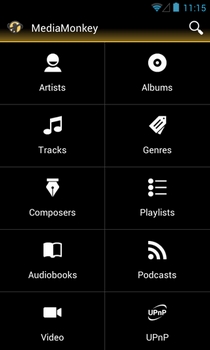
MediaMonkey is a power-packed media player and library management application for Windows that needs long introduction. The team behind the app has just released a public beta of MediaMonkey for Android equipped with several great features including playback support for your music files, audiobooks, podcasts and videos etc., extended playlist management, browsing multimedia content in a number of ways, UPnP/DNLA support (with integrated download manager), content bookmarking, replay gain, lyrics support, and last but not the least, the option to wirelessly sync content with the MediaMonkey desktop client. In addition, the app presents you with a sleek music player UI, complete with the option to rate your tracks, set the favorite ones as the ringtone, share the best ones with your mates, switch between tracks via swipe gestures, edit track details and lots more. The beta variant of the app is currently available for download via the official MediaMonkey forums only, and we've got the download links and further details for you right after the break. Read More

WirelessKeyView Updated; Now Lets You Import & Export Wireless Keys

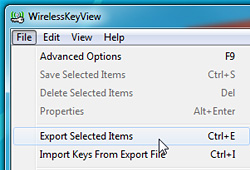
Back in 2009, we featured WirelessKeyView, an application with the purpose of recovering Wireless Network Keys from Windows or from the data left behind after Windows is uninstalled. Since our last review, WirelessKeyView had many of its minor bugs fixed. The method of displaying data has also been improved to incorporate grid view and to mark odd and even rows in order to make it easier to keep track of the fields. However the most important update added recently was the Import and Export of Wireless Keys. So now, you can backup and migrate your wireless keys anywhere you want.

Read More

X-Link: Transfer Files Between Multiple Android Devices & PC via Wi-Fi

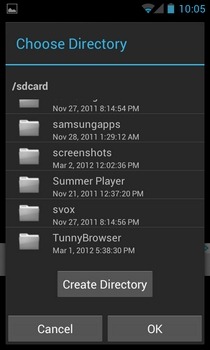
The methods to wirelessly transfer data between an Android device and computer keeps getting better, quicker and expansive. Just yesterday, we reviewed an Android app called DropSpot that happens to be one of the very first solutions which allow transferring data back and forth between a computer and an Android device over a local network. Superb concept, especially considering that it frees you from the the hassle of carrying data cables, or setting up extensive remote desktop clients. Based on more or less the same concept, X-Link (beta) by an XDA member, joschi70, is yet another handy tool that brings additional functionality of letting users remotely share files with other Android devices that are connected to the same Wi-Fi network. The dual file sharing mechanism of X-Link allows you to share files from your computer to an Android device of your choice via a Java-based desktop client, or from your Android device to another Android device that is hooked to the same network. File sharing from your Android via X-Link is made simple courtesy of an additional option that you can find in the file sharing menu of the OS. All you need to do is navigate to the required file from within your device’s gallery or a file explorer, and share it via X-Link. Sharing from the desktop client can be done via simple drag-and-drop. It’s all too simple, and way to fast than any other alternative remote file sharing solution. Read More

DropSpot: 2-Way Remote File Transfer Between Android & PC Over Wi-Fi

Just last week, we covered an Android app called EZ Drop that allowed users to remotely/wirelessly transfer files from a desktop browser (computer) to an Android device over the internet without involving any connectivity cables or remote desktop clients in between. Quite a useful concept, but certainly with a significant restriction; it only lets you send files from the computer to Android, and not in the opposite direction. Fresh to the Android Market, DropSpot is an app that fills said void quite nicely. DropSpot sports two-way wireless file sharing between computer and Android device, and vice versa, over a shared Wi-Fi network. All you need to do in order to start sharing data is open the app on your device, feed in the IP address provided on the app’s homescreen in any contemporary web browser on your desktop, log in using the passcode (if any), and you’re good to go. The web interface of the app supports sending files in batch from computer to device via simple drag-and-drop. Similarly, you can use said feature to move your device's locally stored files to required directories with utmost ease.  Using the DropSpot mobile client, you can configure and even remove the authentication code. Read More

EZ Drop: Wireless Data Transfer Between PC & Android Over Internet

If you’re looking for a simple, swift and no-nonsense way of wirelessly transferring files from a computer to your Android device, then you must try EZ Drop. Using a combination of the EZ Drop website and mobile client, you can instantly import required files from computer to Android over the internet (Wi-Fi & 3G/4G). No need to set up a desktop side server/client, configure complex IP addresses, register for user accounts or logging in to any services, and more importantly, no restriction on the type of files that can be shared. Instead, all you need to do is open the app on your device, provide the 4-digit PIN displayed on the EZ Drop website, and you’re good to go. Another good thing about sharing data via EZ Drop is that it lets you transfer multiple files simultaneously. All files shared with EZ Drop are initially shared on the EZ Drop cloud from where they get transferred to your Android device at a blazing speed. Read More

CodexCloud Lets You Store And Read your eBooks Anywhere

CodexCloud is a web app that intelligently recommends new e-books for you to read, and lets you search, upload and catalog your entire library. It allows you to open e-books on an online reader sporting a nice, landscape mode, and allows automatic wireless synchronization with all of your mobile devices - Kindle, iOS and Android. Each book has a brief summary and author info that can help you decide whether you want to read it or not. Read More

Get In-Depth Wireless Network Information With Vistumbler

Netsh is a Windows command-line scripting utility to locally or remotely, display or modify the network configuration of an active computer. Vistumbler is an open source wireless network scanner to keep track of total access points, signal graphs, and statistics. With Vistumbler, you can find Wireless access points using "netsh wlan show networks mode=bssid" to get wireless information GPS Support Export/Import access points from Vistumbler TXT/VS1/VSZ or Netstumbler TXT/Text NS1 Export access point GPS locations. Vistumbler provides quite detailed information about available Wireless Access Points, which can enable finding security vulnerabilities in a wireless network. Read More

Display Detailed Information Of Available Wireless Networks

WirelessNetView is an efficient wireless network scanner from Nirsoft. Even though Windows 7 has a lot better way to detect and show information about available wireless networks, there is still a need of one complete scanner which can retrieve all information of wireless networks. WirelessNetView displays wide range of information which spreads across the window in multiple columns, some of them includes; Last Signal, Average Signal, Detection Counter, Security Enabled, Authentication, Cipher, PHY Types, First & Last Detected On, MAC Address, and lot more. Read More

Uawks Adds Support For Apple Wireless Keyboard In Windows

Apple’s Wireless Bluetooth Keyboard is both awesome and super-sexy. The limitations are that it can only work with OS X but not with Windows. What if you love this keyboard and want to use it with Windows?

Uawks, which stand for Unofficial Apple Wireless Keyboard Support, is a free opensource tool that makes the Apple Wireless Keyboard fully compatible with Windows. You can enable it to run during Windows startup, once loaded, it runs silently in the system tray.

Read More

How To Manage Multiple Network Connection Settings In Windows

Do you have multiple networks and would like to manage them all in one place? NetSetMan is a free tool for Windows that lets you manage up to 6 different network profiles. Want to change the IP of a network or maybe you want to change the DNS server? Instead of following the extra-long steps in Windows XP and Vista, you can now manage all network settings from one simple window.

Read More

How To Recover Wireless Network Keys (WEP/WPA) From Windows 7

Did you ever forget your wireless network password? Or maybe you want to recover the keys of the wireless network in the office or at your friend’s apartment. WirelessKeyView is a free portable tool for Windows that allows you to instantly recover your lost wireless network keys. It has been developed by Nirsoft, the same guys that bought you OpenFilesView, OutlookAttachView, and Asterisk Logger among many others. Just extract the zip file and run the program, it will list all the networks and their keys in a simple list view. Read More

How To Manage And Check Status Of WiFi Networks From Windows 7/Vista Sidebar

Note: There are many software available to find and manage WiFi networks and I have covered few here on this blog, but this is the first time I have come across a WiFi gadget for Windows 7/Vista sidebar. Xirrus Wi-Fi Monitor is a gadget for Windows 7/Vista sidebar that lets you monitor WiFi networks around you and shows the information of your connected and nearby networks in full details. It has a radar like graphic interface which helps you monitor the status in real time. Read More

Create A Quick Ad Hoc Wireless Network Connection Between Two Computers In Windows 7/Vista

Do you want to create a quick network connection between two computers or laptops to share some files? Or maybe you want to share an internet connection? Windows 7 and Vista have a build-in feature to create a quick ad hoc wireless network connection, this means you can connect directly with another computer or laptop without the need of a router. Read More

How To Maximize Or Increase The Speed Of Your Wi-Fi Connection

Today, enterprises are deploying wireless LANs for corporate applications and home users that involve e-mail, Web browsing, and access to various server-based databases. The need for higher data rates and techniques to improve performance of wireless LANs is becoming crucial to support these types of applications. To get that extra performance, you may have a lot to consider.

Read More