How To Install Windows 8 On VirtualBox
So you downloaded Windows 8 and now want to try it out on VirtualBox but are constantly getting errors? You are not alone. Installing Windows 8 on VirtualBox is tricky but not that hard once you get to know the basics. In this guide, we will explain the step by step procedure to installing Windows 8 on VirtualBox 4.1.2 (which is the latest version). Advanced users might want to skip the first few steps and directly go to settings.
This guide is a part of our detailed coverage of Windows 8’s new features and improvements.
- How To Install Windows 8 On VirtualBox (Currently Viewing)
- What’s New In Windows 8 Desktop, Start Search, And Start Menu
- The Complete Guide To Windows 8 Explorer, New Ribbon Tools And Options
- The Complete Guide To Windows 8 Task Manager, New Features And Options
- Windows 8 PC Settings [Complete Guide]
- How To Refresh Or Reset Your Windows 8 PC [Complete Guide]
- All About Windows 8 FileName Collisions And Copy/Move Dialog Box
- The Complete Guide To Windows 8 Startup Menu
- Sync Windows 8 User Settings Between PCs & Tablets via Windows Live ID
- Quick Overview Of Windows Lock Screen
- The Complete Guide To Windows 8 File History Backup
Important Note: Before we begin, make sure your processor supports Virtualization Technology and is enabled. Windows 8 will not work if your processor does not support Virtualization Technology. Most processors support Virtualization Technology but the option is not enabled by default. You can enable Virtualization Technology option from the BIOS. Now let’s begin!
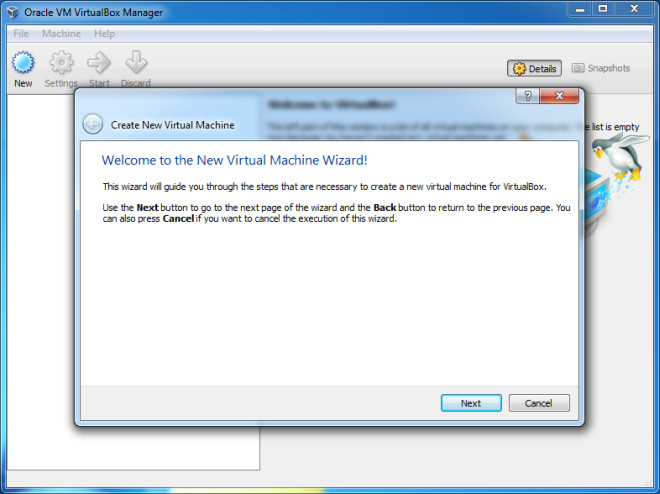
First grab VirtualBox (link given at the bottom of the post) and install it. You will get few Oracle permission pop-ups where you have to click Allow. Once installed, launch VirtualBox and click New. The New Virtual Machine wizard will open up, click Next.
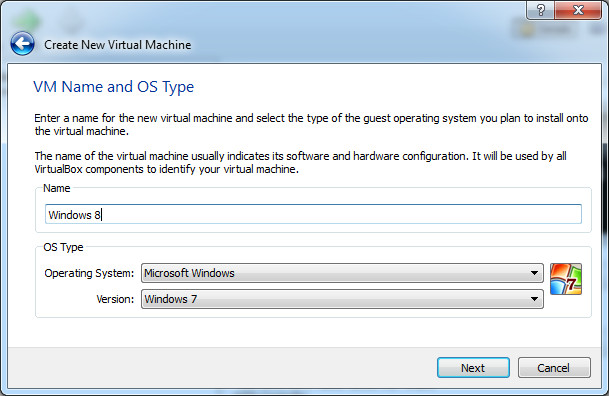
Type the name of the Virtual Machine, we named it Windows 8, select Microsoft Windows as Operating system, and select Windows 7 as version. Important Note: Even if you are running VirtualBox on Windows 7 x64, you still have to select Windows 7 from version. Do not continue if Windows 7 (64-bit) is selected, otherwise VirtualBox will crash. When done, click Next.
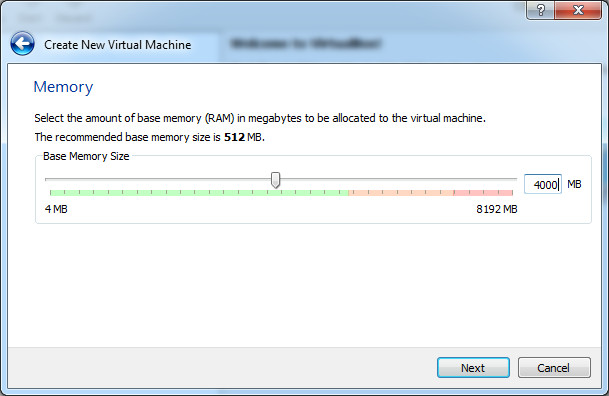
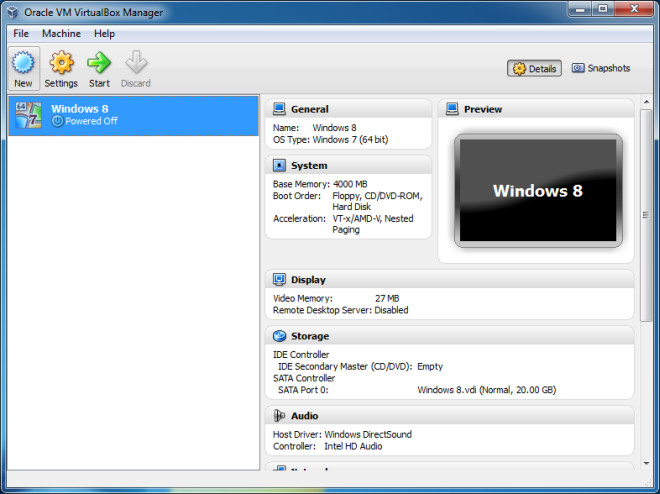
We will recommend allocating at least 1GB memory if you are installing Windows 8 32-bit, and at least 3GB memory if you are installing Windows 8 64-bit. I have allocated almost 4GB of RAM as you can see in the screenshot below. When done, click Next.
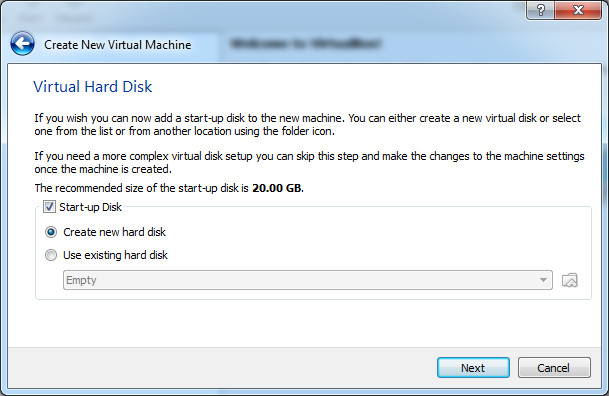
VirtualBox provides options to either create a new hard disk or use an existing hard disk as a Start-up Disk. By default, it is set to Create new hard disk. Leave it as it is and click next.
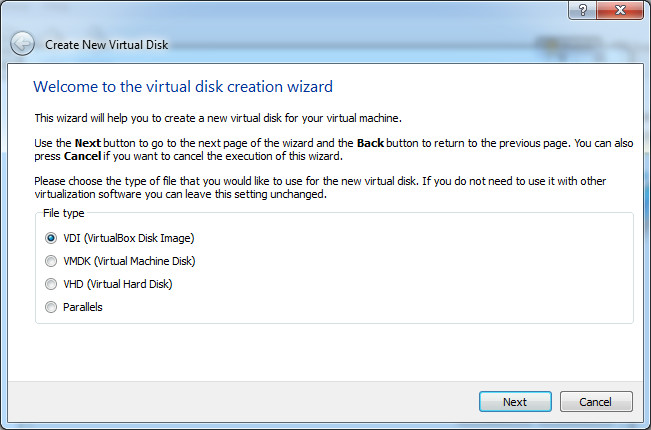
In this step, make sure VDI is selected. VDI stands for VirtualBox Disk Image. Click Next.
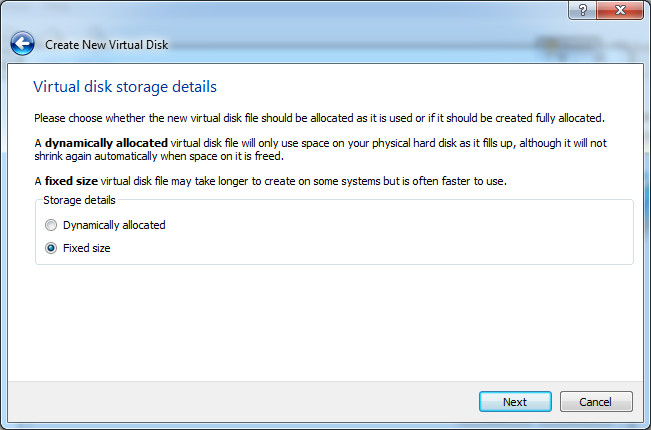
In this step, select Fixed size or Dynamically allocated based on your needs, so that it does not eat up more virtual disk as allocated by the user. We selected Fixed size but most users prefer Dynamically allocated.
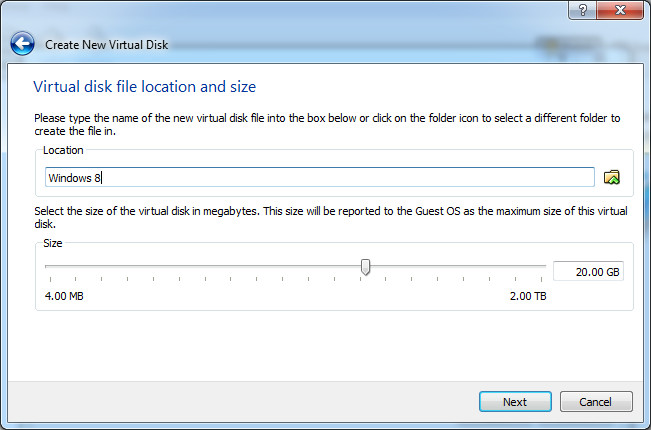
By default, VirtualBox allocates 20GB hard disk space for new machine. You can increase or decrease this amount. We would strongly recommend not to allocated less than 20GB. When done, click Next.
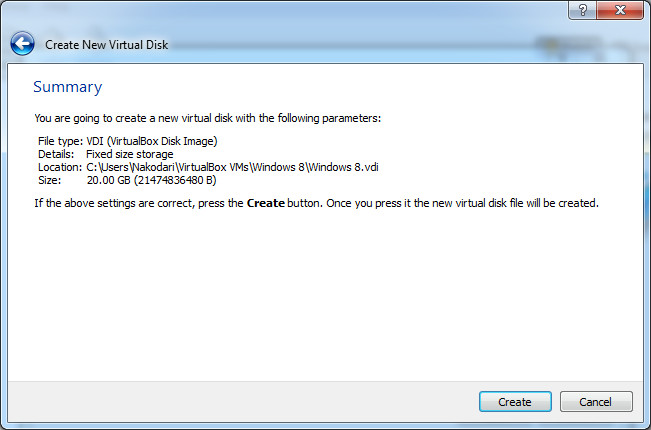
In the last step, you will be given a quick summary of the settings you have selected. Click Create to begin creating virtual disk file.
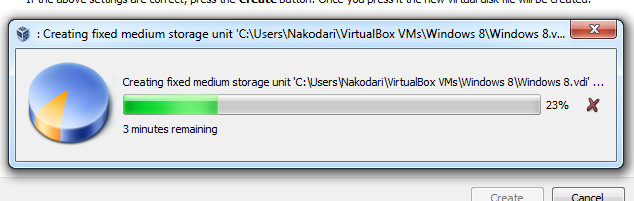
It will take anywhere from 5 minutes to 30 minutes to create a virtual disk space, i.e, a fixed medium storage unit. Please note that it can take more than 30 minutes if you have allocated more than 20GB hard disk space for new machine.
Once the process is complete, in the final step, click Create and you will be taken to the main interface where the Virtual machine will be ready.
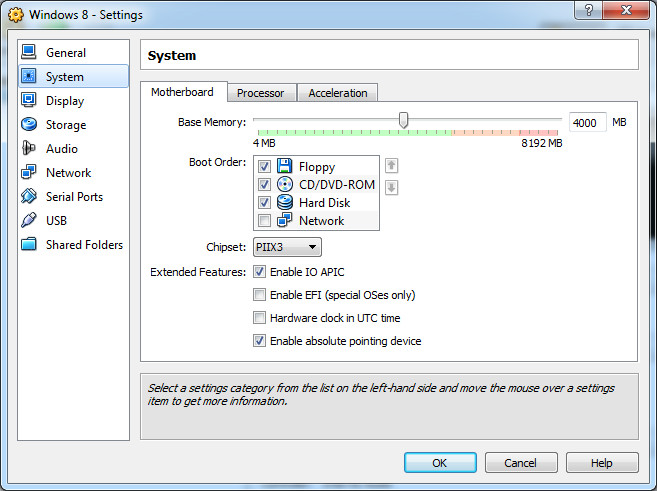
Now go to Settings, click System from left sidebar, and make sure that Enable IO APIC is checked in Motherboard tab. You can uncheck Enable absolute pointing device since it is not used by most users.
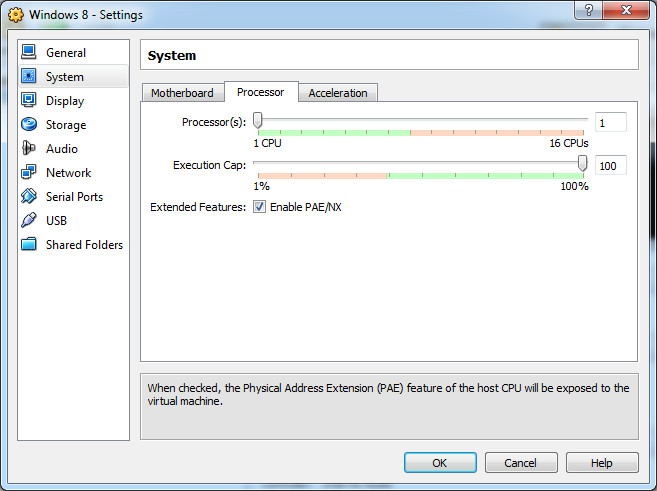
When done, move to Processor tab and make sure that Enable PAE/NX is checked.
Finally move to Acceleration tab and make sure both Enable VT-x/AMD-V and Enable Nested Paging are checked.
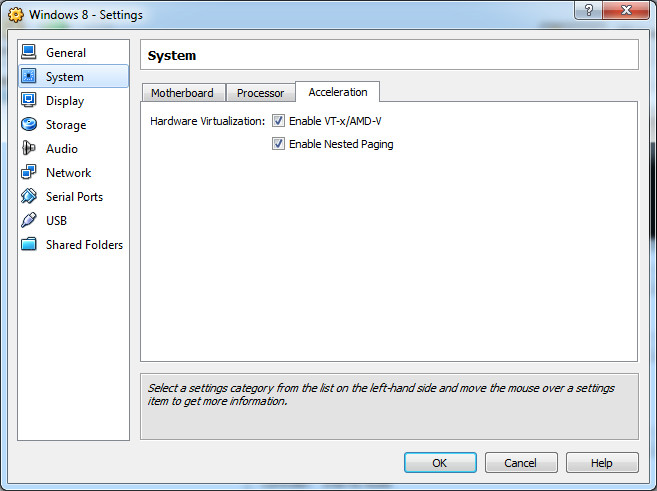
Checking all these settings are important, otherwise Windows 8 will not install on VirtualBox.
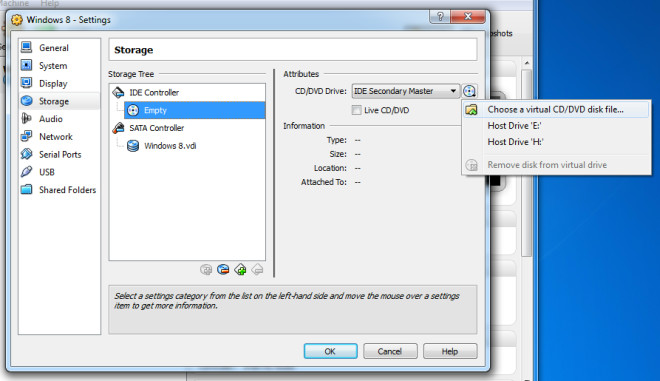
Now go to Storage from the left sidebar and click Empty under IDE Controller. Click the CD icon next to CD/DVD Drive selection box and click Choose a virtual CD/DVD disk file. Now navigate to the Windows 8 developer build ISO file that you downloaded and select it. When done, click OK.
You will now be back on the main interface. Click Start to begin installation of Windows 8 and follow the on-screen instructions.
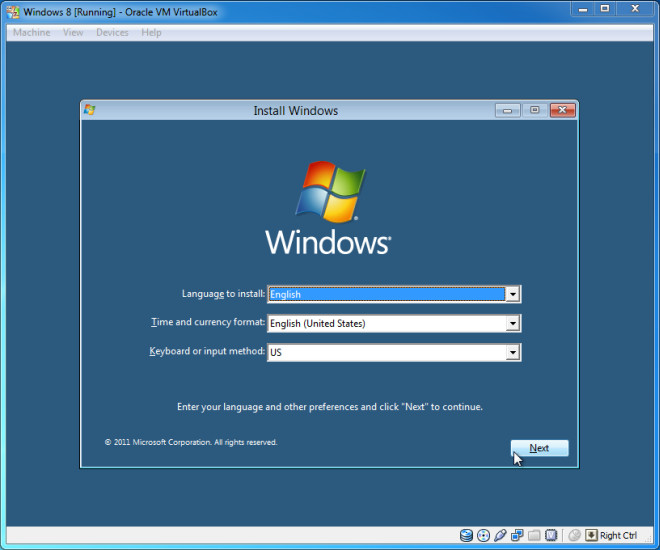
After the installation is complete, you can start using Windows 8.
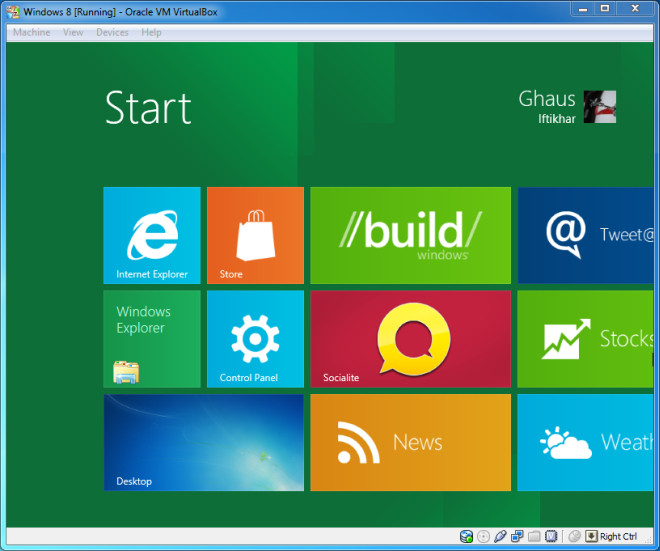
The next time you run Windows 8 virtual machine inside VirtualBox, it will boot straight to the OS. We tested this on VirtualBox 4.1.2 running in Windows 7 x64 system.

thx 🙂
I can not go to System – Aceceleration tad (it is disabled).
Is it really a “no go” for installing Windows 8 on VirtualBox.?
I have used SysInternals CoreInfo utility and see it supports PAE, NX, etc… and also EM64T (64bit mode), but not support hardware virtualization (no VMX and no SVM).
The real pysical processor is a IntelGenuine Pentium IV HT 3.40GHz with 2GB of RAM… it is supposed to be a 32Bit only… but CoreInfo say it supports 64bit… i am very confused about that!!!
Any time i try to install Windows8 on VirtualBOx 4.2.18 refused to install telling i need a different processor!!!
That when not directly crashes with error code 0x0000005D!!!
I want to try Windows8 on VirtualBox prior to buy it… reason: i will not buy it if it will not work that way since i want to run it that way, i do not want to install it nativily… my PC runs Linux, over Linux i run VirtualBox and over VirtualBox i run 100% legal WindowsXP and Windows7… i now want to add Windows8.
I am in total opposition to use Piracy… say that i had downloaded some ISOs of Windows8, just to test it prior to buy it (i am not going to change my computer just to let VirtualBox run Windows8)… none has worked… also i had tryed with some “torrents” that mad people as All_In_One DVDs, etc… with same result.
I may respond to my self… if acceleration is a must, then it will not be possible.
I check BIOS and do not see anything about hardware acceleration… also CoreInfo says i do not have it… so it may be impossible to install Windows8 under VirtualBox…
Maybe it would be possible to install it under pysical pc, but i do not want that, on pysical pc i only want Linux, and that is a must!!!
So thanks for great info of why i can not run Windows8… it is no case i continue trying that… so no sence to seach for more iso’s downloads.
Now i know why, thanks a lot for your how to.
Worked like a charm for me, thanks 🙂
Thanks!! I’m working in the installation and all seems to be ok. Before this, the virtual machine crashed, showing a blue screen where the system said something about phisical memory..
I followed every instruction carefully…
But on installing it from the custom method it gets stuck on 6% of installing file nd says file is missing or corrupt…Otherwise its working quite nicely ….
I really want to install this ..Plz help me…..
“Your processor has to be 64 bit then, and it allows hardware acceleration.”
Don’t confuse people. My old Pentium 4 was 64 bit, but it did not have hardware acceleration. You just need a CPU which supports AMD AMD-V or Intel VT-X. Go to your processor vendor web site and see if your CPU supports virtualization. Notice, that many laptops with Core 2 CPUs don’t support virtualization although desktop Core 2 CPUs do support it. That’s just an Intel policy.
Help me!!! to solve this…..When Starting VM, after dispalying ‘Windows®’ logo it displays the following message:
Your PC need to restart.
Please hold the power button.
Error Code : 0x0000005D
Parameters:
0x0306170A
0X756E6547
0X49656E69
0X6C65746E
Beautiful! Win7x64 using VM 4.1.18 and Win8 32-bit. Worked perfectly. Thanks a ton.
it wont let me change the settings for Acceleration help me!
I got problem its said
Your Pc need to restart
Please hold down the power button
Error Code: 0x0000005D
Parameters:
0x03100602
0x68747541
0x69746E65
0x444D4163
anyone could help me please 🙁
Can any one help!!
I am trying to down load Windows 8 on to my MacBook. I have followed the step by steps instructions
above but at the final hurdle when it says choose a virtual CD/DVD disk file,
then a box opens up with a box file saying Windows 8, well that’s as far as I
can go. Any ideas would be helpful
at this time because I am fresh out.
I Have Windows 8 64-Bit But Iam Using Windows 7 32-Bit
Your processor has to be 64 bit then, and it allows hardware acceleration. If you do not have hardware acceleration, you could only use 32 bit Windows 8.
Your setup is quite odd. Using 64 bit Windows has its advantages, because for one Rootkits have a 99% chance of infecting you, I have only seen this happen one time by exploiting SysWOW64, and it is patched.
thank u for the guidence:-)
I finally downloaded the iso file from another computer, and finally had success. I recommend trying this
Excellent Guidance!
Note that these settings also work for installing Windows 7 64-bit. Two things: You can return the setting to Windows 7 64-bit after the install is complete; and use the “Intel Desktop” Network Adapter in VirtualBox or Windows 7 won’t find a Driver for it.
Thanks!!!
Thanks a lot 🙂
So if the processor does not support Virtualization you are owned?
Then get 32 bit Windows 8. 64 bit requires hardware acceleration.
I have the 32 bit version of Windows 8, and I don’t have hardware acceleration.I tried to install Windows 8 but it gave me errors. Could you help me?
I’ll try my best — can you tell me exactly what you are trying to do, the version of Windows you are currently running, the CPU architecture and what you are trying to install in Virtual Box?
Windows 7 Ultimate, Intel Celeron Dual Core x64 and Windows 8 Enterprise.
What bit version is Windows 8? And can you give me more info on the errors you are getting? If you can, tell me what the errors say and any error codes associated with them.
I have a question. It asks “Which type of installation do you want?” I do not want Upgrade because it moves all my files to Windows 8. But the Custom option doesn’t look good either because it tells me to back up my files. Can someone help? Thanks!
If you want to do a clean wipe, you’ll want to back up your personal files. Choose custom, and wipe the drive from the setup.
Umm, it’s asking me for product key for Win 8 Consumer Preview. How do I find one?
Just incase anyone else having problems. I have a SAS controller on my motherboard and could only install Windows 8 x64 Consumer Preview with the CD ROM and Hard Drive on an IDE controller, neither could be on a SATA controller, I had to remove the SATA controller altogether for it to work.
My son’s Macbook Air with OSX 10.6.8 has VirtualBox 4.1.8 r75467 installed. I downloaded the Windows 8 Consumer Preview ISO image for Win32. I’ve followed all of the directions in this note, but am getting various errors during installation. First one is a dialog box titled “setup.exe – Bad Image” with contents of “X:windowsSYSTEM32USP10.dll is either not designed to run on Windows or it contains an error. Try installing the program again using the original installation media or contact your system administrator or the software vendor for support. Error status 0xc000020.” Any ideas on how to resolve this? Thanks!
Instructions worked flawlessly for me. Virtual Box 4.1.8 is available so I upgraded to that when I started, then when it was time to select a guest operating system, I choose Windows 8, only Windows 7 is available in the screen shots above.
why are you using such an old version of virtualbox
the latest on site has windows 8 in guest list
I can’t get Win8 to go full screen… anybody else having that issue ?
Is there an issue with your host’s graphics drivers?
VirtualBox’s options to make the OS go full screen should work.
thanks dude.. this is very helpful…..
Hey, what the heck. I did EXACTLY what you did and this is what happens:
The files “load” good and all, but after it shows the words “Windows Developer Preview” the screen shows blank and then comes up with this:
Computer needs to restart
Error Code: 0x0000000A
Para
0xFFFFFFE6
0x0000001F
0x00000000
0x81B3F63B
What do I do now?
This happened to me before, so I deleted my first machine and started over, yet the same result ensued.
Yet this exact same setup worked on my friends’ laptop.
You need to also ensure that Execute Disable Bit is enabled in the BIOS for this to work and do a proper restart of Windows. You can’t boot into windows from a hibernation state after enabling EDB and expect it to work, your Windows HAS to be restarted.
I had exactly the same error as yourself and after enabling this feature it worked. It would be handy if the guide stated everything you need to get it working, would save a lot of hassle. Great site though 🙂
I had this issue too… it turns out I didn’t save my settings when I checked those boxes in the Settings–>System on Motherboard, Processor, and Accelerator. Once i went back and checked those, then hit OK, and hit start again, the installation began!
I had this issue too… it turns out I didn’t save my settings when I checked those boxes in the Settings–>System on Motherboard, Processor, and Accelerator. Once i went back and checked those, then hit OK, and hit start again, the installation began!
we had the same errors too 🙁
it says in settings invalid settings detected
This is outdated. The latest version of Virtual box supports Win 8.
If you are using the lastest version of Oracle VM VirtualBox (Version 4.1.8), DO NOT use the Windows 8 options under the operating system thing. It cant boot. Also, if you find out that you can’t boot thw second time, change the order of booting. Thanks for this guide, I can finally install this thing. I’ve been fiddling this for months!
Great info. Thanks.
Thanks, this is really helpful
acceleration tab is unavailable what to do?
Use the 32 bit version of Windows 8, because you must have hardware acceleration provided by the CPU in order to use 64 bit OSes. If you don’t have hardware acceleration, then use 32 bit Windows 8.
Use the 32 bit version of Windows 8, because you must have hardware acceleration provided by the CPU in order to use 64 bit OSes. If you don’t have hardware acceleration, then use 32 bit Windows 8.
Wat? I have the 32 bit version. Dunno about the person above. So shall I give up and try DOS instead? 😀
If you have the 32 bit version, then you should be ok. CPU power should be fine.
Acceleration tab is disabled.
Then your CPU does not support hardware acceleration or it is disabled. Try getting Windows 8 32 bit.
I got to the boot screen then it failed to boot.
I got to the boot screen then it failed to boot.
Meh. PEBKAC — upgrading to see if this fixes this issue.
Segui todas suas instruções.O problema é que quando vai configurar o windows 8 diz que o meu PC não tem processador de 64-Bit. O que eu faço?
You must get 32 bit Windows 8. Try this.
None of the Apps will run for me.
Try 32 Bit Windows 8. If the apps inside Windows do not work, they are unstable.
Ok. I have tried numerous times to load the Win 8 DP. Every time I get this error:
Failed to open the CD/DVD image /Users/username/Desktop/WindowsDeveloperPreview-64bit-English-Developer.iso.Could not get the storage format of the medium ‘/Users/username/Desktop/WindowsDeveloperPreview-64bit-English-Developer.iso’ (VERR_NOT_SUPPORTED).Result Code: VBOX_E_IPRT_ERROR (0x80BB0005)Component: MediumInterface: IMedium {53f9cc0c-e0fd-40a5-a404-a7a5272082cd}Callee: IVirtualBox {c28be65f-1a8f-43b4-81f1-eb60cb516e66}
I am trying to run this on a MacBookPro with Virtual Box 4.1. r74291. Can anyone help me with what I can do to get this loaded. You can email me at:
greg.petrosh@gmail.com
Hi I also have the same problem but I am running on Windows Vista
can anyone help, if so email me at daniel@juliesbabygifts.co.uk
Same Problem. I am running on Windows Vista as well.
Try 32 bit Windows 8
I… think I have. I have vista too, cant install it.
Did you try 32 bit Windows 8?
This is usually due to a bad ISO image – try downloading it again
Can you try 32 bit Windows 8?
i have DirectX 11 graphics device with WDDM 1.0 support but why windows 8
(32bit) doesn’t supporting touch.ihave installed da 32 bit windows 8 but no touch sense plz help
It Says
“Your Computer Needs To restart
Hold The Power Button
Parameter–000”.And Some Other Numbers Plz HELP! 🙁
did you find out what caused this? I have the same problem!
Make sure you save your settings. If you do not have hardware acceleration via your CPU, then try 32 bit Windows, as 64 bit OSes need hardware acceleration to work.
I cannot click on the acceleration tab in the system window
It appears but its not possible to click it.
Please help
Your CPU does not support hardware acceleration. Try running 32 Bit Windows 8.
I keep on getting this error and I don’t know how to fix it: Failed to open the CD/DVD image C:\Documents and Settings\User\My Documents\Downloads\WindowsDeveloperPreview-32bit-English (1).iso.
Could not get the storage format of the medium ‘C:\Documents and Settings\User\My Documents\Downloads\WindowsDeveloperPreview-32bit-English (1).iso’ (VERR_NOT_SUPPORTED).
Result Code: VBOX_E_IPRT_ERROR (0x80BB0005)
Component: Medium
Interface: IMedium {53f9cc0c-e0fd-40a5-a404-a7a5272082cd}
Callee: IVirtualBox {c28be65f-1a8f-43b4-81f1-eb60cb516e66}
same as me, downloading the iso again to test it.
guys i wont help! i installed windows 8 by just clicking the set up on the file i download and i want to uninstall it! can someone help me?
Did you get this sorted Marie?
Oh man, what a mess, error’s all over the place for everybody! I think i’m gonna wait for the full version to come out before I try this.
Very nice site!
Acceleration tab in system is inactive. I have Asus F80 s laptop, 4gb ram, 256mb AMD graphics card…what can be the problem?
Your CPU does not support hardware acceleration. Try running 32 bit Windows 8.
I seem to be able to successfully install Windows 8 but when it runs for the first time and tries to do the initial setup, it stops recognizing the keyboard and mouse buttons. This happens on the screen where it is asking me to give the machine a name. I can move the mouse cursor but clicking does not select the input box. Clicking on the “Next” button doesn’t work either. Does anyone have any thoughts?
Win 8: WindowsDeveloperPreview-64bit-English-Developer.iso
VirtualBox: 4.1.2
Mac OS X: 10.6.8
Mac: iMac 2.8GHz Intel Core i7
I am trying to install Windows 8 developer preview 32bit, I’ve tried to follw these steps to install, but the Accelerator tab under system in virtualbox is grayed out and I have no idea why. Does anybody have any thoughts?
Your CPU does not support hardware acceleration. Try running Windows 8 32 bit.
It sucks for me really, considering my main PC is sitting right in front of me that is commonly most used, has all my data but yet has an older processor than the laptop sitting right beside me that I could instantaneously use instead of me PC (it’s a Mac!) so sadly I no of NO WAY to just ‘slip’ the iso onto the Mac to network boot it, I could put it on a Flash drive but I’m unsure if it’ll accept it, plus the screen is broken ='(
A note about Virtual Disk Storage options:
“In this step, select Fixed size so that it does not eat up more virtual disk as allocated by the user.” –> this is wrong.
Dynamically allocated means if you set the disk at 20 GB, but the VM use only 10 GB (for OS, data, etc.) the virtual disk only consume 10 GB of the actual hard disk space. When you add more programs & data the the virtual disk will get bigger (consume more hard disk space) but can’t grow over 20 GB (or if the actual hard disk run out of space).
Use Fixed size if you want to “reserve” the space for the virtual disk before hand.
Also if you use Dynamically allocated you don’t need to sit and wait while VirtualBox creating the virtual disk.
Thanks for pointing it out. You are correct!
Si me sirvio :). Muchas gracias
Código de Resultado:
VBOX_E_IPRT_ERROR (0x80BB0005)
Componente:
Medium
Interface:
IMedium {53f9cc0c-e0fd-40a5-a404-a7a5272082cd}
Chamador:
IVirtualBox {c28be65f-1a8f-43b4-81f1-eb60cb516e66}
Make sure you read the Important Note at the top of this page, i got the errors that people keep reporting because i hadnt turned on Virtualisation in my computer’s BIOS. Turned that on and works fine.
Do I need a seperate hard drive for installation? Like I have C, D, E, F (all with 80GB) so will I need to format one of them to install?
No, it’s a virtual machine, it creates it’s own hard drive from your hard disk space.
i am also getting the same error
“computer needs to restart”
All steps mentioned, hav been followed
any idea….
when i start windows 8 it say you need to restart your computer , any idea ?
I can’t install it on VirtualBox, appears the same thing Dwite: http://dl.dropbox.com/u/31880748/21345.png. What I do?
My keyboard is not working in virtual box. I keep hitting the HOST key but it’s not working. I have to do Control Alt delete to come back to my windows 7 desktop.
http://dl.dropbox.com/u/31880748/21345.png
i had that problems with intalling win 8 x32 with developer preview 😐 who know how to help me? (
I have this problem too ):
Plus- I have Pentium E5200, and the “acceleration” tab is grayed for me in VirtualBox 4.1.2.
Anything to do?
yeah, i installed it on VMware without problems
which virsion of vmware u used to install.
and u install either 64 bit or 32 bit of windows 8…….
I installed Windows 8 Developer Preview 64bit on Virtualbox and was able to boot for the first time. No problems occurs, even when I shut down for the first time. The second time when it tries to boot up, it crashes. I tried using the iso file to refresh and repair the computer, but no luck. Any ideas?
How do I uninstalled it?
is it possible to run this on my EEE Transformer????
Nope, it’s a great tablet but no 🙁
I installed the virtual box but seemed a little slow, so I installed Windows 8 on a celeron computer and run well. It had Vista and the performance was good. With Windows 8, it’s a little slow but it’s comprehensible. It’s an alfa version, my processor is celeron but the whole concept looks very promising. I must have Windows everywhere, phone, tablet and PC with a common interface… Great!
same problem tryin to select the iso ….Cannot get past that step! Help
Win7 64, 8gb RAM, trying to use the 32 bit version of Win8 on Virtual Box
nevermind, found out it was the iso not being the right size, check your iso download sizes people!!! I downloaded it again and Presto!
I hope that I helped at least one person out
Works great! Thanks for the info.
Nice tutorial. It doesn’t go over installing the VirtualBox Guest Addons though. Unfortunately I can’t get the VirtualBox video driver to work in Win8 no matter what I do. You’d think if it works in Windows 7 it would work in 8. Did they do any major changes to the driver model?
After welcome screen, install failed with code: 0x0000000A, para:
0xFFFFFFE6, 0x0000001F, 0x00000000, 0x81B4263B
Me too.. every time.
installing 32 bit, followed this tutorials intstruction and still get the error, i’ve got the logs if anyne s willing to help 🙂
im also getting the Para errors.. checked SHA1 – is verified. what could be wrong?
Hi!
I am running Windows XP on my computer. If I install Virtual box, and I Install Windows 8. Do I lose my windows XP? Or doese it runs next to Windows XP (that I won’t lose my document and stuf).
Thanks! And greetings from Holland!
NO YOU DON’T. It will be running next to windows xp, it only deletes stuff if you install the os and wiping your hard drive!
I had the 🙁 smiley face until I went into Bios and enabled Speed step. Now it is successfully installing correctly on VirtualBox.
Awesome instructions – I used this on my MacBook Pro with no problems – I have linked this article to all my friends – Thank you very much for the detailed walkthrough xD
For those that arent sure if they have the full download, i would use a program that can check the SHA 1 hash that Microsoft provide under each of the options to download (http://msdn.microsoft.com/en-us/windows/apps/br229516). Simply download and install a SHA 1 checker (I downloaded it from here http://download.cnet.com/MD5-SHA1-Download-Checker/3000-18510_4-75449920.html), tick the SHA 1 box then point it at your Windows 8 iso file. Make sure you tick the box BEFORE you locate the iso file, if not it will check a different hash tag to SHA 1 and the codes will not match.
Once its done checking, copy and paste the SHA 1 hash code from Microsoft’s website into the verfy box and you should get a tick if it matches, if not then then the file is either corrupt or incomplete and you should try downloading again. Hope this helps!
Hahaha love that ‘Floppy’ is still an option to boot from.
OK, tried the Win8-32 client OS, that installed fine.
works! thx
Immediately after booting I get a message that a driver for the CD/DVD drive is missing.
Win7-64 host OS, Win8-64 client OS.
Try mounting the ISO again under the storage tab in the settings.
Why the heck is their a radio playing adverts really loudly that you can’t turn off?
It is ads. I hate them. I suggest you use AdBlock for Chrome and Safari, and AdBlock Plus for Firefox.
When you getting the following error about VT you have go into the BIOS and enable my Intel VT VMM capabilities, then you don’t get this error any more.
If your 64-bit system, you must have your physical processor in your computer is 64-bit support. Does your processor does not have 64-bit? Then install the 32-bit version, and the problem must be solved.
If still get error messages related to your processor. Try your virtual machine to select multiple processors. (minimum 2) If it still does not try VMware or other virtualization programs.
Sorry for my bad english, I’m a Dutchman ..
1) VT VMM capabilities have been enabled in BIOS.
2) Yes, my processor can run at 64-bits.
3) I have attempted an install of both the 32-bit and 64-bit versions of W8, and BOTH were unsuccessful. Same error about “VT-x features locked or unavailable in MSR.”
4) I tweaked VitualBox to select 2 processors (the amount I actually have on my host), & the error persisted.
Thanks for your help though!
I guess I should move on to VMWare now…
I’ve gotten the 64-bit version up and running in VirtualBox 4.1.2…..but I can’t get the network to work. Any ideas on a driver that will work with Windows 8 on VirtualBox?
Also…looks like the sound card doesn’t have drivers…..
Try tuning the sound drivers via the Virtual Box settings.
Rick: Use the Intel PRO/1000 MT Desktop adapter in Network settings for the VM. Windows 8 M3 will auto-detect and configure it. See my blog post about the same topic: http://phpraxis.wordpress.com/2011/09/14/installingrunning-windows-8-developer-preview-in-virtual-box/.
“VT-x features locked or unavailable in MSR.
(VERR_VMX_MSR_LOCKED_OR_DISABLED).
Result code: E_FAIL (0x80004005)
Component: Console
Interface: IConsole {1968b7d3-e3bf-4ceb-99e0-cb7c913317bb}”
I am running Windows 7 64-bit as my host, & I am attempting an install of Windows 8 64-bit. Yes, I DO have virtualization enabled on my host (through the BIOS), and VT-x/AMD-V enabled in the VirtualBox settings. I followed these directions & checked/set everything correctly.
No luck. :/
Any solution?
Should I just try installing the 32-bit version of the beta?
What i did was mount the iso with poweriso and then launch the virtual machine, then select you virtual disk for example disk F:
What’s a pity. I cannot install it in VirtualBox.
Thật là tiếc, tôi cũng không thể cài nó trên VirtualBox được.
I get this error:
Resultaat code:
VBOX_E_IPRT_ERROR (0x80BB0005)
Component:
Medium
Interface:
IMedium {53f9cc0c-e0fd-40a5-a404-a7a5272082cd}
Callee:
IVirtualBox {c28be65f-1a8f-43b4-81f1-eb60cb516e66}
I get the same error when selecting the iso under “Choose a virtual CD/DVD…”. Any ideas? I’m trying to install the 32-bit version of W8.
Me too! Any suggestions? I’m a little dubious that I got the full download. The site said it was 3.6 GB, but my file was 3.4 GB. (W8 64bit without dev tools) My download “froze” at 9 minutes remaining, and then mysteriously completed, without finishing the last few percent. I downloaded it with Firefox. Perhaps I should re-try using IE?
Yep that happened to me a couple time before i figured it out, IE 9 seems like the only browser that can download it.
Nowadays FF is the worste browser. Opera, Google Chrome, IE are better… No download problem with Opera
I got Chrome to do it.
2 things to fix the error – I had to enable virtualization, and tried downloading the iso 3 times before IE downloaded the ENTIRE file. The first 2 times I had changed the file Save As location and it “completed” downloading at 880MB. The 3rd time, I let IE save it at the default location, and it worked. Runs in VB as expected.
I just downloaded the 32-bit version in Internet Explorer, and had the exact same problem, again.
1) I cannot add the iso file to the CD drive (same error as above)
2) The download stopped at 98%, and then mysteriously finished.
What’s going on? I have the impression that I’m not getting the 100% complete download. For those of you who have successfully downloaded and installed, did the installation freeze right before the end, or did it go through “normally”?
This error is caused because you have not activated Virtualisation in your bios
I have succcessfully downloaded the 32 bir of win 8 using IE9. It never froze!
i am even facing the same problem. Is there any alternate solution than downloading the complete iso file again.
OK. I finally downloaded the iso file from another computer, and finally had success. I recommend trying this.
Good luck!
Ditto here. Multiple downloads of the ISO did not resolve.
Thanks for the tips! It took me a while to figure out that I/O APIC was causing Windows trouble in starting.
Do you know if there’s a way to get a “true” full-screen experience (not just a box surrounded by black space)? It doesn’t look like Guest Additions are supported…
You will have to increase the resolution inside Windows 8 to 1024×768 or higher to get bigger size. The default is set at 800×600 which is quite small.
Try installing the guest additions.
Guest additions still not support windows 8 … CMIIW
There is now an option for windows 8 at the adding vm window. Do you think it’s supported now?
I don’t know. I’m not test them yet. I think I’ll wait until consumer preview (aka Beta) out and test them again.