Record And Share Screencast Quickly With TinyTask
Suppose you want to share a quick screencast with your friend or co-worker, what will you do? Search a screencast tool, download it, install it, learn to use it, record the actual screencast, name it, save it, and send it. Woah! that’s a long lists. Instead you can simply grab TinyTask.
Update: We recommend that you try out Free Screen To Video and BB FlashBack Express. Both are awesome free screencast tool with options to save in various videos formats.
It is a free portable tool for windows that performs some basic automation tasks such as recording and playback. Just launch it, press record and it will begin recording. When done, press record again and it will stop recording.
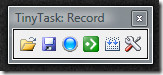
When done, hit Play(hotkey F5) and it will play the screencast instantly. You can also hit Save to save the screencast in .rec format. The little utility has a total of 6 buttons, Open, Save, Record, Play, and Compile, and Options.
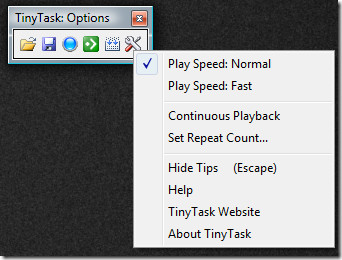
According to the developer, the entire program is only 29k – and 14k of that are icons, which means the executable portion is just a few K in size. Which in my opinion, is quite remarkable. From options you can choose options such as Play Speed, Continuous Playback, and Set Repeat Counts. It works on all versions of Windows.
Also check out TinyTalk, it allows you to talk over LAN or Internet. Even through the name sounds similar, both the apps are from different developers. Enjoy!

I think you may have the wrong idea about what TinyTask actually does. TinyTask does not actually record a screencast, it records your actual mouse and keyboard input while it records. When playing back it repeats those commands, but if windows etc have moved on-screen, it will not play back the same – it’s not a video recorder like screencast tools are. Sending the recording to someone else would only show the mouse moving around arbitrarily on their own screen.
can you plz tell me how to stop playback on it????
At any point, you can press the Break key to stop playback. (press it a few times in case it doesn’t get signaled immediately due to other activity.)