Sync MS WordPad With Paint In Windows 7
MS WordPad includes a nifty little feature which enables user to sync an image with MS Paint, you can edit an image in MS Paint to apply changes in WordPad document. This could be very beneficial when you are writing a document that contain images that needs editing. Previously you needed to copy the image to clipboard and open in any image editor to edit it but with Paint Drawing feature you can start editing an image in MS Paint in real-time.
Launch WordPad and open a document containing images. For instance, we have included an image in WordPad document as shown in the screenshot below.
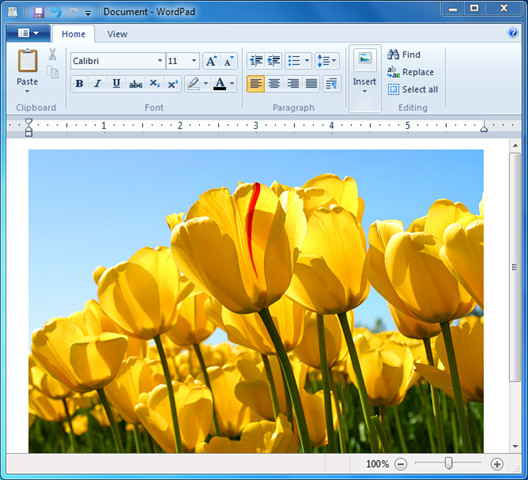
Now we want to open this image in MS Paint to edit it. Copy the image, then navigate to Home tab, and click Paint Drawing.
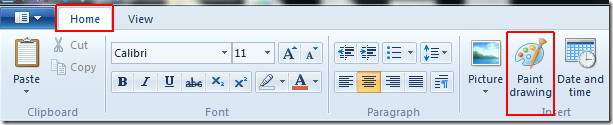
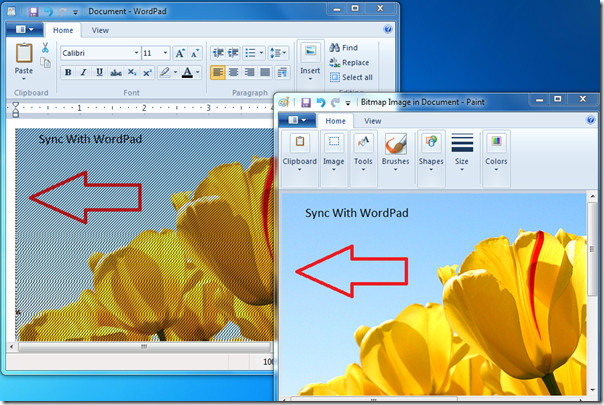
This will open MS Paint, paste the image and start editing it in Paint, you will notice that image is now synced with WordPad document. On changing the image in Paint, you will notice that the changes will be reflected in WordPad.
You can also checkout previously reviewed GIF resizer & Fastest way to upload and share Pictures
