Take Ownership & Grant Permissions for Files & Folders in Windows 8
Like its predecessors, Windows 8 imposes strict access permissions on system-wide locations, folders and files. These access permissions restrict unauthorized users (including clients on network, and standard and guest users on local PC), and external sources (malicious scripts, viruses, malwares etc), from accessing core system folders and files. You may know that, when a malicious script attacks a system, it attempts to gain admin or root access to the system to exploit security vulnerabilities. In contrast to previous Windows versions, Windows 8 comes with an enhanced, and robust Advanced Security Settings, making it difficult for a novice users to gain complete control over the system locations, folders and files.
The file permission is a pre-defined rule that is associated with numerous system objects/users, preventing unauthenticated objects from taking full control over the system files. These file access rules help Windows check if a user or system object can gain special file access and write permission of a file. Additionally, the file access rules are defined by Windows, and can only be changed by PC administrators. The process of taking ownership of system files and changing access permission of system files is quite complicated, as it requires inheriting user objects or replacing default owner (TrustedInstaller object) with a specific PC user. In this post, we bring you step-by-step instructions for gaining full control over Windows 8 system files.
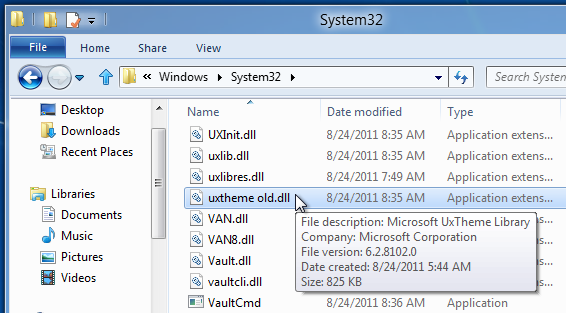
The system-wide locations, including Windows and System32 folder, don’t allow administrators to modify the system dynamic link libraries, executables, and other files. However, you can change the permissions for system files by tweaking Advance Security Settings. For instance, you want to edit and rename Windows 8 Theme DLL file namely uxtheme.dll. The first step for modifying the file content is to gain full file access and write permissions from system user object (TrustedInstaller), which has complete control over all system data.
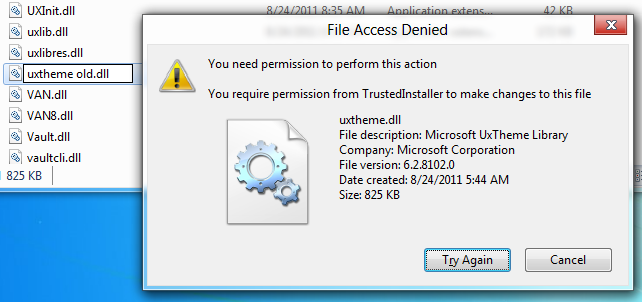
To begin, move to location where system file that you want to modify, is residing. You will notice that Windows 8 denies all type of write access to the system file, and shows File Access Denied dialog when you attempt to modify, delete and rename the file.
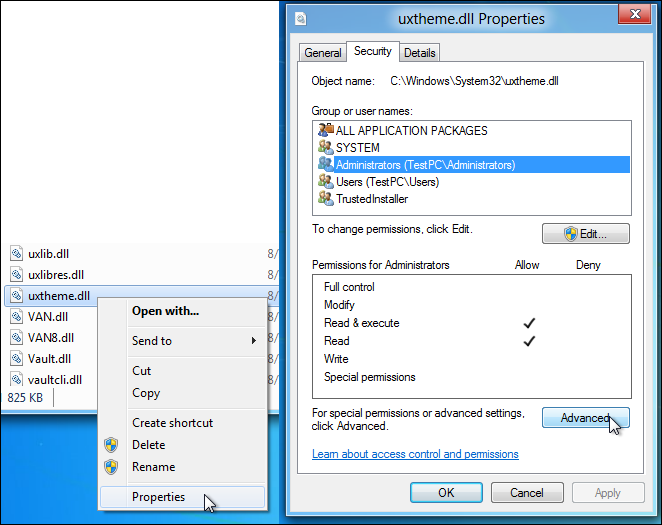
Before you begin, make sure that you have administrative privileges to change the file access permissions, as standard user account holders can’t change the ownership of system files. Just right-click the file whose access permissions are to be changed, and then, select Properties. Now, move to Security tab, and select Administrators (<your user account name>\Administrators) from Permissions box to view the current file access permissions.
By default, users from Administrators group can only read and execute the file, and they don’t have permission to modify and write to file. To gain full file write access, click Advanced, present underneath the permissions box.
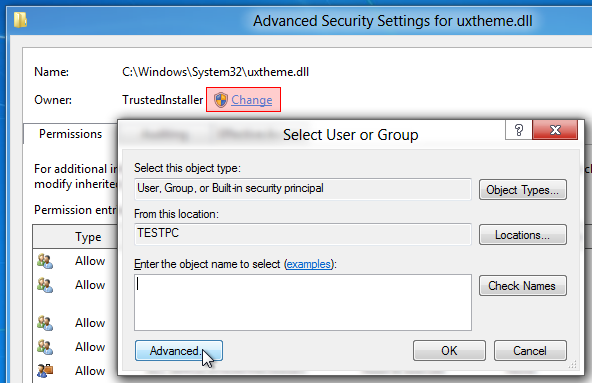
This will open Advanced Security Settings dialog of file, showing all the permission entries, Owner’s name, etc., with an option to change the file access permissions of selected user. First, off, change the owner by clicking Change. It will open Select User or Group dialog for selecting the new owner of the file. Instead of entering the name of owner, you can use the Advanced option to select the user from list. For this, click Advanced button.
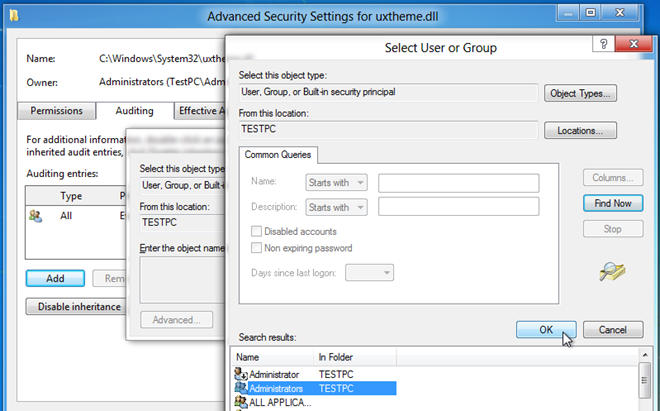
In Advanced mode, you can search all the available users by clicking Find Now. It shows users and system objects in the list at the bottom, letting you select user/group to give ownership of the file. If you for instance want to give full file write and access permission to user who belongs to Administrators group, select Administrators and hit OK. Similarly, you can add more users by adding Users group from the list.
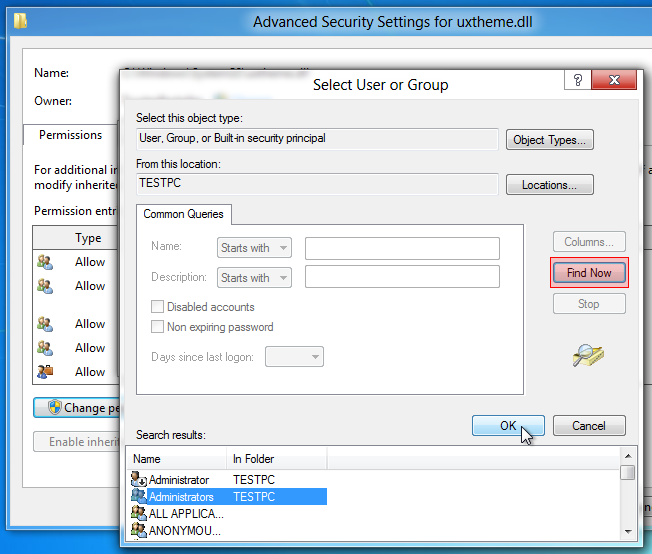
Once Administrators group is added, click OK to close the Select User or Group window.
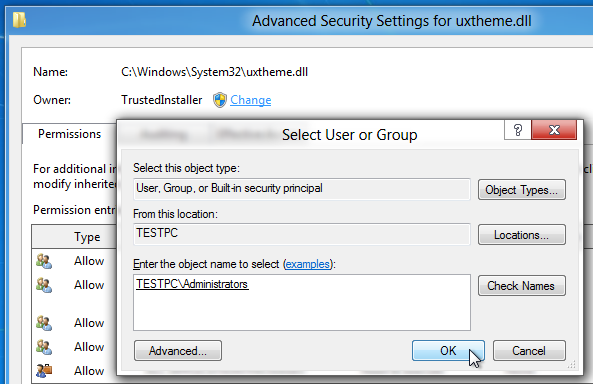
Upon click, it will change the ownership of the file. Now, you need to add a specific Auditing entry for Administrators group to modify the file permissions (read, execute, write, modify etc). Just head over to Auditing tab, and click Add.
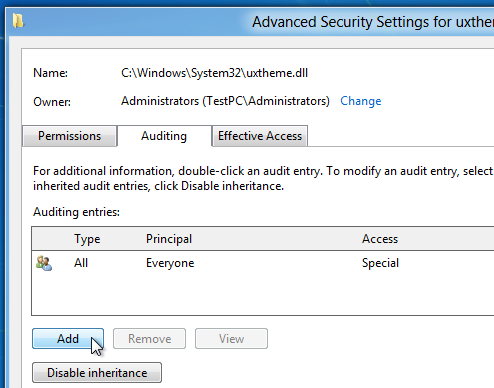
It will open Select User or Group dialog, allowing you to add a user object for inserting it into auditing entries list. You can either manually enter the name of user (who belongs to Administrators group) or click Advanced to select the user from the list.
Once you add the Administrator to auditing entries, it opens a Auditing Entry dialog to let you specify the file permissions. You can click Show advanced permissions to view and enable all file-related access permissions including traverse folder/execute file, read attributes, read extended attributes, create files/write data, write attributes, delete, read permissions, change permissions, take ownership and more. In order to gain complete control over file, select Success from Type drop-down menu, and enable Full control and hit OK.
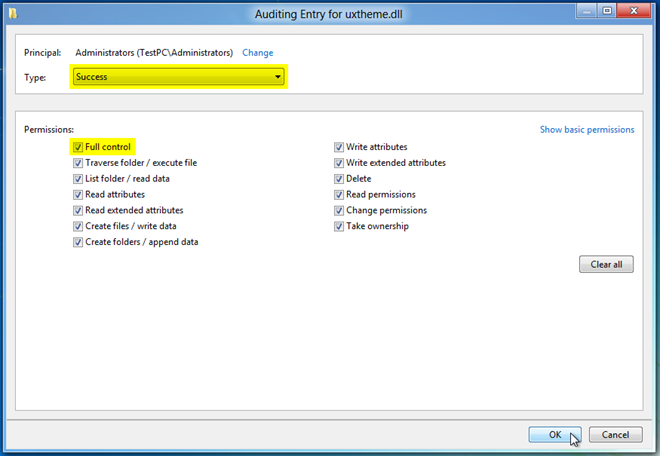
This will define the file permissions for selected user. Now, click Apply followed by OK to make changes to file access permissions.
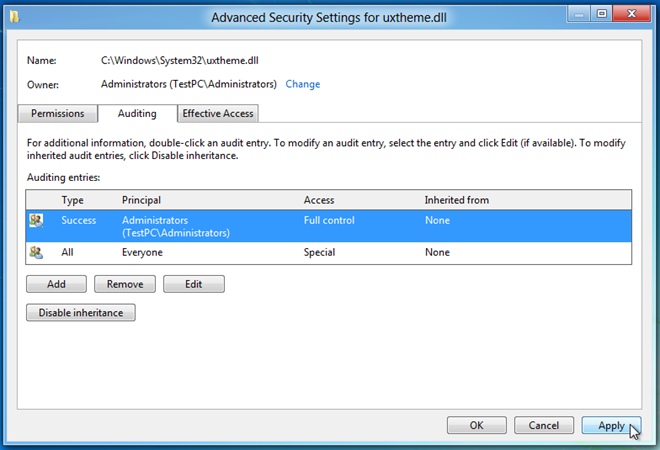
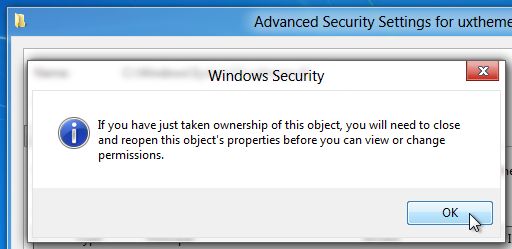
Upon click, Windows Security dialog shows up, confirming the changes made to file security and permission settings. Click OK and then close both Advance Security Settings and file Properties dialog.
Now, all you need is to open the file Properties dialog, head over Security tab and hit Edit. You will notice that it now allows you to change the file access permissions for all users who belong to Administrators group. Select the user from the list, and under Allow field, check Full control checkbox to gain full file access permissions.
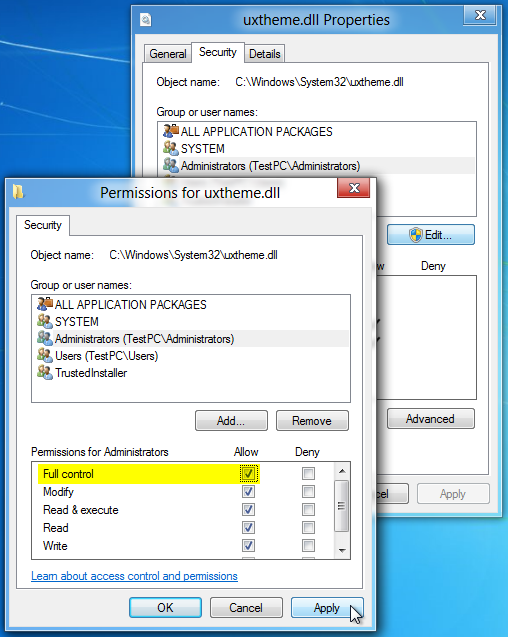
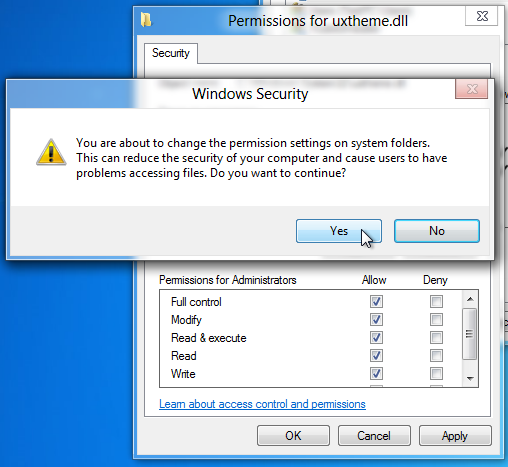
Now, click Apply, a dialog will pop-up confirming the action. Hit Yes to allow full file access control for selected file.
Once file permissions have been gained, you will be able to modify file content, rename it, delete and change file’s extension. However, changing default file security settings will leave system files vulnerable to external attacks. So, it’s advised to restore the original file access settings after making required changes. Similar permission issues can occur with applications like Spotify, and if you encounter access problems, you may need a Spotify permission fix to resolve them.
We also tried using Rizone Take Ownership Extension (an application for Windows 7 that integrates with Windows right-click context menu to quickly take ownership of files and folders) on Windows 8 system files, but it failed to gain special permission for writing and modifying system files. If you have tried any alternative that has worked, let us know in the comments.

but it says i have full control but apparently i dont
when i clicked on it said failed applying security then listed the file the says failed to enumerate objects in the container. access is denied.
i did every step and it didnt work. im trying to replace a file but it wont let me. idk why.
This did not work for me guys. i am just trying to uninstall a software in program files but not working. Whenever I try to it says I dont have permission.
Of course, Microsoft and NSA are “trusted installers”. These kinds of problems will not be fixed with registry tweaks or awaiting patches, since they are “by design”. These problems will only be fixed with legistlation, lawsuits, and even imprisonment of those individuals at M$ and in our government who think they can violate the 4th Ammendment and many other state and national laws pertaining to privacy and personal property. If M$ was interested in making a secure system, it is completely doable with P2P encryption and more (not less) access to ones private files.
Two questions: 1. can the instructions be applied to files/folders under Windows 10?
2. how risky would it be to use the procedure before the removal of a leftover folder of Cyberlink DVD 10 that no uninstaller program can handle?
I have a problem in windows 8 the problem is my driver is locked and also show adialog box access denied in properties /security/advance/the owner details is not shown it will shows a error Ad VirtualDisk joined to domine and also the RPC server is unavailable how can I change my properties to access the driver ( my mistake is in security edit permissions and authonication users dis select the full control,modify read and execution read write ) how can I change this
this didnt work for me
i just went back through it by myself, i changed permissions of all users, and even though i have admin access it wasnt working 0.o
Thank you so much! I can finally use my iTunes again.
I got it for the file access, namely…web.com, just before seeing your assistance though it is 100% right to get an individual file access.. But what if I want to take over, entirely, the admin privileges as a USER for my computer?
Thanks
Run CMD as admin…
Enter the following command:
net user administrator /active:yes
Log out, sign in as newly created administrator profile.
You just got super admin rights, and all your problems flew away!! 🙂
ITS NOT WORK FAKE
I did exactly as the instructions called for and I still am not allowed to change the security settings. I am logged in as an administrator.
takeown /f folder_name /r /d y
icacls folder_name /grant username_or_usergroup:F /t /q
i still don’t have permission to write the file
Please take a note, if you have an antivirus installed on your systems, it may also prevent you from modify ANY parts of your systems. To safely modify it, you may run your systems in safe mode and then take the ownership of the files.
So, if a re-install of win8 renders 4000+ of my media files “ACESS DENIED!”. Then all I have to do is to rinse and repeat this procedure 4000+ times? Great fkn work MS!
I agree 100%. Every new Widows is more convoluted and complicated. Win XP/SP3 on my desktop is a pleasure to use. 8.1 on my laptop is an unmanageable gorilla.
Good 1 …. Life saving…. Thanks ….
Ok, I need a straight answer for an idiot. I use windows 8. I have a test folder that I like to write to and take full control of (including its contents) except delete (I need to be able to delete its contents however). All I want is that folder to be delete-proof.
This is so ridiculous. If I try to rename a simple Notepad file on my C Drive, it tells me “A required privilege is not held by the client”. What is THAT supposed to mean? I am the ONLY ONE who even uses this computer. Its my home computer. Why is it so PARANOID? If I create the same Notepad file and save it to my “Documents” folder in my “Libraries” it allows me to rename the file and save it there. What does THAT mean?
thank you. very helpful!
I am sick and tired of spending my time on this and other OS restrictions. These problems are being deliberately set in place to restrict and control. This is criminal and must stop. I do not have time to waste this way. Microsoft and others are not fooling anyone anymore.
Worked great first time through. Thank you!
Works! My system is Win8
Many many thanks …These instructions really saved my data.
THANK YOU! I usually have trouble playing around with settings but your instructions were flawless! …. I love you
When getting to the auditing stage there are no principals and everything is greyed out. Clicking on ‘add’ does nothing. I have in the past disabled user area control but enabling it does not seem to change anything. The fact remains that even as an administrator I cannot edit system files – error that I have no permission on OS drive and I should write into my personal user area (which is retarded as I am trying to edit a system file). Even there, access is denied to User/Application Data. Removing the read only attribute on the OS/C drive also seems to do nothing, everything reverts to read only at the end of the process. Disabling or not the User Area Controls, same thing. Needless to say, this is driving me insane. I do not remember such issues on Windows 7.
Hi, I am trying to return permissions to TrustedInstaller now that I’m done making modifications. I did the same process for TrustedInstaller, it said it was transferring ownership, but in the end, “we” both have access to the folder now. Also, it now says the SYSTEM has access. HOW can we get it back to defaults? Thanks!
NT SERVICETrustedInstaller add this
Thank You Usman for posting this great tip. I was trying to edit an ini file inside the windows folder and this tip worked. thanks and keep up your good work.
I have followed all of your steps that you outlined above. However, after completing every step and finally re-opening the properties tab to edit permissions, I am not able to select or deselect any boxes at all. Windows 8 does not seem to recognize that I am the owner of that file. When I tried to simply rename the file itself, a pop up tells me I need permission form myself (the administrator) to rename the file. What can I do now? This is ridiculous!
Whoever design Windows 8 should be fired
Thank you. It’s working.
thanks it worked
Didn’t work for me either. The file I am trying to delete is a game file that I have deleted/modified often but now all of the sudden I don’t have permission. In the security tab of the file properties, the “Group or user names:” are:
My Name (email address)
Administrators (Name/Administrators)
Users (Name/users)
All have “Full Control” over the file in question, but it still says I need permission to delete/rename it.
There are other files in this same directory that I CAN delete/modify, but not this one.
I’m all for security, but there has to be an easier way to do such a simple task.
please, any idea on how to take ownership of c drive (c://) after i by mistake changed permissions to full deny? i’m the adminstrator of the computer and i’m running windows 8 pro
I can access the folder but it ask me for pemission to evry files .. plz help
This did work for me for the C:Program Files (x86) folder, BUT it only works now for newly created subfolders (so I can download new programs into new subfolders, as I wanted.) The existing subfolders were skipped, and I can’t download and save to them. I also had to make sure I selected the exact correct user, because using the Adminstrators group, of which the user is a part, still generated the stupid error. Anyway, thanks for this convoluted workaround! 🙂
I need to go through all this hassle to delete simple .jpgs that I ended up saving in my “Documents” folder? Really?
ho…ly…sh* that was a bother to just remove a file. I’m not liking this windows 8 anymore. Thx for the info, though.
thanks . It works.I have tried many tips but didn’t work. How to restore original file access setting?please
Didn’t work for me either, I have full control of the file, but when I want to change name , it would not let me, MSG..YOU NEED PERMISSION TO PERFORM THIS ACTION….
Didn’t work for me in windows 8 either. I think 8 is useless as another user noted, as I should not be having these kinds of problems that make it impossible to use skydrive!
Brilliant, sorted my mp3 backup problem beautifully clear instructions and it works. Thank you
Thank you, thank you, thank you. I am bookmarking this page. After dealing with a very useless Microsoft support, this made my day like you wouldn’t believe. Permissions granted and now I can get back to my regularly scheduled programs. All I needed to know what the hell an “object” was and your post cleared it up.
Thank you very much, worked perfectly 🙂
It didn’t work for me at all. I am trying to use a program (hdparm / smartmontools) to check information on my hard-drives via the command prompt. I still receive “PERMISSION DENIED” errors. Annoying as hell. I’m so damn tempted to go back to windows 7. I am only user on my computer…theirfore administrator. Yet…I have NO ACCESS. Trying to get around these damn file permissions is a pain in the ass. This is not files or folders, this is solely for the hard-drive. I don’t know if that is the same thing.
Thanks. That worked for me. Somehow wmiclnt.dll was clobbered. I took a version from another windows 8 installation and it worked. Although I cannot change the permissions back. The services which depend on the dll started almost immediately. The permissions are grayed so I cannot undo the “Full Control”. Plus I cannot figure out how to change the owner back to “Trusted Installer”. Any advice?
Nope. Didn’t work. I tried to change the read-only status of a file that I received from a photo developer. Changed all the administrator characteristics to be sure that the admin account could do it. First, there was no security tab on the file. Second, when I tried to change it as administrator, it said that I needed to be an administrator to change the permissions.So what to do next? Windows 8 is downright byzantine.
Thanks, Worked for Me.
Thanks, that’s a life saver!
This is a joke, right? Who would design something like this? It’s my computer! I would like to own my files!
Yo, what a schlep, but thank you for sharing this, much appreciated!
Two hours and still all permissions grey scaled
Does not work for me. From windows 7 backup drive to windows 8 PC.
Got this to work with Users (no joy with Administrators)!
damn son 30,000 gb in pics
you replied to the wrong person…
ABSOLUTELY GREAT!!! I thought I lost 30000 GB in Pics, and even more in music! Windows 8 is irritating me today!
Thank you for this article! I can’t believe how techy it is just to get access to my personal files that were on a 2nd drive.
Thanks!
Thanks!
I tried this on a folder that is a virtual host for my Xampp server and did not work. This W8 is really pissing me off.
Thanks for great post. Just like “sumit”, i try to delete an entyre old system folder. How?
Games for Windows installer can’t get access to the ProgramData folder and unfortunately the system won’t let me edit permissions for it following the above instructions. Is it possible to do this with the ProgramData folder at all? Or have I conjured up an issue noone else has yet to experience (or at least document on the web)…
This instructions is not working.
Thanks, it worked. Wasn’t Windows 8 supposed to make things easier?! Because I came closing to stripping W8 and reverting to W7 there ….
pretty useful, i wonder what the dangers of doing this are tho
This worked for me… been trying to save some edited ini files for a game for an hour lol… Thanks!
thanks
This works only for file what to do delete whole windows folder It is not to play prank with others it is that i have to delete my old win 7 windows
It says the same file access denied and you do not have prmissions
man u saved my life, I thought i lost all my data 😀 a gr8 piece of info…keep it up
Thank you so much, it’s very helpfull for me! Again, thanks
How do you do this for C:
taking complete ownership on 7 and 8 of important windows files can mess up your system
Are you serious? Because i just did that…lol…geeks
Like I said in my comment above,
If I try to rename a simple Notepad file on my C Drive, it tells me “A required privilege is not held by the client”. What is THAT supposed to mean? I am the ONLY ONE who even uses this computer. Its my home computer. Why is it so PARANOID? If I create the same Notepad file and save it to my “Documents” folder in my “Libraries” it allows me to rename the file and save it there. What does THAT mean?
So what am I supposed to do? Am I supposed to be saving all my documents and pictures etc in my “Libraries” instead of my C Drive? That makes no sense since there is tons of space on my C Drive. I don’t get it!
lol
In the first place, storing your files in the root directory (C:) is just really, really bad practice. Period. Any IT pro with a brain will tell you that. In the old days, it was even possible to lock up the hard drive once a certain number of files got stuffed in there.
So, after XP, M$ locked up the root directory to protect us from ourselves, per se.
Now, I will admit the freakin’ mess that M$ has made of file/folder structure viewing/management after XP is … well, inexcusable and hardly worthy of excrementation. But as M$ takes over more and more control of your files — cloud storage comes to mind — they will increasingly hide your files under more and more layers of nonsense. Here is the “simple” view (from Windows 7 at least):
[using Windows Explorer in Win7 default state from your login]
Desktop
– Libraries
— Documents
— My Documents
— Public Documents
where “My Documents” is equivalent to:
C:Users[your username]Documents
Now why did I do that?
“Desktop”, “Libraries” and “Documents” are just labels that M$ stuck on to confuse the issue.
“My Documents” is the actual folder where your documents are stored.The real reference for this folder is:
C:Users[your username]Documents
“Public Documents” is actually the “My Documents” folder from the new-for-Vista/Win7/Win8/Win-ad-nauseum User called “Public”. And, yes, Windows Explorer will display it as “Public Documents”. The real reference for this folder is:
C:UsersPublicPublic Documents
I haven’t taken the time to develop a short-cut to the real “My Documents” but if you have documents you don’t want anyone else seeing, you need to explicitly store them in “My Documents” under your username.
Any file that appears anywhere under the Public folder will be visible to any other user on the computer (and likely any network the computer is attached to).
To make matters worse, M$ conveniently disabled the feature we XP power users were used to: remembering where you last saved files. That means that in nearly every case, you will be required to manually navigate your way back to the folder you wanted to save a file in (unless the software program you happen to be using at that point in time is keeping track of that information internally). Oh, yes, Windoze after XP is quite a treat for power users. NOT.
In case you’re wondering why they made file management such a freakin’ nightmare (that they even had to add a search bar to the Start box just to find stuff) … because the end game is get us trained to store our files on the cloud. And as they move to Internet-based computing, total cloud storage, and monthly billing for all these wonderful services, you will have no choice (if you want to see your files again). So enjoy what’s left as long as you can. Ta ta.
In other words, George Orwell was an amateur! LOL
Well, understand that even if you do save files to your “libraries”, it’s the same as adding them to your “C:” drive, since the “libraries” are ON your c drive.
He’s talking about a specific location, not a drive. You win dumbest comment award.
Hence the advice to “turn it on”, use it, then “turn it off”.
I deleted “trustedinstaller” cause i didnt know who is was in full control of my computer…NOW I find out it’s not a virus and I’m suppose to leave it be …so Do you know how i can get it back the way it was?