Windows 7 Svchost.exe Taking 100% CPU? Analyze & Fix it
Recently some people are having trouble with their Windows svchost.exe process after upgrading to Windows 7. The most common problem being that the CPU usage shoots up to 99% or 100% in some cases. The good news is you can analyze and fix this problem quickly.
Svchost Viewer is a small utility that allow users to check what all those svchost instances are all about and what services are each one of them running. In Windows 7 Task Manager you need to check Show Process From All Users to view the svchost.exe processes, be default they are hidden.
With this tool you can analyze, find more information about the service behind each svchost.exe process that is taking excessive memory or CPU, and turn it off. That can be a useful step if you need to repair slow PC problems caused by svchost.exe.
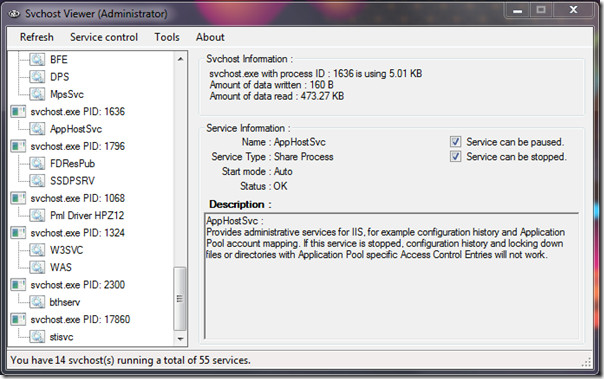
This tool is not new, but the developer has recently released the latest version who’s backend has been completely rewritten and is not much faster.
It is a portable tool and fully supports Windows 7. You can also try Process Hacker to find what services each svchost.exe process is running and how much memory and CPU usage they are taking. Enjoy!

Great, now I can get even more fustrated looking at all the scvhost programms running.
I have the last weeks also the problem with my processor, I even installed ubuntu because I hate 100% cpu. This is the first time I discovered scvhost. I will look this up when it happens again.
Is this also the reason of al those fucking updates?
I just had one of the svchosts processes, out of nowhere, start to cripple my Win7 32bit PC for the last 2 days, with the (Dual Core) CPU stuck on 100%. This particular svchost process was responsible for over a dozen net services process threads, all of which appeared to be standard necessary network services.
Using a combination of new admin alerts in the EventVwr, Sys Internals Process Explorer and svchost analyser, I narrowed it down to the main culprit being:
Windows Live Mesh Remote Desktop service.
Disabling this in services got me back about 60% of my CPU, and this particular svchost service then dropped off in task manager.
It was then replaced by another, utilising some 35 – 45%. By right clicking in Task Manager and going to the service, the only service attributed was Windows Defender…. (and we’ve all heard of that one before).
As many don’t realise it’s installed with Windows 7 by default (you can’t see it in your programs list), this link show a nice tuorial on how to disable it.
http://www.simplehelp.net/2009/03/11/how-to-disable-windows-defender-in-windows-7/
There are usually ten svchost.exe running . . . to stop one of them DISABLE windows defender . . . Window Defender Usually takes up around 2000K of memory when idle and around 15000K when scanning . . . I’ll check up other svchost.exe if i can stop them. . . thanks!
What am I going to do with this? look?comment by: The Rookie Blogger